
How to Fix “Error Receiving Broadcast Intent” on Android (Step-by-Step)

 6 min. read
 Updated on
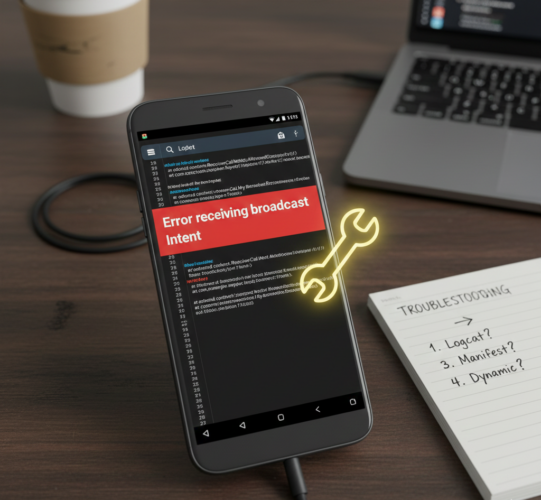
Seeing the “Error Receiving Broadcast Intent” message on your Android phone can be confusing—especially when it pops up randomly or causes an app to crash without warning.
This error usually means an app is failing to receive a system message (called a broadcast intent) that it relies on to function properly. The good news? In most cases, it’s fixable with a few practical troubleshooting steps.
This guide walks you through what the error means, why it happens, and how to fix it, whether you’re a regular Android user or a developer digging deeper into logs.
What Is the “Error Receiving Broadcast Intent” on Android?
In simple terms, broadcast intents are messages Android uses to notify apps about system events—things like:
- Network connectivity changes
- Battery level updates
- App installation or removal
- Device boot completion
When an app fails to receive one of these messages correctly, Android may throw the Error Receiving Broadcast Intent warning. This can lead to app crashes, frozen screens, or features not working as expected.
What You’ll Need Before You Start
Depending on how deep you want to troubleshoot, here’s what may help:
- An Android device showing the error
- Access to Settings and App permissions
- Basic familiarity with Android menus
- ADB (Android Debug Bridge) for advanced troubleshooting (optional, mostly for developers)
Pro Tip: If you’re not a developer, don’t worry—you can skip the ADB steps and still fix most cases.
Step 1: Check App Permissions (Start Here)
Missing or restricted permissions are one of the most common causes of broadcast intent errors.
- Open Settings
- Go to Apps or Applications
- Select the app showing the error
- Tap Permissions
- Make sure all relevant permissions are allowed (especially background, battery, or system-related permissions)
learn more on clearing app Cache here.
Tip: On newer Android versions, also check “Allow background activity” and battery optimization settings for the app.
Step 2: Clear App Cache and Data
Corrupted cache files can prevent an app from handling system broadcasts properly.
- Open Settings
- Go to Apps
- Select the affected app
- Tap Storage
- Tap Clear Cache
- If the issue persists, tap Clear Data
Note: Clearing data may log you out of the app or reset settings, so back up anything important first.
Step 3: Update the App and Android OS
Broadcast-related bugs are often fixed quietly through updates.
- Open the Google Play Store and update the affected app
- Go to Settings → System → Software update and check for Android updates
If the error appeared after a recent update, it may be a temporary compatibility issue that gets resolved in a patch.
Step 4: Use ADB to Identify the Root Cause (Advanced)
If you’re a developer—or the error keeps coming back—ADB logs can reveal exactly what’s failing.
Step 1. Install ADB on your computer
Step 2. Connect your phone via USB
Step 3: Open Command Prompt in the ADB Folder
To use ADB, you must open Command Prompt in the folder where ADB is installed.
- Press Windows + R, type cmd, and hit Enter to open Command Prompt.
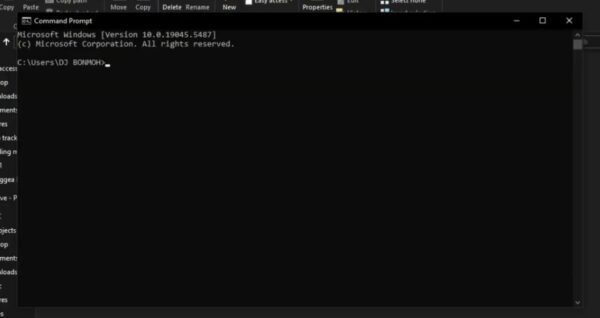
2. Navigate to the ADB folder by typing the following command and pressing Enter:
cd C:\adb
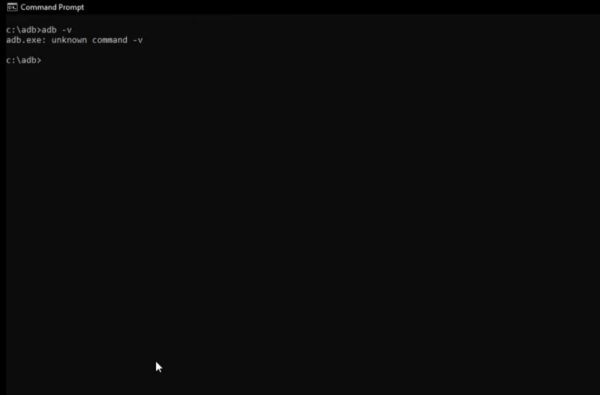
Note: Make sure this path matches the location where you extracted the ADB files.
Step 4: Verify ADB Installation
To confirm that ADB is installed correctly:
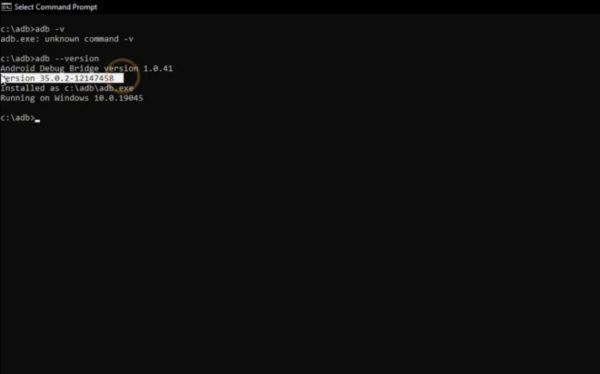
In the Command Prompt,
- type: adb version
- Press Enter.
If ADB is installed properly, you’ll see a message displaying the installed ADB version.
Step 5: Authorize ADB Connection on Your PC
To allow your PC to communicate with your Android device:
In Command Prompt,
- type: adb devices
- Press Enter.
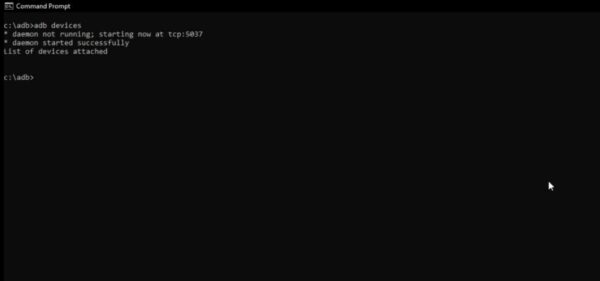
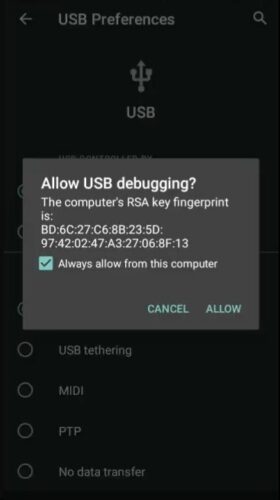
You’ll see a permission prompt on your Android device. Tap Allow to authorize the connection.
Once your device appears in the list, you’re all set to use ADB commands.
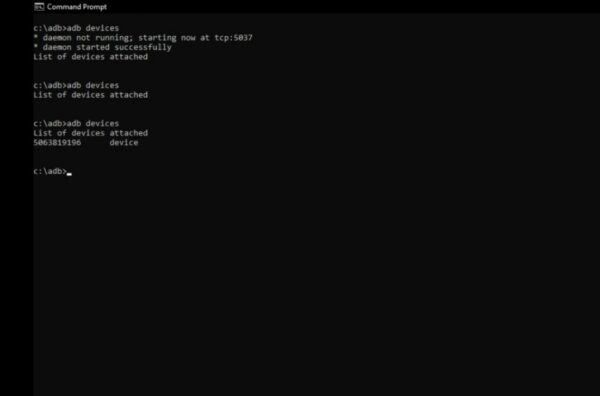
That’s it! You’ve successfully installed and set up ADB on Windows.
Step 6: Run adb logcat
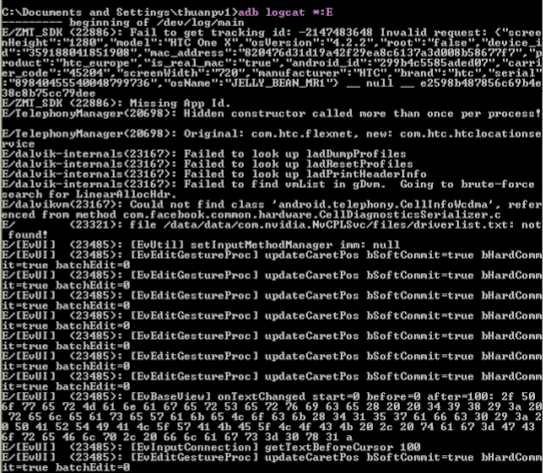
Now, run the command adb logcat. This will start a live stream of system logs from your device. The terminal window will fill with a scrolling list of events, as depicted in the following image.
Step 7: Look for errors
Finally, you need to examine the log output for any errors. Look out for issues related to BroadcastReceiver, SecurityException, or Permission Denial. The image below is a close-up of a log showing a “Permission Denial” error, which is highlighted in red for clarity.
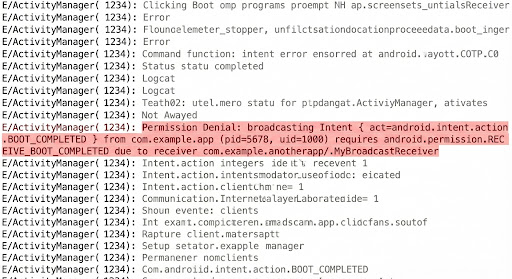
This is especially useful if the app crashes instantly when handling a broadcast.
Common Problems and How to Fix Them
App crashes immediately when receiving a broadcast
→ Update or reinstall the app to remove corrupted files.
Permissions look correct, but the error continues
→ Use ADB logs or report the issue to the app developer.
Error started after a system update
→ Check for patches or wait for app updates optimized for the new Android version.
Error happens randomly and is hard to reproduce
→ Enable logging so you can capture the issue when it occurs.
Device is rooted and behaving strangely
→ Root access can interfere with broadcasts—consider unrooting or flashing a clean ROM.
Tips to Prevent Broadcast Intent Errors in the Future
- Keep Android and apps up to date
- Avoid aggressive battery optimization for critical apps
- Don’t revoke system permissions unless necessary
- Back up app data regularly
- Use official troubleshooting resources and developer documentation
Final Thoughts
The “Error Receiving Broadcast Intent” issue looks intimidating, but it’s often caused by something simple—like a blocked permission or corrupted cache.
By working through the steps above, most users can resolve the issue without resetting their device or reinstalling Android. If the problem persists, collecting logs and contacting the app developer is your best next move.
FAQs
Usually permission issues, app bugs, corrupted data, or OS compatibility problems.
Check Settings → Apps → [App Name] → Permissions.
Yes. ADB is an official Android tool and safe when used correctly.
Yes, but it may reset app settings or remove saved data.
Absolutely—especially if you can provide log details.


Improve this guide




User forum
0 messages