
Android Error 21 with Android Auto: How to Easily Fix

 5 min. read
 Updated on
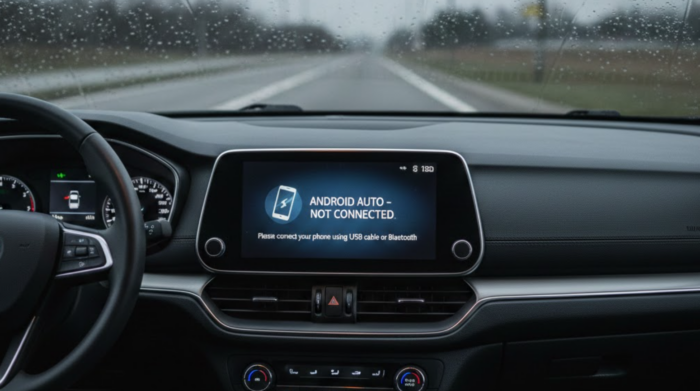
If you see Android Error 21 when trying to connect Android Auto in your car, the issue is almost certainly related to your VPN connection. This error appears when Android Auto detects VPN software running on your device and blocks the connection. Whether you are using a Samsung Galaxy, Google Pixel, or any other Android phone, this guide provides the steps to fix the problem.
How can you resolve Android Error 21?
To successfully resolve Android Error 21, you need to address the VPN interference blocking Android Auto from establishing a direct connection to your car. The error message typically reads: “Android Auto encountered an error. Communication error 21.” Being connected to a VPN may prevent Android Auto from starting. If you’re using a VPN, turn it off and try reconnecting to Android Auto.”
Below are the most effective solutions for fixing this error.
Use a Wired USB Connection
The simplest and most reliable solution is connecting your phone to your car with a USB cable. With a wired connection, Android Auto bypasses the VPN routing issue entirely.
- Use a quality USB cable (USB 2.0 or higher recommended) that came with your phone or is certified for data transfer.
- Plug the cable into your car’s data USB port (look for ports marked with a smartphone symbol).
- Ensure your car’s ignition and infotainment display are switched on.
- Follow any on-screen prompts to complete the connection.
A wired connection provides the most stable experience and charges your phone simultaneously, making it ideal for longer trips.
Enable Split Tunneling in Your VPN
If you need to keep your VPN active while using Android Auto wirelessly, split tunneling allows you to exclude Android Auto from the VPN tunnel.
- Open your VPN app and navigate to Settings.

2. Look for Split Tunneling (this feature may be under Advanced Settings or Connection Settings, depending on your VPN provider).
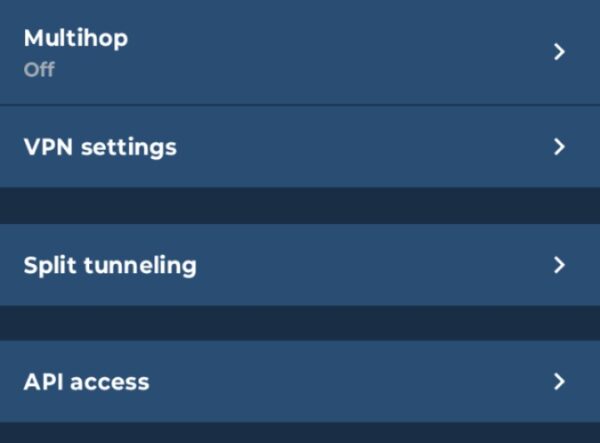
3. Toggle on Use Split Tunneling or Enable Split Tunneling.

4. Add Android Auto to the exclusion list so it connects directly to the internet.
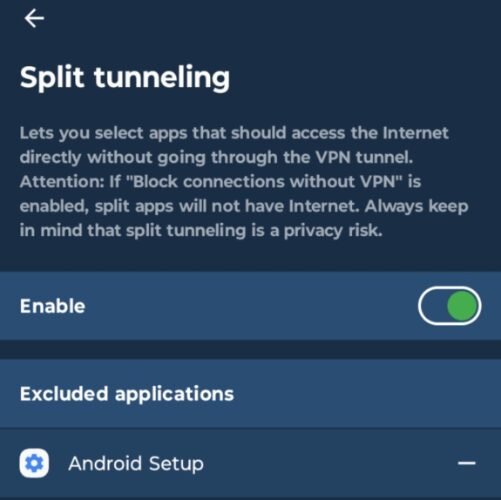
Some VPNs may list this under System Apps or require you to search for the Android Auto app. Not all VPN providers offer split tunneling, so check your VPN’s documentation or support pages if you cannot locate this feature.
Turn Off Your VPN Temporarily
If split tunneling is not available or you prefer not to configure it, disconnect your VPN before starting Android Auto.
- Open your VPN app.
- Tap Disconnect or turn off the VPN toggle.
- Launch Android Auto in your car.
- You can reconnect your VPN after Android Auto is running if needed.

Disable Always On VPN Settings
Some Android devices have system-level VPN settings that can interfere with Android Auto even when your VPN app is off.
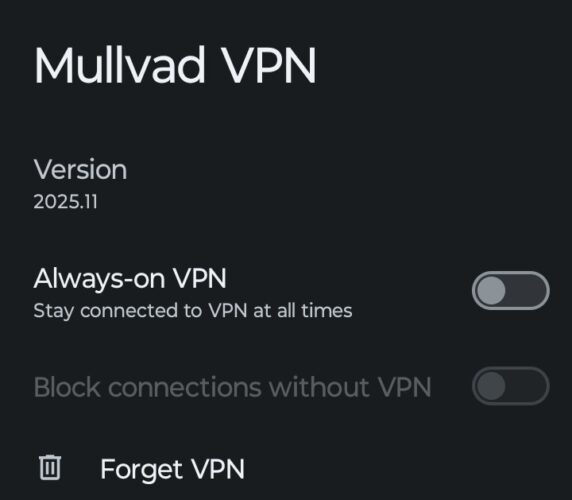
- Go to Settings and select Network and Internet or Connections.
- Tap VPN and select your VPN connection.
- Look for Always On VPN and disable it if enabled.
- If there is a Block Connections Without VPN toggle, ensure it is turned off.
Why Does Error 21 Happen?
Android Auto acts as an extension of your phone rather than a standalone system. When you connect to your car, Android Auto routes data through predefined system functions that require direct network access. Because VPNs reroute your phone’s internet traffic through encrypted tunnels, they interfere with the direct connection Android Auto needs to communicate with your car’s infotainment system. The system detects this interference and blocks the connection to prevent potential issues, triggering Error 21.
Pro Tips
- Use a certified USB cable. For wired connections, a USB 2.0 or higher cable ensures reliable data transfer. The cable that came with your phone typically works well.
- Check for wireless compatibility. If your car supports wireless Android Auto, you must still perform the initial setup with a USB cable before switching to wireless mode.
- Keep your software updated. Ensure both your phone’s Android operating system and your car’s infotainment software are current for the best compatibility.
The Bottom Line
Communication Error 21 is specifically a VPN related issue with Android Auto. The fastest solution is using a wired USB connection, which bypasses the problem entirely. If you prefer wireless Android Auto and need to keep your VPN running, configure split tunneling to exclude Android Auto from the VPN tunnel. Following these targeted solutions will clear Error 21 and restore your Android Auto connection.
What does Communication Error 21 mean on Android Auto?
Communication Error 21 means your VPN is blocking Android Auto’s connection to your car. Android Auto needs direct network access, but VPN software reroutes traffic and interferes with the connection. Fix it by disconnecting your VPN, using a USB cable, or enabling split tunneling.
Can I use Android Auto with a VPN active?
Yes. Connect with a USB cable to bypass VPN interference, or enable split tunneling in your VPN app to exclude Android Auto from the encrypted tunnel. If your VPN does not support split tunneling, disconnect it temporarily before connecting.
Why does Android Auto work with a cable but not wirelessly?
USB cables create a direct physical connection that bypasses VPN interference. Wireless Android Auto uses WiFi Direct or Bluetooth, which gets disrupted when a VPN reroutes your traffic. This is why Error 21 typically only affects wireless connections.
Does turning off VPN fix Android Auto Error 21 permanently?
No. The error returns each time you reconnect your VPN. For a permanent fix, always use a USB cable or configure split tunneling to exclude Android Auto from your VPN tunnel.


Improve this guide


User forum
0 messages