
Android Error 405 Method Not Allowed: Causes and Fixes

 6 min. read
 Updated on
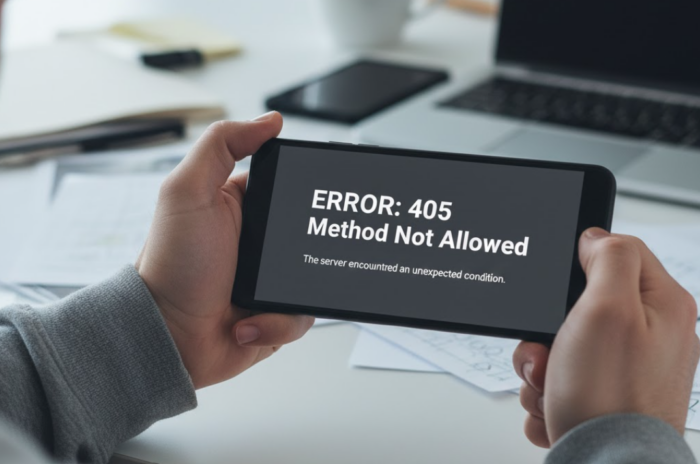
Android error code 405 usually appears when an app or browser request gets rejected by the server with an “HTTP 405 Method Not Allowed” response. This means the server knows the request method, but the target resource does not support this method. The error can show up while loading a webpage, signing into an app, trying to sync data, or installing apps from the Google Play Store.
How do you fix Android error code 405?
Fixing Android error code 405 usually comes down to addressing how your phone communicates with servers. In many cases, the problem is not the app itself but a temporary connection issue, cached data, or a configuration that is sending requests the server will not accept. Working through the steps in our guide can often clear the error without needing advanced troubleshooting.
Check Network Connection
Make sure your connection is stable. Network interference from VPNs, proxies, or restrictive firewalls can cause servers to reject your requests with error 405.
- Turn off any active VPN or proxy service temporarily and try the action again.
- If you are on Wi Fi, switch to mobile data to test the connection.
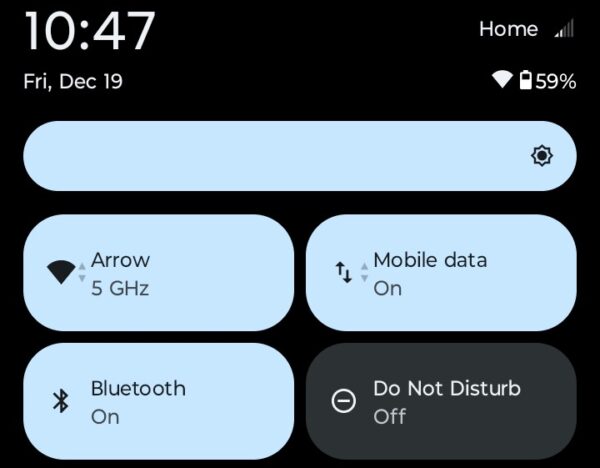
- If you are already on mobile data, connect to a different Wi Fi network.
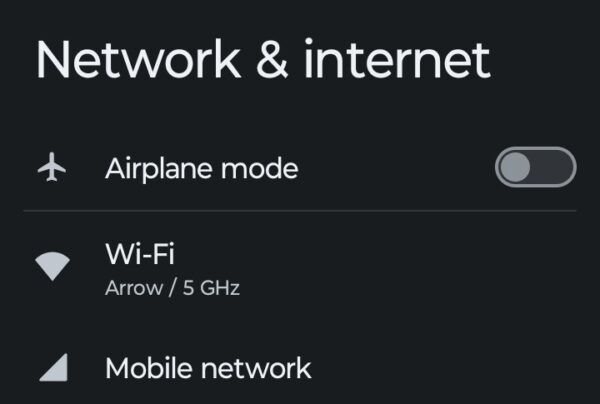
- Toggle Airplane Mode on for 10 seconds, then turn it off to refresh the connection.
- Restart your router if the issue happens on multiple devices in the same location.
If the error disappears after switching networks or disabling your VPN, the original connection was likely blocking the request type your app or browser needed to use.
Clear App Cache and Data
For Google Play Store errors, go to Settings, Application Manager, All, find Google Play Store and select it, then clear cache. If that does’t work, clear the data. Corrupted cache files can interfere with how apps send requests to servers.
- Open Settings on your Android device.
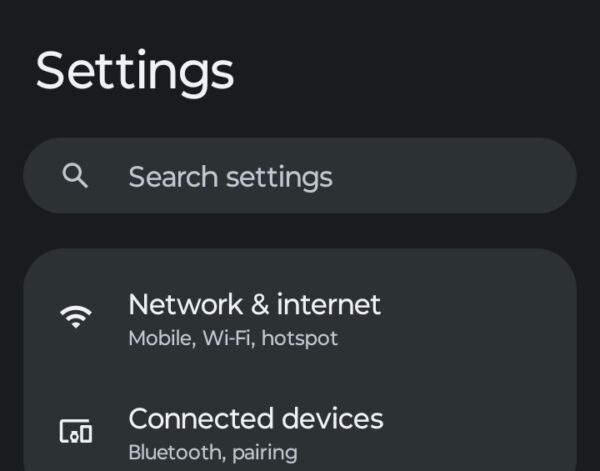
- Scroll down and tap on Apps or Applications.
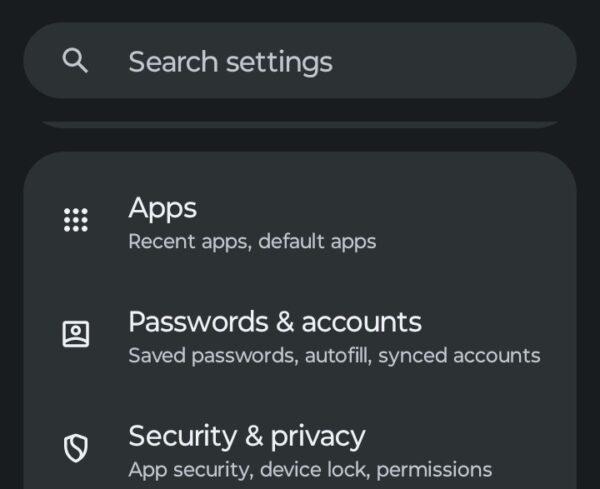
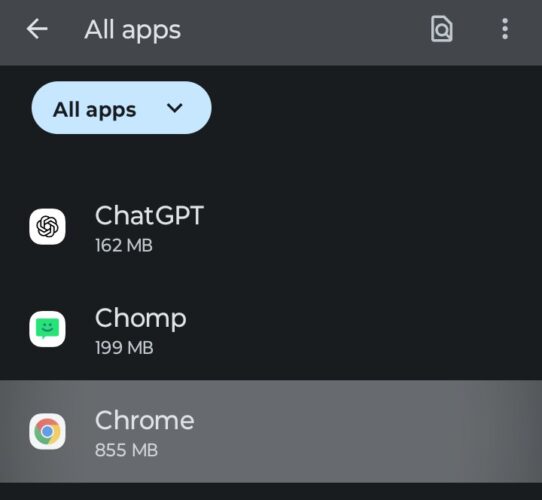
- Locate and select the app showing the error (such as Google Play Store, Chrome or the specific app).
- Tap on Storage, then choose Clear Cache.
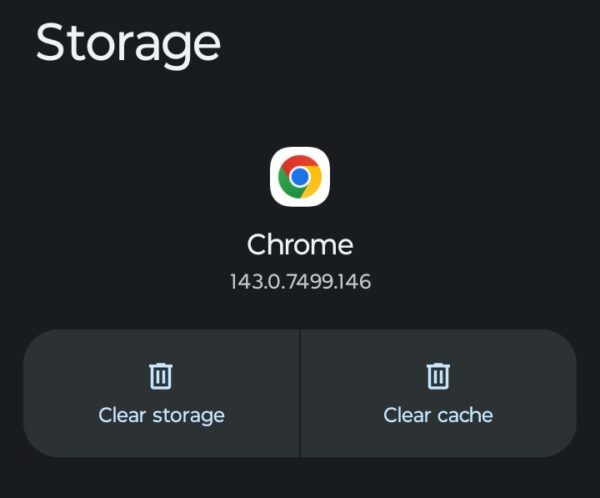
If the error persists, tap on Clear Data and confirm. Just remember, clearing data will reset the app to its default state and may require you to sign in again.
Clear Browser Cache and Data
If you encounter error 405 in Chrome, Firefox, or Samsung Internet while browsing websites, clearing the browser cache can resolve the issue. This process can vary by browser, but always follows the same simple steps.
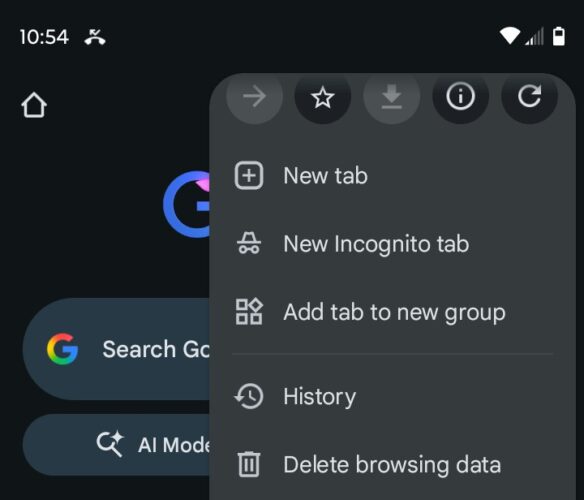
- Open your browser app and tap on the menu icon (three dots) in the top right corner.
- Select Settings from the dropdown menu and navigate to Privacy, or select Delete browsing data if the option is available.
- Tap on Clear browsing data and choose a time range.
- Select Cookies and site data and Cached images and files, then tap Clear data to confirm.
Update or Reinstall the App
Outdated apps can send requests in formats that servers no longer support, triggering error 405. Updating applies bug fixes, while reinstalling replaces corrupted files.
- Open the Google Play Store on your device.
- Select your Profile Icon, and choose Manage Apps.
- Find the app causing the error and tap Update if available.

If updating does not resolve the issue, uninstall the app by going to Settings, Apps, select the app name, and tap Uninstall. You can also long-press an app icon and select App info to remove most Android apps. Reinstall the app by returning to the Google Play Store and searching for it.
For Samsung Software Update Error 405
Samsung users on Verizon have reported error codes 405, 407, and 412 during January 2025 software updates. If you encounter error 405 while updating your Samsung device, try these specific solutions.
Use Samsung Smart Switch on a computer to bypass OTA update issues. Download Smart Switch from Samsung’s official website, connect your phone via USB cable, and follow the prompts to install the update through the computer.
Samsung tech support recommends shutting the phone off, putting it in airplane mode, and restarting the update. This method stabilizes the connection during download.
Reset Network Settings
If the error keeps appearing across multiple apps or networks, saved connection settings may be interfering with how your device communicates with servers. Resetting network settings clears Wi Fi, mobile, and Bluetooth configurations and restores default connection behavior without affecting personal data.
- Go to Settings on your Android device, select System, and tap on Reset options.
- Choose Reset Wi Fi, mobile, and Bluetooth.
- Confirm by tapping Reset settings.
Reconnect to your Wi Fi network and check if the Android error code 405 persists.
The Bottom Line
Android error code 405 signals that your device is using an HTTP request method that the server does not accept for that specific resource. The error can appear in browsers, the Google Play Store, apps, or during Samsung system updates. Checking your network connection, clearing cached data, and updating apps resolves the problem in most cases.
Error 405 means the server knows the request method, but the target resource does not support this method. Your Android device is trying to communicate with a server using an HTTP method like GET or POST, but the server rejects that specific method for the resource you are accessing.
Error 405 in Google Play Store typically indicates the application could not be installed. This usually happens when cached data interferes with how the Play Store sends requests to Google’s servers. Clearing the Play Store cache and data usually resolves the issue.
Yes, VPNs and proxy servers can cause error 405 by changing how your network requests are formatted or by blocking certain HTTP methods that servers require. If you encounter error 405, try temporarily disabling your VPN or proxy to see if the error clears.
No, error 405 can appear on any Android device in browsers and apps. However, Samsung devices have experienced error 405 specifically during software updates, particularly on Verizon. This is a separate issue from general HTTP 405 errors that can occur on any Android phone.


Improve this guide




User forum
0 messages