
Android Error Messages Explained: How to Diagnose and Repair Your Device

 5 min. read
 Updated on

Android error messages often appear at the worst possible moments by signaling anything from a minor cache glitch to a critical system failure. When your device halts productivity with a cryptic code, you need a fast and reliable path back to functionality. This guide breaks down the most frequent Android errors while offering verified solutions to get your phone running smoothly again.
To resolve these issues, ensure you have your device ready, access to your Settings menu, and a stable internet connection for downloading necessary system patches or recovery tools.
What do Android Error Messages Mean?
Android error messages are essentially your operating system’s way of communicating a breakdown in communication between software and hardware. When an app cannot access a required file or the system fails to connect to a remote server, a “toast” notification or a pop-up dialog appears to prevent the entire device from crashing.
Understanding Common Android Error Messages
Understanding these annoying messages is the first step in moving from frustration to a working phone. While the message can vary by device and your OS, here are some of the most common Android error messages.
- Unfortunately, [App Name] Has Stopped: This message indicates a sudden software crash. It usually happens when an app encounters a bug or tries to access a memory sector that is currently unavailable.
- Google Play Store Error Codes 492: These numeric codes are specific to download and update failures. Error 492 often points to a system cache issue, while 495 and 498 typically relate to data mismatches during the download process from Google servers.
- Insufficient Storage Available: This alert triggers when your internal memory falls below the threshold required to unpack and install new data. Even if a file is small, Android requires extra “swing space” to perform the installation.
- No SIM Card Detected: When your device fails to recognize your SIM, it loses cellular connectivity. This is frequently a physical alignment issue or a minor software glitch.
Fixing Android Error Messages
Once you identify the specific notification on your screen, you can apply targeted solutions to restore your device. Most Android error messages are fixable without a factory reset through smart troubleshooting.
Android App Crash Errors
If you have an app that’s crashing, these steps will take care of the problem in a matter of seconds.
- Navigate to Settings > Apps > [App Name]
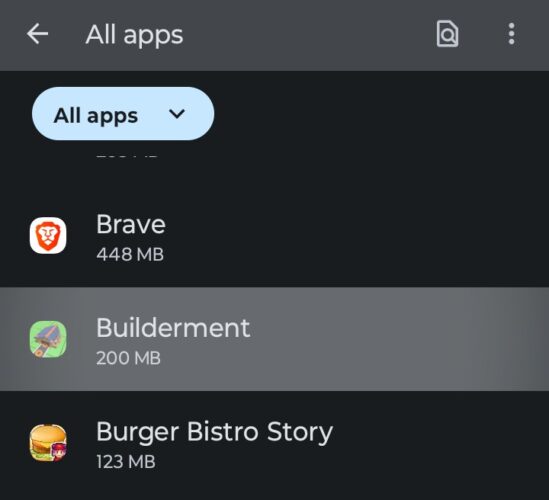
- Tap Force Stop to terminate the app
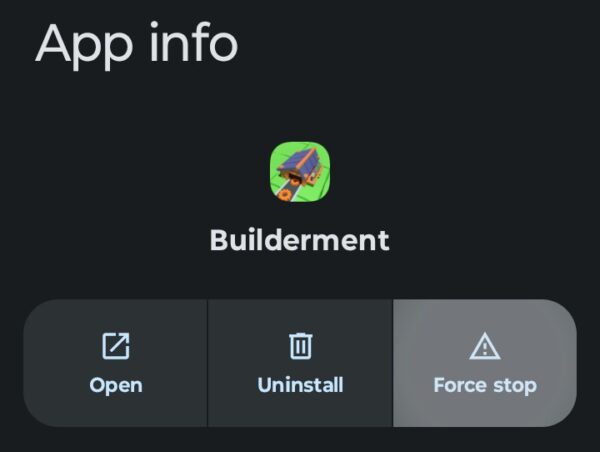
- Select Storage > Clear Cache

If the issue persists, tap Clear Data and restart your device. Update or reinstall the app from the Google Play Store if necessary.
Google Play Store Error Codes
Numeric codes like 492 or 495 require a refresh of your Google synchronization. To resolve these, go to Settings > Apps > Google Play Store > Storage & Cache. Clear the Storage and the Cache for the Google Play Store.
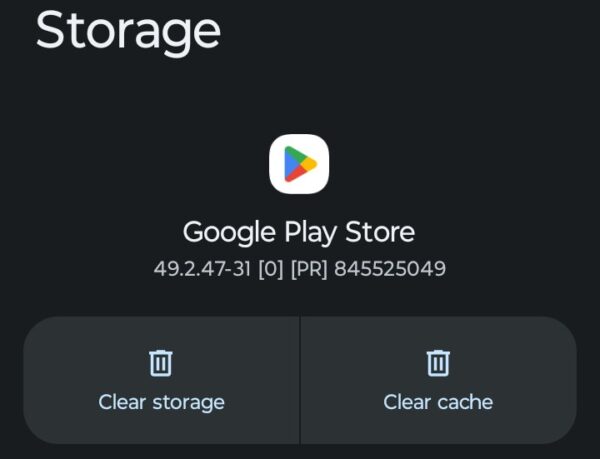
Navigate back to the app list, choose Google Play Services, and repeat the steps. If the download still fails, try removing your Google account from the device and then adding it back again. This forces the server to create a fresh handshake with your hardware by resetting your Google Services Framework ID, which typically clears any pending update blocks.
Resolving Storage Issues
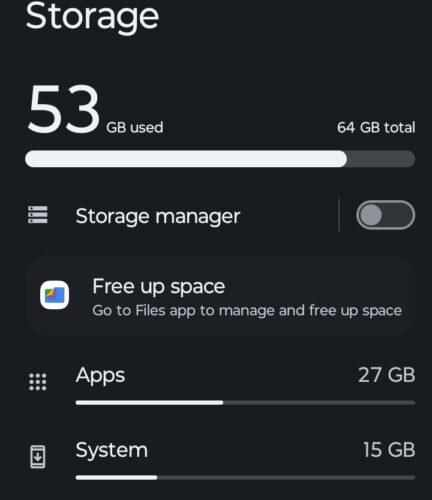
An insufficient storage alert means your phone cannot unpack the data required for a new task. The best way to fix this is to free up space on your smartphone. You can manually delete photos and files using the appropriate apps on your phone, but the Storage feature allows you to quickly clean things up.
On your smartphone, open Settings > Storage and review the available space. You can clear the Trash and directly deal with other areas from here or access the Files app. If space is still tight, you may want to consider using cloud-based services like Dropbox and Drive.
SIM Card
If your phone claims no SIM card is detected, the problem is often physical or related to the network antenna. Toggle your Airplane Mode on for ten seconds and then turn it off to force a fresh search for cellular signals. If that doesn’t work, use a SIM tool to eject the tray and ensure the card is seated perfectly flat. Once complete, navigate to Settings > About Phone and click on SIM status, and see if it shows up.

The Bottom Line
Taking control of Android error messages transforms a technical failure into a manageable task. While many software glitches can be fixed by clearing cache or adjusting settings, remember that some issues are device-specific, such as Recovery is not Seandroid Enforcing errors on Samsung hardware. By identifying the root cause and applying the correct fix, you can keep your device running at peak performance and avoid unnecessary trips to a repair shop.
Why does my phone keep showing Android error messages?
Most Android error messages result from software conflicts or outdated cache files after a system update. These alerts occur when the operating system cannot access a required file or when background processes run out of available memory.
How do I fix an app that keeps stopping on Android?
To fix a crashing app, navigate to your Settings and select the specific application to clear its cache. If the problem persists, choosing the Clear Data option or reinstalling the app usually resolves the underlying software bug.
What should I do if my Android phone says insufficient storage?
You can resolve storage alerts by deleting large videos or moving your media to a cloud service. Clearing the “Miscellaneous” files in your storage settings also reclaims the space needed for the system to unpack and install new updates.
Is it safe to ignore Android system error messages?
Ignoring recurring errors can lead to performance issues like battery drain or unexpected reboots. Addressing these alerts promptly ensures your device remains stable and prevents potential data loss caused by a sudden system crash.


Improve this guide




User forum
0 messages