
How to Fix Android Error Codes 495, 403, and 491

 7 min. read
 Updated on
Running into error codes while downloading apps can stop you cold. Your phone sits there, showing cryptic numbers instead of installing the game or app you want. These three errors, 495, 403, and 491, rank among the most common Google Play Store problems users run into on Android devices.
Each error stems from different causes, and this guide walks through proven fixes for each error. Our solutions work across Samsung, Google Pixel, OnePlus, Xiaomi, and other Android devices.
Android Error Code 495
Error 495 shows up when you try downloading or updating apps over Wi-Fi. The message reads “App could not be downloaded due to an error (495).” Switch to mobile data, and the same app downloads without issues.
The error points to connection problems between your device and Google’s servers. Corrupt cache files in Google Play Store or Google Play Services trigger this error most often. Sometimes outdated system files or poor Wi-Fi strength causes the issue.
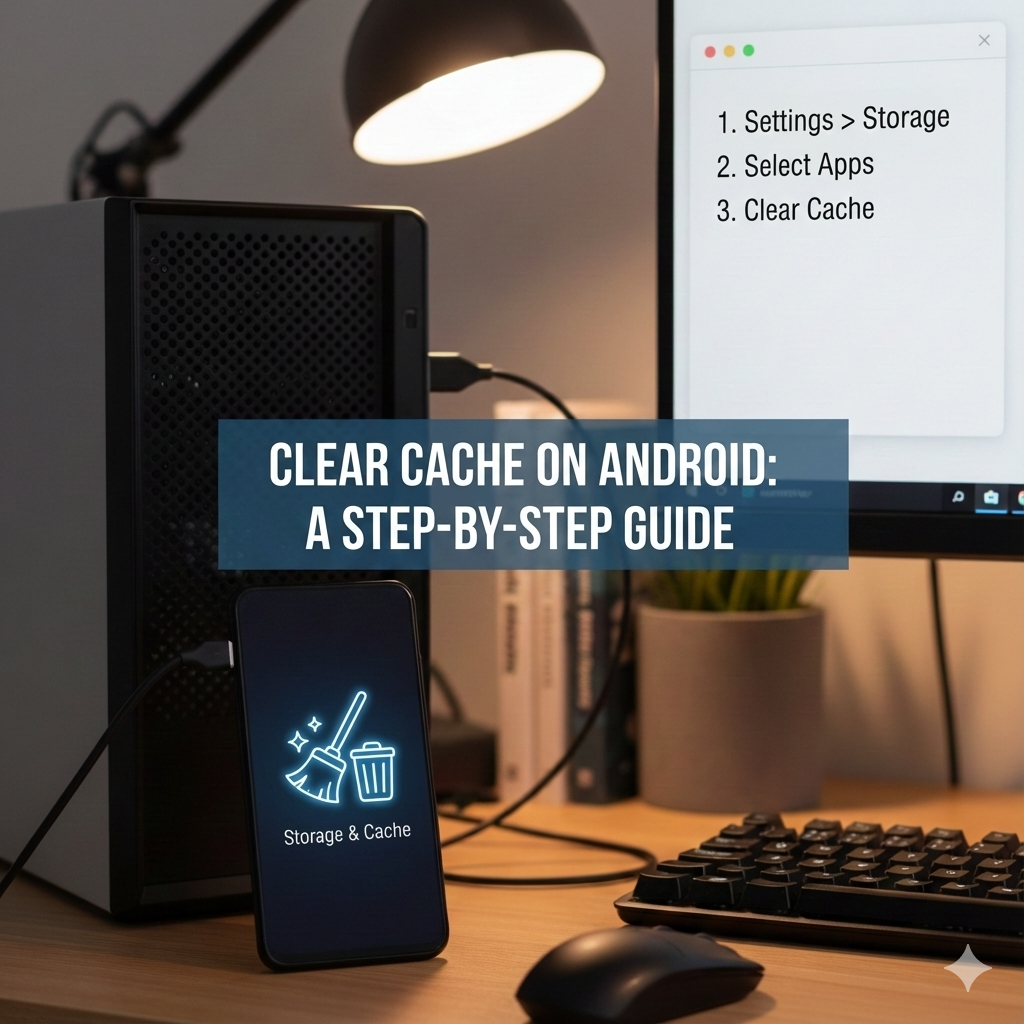
Clear Google Play Store Cache
Clearing the cache on your smartphone removes temporary files that may have become corrupted.
- Open Settings and tap Apps
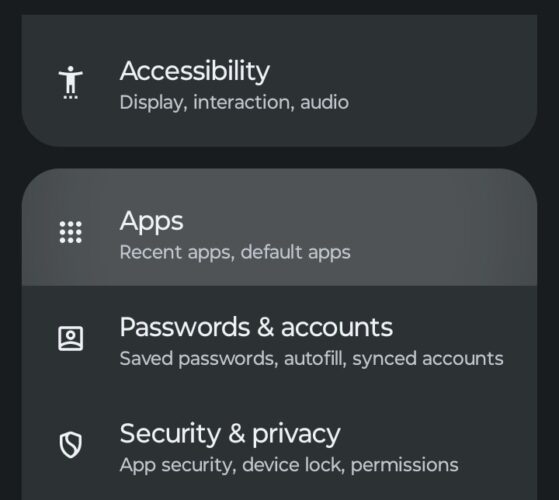
- Search for the Google Play Store
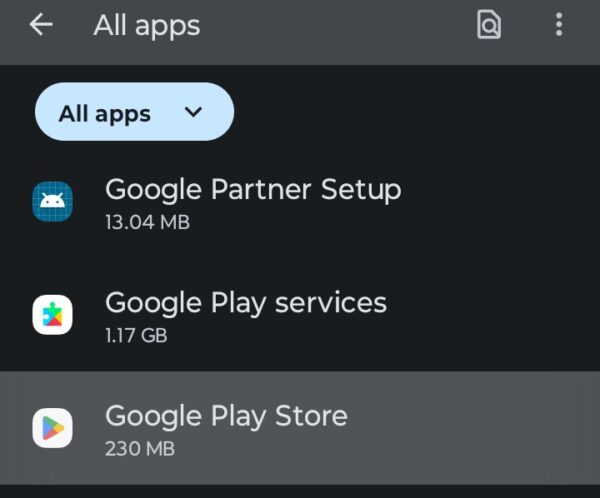
- Tap Storage & Cache and select Clear Cache
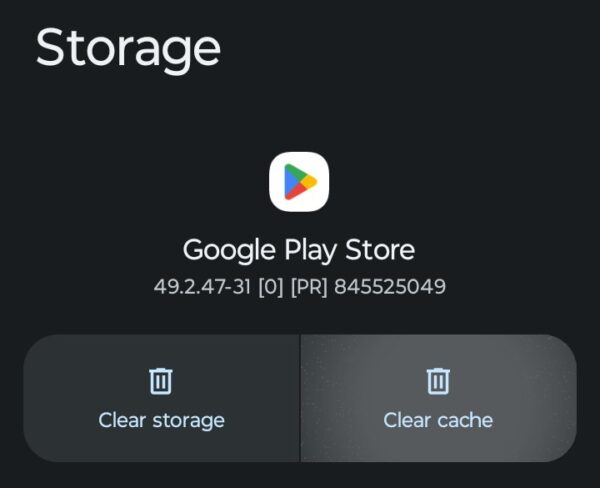
Repeat these exact steps for Google Play Services and Download Manager. Your apps and photos stay safe as this process only removes temporary data from Google Play. Try downloading your app again after clearing the cache.
Remove and Re-add Google Account
Account sync issues cause error 495 in many cases. Removing your Google account and adding it back refreshes the connection.
- Go to Settings and Passwords & Accounts
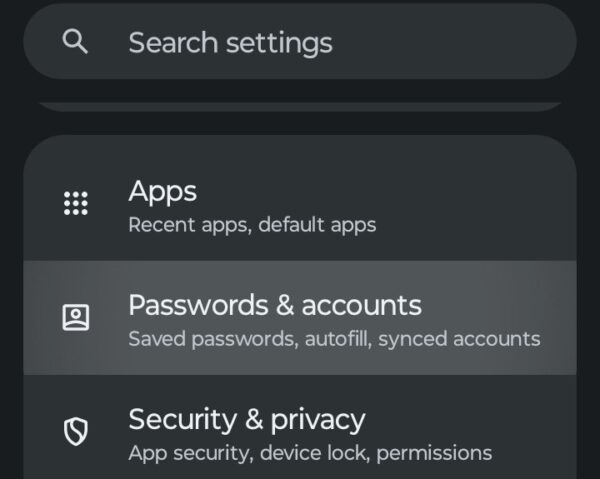
- Select your Google account and tap Remove Account.
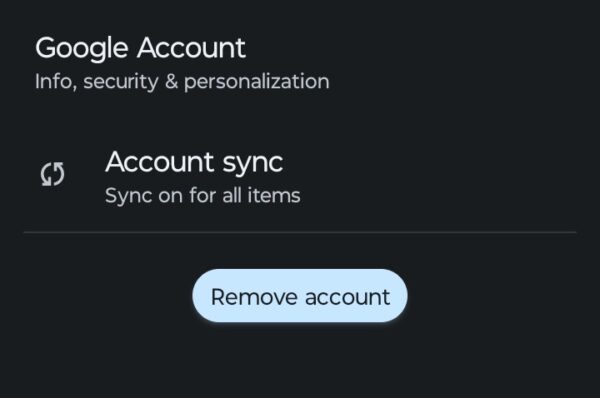
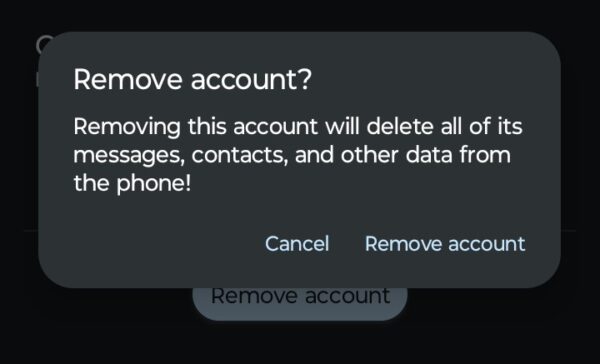
- Confirm the selection and follow the steps to remove your Google Account.
- Restart your device and return to Settings > Passwords & Accounts.
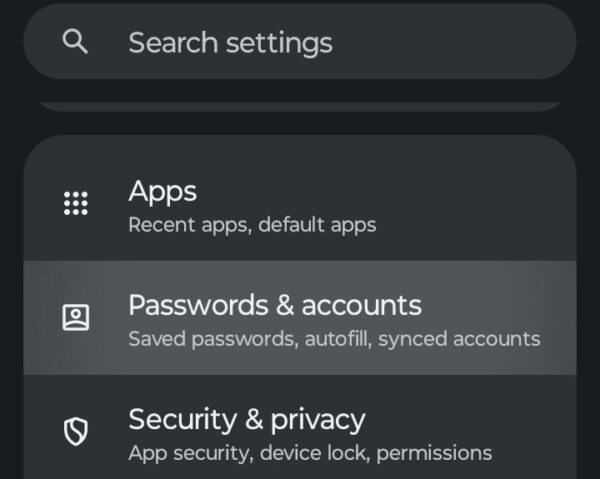
- Tap Add Account and select Google
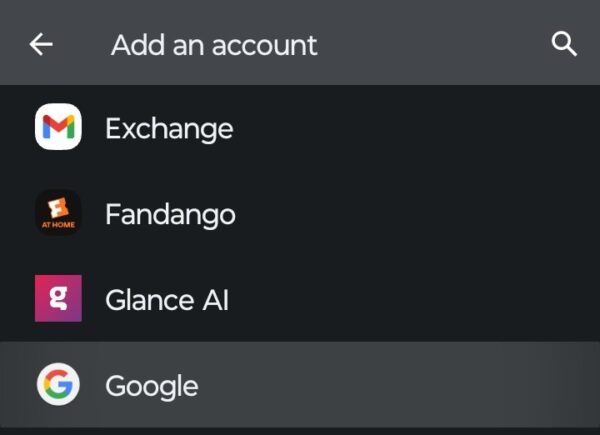
- Enter your credentials and sign in
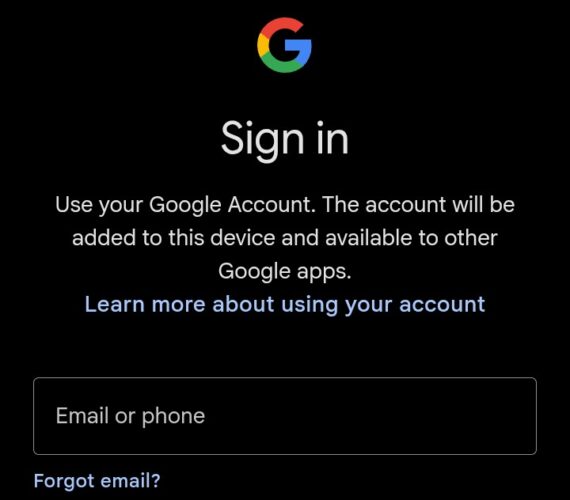
Accept all Google terms after adding your account back. Open the Google Play Store and try your download again.
Reset App Preferences
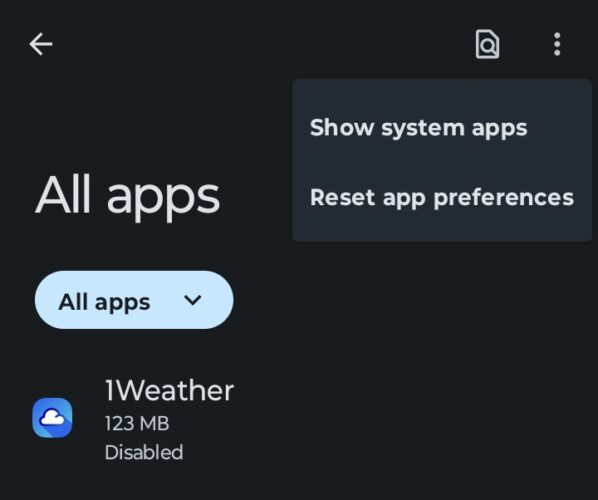
Resetting app preferences won’t delete any apps or data. It simply restores default settings that may have been changed. Open Settings and go to Apps. Tap the three dots icon in the top right, then select Reset App Preferences. Confirm by tapping Reset Apps.
Check Date and Time Settings
Incorrect date and time settings can interfere with Google Play’s server connections.
- Open Settings and go to System
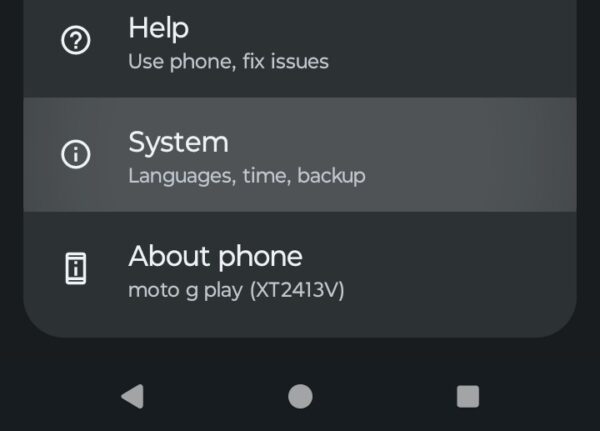
- Select Date & time
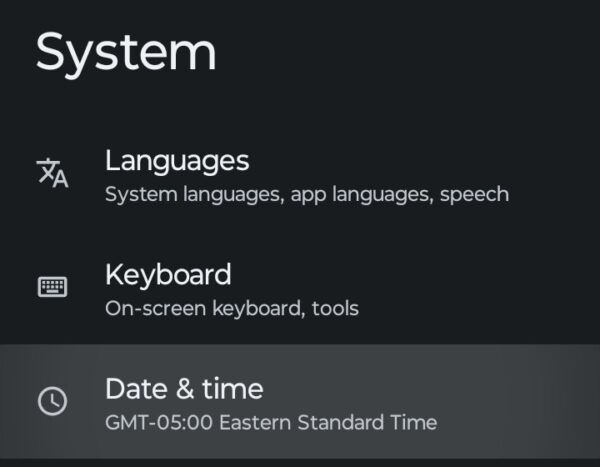
- Enable Set automatically and restart your smartphone
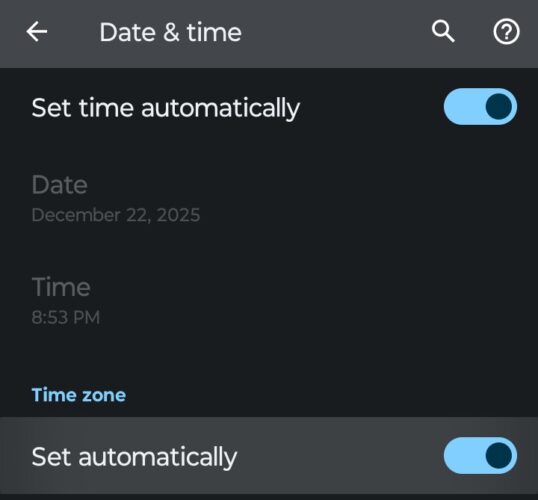
Use a VPN Connection
Network restrictions sometimes block Google Play downloads. A VPN can bypass these blocks by routing your connection through different servers. Download a free VPN app from the Google Play Store, like TunnelBear or a similar service.
If Google Play won’t work at all, you can download the VPN APK from a trusted source instead. Open the VPN app and select your connection country, then tap Connect. Try downloading from the Google Play Store while the VPN is active. Turn off the VPN after your download completes if you don’t want to use it regularly.
Android Error Code 403
Error 403 appears with the message “Could not be downloaded due to an error (403).” This forbidden request error means Google Play servers rejected your download attempt. Multiple Google accounts on one device cause this error frequently. If you bought an app on one account but try installing it from another, error 403 blocks the download.
Switch Google Accounts
Account conflicts trigger error 403 when multiple Google accounts exist on your device.
- Open the Google Play Store and tap your profile icon in the top right
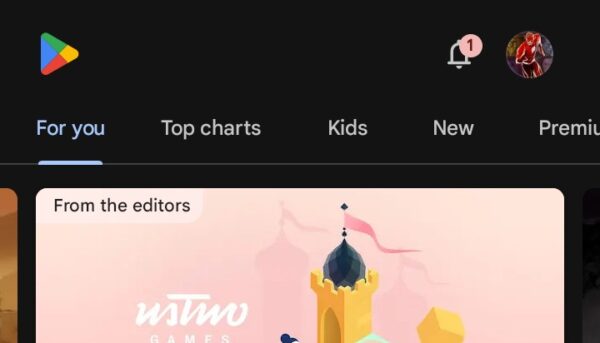
- Choose Switch account and select a new Google account
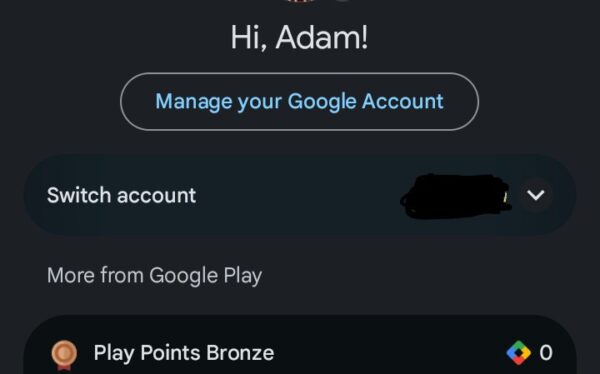
- Try downloading the app again
If the app was purchased on a specific account, you must use that account for the download.
Disable VPN or Proxy
VPNs and proxies can cause error 403 by routing your connection through restricted regions.
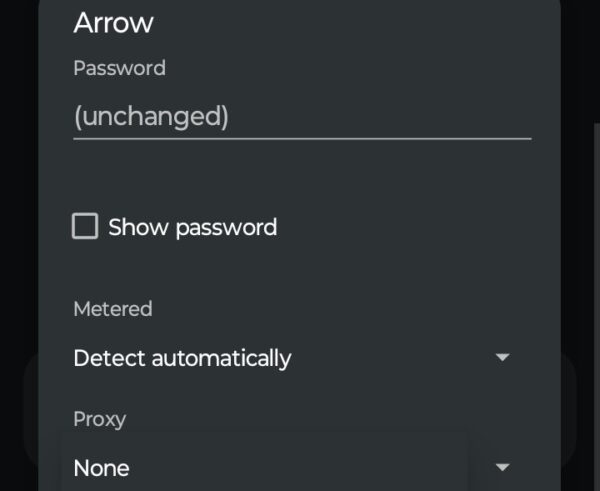
- Open Settings, tap Network & Internet, and choose your Wi-Fi network
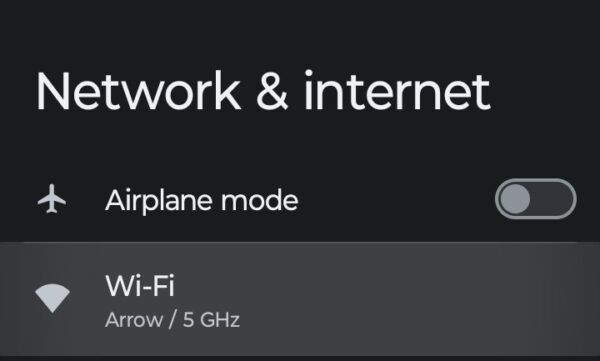
- Tap the gear icon next to your connected Wi-Fi network and then press the Pencil icon in the top right
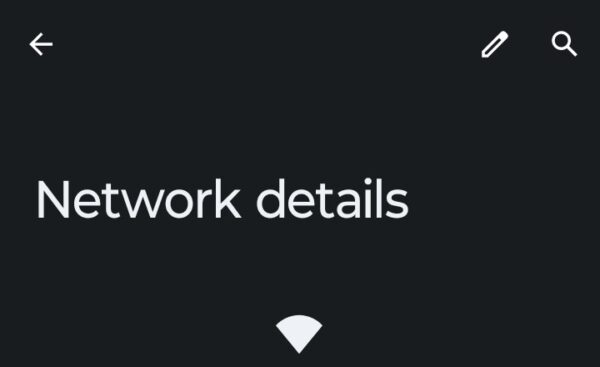
- Select Advanced Options and scroll down to Proxy
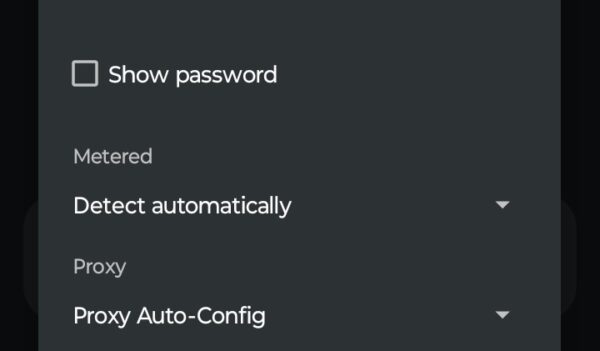
- Set Proxy to None
Check Storage Space
Full storage prevents app downloads and can display error 403. Open Settings and tap Storage. Check your available space at the top of the screen. If storage is low, tap Free up space or manually delete unnecessary files like old photos, videos, or unused apps.
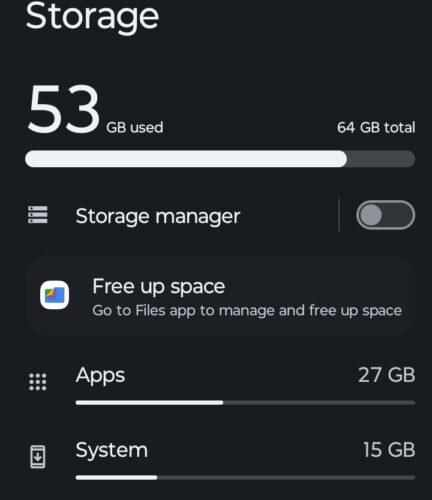
Once you’ve cleared enough space, try downloading your app again. Google Play needs adequate space for temporary files during downloads.
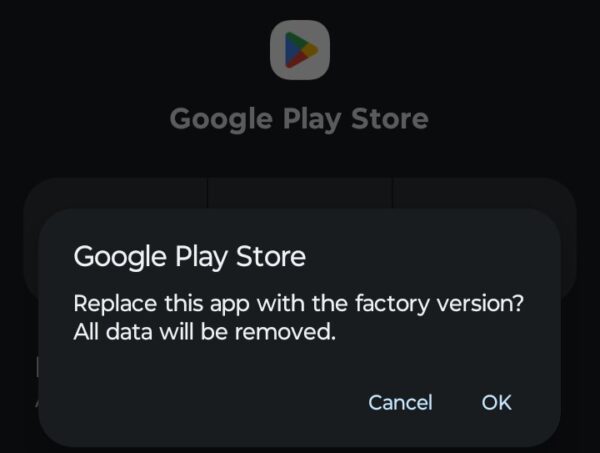
Uninstall Google Play Store Updates
Recent updates sometimes introduce bugs that cause error 403.
- Open Settings, go to Apps, and select the Google Play Store
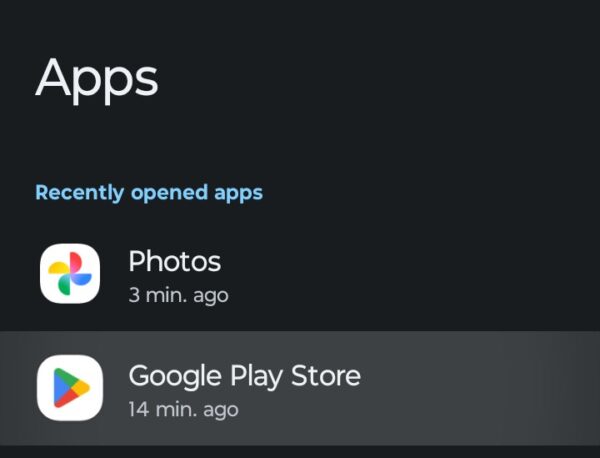
- Tap the three dots in the top right corner and select Uninstall Updates
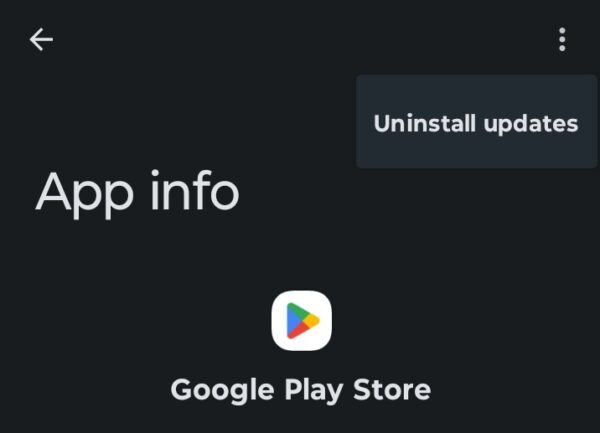
- Confirm the action and restart your device
Other Fixes for Error 403
The following fixes from Error 495 also work for Error 403: clearing Google Play Store cache and data, removing and re-adding your Google account, and resetting app preferences. Try these if the above solutions don’t resolve your issue.
Android Error Code 491
Error 491 displays as “Can’t download app” or “Can’t update app” followed by error code 491. The error signals that your device no longer recognizes your Google account properly.
Restart Your Device
Restarting clears temporary files and refreshes system processes. This simple fix resolves error 491 in many cases.
- Press and hold the Power button or locate the Power feature on your device.
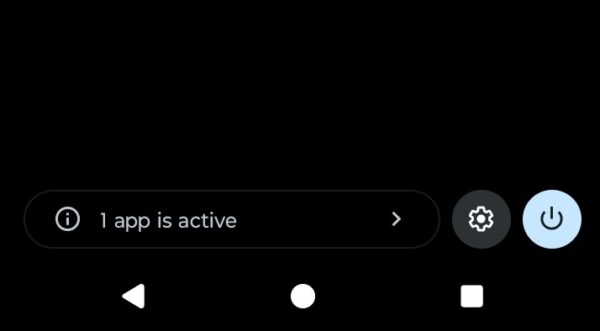
- Tap Restart or Reboot
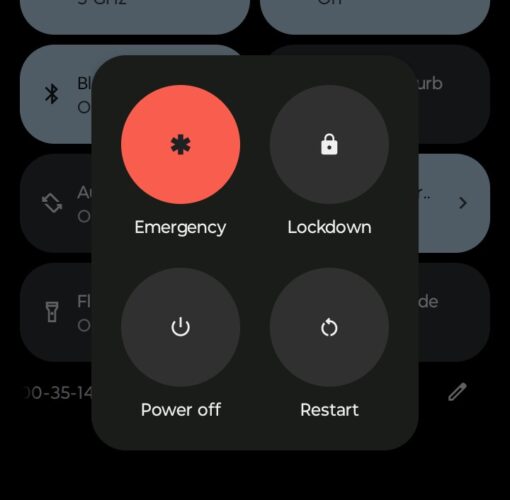
- Wait for your device to restart, open Google Play, and try your download
Check Internet Connection
Unstable connections interrupt downloads and trigger error 491. Turn off Wi-Fi by swiping down from the top of your screen and tapping the Wi-Fi icon, then enable mobile data. Try downloading the app using your cellular connection.
If mobile data works but Wi-Fi doesn’t, your router may have issues. Restart your router by unplugging it for 30 seconds, then plug it back in. Wait for the router to fully restart, then reconnect your phone to Wi-Fi and try downloading again. Some users report success by switching between network types.
Update Operating System
Outdated Android versions sometimes conflict with the Google Play Store.
- Open Settings and scroll to System updates
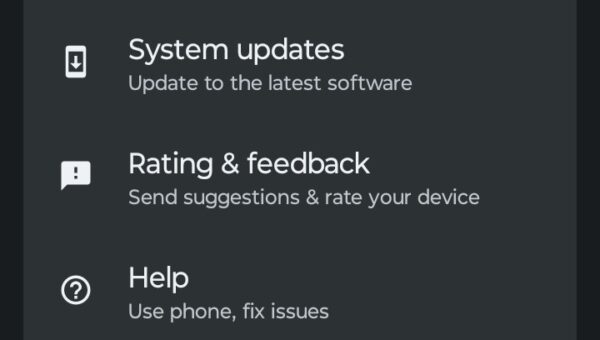
- Tap Check for updates
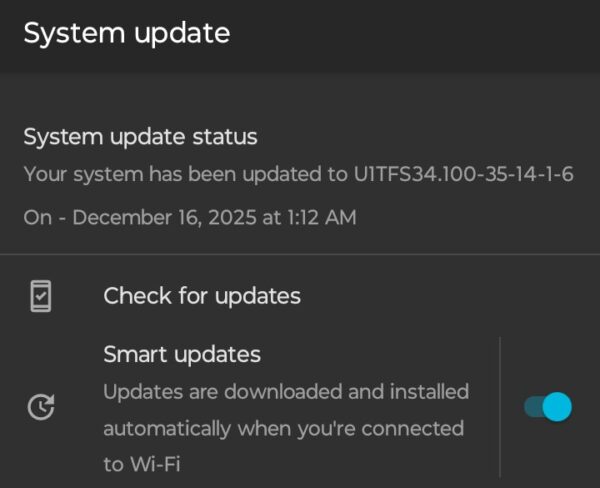
- Download and install any updates
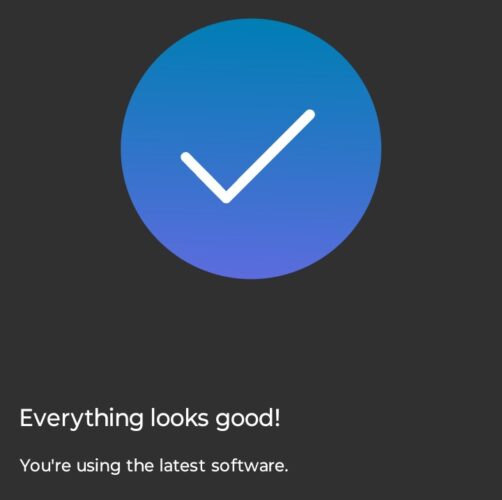
Always update while connected to Wi-Fi to avoid data charges.
Other Fixes for Error 491
The following fixes from earlier sections also work for Error 491: clearing Google Play Store cache and data, removing and re-adding your Google account, resetting app preferences, and uninstalling Google Play Store updates. These common solutions address the authentication and cache problems that cause error 491.
The Bottom Line
These three Google Play errors respond well to systematic troubleshooting. Start with the simplest fixes first, like restarting your device or clearing cache. Most users resolve these errors within minutes. Move to account removal only when basic fixes fail.
What is an Android error code?
Android error codes are numerical codes that appear when something goes wrong with app installations, updates, or system functions. They help identify the specific problem your device is experiencing.
How do I fix Google Play Store error codes?
Start by clearing cache and data from the Google Play Store and Google Play Services. Check your internet connection and make sure you have enough available storage on your device.
Why do I keep getting error 495 on my Android?
Error 495 typically stems from connectivity problems between your device and Google Play Store. Clearing cache and data usually fixes it, along with ensuring you have a stable internet connection.
Can I prevent Android error codes?
You can’t eliminate them completely, but keeping your software updated, clearing cache regularly, and maintaining adequate storage space helps reduce how often they occur.
Should I contact support for unresolved error codes?
If standard troubleshooting steps don’t work, contact Google Support or your device manufacturer for additional help.


Improve this guide

User forum
0 messages