
How to Fix Android Not Detected by PC

 6 min. read
 Updated on
Connecting your Android phone to a PC should be simple—but when your computer doesn’t detect your device, it can quickly become frustrating. Whether you’re trying to transfer files, back up data, flash firmware, or use ADB tools, a failed connection can completely block your workflow.
The good news? In most cases, this problem is caused by minor issues like incorrect USB settings, faulty cables, or missing drivers—and they’re easy to fix.
This step-by-step guide will show you exactly how to fix Android not detected by PC, especially on Windows computers. Follow each solution carefully until your device is successfully recognized.
Why Is My Android Not Being Detected by My PC?
Several factors can prevent your Android phone from appearing on your computer, including:
- Faulty or charge-only USB cables
- Incorrect USB connection mode (Charging only)
- USB debugging disabled
- Missing or corrupted USB drivers on Windows
- Outdated Android OS or Windows system
- Dirty or damaged USB ports
Let’s go through the solutions one by one.
What You’ll Need Before You Start
Make sure you have the following:
- A compatible USB data cable (preferably original)
- Your Android smartphone
- A Windows PC or laptop
- Basic access to Android and Windows system settings
- Active USB port on your computer
Step 1: Check the USB Cable and USB Port
Many Android connection issues come down to the cable.
- Disconnect your Android device from the PC
- Try a different USB cable (make sure it supports data transfer)
- Plug the cable into a different USB port on your PC
- Inspect your phone’s USB port for dust, lint, or debris
- Clean the port gently using compressed air or a soft brush
Tip: Avoid cheap or damaged cables—many only support charging, not data.
Step 2: Enable USB Debugging on Android
USB Debugging allows your phone to communicate properly with a PC.
Step 1. Open Settings.
You can do this from your app drawer or quick settings panel.
Step 2: Go to “About Phone”
- Scroll down to the bottom of the Settings menu.
- Tap About phone.
- On some devices, you may need to open About device or System → About phone.

Step 3: Find the “Build Number”
- Inside About phone, look for Build number.
- On Samsung devices: Settings → About phone → Software information → Build number.

Step 4: Tap the Build Number 7 Times
- Tap Build number repeatedly (usually 7 times).
- You’ll see a message like “You are now X steps away from being a developer.”
- Enter your phone’s lock screen PIN if prompted.

After the final tap, you’ll see a confirmation: “You are now a developer!”
Step 5: Access Developer Options
- Go back to the Settings main menu.
- Open System (if your device has it).
- Tap Developer options.
- On Samsung devices: Settings → Developer options appears directly under “About phone.”

You now have access to the full set of developer controls.
Step 6: Enable USB Debugging
Then navigate to Developer Options and enable USB Debugging.

Reconnect the phone and allow any permission prompts that appear on the screen.
If prompted after connecting to PC, tap Allow USB debugging.
Step 3: Change USB Connection Mode to File Transfer (MTP)
By default, Android devices connect in Charging only mode.
1. Connect your Android phone to your PC using a USB cable.
2. Unlock your phone.
3. Swipe down from the top to open Notifications, and Tap USB charging this device or USB preferences.

4. Select Transfer Files (MTP).

5. Wait a few seconds and check File Explorer on your PC
Your device should now appear under This PC.
Step 4: Update or Reinstall USB Drivers on Windows
If Windows doesn’t have the correct drivers, your phone won’t be detected.
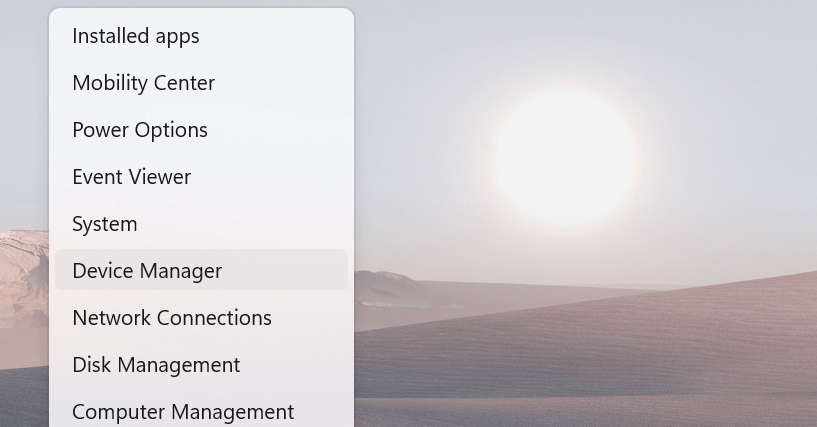
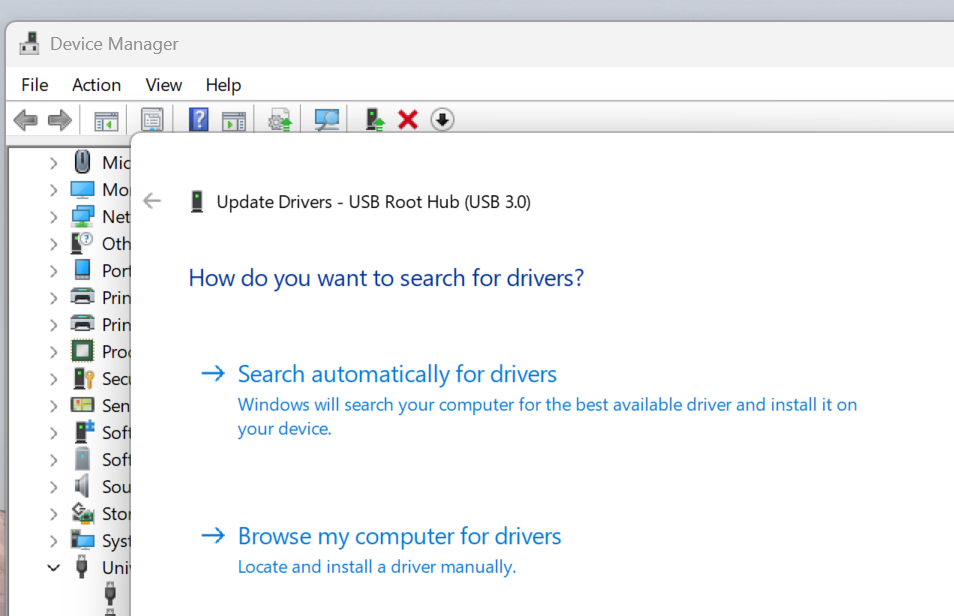
1. Press Windows + X → Select Device Manager
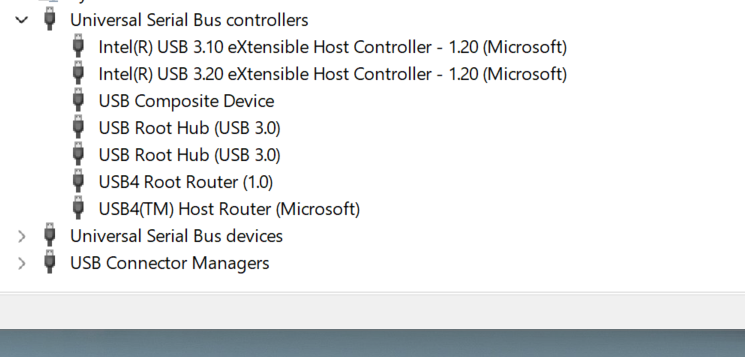
2. Expand Portable Devices or Serial Bus Controllers
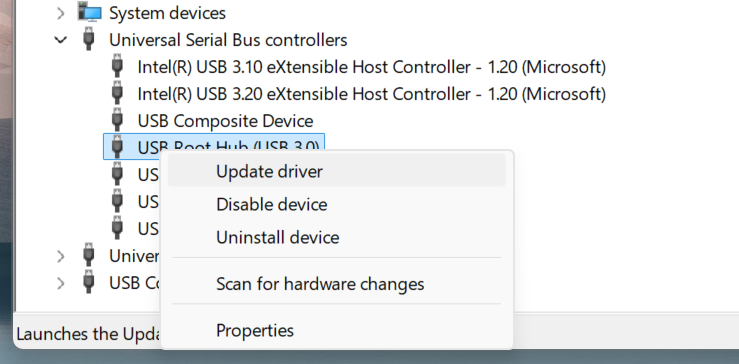
3. Locate your Android device (or Outdated USB Driver), Right-click it and select Update driver
4. Choose Search automatically for drivers
If updating doesn’t work:
- Right-click the device again
- Select Uninstall device
- Disconnect your phone
- Restart your PC
- Reconnect the phone and let Windows reinstall the drivers
Step 5: Install Manufacturer Software or USB Drivers
Some Android brands require additional drivers.
- Visit your phone manufacturer’s official website
- Download the required USB drivers or PC suite
- Samsung: Smart Switch
- Xiaomi: Mi USB Driver
- Huawei: HiSuite
- Oppo/Vivo: Official USB driver packages
- Install the software on your PC
- Restart your computer and reconnect your device
Step 6: Restart Both Devices
If your Android still isn’t detected:
- Restart your Android phone
- Restart your Windows PC
- Reconnect using a different USB port and cable
This clears temporary system glitches that may block USB connections.
Tips and Best Practices for a Stable Connection
- Always use the original USB cable
- Keep Android OS and Windows updated
- Avoid using USB hubs—connect directly to the PC
- Disable aggressive battery-saving modes temporarily
- Back up important files before troubleshooting
Common Issues and Their Fixes
Problem: Android not showing in File Explorer
Solution: Set USB mode to File Transfer (MTP)
Problem: Windows fails to install drivers
Solution: Manually update drivers via Device Manager or manufacturer website
Problem: USB options don’t appear
Solution: Try another cable, port, or restart your phone
Problem: Device connects and disconnects repeatedly
Solution: Replace the USB cable and inspect the USB port for damage
Ensuring a Smooth Android-to-PC Connection
By following the steps above—checking your USB cable, enabling USB debugging, updating drivers, and selecting the correct connection mode—you should be able to fix most Android detection issues on Windows PCs.
If your device is still not recognized, the problem may be hardware-related. In that case, consider visiting an authorized service center or contacting your device manufacturer’s support team.
This can be due to incorrect USB settings, faulty cables, or missing drivers on your PC.
Navigate to Settings > About Phone > Tap Build number seven times, then go to Developer Options and enable USB Debugging.
Ensure your device is set to File Transfer mode and USB debugging is enabled.
Yes, you can use wireless transfer methods such as Bluetooth, Wi-Fi Direct, or cloud services.
Contact your device manufacturer for further assistance or check online forums for specific solutions.


Improve this guide

User forum
0 messages