
How to Fix Android Not Charging When Plugged In: Complete Guide

 7 min. read
 Updated on
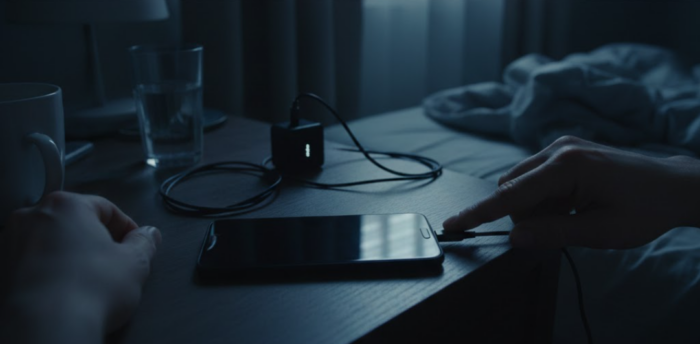
Your Android phone shows it’s plugged in, but the battery percentage won’t budge. This frustrating problem can stem from software glitches, faulty accessories, or dirty ports. Most fixes take just minutes and require no technical expertise.
Restart Your Phone
Software glitches rank among the most common culprits when your Android not charging when plugged in. A simple restart clears temporary bugs and resets system processes that control battery management.
For most Android phones:
- Press and hold the power button until the power menu appears.
- Tap Restart or Reboot
- Wait for your phone to fully restart
- Plug in your charger and check if charging resumes
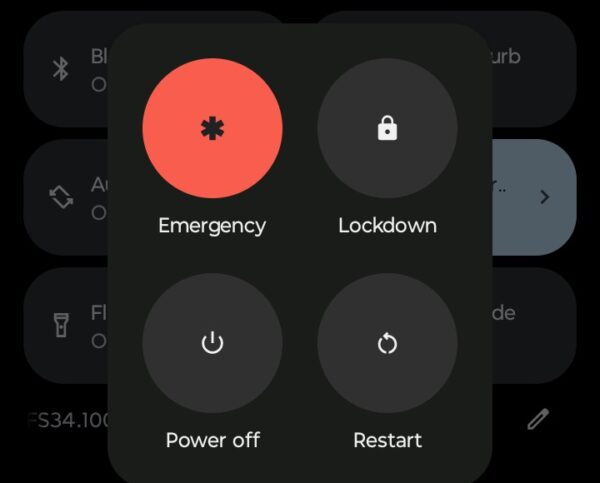
For phones without a restart option:
- Press and hold the power button until the screen goes black
- Wait 30 seconds
- Press the power button again to turn on your phone
- Test your charger
Some manufacturers require different combinations. Samsung devices may need you to hold the power and volume down buttons simultaneously for 10 seconds. Google Pixel phones often restart by holding just the power button for about 30 seconds.
Safe Mode
Getting into Safe Mode on any Android smartphone is usually straightforward. It’s a great way to diagnose issues with your device, and easy to perform on most handsets by following these steps.
- Press and hold the power button
- Touch and hold the Power Off option on the screen
- Tap OK when prompted to reboot to safe mode
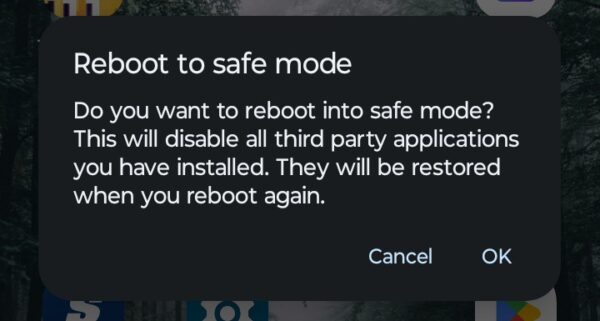
If charging works in safe mode, a third-party app is likely interfering with your charging system. Uninstall recently downloaded apps one by one until you identify the problem.
Check Your Charging Cable and Adapter
Damaged cables cause more charging problems than any other hardware issue. Even cables that look fine externally can have internal wire breaks that prevent proper power delivery.
Inspect your cable closely. Look for fraying near the connectors, exposed wires, or bent pins inside the USB connector. Any visible damage means you need a replacement. Test with a different cable, but make sure it’s a data cable, not just a charging cable.
It’s also a good idea to check or swap out your wall adapter. Your cable might be fine while your adapter is failing. Adapters can wear out over time, especially if you frequently plug and unplug them. Try a different adapter with your original cable.
Quality matters more than you might think. Cheap cables from gas stations or dollar stores often lack proper wiring or safety features. Stick with cables from your phone’s manufacturer or reputable third-party brands that meet USB standards.
Clean Your Charging Port
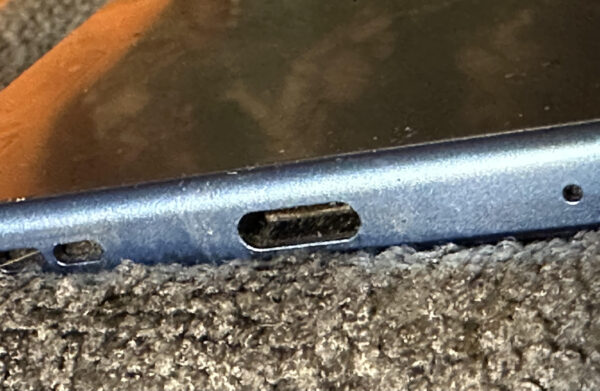
Lint, dust, and pocket debris accumulate in your phone’s charging port over time. This buildup prevents your cable from making a solid connection. You might notice your cable feels loose or falls out easily.
Here’s how to clean it safely:
- Power off your phone completely
- Grab a wooden or plastic toothpick
- Gently insert the toothpick into the charging port
- Carefully scrape along the bottom and sides
- Remove any lint or debris you dislodge
- Use a can of compressed air to blow out remaining particles
- Shine a flashlight into the port to verify it’s clean
Pro Tips
- Never use metal objects like paperclips or needles. They can scratch the port’s contacts or even short-circuit components. Avoid cotton swabs, as they can leave fibers behind or push debris deeper into the port.
- Some compressed air cans contain moisture. Hold the can upright and use short bursts to avoid liquid entering your phone. If any moisture does get in, wait at least 30 minutes before attempting to charge.
- Clean your port every few months as preventive maintenance. Regular cleaning keeps connections strong and extends your port’s lifespan.
Test Different Power Sources
Where you plug in matters more than you might expect. Not all power sources deliver electricity the same way, and your Android not charging when plugged in might be caused by an inadequate power supply.
Wall outlets provide the most reliable power. They deliver consistent voltage and amperage. If you’ve been using a computer’s USB port or a power strip, try a direct wall outlet instead. USB ports on computers often can’t supply enough power. Most USB 2.0 ports max out at 0.5 amps. USB 3.0 ports can provide up to 0.9 amps.
Try your car charger if you have one. Car chargers plug into different electrical systems and can help you determine if the problem is your home’s power sources. A working car charger rules out phone hardware issues.
Test wireless charging if your phone supports it. Place your phone on a wireless charging pad. If wireless charging works but cable charging doesn’t, you’ve confirmed the issue is with your port or cable, not your battery or charging circuitry.
Update or Roll Back Software
Android system updates occasionally introduce bugs that affect charging. Other times, outdated software lacks optimizations for newer charging technologies.
Check for system updates
- Open Settings
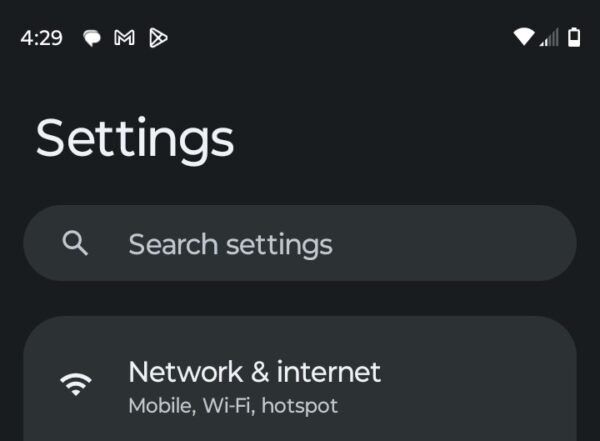
- Scroll down and tap System Updates

- Tap Check for updates. Download updates and install.

Clear your system cache partition
- Power off your phone completely
- Press and hold the volume up and power buttons together
- Release when you see the Android logo or manufacturer logo
- Use volume buttons to navigate to Wipe Cache Partition
- Press the power button to select
- Navigate to Reboot System Now
- Press power to restart
This process varies slightly by manufacturer. Some phones enter recovery mode differently. Look up your specific model if these steps don’t work.
Factory Reset
Factory resets solve persistent software problems but erase all your data. Only attempt this after backing up photos, contacts, and important files. You’ll need to reinstall all your apps and reconfigure your settings.
- Open Settings
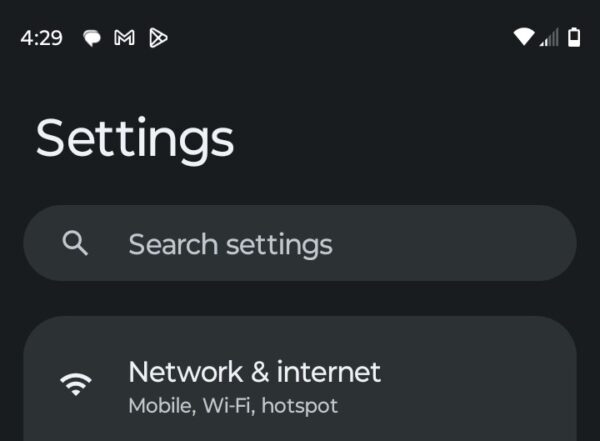
- Tap System
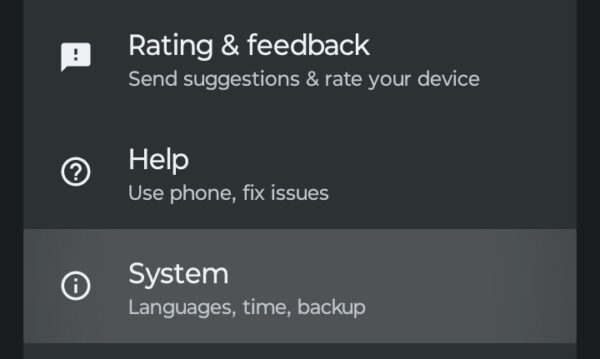
- Tap Reset or Reset Options
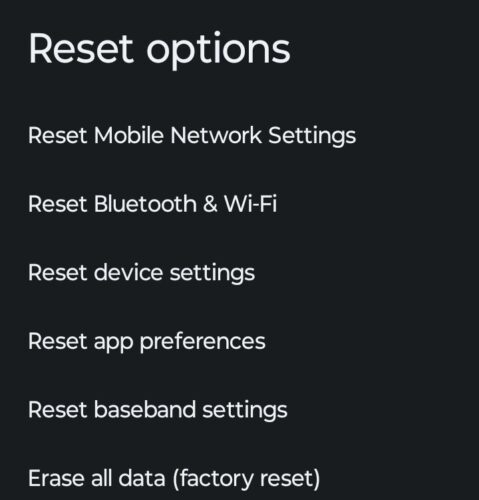
- Select Factory Data Reset
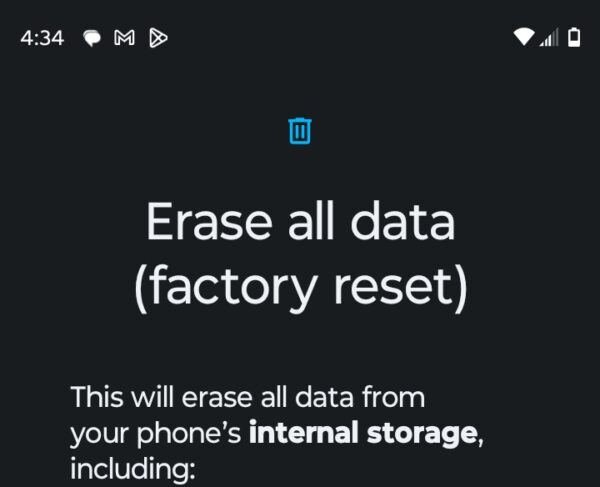
Follow the prompts to erase everything, and then set up your phone from scratch.
The Bottom Line
Stop problems before they start with a few simple habits. Use your phone’s original charger when possible. Third-party chargers work fine, but quality varies wildly. Keep your charging port clean by checking it monthly. Don’t charge your phone under pillows or blankets, as trapped heat degrades battery components faster.
Avoid letting your battery drain to zero regularly. Modern lithium-ion batteries last longer when kept between 20% and 80%. Remove phone cases during charging if your phone gets hot, as excessive heat damages both the battery and charging circuitry.
Most Android charging problems have simple solutions. Work through these steps methodically, and you’ll likely get your phone charging again without spending money on repairs or replacements.
Your power source isn’t providing enough amperage. Computer USB ports and cheap adapters often output only 0.5 to 1 amp, which maintains your current battery level but doesn’t actually charge it. Switch to a wall outlet with your phone’s original adapter that outputs at least 2 amps
Yes. Lint and debris block the electrical connection between your cable and phone. Even a small amount of buildup prevents the charging pins from making proper contact. Many phones that seem broken just need a quick cleaning with a toothpick.
Test it with another device or try a different cable with your phone. Physical damage like fraying, exposed wires, or bent pins indicates the cable needs replacement. Cables can also fail internally without visible damage. Quality cables from reputable brands last longer than cheap alternatives.
It can if the issue stems from software bugs or problematic apps. Back up your data first since a factory reset erases everything. Try simpler fixes like restarting, cleaning the port, and updating your software before resorting to a factory reset.


Improve this guide




User forum
0 messages