
Android Not Connected to WiFi: Restoring Wireless Stability

 5 min. read
 Updated on
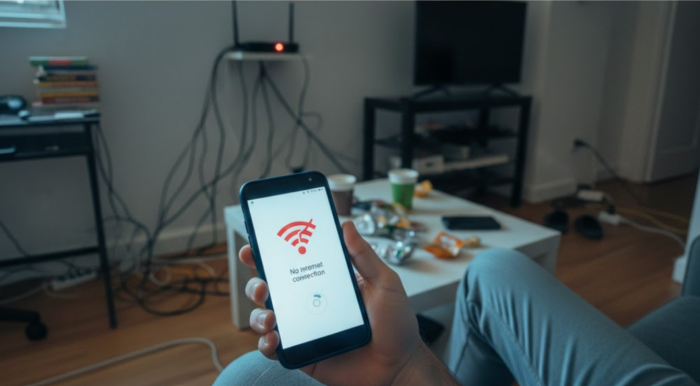
Android not connected to Wi-Fi is one of those problems that stops everything at once. Apps stall, pages refuse to load, and basic tasks become harder than they should be. The good news is that most wireless issues come down to a few common causes, and you can usually fix them in minutes without special tools or apps.
Our guide will walk you through practical steps in a logical order, starting with the fastest checks and moving into deeper fixes if needed.
Check the Basics
Before changing any settings, it’s best to rule out simple issues that can mimic bigger problems. The first step is to check out your Wi-Fi. Ensure that it hasn’t been flipped off accidentally, and there’s no issue with power to your router.
If everything checks out, turn Wi-Fi off on your phone, wait a few seconds, then turn it back on. This refreshes the connection and often clears minor glitches.
It’s also a good idea to check Airplane Mode. Airplane mode has killed Wi-Fi on millions of phones without the owner realizing it, and it will affect your smartphone the same way. To check, swipe down on your phone’s menu and look for Airplane Mode. If it’s unchecked, it’s time to move to the next step.
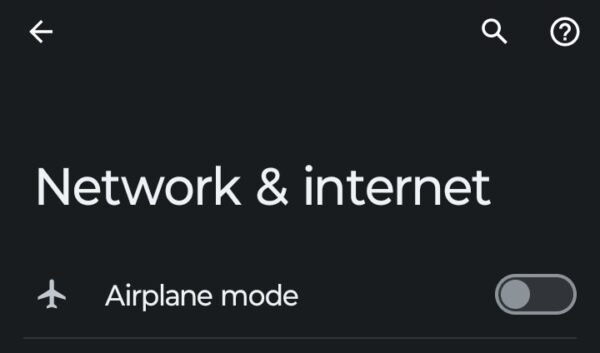
Restart your phone. Rebooting your Android smartphone can clear background processes that may be interfering with your wireless connections. If that doesn’t clear up your Android not connected to Wi-Fi issue, try another device on the same network. If nothing connects, there’s a good chance the problem could be the router or internet service, not your Android phone.
Router Issues
If your Wi-Fi problem persists, the router itself might be the issue. To restart the router, follow these quick steps.
Unplug it from power, wait 30 seconds, then plug it back in. Give the router a couple of minutes to fully restart before testing your connection again. While you’re at it, check if other devices can connect. If laptops and tablets work fine, but your phone doesn’t, the issue is specific to your Android device.
If nothing connects, the problem lies with the router or your internet service provider. Another thing to consider is the router’s frequency band. Many modern routers broadcast on both 2.4GHz and 5GHz, and your phone might be trying to connect to the wrong one. You can log in to your router’s admin panel and check which bands are active.
Forget Your Network
Sometimes your phone holds onto old connection data that no longer works. You can fix this by forgetting the network and starting fresh.
- Open Settings and “Network & Internet.” Choose Wi-Fi from the next screen.
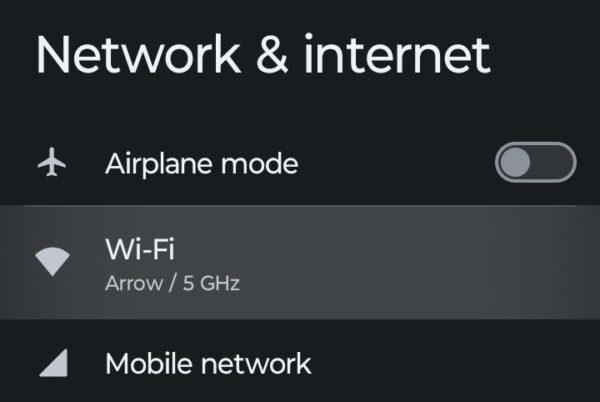
- Find your network in the list, and select it.
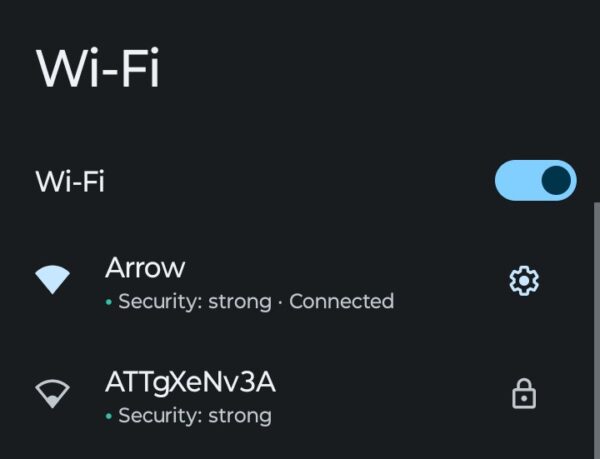
- Select “Forget Network.” Reconnect by selecting the network again and entering the password.
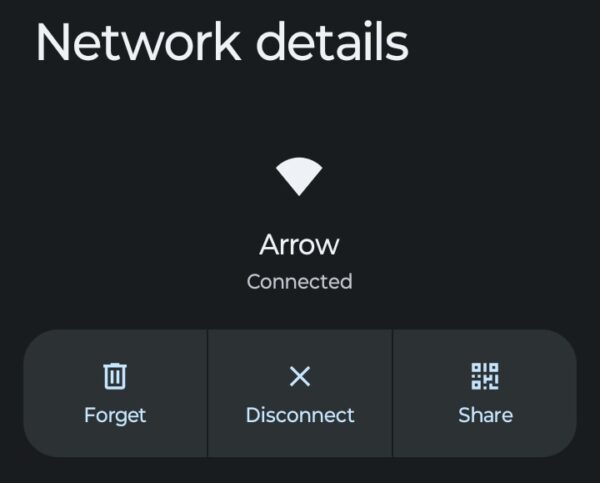
This process clears saved credentials and forces your phone to establish a new connection from scratch. It’s particularly useful if the password changed recently or if the router settings were updated without your knowledge.
Reset Network Settings
Network settings can become corrupted over time, and resetting them often solves persistent connectivity issues.
- Go to your Settings menu, scroll down, and tap “System.”
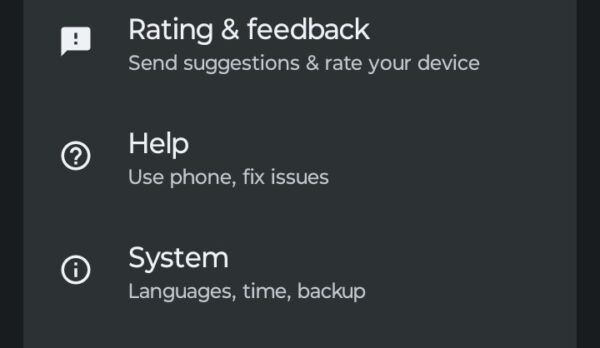
- Choose “Reset options.”
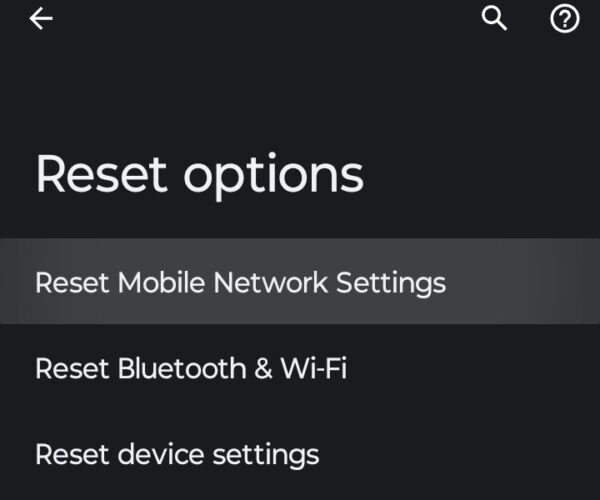
- Select “Reset Bluetooth & Wi-Fi” and choose Reset from the pop-up that appears.
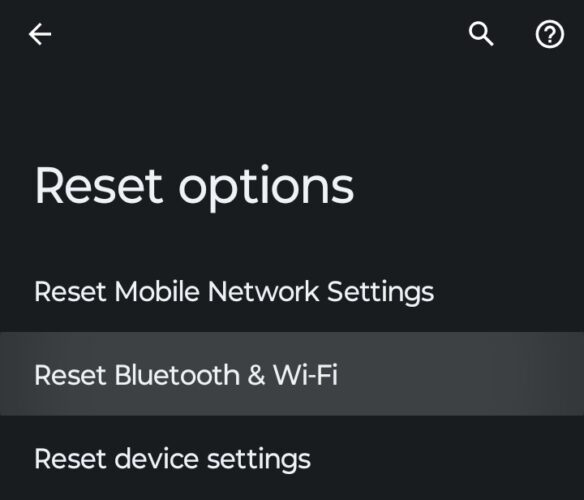
This won’t erase your personal data, but it will clear all saved networks and Bluetooth pairings, so have your passwords ready. After the reset, reconnect to your Wi-Fi network from scratch. This gives your phone a clean slate and removes any hidden configuration errors that might have built up.
Check for Software Updates
Software updates are essential, but easy to overlook. Outdated software can cause compatibility issues with newer routers or security protocols. To check on this, go to your Settings menu and tap the section called “System updates.” If an update is available, download and install it. Updates often include bug fixes for Wi-Fi issues that other users have reported.
After updating, restart your phone and try connecting to Wi-Fi again. Sometimes the update process itself can clear out problems with Wi-Fi and connectivity.
The Bottom Line
Most Android not connected to Wi-Fi problems come from simple configuration issues rather than serious hardware failures. By working through these steps systematically, you can usually restore your connection without needing technical expertise or outside help. Just start with the quick fixes and only move to more involved solutions if the easy ones don’t work.
Why won’t my Android connect to Wi-Fi, but other devices will?
Your phone likely has corrupted network settings or outdated software. Forget the network and reconnect, reset your network settings, or check for software updates. Testing in Safe Mode can also help identify if an app is causing interference.
How do I fix the Android Wi-Fi authentication error?
This usually means your password is wrong or the network security changed. Forget the network, reconnect with the correct password, and restart both your phone and router. Check if MAC address filtering is blocking your device in the router settings.
Can a factory reset fix Wi-Fi problems on Android?
Yes, but only use it as a last resort since it erases everything. Try simpler fixes first like restarting your phone, forgetting the network, or resetting just your network settings. Always back up your data before doing a factory reset.
Why does my Android keep disconnecting from Wi-Fi?
This happens from weak signal, router problems, or aggressive power saving modes. Move closer to the router, disable battery optimization for Wi-Fi, and try switching between 2.4GHz and 5GHz bands if available.
Will using a USB hub affect my Android phone connection?
USB hubs can work, but often cause connection issues due to insufficient power delivery or data transfer limitations. Connect your phone directly to your PC’s USB port for the most reliable connection. If you must use a hub, choose a powered hub with its own power supply.


Improve this guide
User forum
0 messages