
How to Fix Android Not Connecting to PC (Step-by-Step)

 7 min. read
 Published on
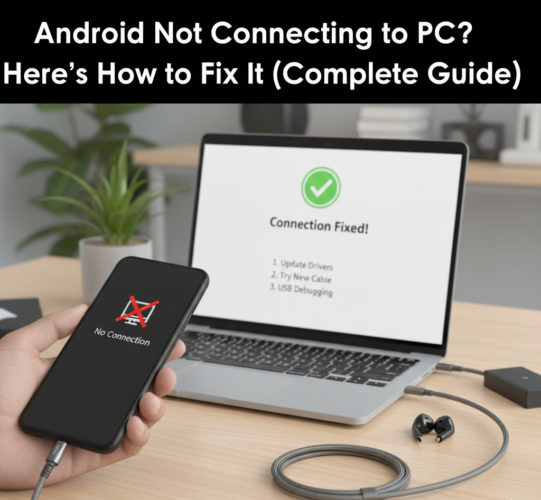
Connecting an Android phone to a PC should be simple—plug in a cable, allow access, and start transferring files. Yet in reality, many users run into issues where the phone charges but doesn’t show up on the computer, or the connection fails altogether.
If your Android device isn’t connecting to your PC, the problem is usually related to USB settings, cables, drivers, or software conflicts. The good news is that most of these issues can be fixed in a few minutes. This guide walks through every reliable solution, starting with the simplest fixes and moving to more advanced ones.
Check the USB Cable and Port First
One of the most common reasons an Android phone won’t connect to a PC is a faulty USB cable. Many cables are designed only for charging and don’t support data transfer. Even cables that originally supported data can degrade over time due to bending, pulling, or internal wire damage.
Switch to a different USB cable—preferably the original one that came with the phone or a certified data cable. Also try a different USB port on the PC, as some ports may not function properly or provide stable data connections.
Before moving on, inspect the phone’s charging port for dust or debris. A clogged port can prevent a proper connection, even if the phone is charging.
Unlock the Phone and Check the USB Connection Mode
Android phones require user permission to allow data access. If the phone is locked when connected, the PC may not detect it properly.
After connecting the phone to the PC, unlock the screen and look for a USB notification. By default, many phones are set to Charging only, which prevents file access. Tap the notification and change the USB mode to File Transfer (MTP).
Once selected, the PC should refresh and display the device in File Explorer or Finder.
Enable File Transfer (MTP) Manually
If the USB notification doesn’t appear, the file transfer option can be enabled manually.
Here’s how to enable USB file transfer via Developer Options on Android.
Step 1: Open Settings and find Developer options
Go to Settings, scroll down to System (or just scroll to the very bottom), and tap Developer options.

Note: If you don’t see “Developer options,” you likely need to unlock it by tapping “Build number” 7 times in the “About phone” menu.
Continue reading to learn how to unlock Developer Options.
Step 2: Find “Default USB configuration”
Inside Developer options, scroll down (it is a long list, usually under the “Networking” section) until you see Default USB configuration.

Step 3: Choose “File transfer / Android Auto”
A menu will pop up. Change it from “No data transfer” (or “Charging”) to File transfer (sometimes called MTP).

Restart Both the Phone and the PC
Temporary system glitches can interfere with USB communication. Restarting both devices clears background processes and resets USB services.
After rebooting, reconnect the phone using a different USB port and check again. This simple step resolves a surprising number of connection problems.
Update or Reinstall USB Drivers on Windows
If the Android device still isn’t detected, the issue may be driver-related—especially on Windows PCs.
Open Device Manager and look for the phone under Portable Devices or Other devices. If there’s a warning icon, the driver may be missing or corrupted.
Uninstall the device, disconnect the phone, restart the PC, and reconnect it. Windows should automatically reinstall the correct drivers. Installing the official USB drivers from the phone manufacturer can also help, particularly for Samsung, Xiaomi, or Huawei devices.
Mac users typically don’t need drivers, but they must install Android File Transfer (or a compatible alternative) to access files.
Enable USB Debugging (Optional but Helpful)
USB Debugging isn’t required for basic file transfer, but enabling it can help resolve stubborn connection issues.
Step 1. Open Settings.
You can do this from your app drawer or quick settings panel.
Step 2: Go to “About Phone”
- Scroll down to the bottom of the Settings menu.
- Tap About phone.
- On some devices, you may need to open About device or System → About phone.

Step 3: Find the “Build Number”
- Inside About phone, look for Build number.
- On Samsung devices: Settings → About phone → Software information → Build number.

Step 4: Tap the Build Number 7 Times
- Tap Build number repeatedly (usually 7 times).
- You’ll see a message like “You are now X steps away from being a developer.”
- Enter your phone’s lock screen PIN if prompted.

After the final tap, you’ll see a confirmation: “You are now a developer!”
Step 5: Access Developer Options
- Go back to the Settings main menu.
- Open System (if your device has it).
- Tap Developer options.
- On Samsung devices: Settings → Developer options appears directly under “About phone.”

You now have access to the full set of developer controls.
Step 6: Enable USB Debugging
Then navigate to Developer Options and enable USB Debugging.

Reconnect the phone and allow any permission prompts that appear on the screen.
Check the PC’s File Explorer or Finder Settings
Sometimes the phone is connected but not visible due to system settings.
On Windows, open File Explorer and check under This PC. If the phone appears but can’t be accessed, right-click and refresh. On macOS, ensure Android File Transfer is running and that the phone is unlocked.
If the device appears briefly and then disappears, the cable or port may still be the culprit.
Update Android and the PC Operating System
Outdated software can cause compatibility issues between devices. Check for Android system updates and install any available patches. Likewise, ensure the PC’s operating system is fully up to date.
Software updates often include fixes for USB, driver, and file transfer bugs.
Try a Different Computer
Connecting the phone to another PC or laptop helps determine where the issue lies. If the phone connects successfully to a different computer, the problem is almost certainly related to the original PC’s USB ports, drivers, or settings.
If it fails everywhere, the issue may be hardware-related on the phone itself.
Consider Alternative File Transfer Methods
If a wired connection continues to fail, there are reliable alternatives. Cloud storage services like Google Drive allow wireless file transfers, while apps like AirDroid or Nearby Share can move files over Wi-Fi.
These options aren’t permanent replacements for USB connections, but they can be useful workarounds.
Tips and Best Practices
- Always use the original USB cable provided with your device for the best connection.
- Keep your device drivers updated to ensure compatibility with new software updates.
- Regularly clear temporary files and cache to prevent connectivity issues.
- Check your device’s battery level and charging status to ensure it doesn’t affect connectivity.
When Nothing Works
If none of the fixes above resolve the issue, the phone’s USB port may be damaged. Loose connections, corrosion, or internal wear can prevent data transfer even if charging still works.
At this point, checking warranty coverage or visiting a professional repair service is recommended. In rare cases, a factory reset may help, but this should only be done after backing up all important data.
This could be due to outdated drivers or a faulty USB connection. Ensure your drivers are updated and try a different USB cable or port.
Use a Wi-Fi-based file transfer app like AirDroid or Pushbullet to connect and transfer files wirelessly.
USB Debugging allows your Android device to communicate with a PC for advanced operations like file transfers and software installations.
Visit the manufacturer’s website for your device and download the latest drivers. Follow installation instructions provided on the site.
Yes, but you may need to use Android File Transfer software to enable file transfers between the devices.


Improve this guide
User forum
0 messages