
How to Block a Number on Android: A Step-by-Step Guide

 5 min. read
 Updated on
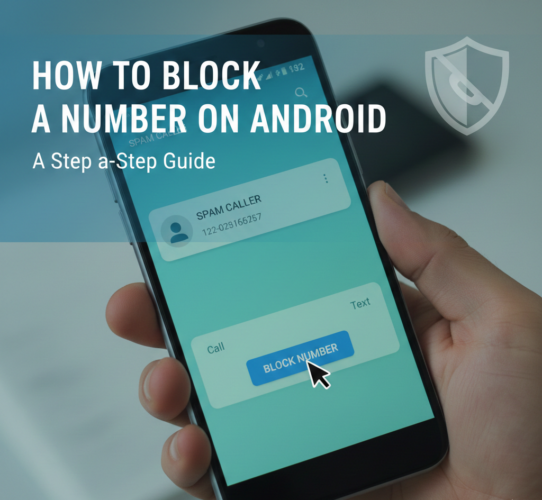
Unwanted calls and spam messages can be frustrating, disruptive, and sometimes even risky. Fortunately, Android devices come with built-in tools that allow you to block phone numbers easily, giving you more control over who can contact you.
Whether you’re dealing with persistent telemarketers, scam calls, or someone you’d rather not hear from, blocking a number on Android is quick and effective. In this guide, you’ll learn multiple ways to block a number on Android, including using the Phone app, Contacts app, and third-party solutions for advanced call filtering.
This guide is suitable for all Android users, regardless of device brand or experience level.
How Do You Block a Number on Android?
Android allows you to block numbers directly from your call history, contact list, or messaging apps. The exact menu names may vary slightly depending on your Android version and manufacturer, but the core process remains the same.
What You’ll Need
Before getting started, make sure you have:
- An Android smartphone or tablet
- Access to the Phone or Contacts app
- An updated Android operating system (recommended)
No additional apps are required for basic number blocking.
Method 1: Block a Number Using the Phone App
This is the most common and fastest way to block a number after receiving a call.
Steps:
- Open the Phone app on your Android device.

- Go to Call log or Recent calls and Find the number you want to block.

- Tap the number to open call details, then Tap More options (three-dot menu).

- Select Block contact.

- Confirm when prompted.

Once blocked, calls from this number will no longer ring your phone, and the caller may be sent directly to voicemail.
Method 2: Block a Number from the Contacts App
If the number is already saved in your contacts, you can block it directly from there.
Steps:
- Open the Contacts app.

- Search for and select the contact you want to block.

- Tap the contact’s name to open details, then Tap the More options (three-dot menu).

- Select Block contact.

- Confirm the action.

Blocked contacts will no longer be able to call or send messages to your device.
Method 3: Block Numbers from the Messages App (SMS)
Many Android devices also allow blocking directly from text messages.
Steps:
- Open the Messages app.

- Open the conversation from the number you want to block.

- Tap the More options (three-dot menu).

- Select Block or Block & report spam.

- Confirm your choice.

This is especially useful for stopping spam SMS messages.
Method 4: Use Third-Party Call Blocking Apps
If you receive a high volume of spam or want advanced call identification features, third-party apps can help.
Popular Options Include:
- Truecaller
- Hiya
- Call Control
How to Use Them:
- Open the Google Play Store.

- Search for a call blocker app.

- Install and open the app.

- Follow the setup instructions and grant necessary permissions.

- Customize blocking rules, spam filters, and call identification settings.

Note: Third-party apps may require access to call logs and contacts. Review permissions carefully.
Tips and Best Practices for Blocking Numbers on Android
- Use built-in Android blocking features whenever possible for better privacy.
- Periodically review your blocked numbers list to avoid blocking important contacts.
- Enable Spam Protection in the Phone and Messages apps if available.
- Keep your Android software updated to access improved call-filtering tools.
- Combine number blocking with Do Not Disturb mode for enhanced call control.
- For specific Android versions like Marshmallow, learn to block phone numbers natively by following this guide.
Common Issues and How to Fix Them
- Problem: Can’t find the block option in the Phone app. Solution: Ensure your app is updated or check the Contacts app for blocking options.
- Problem: Blocked numbers are still able to leave voicemails. Solution: While they can’t call you, they might still leave voicemail messages; check with your carrier for additional voicemail blocking options.
- Problem: Third-party apps are not blocking calls effectively. Solution: Check app permissions and ensure the app is up to date.
- Problem: Number reappears in call logs after being blocked. Solution: Verify that the block was confirmed and try restarting the device if the issue persists.
Take Control of Calls and Messages on Android
Blocking a number on Android is a simple yet powerful way to protect your privacy and reduce unwanted interruptions. Whether you block numbers through the Phone app, Contacts app, Messages app, or third-party tools, Android gives you flexible options to manage incoming calls and texts.
By following the steps in this guide, you can confidently take control of your communication settings and enjoy a quieter, more secure Android experience.
Open the Phone app, go to the blocked numbers list, find the number, and select “Unblock” or “Remove from blocked list.”
Yes, you can block text messages through the Messages app by opening the conversation, tapping More options, and selecting Block.
No, when you block a number, the caller is not notified. Calls will simply be redirected to voicemail or blocked silently.
Yes, some Android devices allow blocking of private or unknown numbers through the Phone app settings.
Some devices may log the call attempts of blocked numbers, but they won’t alert you to the call.


Improve this guide




User forum
0 messages