
How to Close Apps on Android: A Comprehensive Guide

 4 min. read
 Updated on
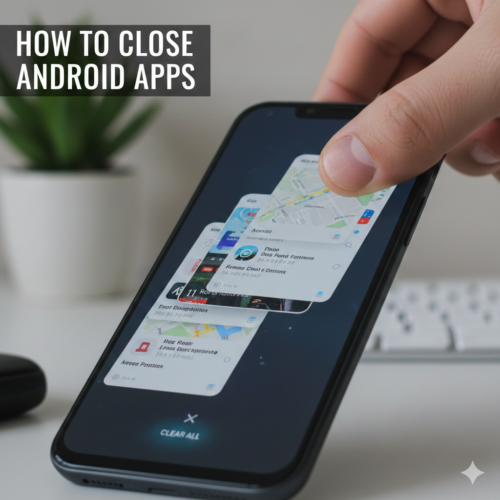
Keeping too many apps open on your Android device can lead to slower performance, increased battery drain, and occasional app glitches. While Android is designed to manage background apps efficiently, there are times when manually closing apps can help—especially if an app freezes, crashes, or behaves unexpectedly.
In this guide, you’ll learn all the reliable ways to close apps on Android, when you should (and shouldn’t) force-stop apps, and best practices for managing background applications effectively.
This guide is suitable for all Android users, regardless of phone brand or Android version.
How Do You Close Apps on Android?
Android offers multiple ways to close apps, ranging from simple gestures to advanced system settings. The best method depends on whether you want to close an app temporarily or stop it completely.
What You’ll Need
Before you begin, make sure you have:
- An Android smartphone or tablet
- Basic familiarity with Android navigation (buttons or gestures)
- Access to device Settings
No additional apps are required.
Method 1: Access the Recent Apps Menu
The Recent Apps screen shows all currently running and recently used apps.
Steps:
- Tap the Recent Apps button:
- Square icon (three-button navigation), or
- Swipe up and hold (gesture navigation)

- A list of open apps will appear as cards.

- Swipe left or right to browse through the apps.
Method 2: Close Individual Apps from Recent Apps
This is the fastest and most commonly used method.
Steps:
- Open the Recent Apps menu.

- Locate the app you want to close.

- Swipe the app card upward or to the side (varies by device).

- The app will disappear from the list, confirming it’s closed.
Tip: Some devices offer a “Clear all or Close all” option to close all recent apps at once.

Method 3: Force Stop an App Using App Settings
If an app is frozen, crashing, or refusing to close, force-stopping it may help.
Steps:
- Open Settings.

- Tap Apps, Applications, or App Manager.

- Select the app you want to stop.

- Tap Force Stop.

- Confirm the action when prompted.

Note: Force stopping an app may interrupt notifications or background services. Use this option only when necessary.
Method 4: Enable Developer Options (Advanced Users Only)
Developer Options include settings that control how apps behave in the background.
Steps:
- Go to Settings > About Phone (or About Device).
- Tap Build number seven times until Developer Mode is enabled.
- Return to Settings and open Developer Options.
- Enable Don’t keep activities to close apps immediately when you leave them.

Learn how to enable Developers Options here
Warning: This option is not recommended for daily use, as it may cause apps to reload constantly and reduce usability.
Tips and Best Practices for Closing Apps on Android
- Use Recent Apps for routine app management.
- Avoid force-stopping apps unless they’re malfunctioning.
- Let Android manage background apps whenever possible.
- Keep your Android OS updated for better memory optimization.
- Check Battery usage settings to identify apps draining power in the background.
Common Issues and How to Fix Them
- Problem: Device performance remains slow after closing apps. Solution: Restart your device to clear temporary system caches and refresh performance.
- Problem: Apps reopen automatically after being closed. Solution: Check app permissions and system settings that may allow apps to restart.
- Problem: Device battery drains quickly despite closing apps. Solution: Investigate battery usage in settings and consider disabling background activity for high-usage apps.
- Problem: Unable to find “Force Stop” option for certain apps. Solution: Some system apps cannot be force stopped for stability reasons. Consider disabling them if not needed.
Enhancing Your Android Experience
Understanding how to properly close apps on Android helps you maintain smooth performance and better battery life. While Android is built to handle multitasking efficiently, knowing when and how to manually close apps gives you greater control over your device.
By following the steps and best practices in this guide, you’ll keep your Android device running efficiently while avoiding common app-management mistakes.
Open the “Recent Apps” menu by tapping the corresponding button on your device to view all currently running applications.
While the general process is similar, the exact method may vary slightly based on the device manufacturer or Android version.
Regularly using “Force Stop” can disrupt app functionality and may prevent certain apps from working correctly until restarted.
Some apps have permissions or settings that allow them to restart for updates, notifications, or background processes.
Adjust the app’s battery or background activity settings in the device’s settings menu to limit background processes.


Improve this guide




User forum
0 messages