
Castify Android TV Download: Complete Setup Guide

 5 min. read
 Updated on
Casting content from your phone to your TV should be straightforward, but Android’s built-in options fall short when you want to stream IPTV channels, cast web videos directly, or access network storage files. The Castify Android TV download solves these limitations with features beyond standard Chromecast.
Castify operates through a two-app system. The main Castify app runs on your phone, while the Castify for Android TV receiver app installs on your television. Together, they enable casting with built-in web browsing, IPTV support, and network file access.
What is Castify for Android TV
Castify for Android TV serves as the receiver component that pairs with the main Castify app on your phone. While Android TVs include built-in Chromecast, Castify’s receiver app unlocks additional features.
The system supports IPTV playlist streaming through m3u files for live TV channels. The built-in web browser lets you find and cast videos from websites. SMB, NAS, and LAN network file support means you can cast media stored on home servers. AI-powered subtitle generation and translation help with foreign language content.
Castify Android TV Download and Installation
Getting both apps installed takes just a few minutes. You’ll need both the phone app and TV receiver app for the system to function.
Download Castify on Your Phone
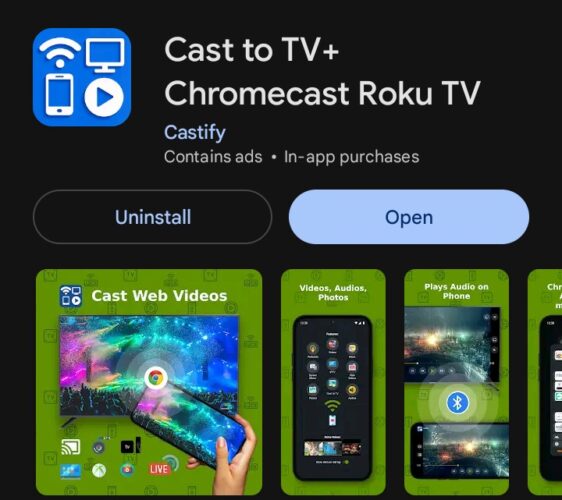
Open the Play Store on your Android phone and search for “Castify.” Install the app published by Castify Inc. Launch Castify and grant permissions for storage, network access, and notifications. The main screen displays options for Videos, Music, Photos, Web Videos, IPTV, and Podcasts.
Download Castify for Android TV
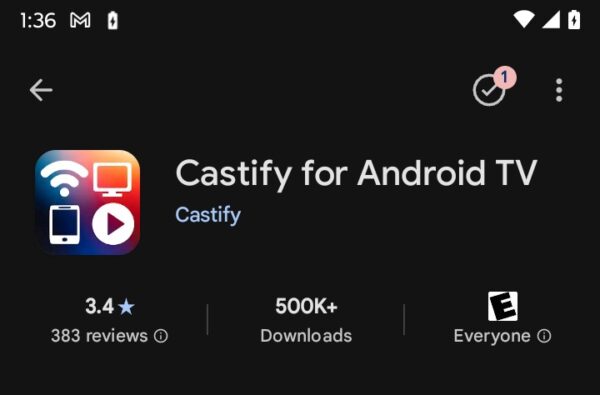
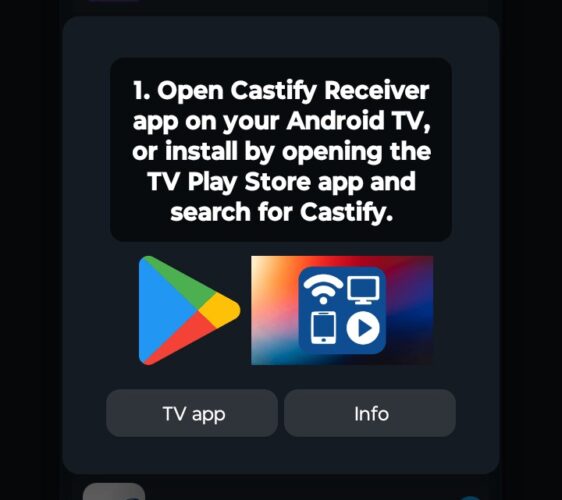
On your Android TV, navigate to the Play Store and search for “Castify for Android TV.” Install the app and launch it. The receiver app displays a connection code. Leave this screen open while you set up the connection from your phone.
Connect Both Apps
Ensure both your phone and Android TV connect to the same Wi-Fi network. Open the Castify app on your phone and tap the cast icon in the top right. The app scans for available devices. Tap your Android TV’s name to establish the connection. Enter the code displayed on your TV screen if prompted.
Using Castify to Cast Content
Once connected, Castify offers several casting methods depending on your content source.
Cast Local Files
Tap Videos, Music, or Photos to browse media on your device. Tap a file to start playing on your TV. Playback controls appear on your phone. Castify supports MP4, MKV, AVI, MOV, MP3, FLAC, and AAC formats. The app also handles SRT and ASS subtitle files.
Cast Web Videos
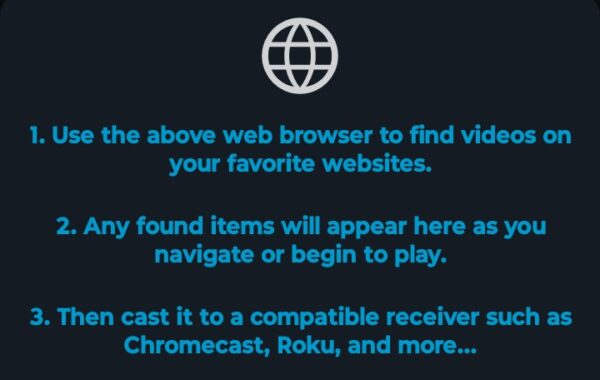
The Web Videos feature includes a built-in browser. Enter a URL or search for content. When you find a video, tap the cast button. Castify extracts the video stream and sends it to your TV. This works with many video hosting sites, though platforms with heavy DRM protection may block casting.
Stream IPTV Channels
Tap IPTV in the main menu to add playlists. You’ll need m3u or m3u8 playlist URLs from your IPTV provider. Paste the URL, and the app imports available channels. Browse and tap a channel to start streaming. Quality depends on your provider’s streams and internet connection speed.
Access Network Storage
The app supports casting from NAS, SMB shares, and DLNA servers. You can set this up from the hamburger menu on the right to add your network storage using its IP address and credentials.
Castify vs. Built-in Chromecast
Android TVs include Chromecast built-in for basic casting. Castify differentiates itself through features Chromecast doesn’t offer. The built-in web browser for finding videos avoids downloading separate apps. IPTV support provides live TV access. Network storage integration lets you access media libraries on home servers. Subtitle features include AI generation and translation.
The tradeoff is complexity. You need both apps installed and running on the same network. Battery drain on your phone will increase during playback.
The Bottom Line
The Castify Android TV download makes sense for users who need features beyond standard Chromecast capabilities. That includes IPTV enthusiasts, users with large media libraries, and people who frequently cast web videos. The built-in browser and subtitle tools add convenience that native casting lacks.
Installation remains straightforward despite requiring two apps. Keep both apps updated through the Play Store to maintain compatibility and access new features. Premium subscription removes ads and unlocks additional functionality like higher quality streaming and priority support. Most users find the free version sufficient for daily casting needs.
Yes. The main Castify app on your phone and Castify for Android TV receiver app on your television must both be installed and connected to the same Wi-Fi network.
Local file casting and network storage access work without internet. IPTV streaming, web video casting, and subtitle translation require active internet connections.
Yes. Castify supports Chromecast, Roku, Fire TV, and Apple TV. Install the appropriate receiver app for your device or use the TV’s native casting support if available.
Castify works alongside built-in Chromecast. You choose which casting method to use. Castify offers additional features like IPTV and web browsing that built-in Chromecast doesn’t provide.


Improve this guide




User forum
0 messages