
Mastering Malware Removal on Your Android TV Box

 5 min. read
 Updated on

Malware infections on Android TV boxes are more common than many users realize. From intrusive ads to serious security threats, malware can slow down your device, compromise your privacy, and ruin your streaming experience.
In this step-by-step tutorial, you’ll learn how to identify, remove, and prevent malware on your Android TV box. We’ll walk through preparation, detection, removal methods, and best practices to keep your device running smoothly and securely. By the end of this guide, you’ll have the knowledge needed to protect your Android TV box from future threats.
Understanding Malware on Android TV Boxes
Just like Android smartphones and tablets, Android TV boxes are vulnerable to malware—especially when apps are installed from unofficial sources. Malware can appear in different forms, each with its own risks and symptoms.
Common Types of Malware
- Adware: Displays intrusive or persistent ads, often slowing down performance and interrupting normal use.
- Spyware: Secretly collects personal or usage data without your consent.
- Trojans: Disguised as legitimate apps but designed to damage your system or open backdoors for attackers.
- Ransomware: Locks your device or data and demands payment to restore access.
Understanding these threats is the first step toward effectively removing and preventing them.
Step-by-Step Malware Removal Process
Preparation
Before removing malware, it’s important to prepare your Android TV box to avoid data loss or interruptions.
- Backup Important Data
Save essential files, settings, and app data to cloud storage or an external drive. This is especially important if a factory reset becomes necessary. - Ensure a Stable Internet Connection
You may need to download antivirus apps or system updates, so a reliable internet connection is essential.
Note: Although this guide references standard Android device settings and menus, the process works just as effectively on an Android TV box. Android TV boxes run on the same Android operating system, so the steps, security features, and malware removal methods are largely identical—only the interface and navigation may look slightly different.
Identifying Malware
Malware doesn’t always announce itself clearly, but there are common warning signs to watch for:
- Performance Issues: Lagging menus, freezing apps, or unusually slow performance.
- Unexpected Ads: Pop-up ads appearing on the home screen or outside apps.
- Battery Drain or Overheating: Malware can cause excessive background activity.
- Unknown Apps: Apps you don’t remember installing.
If you notice one or more of these symptoms, your Android TV box may be infected.
Removing Malware from Your Android TV Box
Follow these steps carefully to remove malware effectively.
Method 1. Restart in Safe Mode
Restarting in Safe Mode disables third-party apps, making it easier to identify and remove malicious software.
- Turn on your Android TV box.
- Press and hold the Power button on your remote.
- When the power menu appears, press and hold “Power off.”
- A prompt should appear asking to Reboot to Safe Mode.
- Select OK.
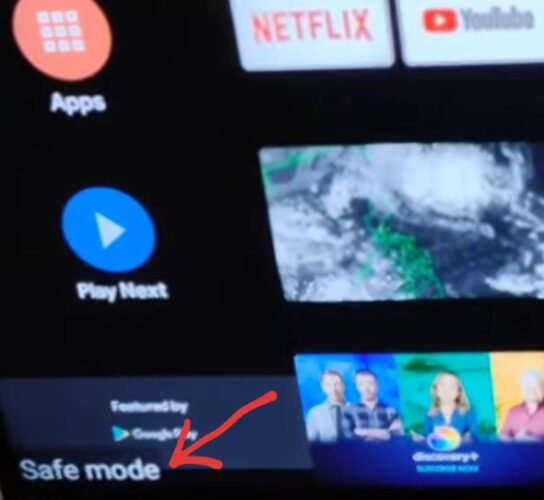
If successful, you’ll see “Safe mode” in the bottom corner of the screen.
Method 2. Uninstall Suspicious Apps
- Go to Settings > Apps.

- Review installed apps carefully.

- Uninstall any unfamiliar or suspicious applications.

Method 3. Install a Trusted Antivirus App
- Open the Google Play Store.

- Download a reputable antivirus app.

- Run a full system scan to detect and remove remaining malware.

Method 4. Clear Cache and Data
For apps you suspect may be compromised:
- Navigate to Settings > Apps.
- Select the app.
- Tap Clear cache and Clear data.

Learn more on how to clear Cache here
Method 5. Factory Reset (Last Resort)
If malware persists after all other steps:
- Go to Settings

- Go to Backup & reset

- Click Factory data reset.

- Confirm the reset.

Note: This will erase all data on the device. Only proceed if you’ve backed up important information.
Examples and Practice Exercises
To reinforce what you’ve learned, try these exercises:
- Identify Signs of Malware
Think about how your Android TV box behaves when infected. What symptoms would you notice first? - Practice Safe Mode Restart
Restart your device in Safe Mode and review installed apps. Take note of any apps you don’t recognize. - Explore Antivirus Features
Install a trusted antivirus app and familiarize yourself with scanning options, real-time protection, and quarantine features.
Common Mistakes and How to Avoid Them
Many users unintentionally make mistakes during malware removal. Here’s how to avoid them:
- Skipping Safe Mode:
Malware apps may continue running in normal mode. Always start with Safe Mode. - Ignoring App Permissions:
Review permissions regularly and revoke unnecessary access. - Delaying System Updates:
Updates often patch security vulnerabilities exploited by malware.
Additional Resources
To further improve your Android TV box security, explore these trusted resources:
- Android Security Center – Official Android security tips and updates
- Google Play Antivirus Apps – Trusted antivirus apps for Android
- Google Support – Malware Removal – Google’s official malware removal guide
Final Thoughts
By following this comprehensive guide, you can effectively remove malware from your Android TV box and restore its performance and security. Staying cautious about app installations, keeping your system updated, and using trusted security tools are the best ways to prevent future infections.
A secure Android TV box ensures smoother streaming, better performance, and peace of mind—making your entertainment experience truly enjoyable.


Improve this guide




User forum
0 messages