
Remove Malware from Android Tablet: Complete Security Guide

 6 min. read
 Updated on
Remove Malware from Android Tablet: Complete Security Guide
Malware on your tablet can drain resources, expose sensitive data, and make basic tasks frustratingly slow. Android tablets face the same security risks as phones since they run identical operating systems. This guide shows you exactly how to detect infections and eliminate threats from your device.
Warning Signs of Tablet Malware
Infected tablets display specific symptoms that signal trouble. Your device struggles with tasks it used to handle easily. Apps crash unexpectedly or refuse to open. The tablet heats up during light use. Battery life plummets even when the screen stays off.
Strange browser behavior appears frequently. Pop-up advertisements interrupt you constantly outside web browsers. Your default search engine switches without input. New toolbars show up that you never installed. The homepage redirects to unfamiliar websites.
Data usage spikes without explanation. Unknown apps appear in your app drawer. Your contacts report receiving odd messages supposedly from you. Premium charges hit your bill for services you never authorized.
Steps to Remove Malware from Android Tablets
Use a Security App First
Security software identifies threats quickly and handles removal automatically. Download Malwarebytes from the Google Play Store for comprehensive scanning. AVG AntiVirus works well for finding hidden malicious code.
Install your chosen security app and launch it immediately. Tap the scan button and wait while it examines your system. Most scans are complete within 5 to 10 minutes. The app shows exactly which threats it found and recommends actions for each one. Quarantine or delete infected files as suggested.
Run Google Play Protect
Google Play Protect scans apps for dangerous behavior and comes built into every Android device. Here’s how to run it:
- Launch the Google Play Store app and tap your profile picture in the top right

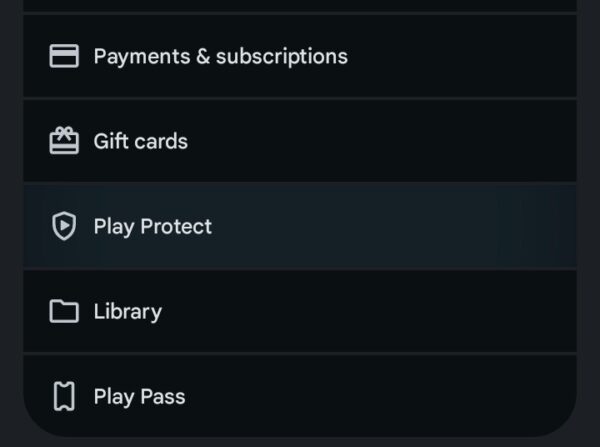
- Scroll down and choose Play Protect
- Tap the Scan button and wait for the scan to complete
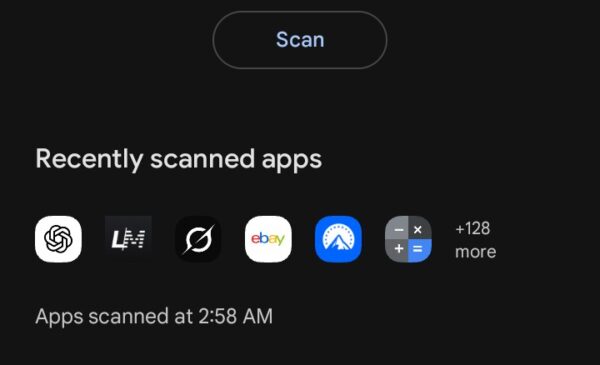
Review any warnings about harmful apps and tap the recommended action to remove threats. Enable automatic scanning in settings for regular checks without manual intervention.
Restart in Safe Mode
Safe mode disables third-party apps temporarily and helps isolate malware sources. Press and hold your tablet’s Power button until options appear on the screen. Tap and hold the Power Off button for a few seconds. A prompt asking about safe mode should pop up.
Tap OK or Reboot to Safe Mode, depending on your device. The tablet restarts with limited functionality. You’ll see Safe Mode text in the corner of your screen confirming the mode is active. Only pre-installed system apps run in this state.
Use your tablet normally in safe mode. If problems disappear, a third-party app you installed is causing issues. If strange behavior continues, system-level malware might be present and require a factory reset. To exit safe mode, simply restart your tablet normally using the power button.
Find and Remove Suspicious Apps
Check your installed apps list carefully while in safe mode if possible. Go to Settings and open Apps. Sort by installation date to see recently added software. Look for apps with vague names, apps you don’t remember downloading, or apps with terrible reviews.
Some malware prevents uninstallation by gaining administrator rights. If you can’t uninstall an app, navigate to Settings and then Security. Find Device Administrators or Device Admin Apps. Look through the list for the suspicious app and revoke its administrator status by tapping it and selecting Deactivate.
Return to your apps list and try uninstalling again. Tap the suspicious app and select Uninstall. Confirm the removal when prompted. Repeat this process for every questionable app on your device.
Clear Your Browser Data
Malware often hides in browser cache and cookies. Follow these steps:
- Open Settings on your tablet and choose Apps
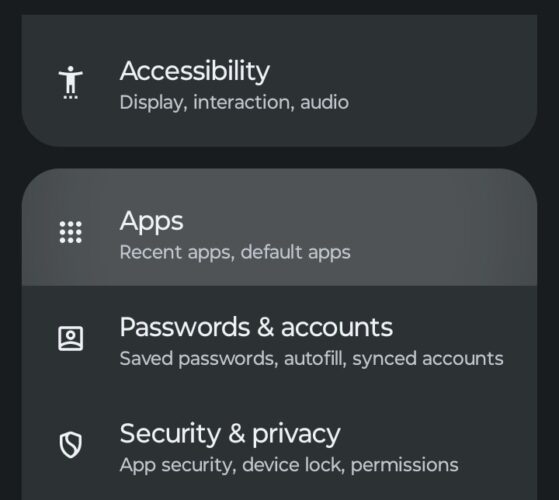
- Find and select your browser (Chrome, Firefox, etc.)

- Tap Storage & cache
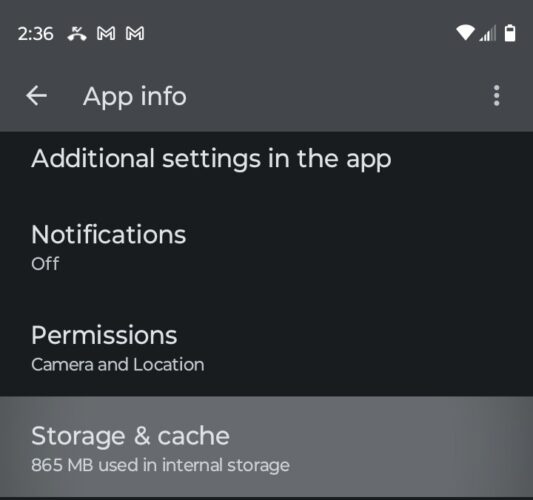
- Tap Clear Cache and choose Clear Storage
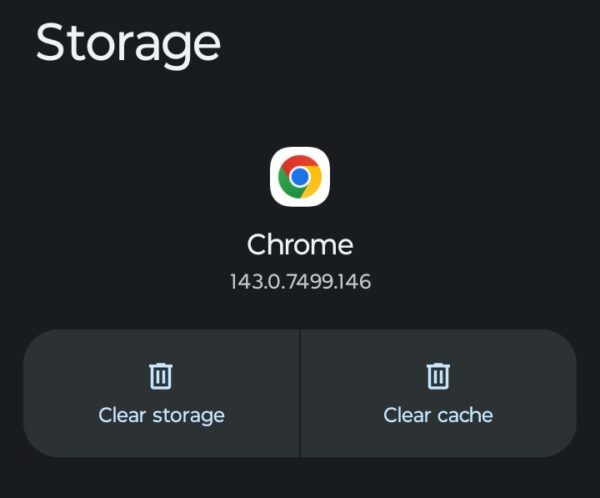
This will log you out of websites and remove saved passwords. Write down important login information before proceeding. After clearing data, restart your browser and check if the malicious behavior stops.
Factory Reset When Nothing Else Works
A factory reset erases everything and returns your tablet to its original state. This nuclear option works when malware proves too stubborn for other removal methods. Before resetting, back up photos, documents, and other important files to cloud storage or a computer.
Open Settings and tap System. Select Reset Options from the menu. Choose Erase All Data or Factory Data Reset. The screen displays a warning about data loss. Tap Erase All Data or Reset Tablet to confirm.
Enter your PIN or password if prompted. Tap Erase All Data one final time. The reset process starts and takes 10 to 15 minutes. Your tablet restarts automatically when finished. You’ll need your Google Account credentials to set up the device again and restore your backed-up data.
The Bottom Line
Preventing malware beats dealing with infections. Stick to the Google Play Store for downloads and avoid third-party sources. Review app permissions before installing anything. A calculator requesting contact access is suspicious.
Keep your Android OS updated through Settings > System > System Update. Enable Google Play Protect for automatic scanning. Avoid tapping links in unexpected messages. Regular security scans catch threats before they cause serious damage to your tablet or personal information.
Watch for frequent pop-ups appearing outside browsers, sudden spikes in data usage, apps that crash repeatedly, or your device running slower than usual. Battery drain and overheating during light use also signal potential infections.
Antivirus apps aren’t required, but add extra security beyond built-in protections. They catch threats that manual methods miss and provide real-time monitoring against new malware.
Boot into Safe Mode to disable third-party apps and uninstall suspicious software. If malware persists after trying all removal steps, a factory reset eliminates stubborn infections completely.
Yes. Malware steals passwords, banking credentials, credit card details, and personal photos. Some variants track your activity or send premium text messages without permission.
Run security scans monthly as routine maintenance. Increase scanning frequency if you notice strange behavior, install new apps regularly, or download files from outside the Play Store.


Improve this guide
User forum
0 messages