
Mastering Quick Share on Android: A Comprehensive Guide for Beginners

 3 min. read
 Published on
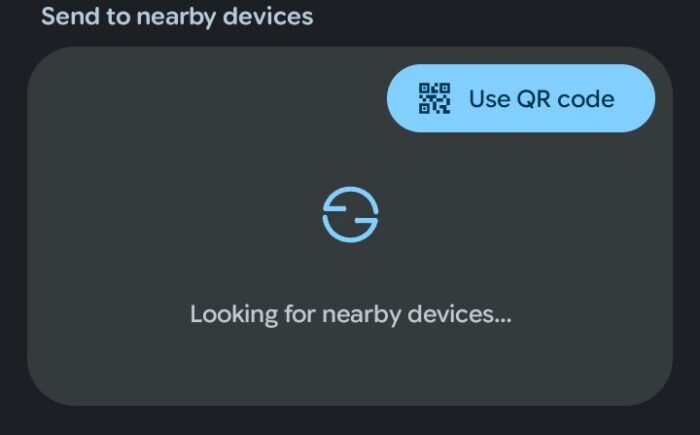
If you want to use Quick Share on Android, you’re looking at the fastest way to send photos and files to nearby devices. Quick Share replaced Samsung’s old sharing method and now works across most Android phones running Android 10 or later.
Quick Share uses a combination of Bluetooth and Wi-Fi Direct to transfer files between Android devices. You don’t need an internet connection, and the transfers happen almost instantly. The feature works with phones, tablets, and even some Chromebooks.
What is Android Quick Share?
Quick Share is Android’s built-in file sharing system that lets you send content to people nearby without cables, apps, or cloud storage. It’s similar to Apple’s AirDrop but designed specifically for Android devices. You can share photos, videos, documents, links, and even entire apps.
The system works by creating a direct connection between two devices using Bluetooth to detect nearby phones and Wi-Fi Direct to handle the actual file transfer. This means your files never go through the internet, keeping your data private and secure. Simply put, it makes file sharing on Android very easy.
Setting Up Quick Share
Ensure your device’s Wi-Fi and Bluetooth are enabled. You can do this by swiping down from the top of your screen and tapping the respective icons.
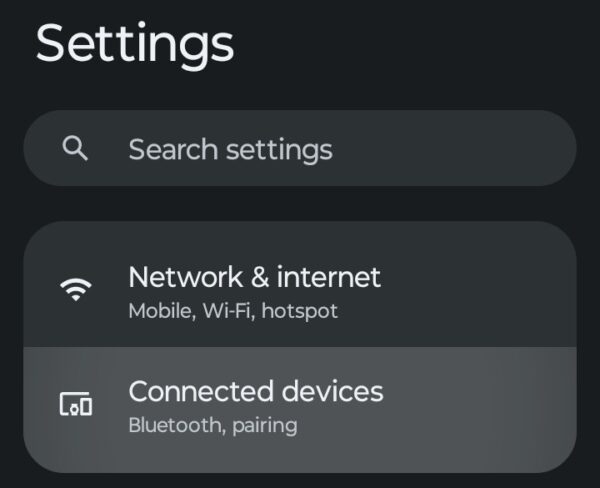
- Open the Settings app and select Connected devices.
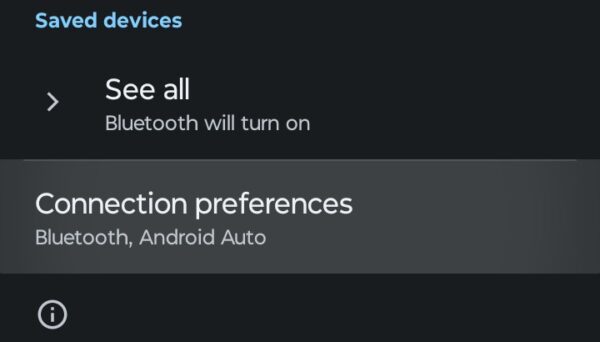
- Tap on Connection preferences
- Choose Quick Share and tap the toggle for Visible to nearby devices.
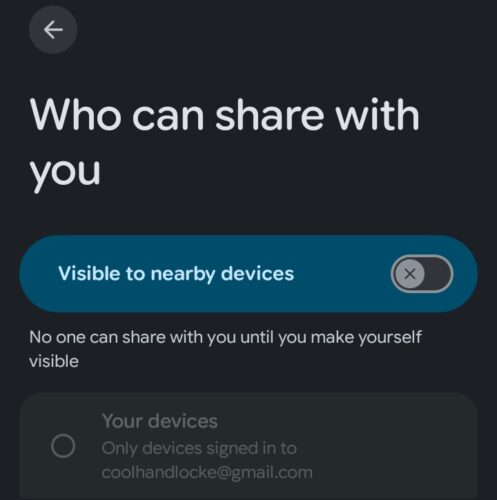
From here, you can set your device name to share with and adjust who can send things to you, along with your visibility to others. You can also access Quick Share settings on some devices through the Notification Shade.
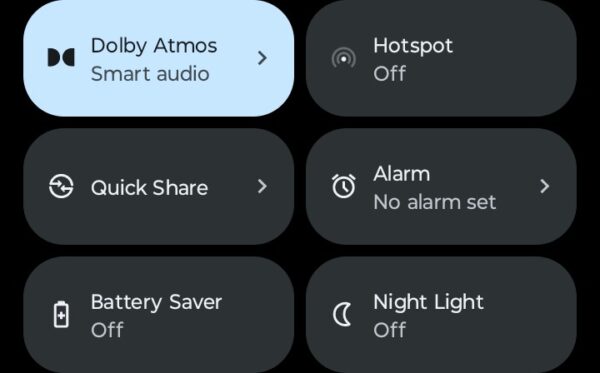
When you have things set up, you can accept an incoming file by tapping on the notification when someone sends a transfer your way.
Sharing Files with Quick Share
Once Quick Share is enabled on your device, sending files takes just a few taps. The process works the same whether you’re sharing a single photo or multiple documents.
- Choose a file to share

- Tap Share and select Quick Share
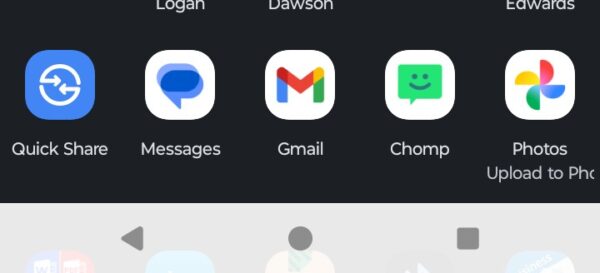
- Share the file with your recipient

You can share files through a custom QR code using Android Quick Share or simply tap Send with the recipient selected. Just remember, your Bluetooth must be turned on, and the other person will need to open Quick Share on their end to accept your file.
The Bottom Line
Learning how to use Quick Share on Android makes file transfers effortless. No more texting photos that lose quality or emailing documents to yourself. Quick Share handles everything locally between devices, which means faster transfers and better privacy. The setup takes less than a minute, and once it’s configured, file sharing becomes second nature.


Improve this guide




User forum
0 messages