
How to Access an Android Phone with a Broken Screen (Step-by-Step Guide)

 5 min. read
 Published on
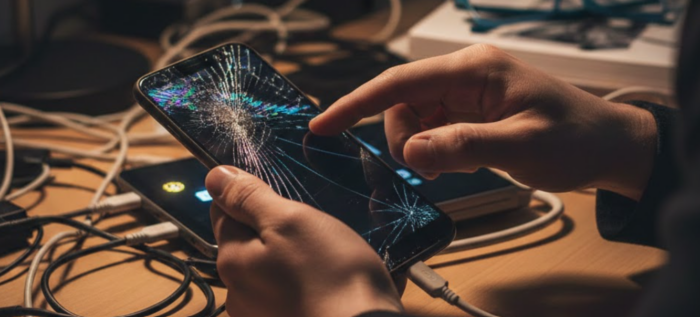
Your Android phone slips from your hand and hits the pavement. The screen shatters or goes completely black. Panic sets in as you realize your photos, contacts, and documents are trapped inside. Learning how to access an Android phone with a broken screen becomes urgent.
A broken screen doesn’t mean your phone is useless. Several methods let you access your data and back up everything important. The right approach depends on whether your touchscreen still works.
Why You Need to Access a Broken Screen Phone
Data recovery drives most attempts to access Android phones with a broken screen. Your photos, work documents, text conversations, and contact lists remain stored in memory. Without screen access, this data stays locked until you repair the device or find an alternative method.
Time sensitivity matters too. You might need to retrieve authentication codes, respond to urgent messages, or disable security features before selling the device.
Access an Android Phone With a Broken Screen
These methods work in different scenarios. Start with the option that best matches your situation.
Using USB Mouse and OTG Adapters
A USB OTG adapter lets you connect a regular computer mouse to your Android phone. This works when your screen is cracked, but the touchscreen responds, or when the display shows, but touch doesn’t work.
Purchase a USB-C to USB-A adapter or micro USB OTG adapter, depending on your device. Plug the adapter into your charging port, then connect a USB mouse. A cursor appears on your screen without any setup.
Navigate using the mouse like on a computer. Unlock your phone, access apps, transfer files, or back up data. The mouse method requires no advance setup and works even without USB debugging enabled.
Connect to External Display via HDMI
Modern Android devices with USB-C often support video output to external displays. This mirrors your phone’s screen onto a TV or monitor.
You’ll need a USB-C to HDMI adapter and an HDMI cable. Connect the USB-C end to your phone and the HDMI cable between the adapter and your display. Your phone’s interface should appear on the external screen within seconds.
If your touchscreen is also broken, combine this with a USB OTG mouse. Multi-port adapters handle both connections simultaneously. Samsung and Google Pixel devices often include desktop modes that activate automatically.
Use Android Debug Bridge (ADB)
ADB provides command-line control from a computer. This advanced method requires USB debugging to be enabled before your screen broke.
Install ADB tools from Android SDK Platform Tools. Connect your phone via USB. Open a command prompt and type adb devices to verify the connection. If authorized, use commands like adb pull to copy files or adb backup to create backups.
The limitation: USB debugging must be enabled beforehand. Most users don’t enable this feature until they need it. If you frequently damage phones, enable it now as prevention.
Access via Find My Device
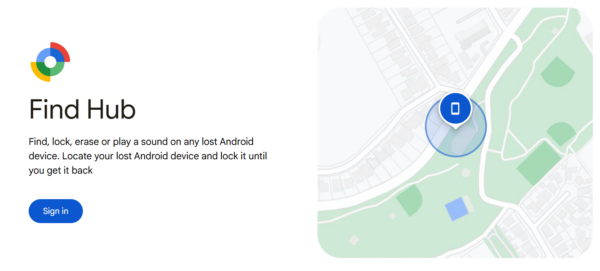
Google’s Find My Device service offers remote access. This works when your phone powers on and connects to the internet, even with a non-functional display.
Open android.com/find in a web browser and sign in with your Google account. Your device appears on the map if online. You can play a sound, lock the device remotely, or erase all data. The remote lock feature lets you set a new PIN from your computer, potentially bypassing the previous lock method.
Professional Data Recovery Services
When DIY methods fail, and your data holds significant value, professional recovery services extract information from severely damaged devices. Expect to pay between $100 and $500, depending on damage severity. Only consider this for irreplaceable data like unique photos or critical work documents.
The Bottom Line
Most users successfully access Android phones with broken screens using OTG adapters and HDMI cables. USB mouse control works in most situations where the screen cracks, but touch remains functional.
Prevention beats recovery. Enable USB debugging now in developer options. Set up automatic cloud backups through Google Photos. Sync contacts to your Google account. These steps ensure your data stays accessible even when hardware fails.
Enable automatic cloud backups, sync contacts to Google, enable USB debugging in developer options, and use a protective case with a screen protector.
If the phone doesn’t power on at all, your only option is professional data recovery services. They can sometimes extract data from failed hardware.
Using OTG adapters, HDMI cables, or Find My Device doesn’t void warranties. Only rooting or unauthorized software modifications affect warranty coverage.
Only for ADB methods. OTG mouse, HDMI output, and Find My Device work without USB debugging. Enable it now as a preventive measure for future issues.
Yes, if the touchscreen still works. Use an OTG adapter with a USB mouse to navigate blindly, or connect to an external display via HDMI if your device supports video output.


Improve this guide
User forum
0 messages