
Android Error Images: Complete Guide to Understanding and Resolving Issues

 5 min. read
 Updated on

Android error images and screens can be confusing, especially when they appear suddenly and interrupt normal device usage. From boot loop screens to app crash pop-ups and network error messages, these visual alerts are Android’s way of telling you something isn’t working as expected.
In this comprehensive guide, you’ll learn what Android error images are, why they occur, and how to fix the most common ones step by step. Whether you’re a beginner or a tech-savvy user, this guide will help you troubleshoot issues confidently and keep your Android device running smoothly.
This article is designed for all Android users, including smartphone and tablet owners who want to resolve problems without immediately visiting a repair center.
What Are Android Error Images?
Android error images refer to visual error screens, icons, or messages displayed when the operating system, an app, or a system component encounters a problem. These images often appear alongside warning text, system dialogs, or recovery screens.
They serve as diagnostic indicators, helping users identify issues related to:
- System boot failures
- App crashes
- Network connectivity problems
- Storage limitations
- Software corruption
Understanding these error images is the first step toward resolving them efficiently.
What You’ll Need
Before troubleshooting Android error images, ensure you have the following:
- An Android device with internet connectivity
- Access to Settings and system menus
- Latest Android OS updates installed
- Basic familiarity with Android navigation
- Optional diagnostic tools such as ADB (Android Debug Bridge)
Understanding Common Android Error Images
Below are the most frequent Android error images and what they usually mean.
1. Boot Loop Error
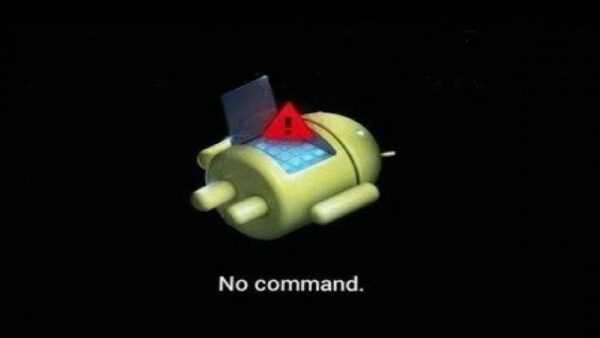
A boot loop occurs when your device repeatedly restarts and never reaches the home screen. This often appears after:
- A failed system update
- Corrupted system files
- Installing incompatible apps or firmware
2. App Crash Errors
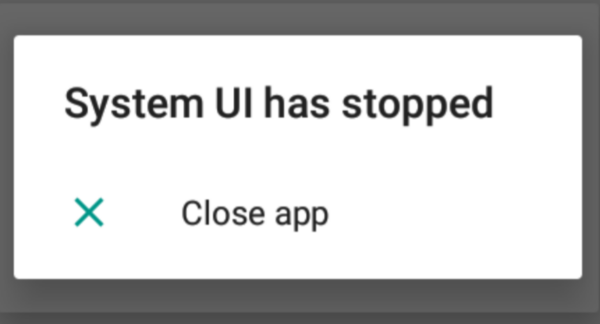
These errors typically show messages like:
“Unfortunately, [App Name] has stopped”
They are usually caused by:
- App bugs
- Outdated apps
- Insufficient RAM or storage
3. Network Error Images
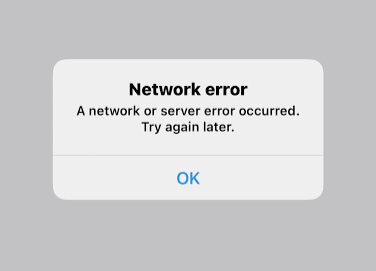
Network-related error images appear when your device fails to connect to Wi-Fi or mobile data. Causes include:
- Incorrect network settings
- Weak signal
- Router or carrier issues
4. Storage Error Warnings
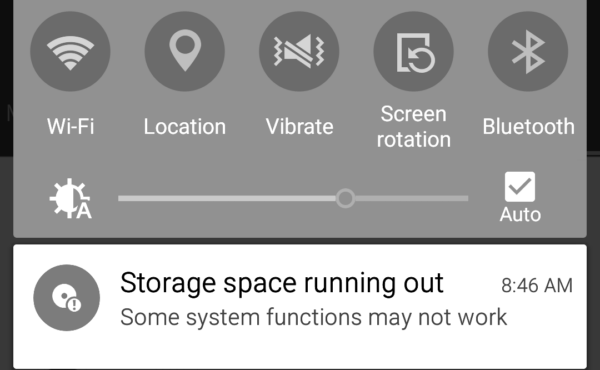
Storage errors appear when your device runs out of space, preventing:
- App installations
- Updates
- Media downloads
How to Resolve Boot Loop Errors
If your device is stuck in a boot loop, follow these steps:
- Power off your Android device.
- Press and hold Volume Up + Power (or Volume Down + Power on some devices) to enter Recovery Mode.
- Use the volume buttons to select Wipe Cache Partition.

- Confirm with the Power button.
- Reboot the device and check if the issue is resolved.

- If the problem persists, perform a Factory Reset from Recovery Mode.

Note: A factory reset will erase all data, so use it as a last resort.
Troubleshooting App Crash Errors
To fix frequent app crashes:
- Go to Settings > Apps > [App Name].
- Tap Storage & Cache.
- Select Clear Cache.

- Update the app from the Google Play Store.

- If the issue continues, uninstall and reinstall the app.
- Restart your device after reinstalling.
Learn more about clearing Cache and updating your app here
Fixing Network Error Images
Wi-Fi Issues
- Open Settings > Network & Internet > Wi-Fi.

- Tap your connected network.

- Select Forget Network.

- Reconnect by entering the Wi-Fi password again.

Mobile Data Issues
- Enable Airplane Mode for 30 seconds.
- Disable Airplane Mode.
- Restart the device if the issue persists.

Tips and Best Practices to Avoid Android Error Images
- Keep your Android OS updated
- Download apps only from trusted sources like the Google Play Store
- Regularly clear unused files and apps
- Use security or antivirus apps to detect malware
- Back up important data frequently
- Avoid force-installing incompatible APK files
Common Android Error Issues and Solutions
- Problem: Device won’t turn on Solution: Charge the device and perform a hard reset by holding the Power button for 10 seconds.
- Problem: Apps won’t update Solution: Clear Google Play Store cache and data.
- Problem: “Unfortunately, [App Name] has stopped” Solution: Force stop the app, clear cache, and restart the device.
- Problem: Cannot connect to Wi-Fi Solution: Restart the router and reconnect the device.
Ensuring Android Device Reliability
Understanding Android error images empowers you to take control of your device’s performance. By recognizing common error screens and applying the correct fixes, you can resolve most issues without professional assistance.
Consistent system updates, responsible app management, and prompt troubleshooting are key to a reliable Android experience. With the right knowledge, Android error images become helpful signals—not roadblocks—to a smoother and more dependable device.
Android error images typically appear due to software glitches, failed updates, or hardware issues.
Force stop the app, clear its cache, and restart your device. If the problem persists, uninstall and reinstall the app.
While a factory reset can resolve many software-related issues, it should be used as a last resort due to data loss risks.
Ensure the device is charged. If it still won’t turn on, try a hard reset or consult a professional technician.


Improve this guide




User forum
0 messages