
Android: How to Connect to Wi-Fi (And What to Do When It Doesn’t Work)

 7 min. read
 Published on
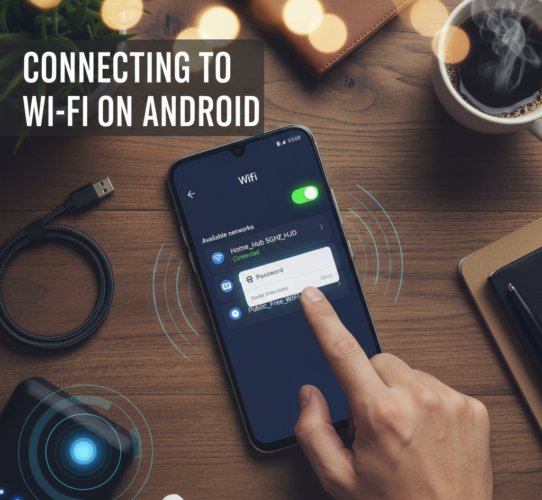
Connecting an Android phone to Wi-Fi sounds like one of those things you shouldn’t need instructions for—until it doesn’t work. On the surface, the process is simple. In practice, Android’s flexibility, manufacturer customizations, and evolving software versions mean the experience can vary more than people expect.
This guide doesn’t just explain how to connect your Android device to Wi-Fi. It explains what’s happening behind the scenes, how Android handles networks, and how to fix the most common problems when things go wrong.
Whether you’re setting up a new phone, troubleshooting a stubborn connection, or trying to understand why your Wi-Fi keeps dropping, this article walks you through it from an expert’s perspective.
Understanding How Android Handles Wi-Fi Connections
Before jumping into steps, it helps to understand how Android thinks about Wi-Fi.
Android treats Wi-Fi networks as profiles, not one-time connections. Once you connect to a network, Android saves its credentials and security settings, then automatically reconnects when the network is in range. This is why your phone usually connects instantly at home or work without asking again.
Android also prioritizes networks based on signal strength, security type, and your past behavior. If your phone keeps connecting to the “wrong” network, it’s often because Android believes that network is more reliable—even if you disagree.
This background behavior explains many connection quirks users experience.
Connecting to Wi-Fi on Android: The Correct Way
On modern Android versions (Android 11 and newer), Wi-Fi settings are centralized and streamlined, but manufacturers like Samsung, Xiaomi, and OnePlus may slightly rename menus. The logic, however, remains the same.
Connecting Using Quick Settings (The Fast Method)
Android’s Quick Settings panel allows you to connect to Wi-Fi without entering the full Settings app.
- Swipe Down: From the top of your screen, swipe down twice to fully expand the Quick Settings panel.
- Locate Wi-Fi Icon: Look for the Wi-Fi icon (it usually looks like a series of concentric arcs).
- Long Press: Long-press the Wi-Fi icon. This will take you directly to the Wi-Fi settings page.
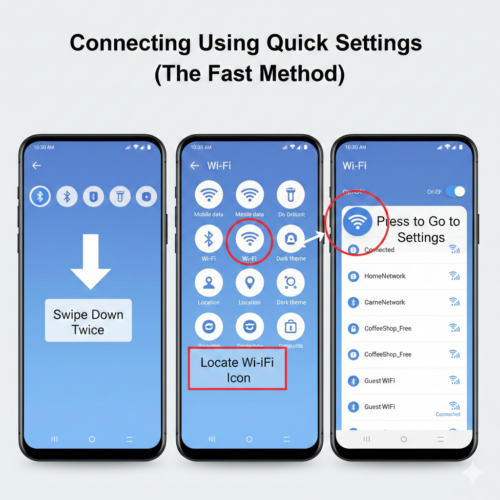
On newer Android versions, tapping the Wi-Fi tile opens a network picker, letting you switch networks instantly. This is especially useful when moving between home, office, and mobile hotspots.
Pro tip: If Wi-Fi is on but not behaving correctly, toggling it off and on from Quick Settings forces Android to rescan networks and renegotiate connections—often enough to fix minor glitches.
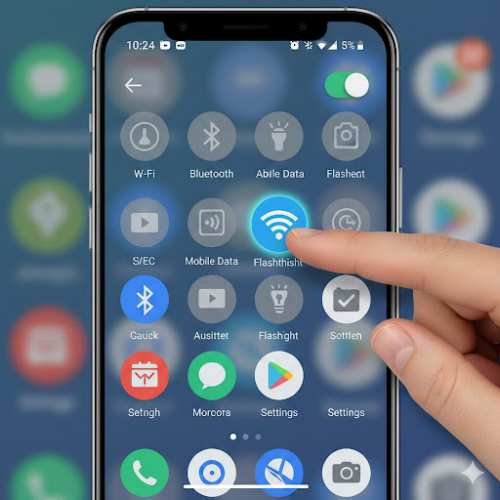
Method B: Through the Settings App
- Open Settings: Tap on the “Settings” app icon, which usually looks like a gear.
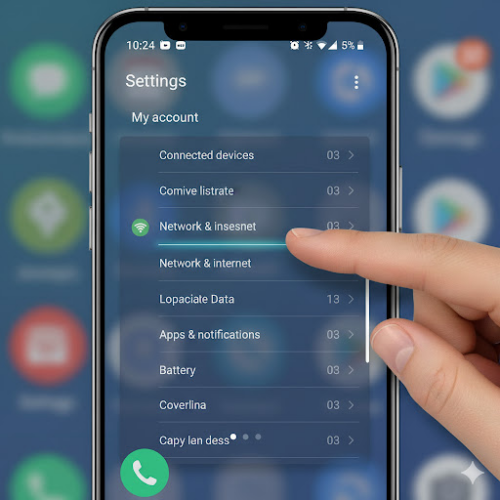
- Navigate to Network & Internet: Scroll down and tap on “Network & internet” (the exact wording may vary slightly depending on your Android version).
- Select Wi-Fi: Tap on “Wi-Fi.”
Step 2: Turning On Wi-Fi
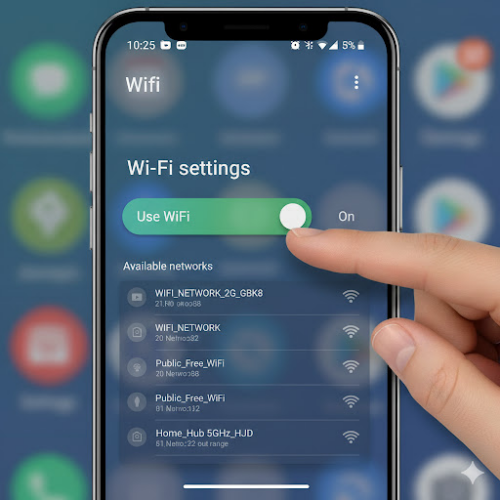
Once you’re on the Wi-Fi settings page, ensure that the Wi-Fi toggle switch is in the “On” position. You’ll usually see it at the top of the screen. When enabled, your device will start scanning for available networks.
Step 3: Selecting a Network
After a brief scan, you’ll see a list of “Available networks.” These are the Wi-Fi networks within range of your device.
- Identify Your Network: Look for the name of the Wi-Fi network you want to connect to (also known as the SSID). If you’re connecting to your home Wi-Fi, this name is usually found on a sticker on your router.
- Tap the Network: Tap on the name of your desired network.
Step 4: Entering the Password (If Required)
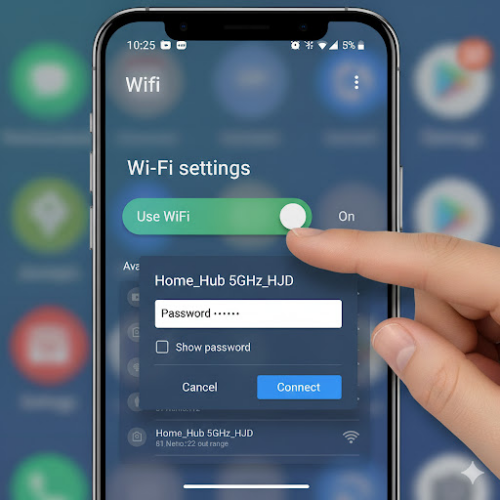
Most private Wi-Fi networks are secured with a password (also called a network key or passphrase) to prevent unauthorized access.
- Enter Password: A dialog box will appear, prompting you to enter the password for the selected network. Type in the correct password carefully.
- Show Password (Optional): You can check the “Show password” box to see what you’re typing, which can help prevent typos.
- Tap Connect: Once you’ve entered the password, tap the “Connect” button.
Step 5: Connected!
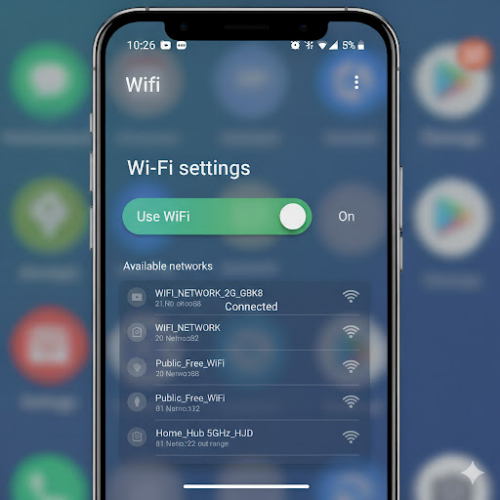
If the password is correct, your device will connect to the Wi-Fi network. You’ll see “Connected” underneath the network name in the list, and a Wi-Fi icon will appear in your device’s status bar at the top of the screen
For secured networks, Android encrypts and stores the password after successful authentication. From this point on, connection should be automatic unless something changes—such as the router password, encryption type, or network hardware.
A successful connection is confirmed by:
- A Wi-Fi icon in the status bar
- “Connected” shown under the network name
- Internet access verified (Android checks this silently in the background)
Why “Connected” Doesn’t Always Mean Internet Access
One of the most confusing situations for Android users is seeing “Connected, no internet”.
This means your phone successfully connected to the router, but the router itself cannot reach the internet. Common causes include:
- The router losing its ISP connection
- Incorrect DNS configuration
- A captive portal (public Wi-Fi login page)
- Router firmware or hardware issues
Android detects this by sending small test requests to known servers. When they fail, Android warns you—even though Wi-Fi technically works.
In these cases, the issue is rarely the phone. Restarting the router or checking another device on the same network usually confirms this quickly.
Connecting to Hidden Wi-Fi Networks
Some routers don’t broadcast their network name (SSID). Android can still connect, but you must enter the details manually.
Inside Wi-Fi settings, choose Add network or Add Wi-Fi network. You’ll need:
- Network name (SSID, case-sensitive)
- Security type (WPA2/WPA3)
- Password
Android won’t validate this information until you attempt to connect, so even a small typo can cause silent failure. If the network doesn’t connect, double-check capitalization and security type first.
Public Wi-Fi and Captive Portals
Public Wi-Fi—cafés, hotels, airports—often uses a captive portal, meaning you must accept terms or log in through a browser.
Android usually detects this and automatically opens the login page. If it doesn’t:
- Open a browser manually
- Visit a non-HTTPS site (such as example.com)
- This forces the portal to appear
Until the portal is completed, Android may show “Connected, no internet,” even though the network is functioning as intended.
Common Wi-Fi Problems and How to Fix Them
Wi-Fi Keeps Disconnecting
This is often caused by:
- Weak signal
- Router switching between 2.4 GHz and 5 GHz bands
- Battery optimization interfering with background networking
Disabling aggressive battery-saving features for system services can stabilize connections, especially on heavily customized Android skins.
Phone Won’t Connect to Any Network
If no Wi-Fi networks connect at all, resetting network settings is often effective. This clears saved Wi-Fi, Bluetooth, and mobile network data without deleting personal files.
Slow Wi-Fi on Android Only
If other devices are fast but your phone is slow, the issue may be:
- DNS conflicts
- Router compatibility with certain chipsets
- Cached network data
Forgetting the network and reconnecting forces Android to rebuild the connection profile from scratch.
Advanced: Wi-Fi Preferences You Should Actually Understand
Android includes several advanced options that most users ignore—but they matter.
- Auto-switch to mobile data allows Android to abandon weak Wi-Fi networks in favor of cellular data. This improves reliability but can increase data usage.
- MAC address randomization improves privacy on public networks but can cause issues with routers that whitelist devices.
- Metered network settings tell Android to limit background data usage, useful for hotspots but harmful if enabled accidentally on home Wi-Fi.
- Understanding these settings can dramatically improve your Wi-Fi experience without changing hardware.


Improve this guide


User forum
0 messages