
Android Not Receiving Texts From iPhone? Here’s How to Fix It (Complete Guide)

 7 min. read
 Updated on
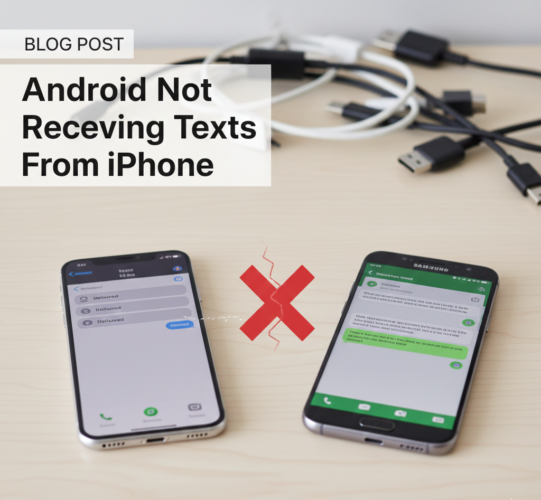
Apple and Android have never worked perfectly together. From Apple’s long-standing reliance on iMessage to the familiar green bubbles used for non-iPhone users, communication between the two platforms has always come with friction. While Apple has finally agreed to support RCS messaging, most Android-to-iPhone conversations still rely on traditional SMS and MMS.
That’s why it can be frustrating when your Android phone suddenly stops receiving texts from an iPhone. The good news is that this problem is usually caused by settings or software issues—not a faulty device. In this guide, we’ll walk through the most effective fixes step by step.
Make Sure Your Cellular Connection Is Working Properly
Because Android and iPhone devices exchange messages through SMS or MMS, a stable cellular connection is essential. If your phone is in Airplane Mode, has mobile data disabled, or is struggling with poor signal strength, text messages may fail to arrive even if everything else is set up correctly.
Take a moment to confirm that mobile data is turned on and that your signal is strong. Even when your phone shows network bars, weak coverage can still interfere with message delivery. Moving to an area with better reception or toggling mobile data off and back on can sometimes resolve the issue instantly.
Check SMS and MMS Settings on the iPhone
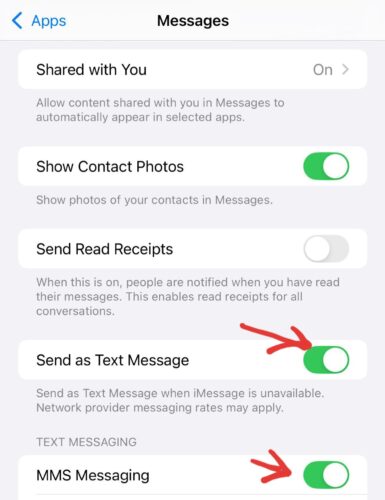
In many cases, the problem is actually on the iPhone side. Ask the person using the iPhone to open their Messages settings and confirm that both “Send as SMS” and “MMS Messaging” are enabled. These options allow messages to fall back to standard text messaging when iMessage isn’t available.
If “Send as SMS” is disabled, messages may never leave the iPhone when they can’t be delivered through iMessage. And if MMS is turned off, you won’t receive photos, videos, or group messages at all. Once these settings are corrected, ask them to resend the message.
Make Sure the Contact Isn’t Blocked on Your Android Phone
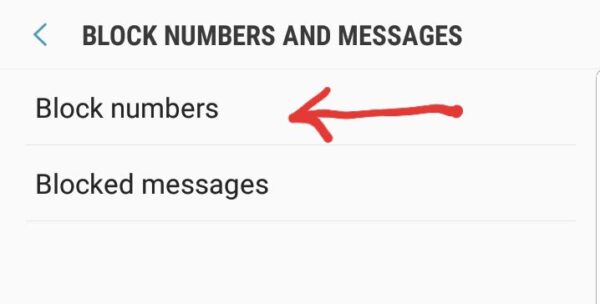
It’s surprisingly common for contacts to be blocked accidentally. If your Android phone has blocked the iPhone number, messages will never reach your inbox—even though everything else appears normal.
Open your messaging app’s settings and review your blocked numbers. If you find the contact there, remove the block and have them try sending another message. In many cases, messages start coming through immediately after unblocking.
Update Your Android Software and Messaging App
Outdated software can cause compatibility problems, especially with messaging services that rely on carrier updates and system components. If you haven’t updated your phone in a while, your messaging app may not be communicating properly with your carrier’s SMS network.
Check for Android system updates and make sure your messaging app—such as Google Messages—is fully up to date. Even if updates don’t solve the problem right away, they eliminate bugs and inconsistencies that could be causing message failures.
Learn how to update your Android device here
Remove Your Phone Number From iMessage
If you previously used an iPhone, this is one of the most common reasons Android phones stop receiving texts from iPhones. When your phone number is still linked to iMessage, iPhones may continue sending messages there instead of using SMS or MMS.
If you still have access to your iPhone,
Step 1: Open Settings
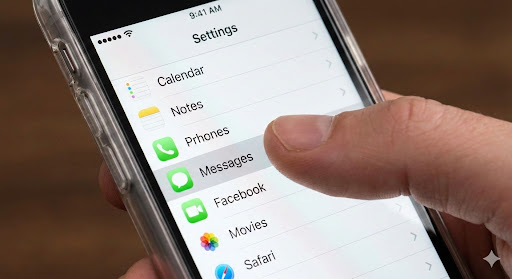
First, open your Settings app and scroll down to find and tap on Messages.
Step 2: Turn off iMessage
In the Messages menu, you will see an iMessage option at the top. Tap the toggle switch next to it so it turns grey, indicating it is off.
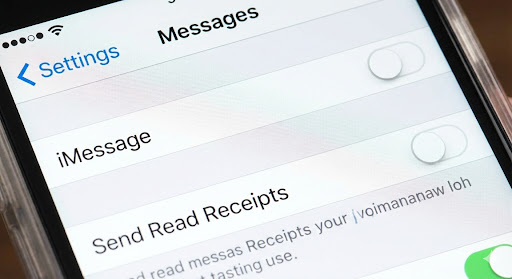
Step 3: Turn FaceTime off as well
Now, go back to the main Settings menu, find and tap on FaceTime. Just like with iMessage, tap the toggle switch next to FaceTime to turn it off.
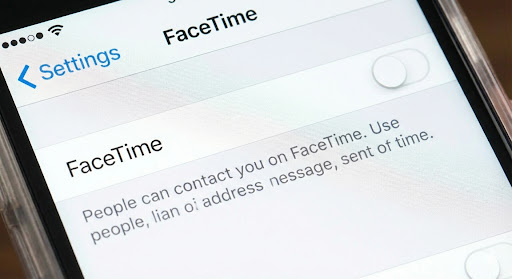
If you no longer have the iPhone, you’ll need to deregister your number online. Visit Apple’s Deregister iMessage page, enter your phone number, and confirm it using the verification code sent to you by text.
Note: It can take up to 24 hours for iMessage to fully stop intercepting and redirecting your text messages.
Once your number is removed, texts should begin arriving on your Android phone normally.
Restart Your Android Phone
While it may sound simple, restarting your phone can resolve temporary system glitches, background process issues, or carrier sync problems that interfere with messaging. Power your phone off completely, wait a few seconds, and turn it back on before testing again.
This quick step often fixes issues that don’t have an obvious cause.
Clear the Messaging App Cache
If the problem persists, clearing your messaging app’s cache can help remove corrupted temporary files that prevent messages from displaying correctly. Clearing the cache does not delete your conversations, but it can refresh the app’s behavior and restore normal message delivery.
After clearing the cache, reopen the messaging app and ask the iPhone user to send another text.
Reset Network Settings as a Last Resort
When all else fails, resetting your network settings can fix deeper carrier-level configuration issues. This process removes saved cellular settings and forces your phone to reconnect to your carrier as if it were new.
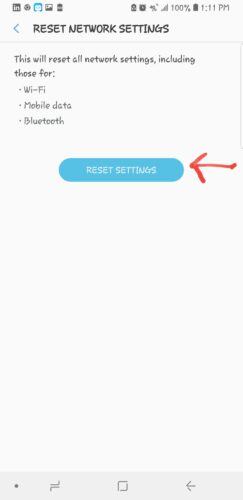
On newer versions of Android, you can reset only mobile network settings without affecting Wi-Fi or Bluetooth connections. Once the reset is complete, test your messaging again to see if the issue has been resolved.
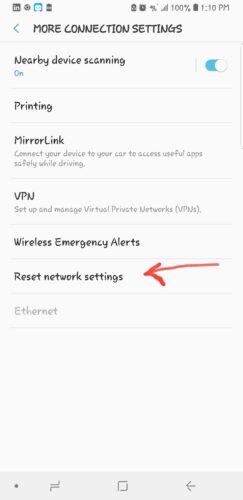
Heres how to Reset your Android Settings
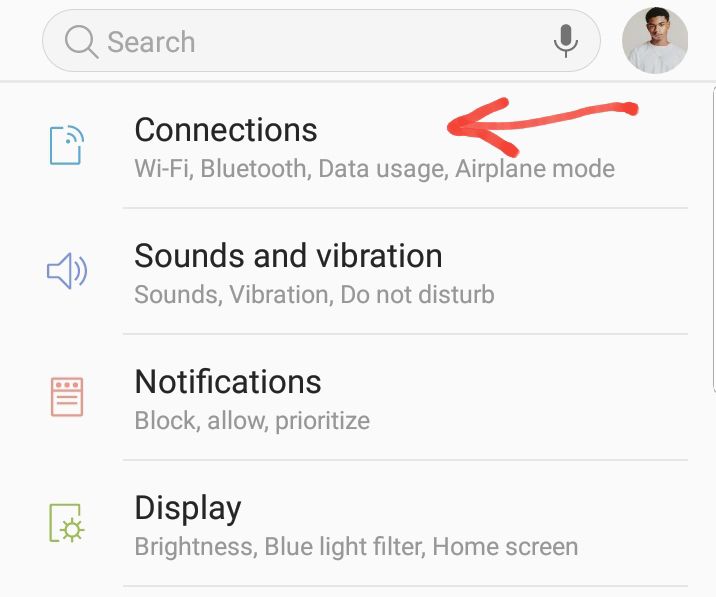
Step 1: On your Android device, go to Settings and Select Connection
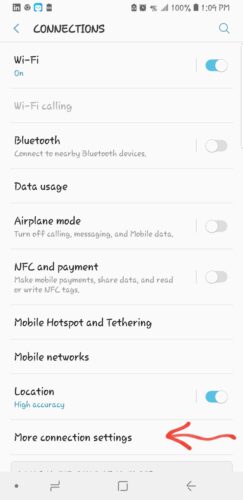
Step 2: Select More Connection Settings
Step 3: Choose Reset Network Settings
Step 4: Confirm to reset network settings and restart your device.
Tips and Best Practices
- Regularly update your device’s software to prevent compatibility issues.
- Ensure both devices have adequate storage space for new messages.
- Consider using third-party messaging apps like WhatsApp or Telegram for cross-platform messaging.
- Regularly back up your contacts and important messages.
- Check with your carrier if you continue to experience issues.
Common Issues and Fixes
Problem: Messages are delayed or missing. Solution: Check your network connection and ensure both devices have updated carrier settings.
Problem: Contacts appear as unknown. Solution: Verify that contact details are correctly synced with your Google account.
Problem: Unable to send messages to iPhone users. Solution: Disable iMessage on the iPhone and ensure SMS is enabled on Android.
Ensuring Seamless Texting Between Devices
By following the steps outlined in this guide, you should be able to resolve any issues with your Android device not receiving texts from an iPhone. Regular maintenance, such as updating your device and checking network settings, can help prevent similar problems in the future. If issues persist, consider reaching out to your carrier for further assistance.
FAQS
Ensure iMessage is disabled on the sender’s iPhone and SMS is properly configured on your Android.
Yes, but you may need to deregister iMessage from your Apple ID.
Delays can be caused by network issues or outdated carrier settings. Check your connection and update settings.
Third-party apps can help transfer messages, but it’s best to start fresh to avoid compatibility issues.
If troubleshooting doesn’t resolve the issue, contacting your carrier may be necessary for further assistance.


Improve this guide




User forum
0 messages