
Android Not Receiving Texts: The Ultimate Repair Guide

 7 min. read
 Updated on

When Android not receiving text issues happen with a smartphone, it can cause real problems. You might miss a message from work, a one-time code, or something as simple as a friend or family member trying to reach you.
The upside is that it’s an issue that’s usually very easy to fix. A few quick checks are often all it takes to start receiving texts again.
Quick Fixes to Try First
Before we dive into the more technical solutions, we’re going to start with these quick Android tips. They can solve Android not receiving text problems about 70% of the time.
Restart Your Phone
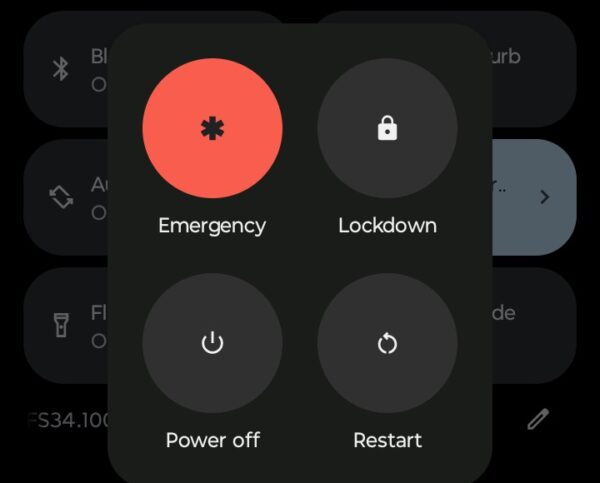
It sounds obvious, but a simple restart clears temporary glitches that block texts. Hold your power button, tap restart, and give it a minute. Sometimes that’s literally all it takes.
Check Your Signal
No signal means no texts. Look at the top of your screen – if you see “No Service” or “Emergency Calls Only,” that’s your problem. Try moving to a different location or going outside if you’re in a building with thick walls.
Turn Airplane Mode On and Off
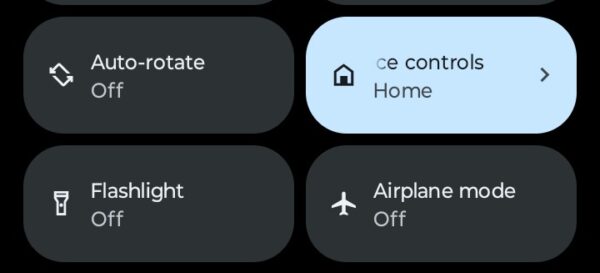
This forces your phone to reconnect to your carrier’s network. Swipe down from the top of your screen, tap the airplane icon, wait 10 seconds, then tap it again. This refreshes your connection and often fixes reception issues.
Check Your Message App Settings
Sometimes the problem is hiding in your settings rather than your connection. Try these steps to see if your Android not receiving text problem is resolved.
Clear Your Messaging App Cache
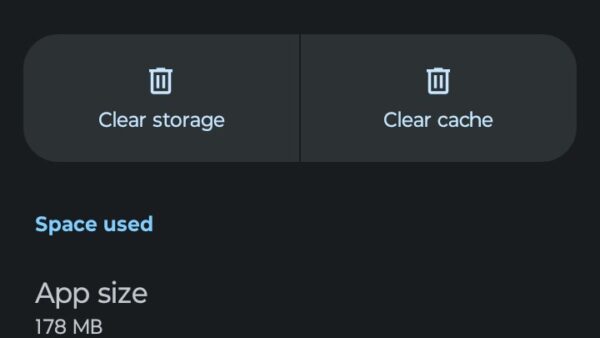
Over time, your messaging app collects data that can cause glitches. Here’s how to clear it:
- Go to Settings > Apps
- Find your default messaging app (Messages, Samsung Messages, etc.)
- Tap Storage
- Hit “Clear Cache” (not Clear Data – that deletes your messages)
Make Sure Messages Aren’t Blocked
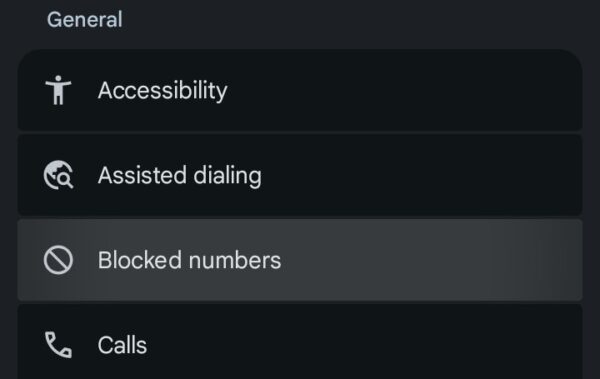
Android has built-in spam protection that sometimes gets overzealous. Check your blocked numbers list to make sure messages aren’t blocked. The process will vary depending on your messaging app, but these steps will work with most handsets.
- Open the messaging app on your phone.
- Tap the three dots in the corner
- Go to Settings > Blocked numbers
- Make sure you haven’t accidentally blocked the sender
Check Notification Settings
You might be receiving texts but not seeing notifications. Go to Settings > Apps > Messages > Notifications and make sure everything is turned on.

Network and Carrier Issues
If the basics didn’t work, the problem might be with your carrier connection. You can handle this by resetting your network settings and checking for carrier updates.
Reset Network Settings
This wipes all your network configurations and starts fresh. It won’t delete any personal data, but you’ll need to reconnect to Wi-Fi networks:
- Open Settings
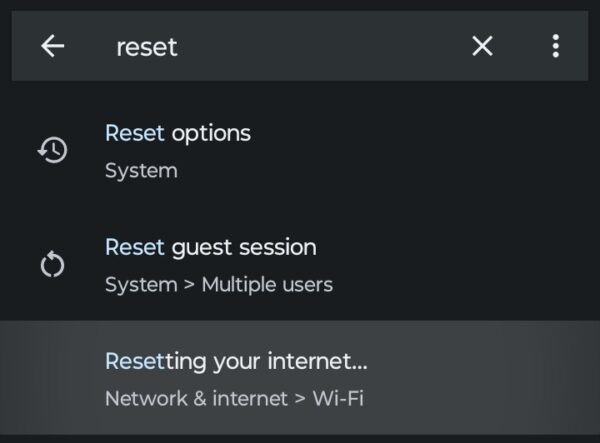
Open Settings on your Android phone, and type “Reset” into the search bar. Select “Reset Bluetooth and Wi-Fi.”
2. Reset Mobile Network Settings
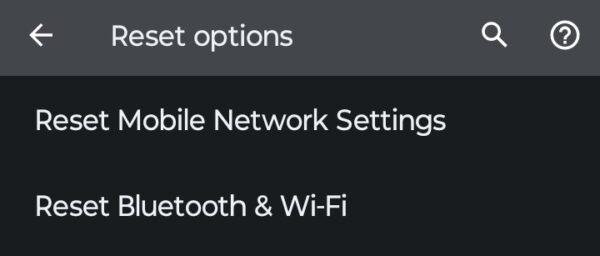
From his menu, choose “Reset Mobile Network Settings.” Confirm the reset option on the next screen and wait for your phone to reboot.
Update Your Carrier Settings
Carriers push updates to improve service. Check if you have any pending:
- Go to Settings > System Update
- Tap System Update or Software Update
- Look for carrier settings updates
Verify Your APN Settings
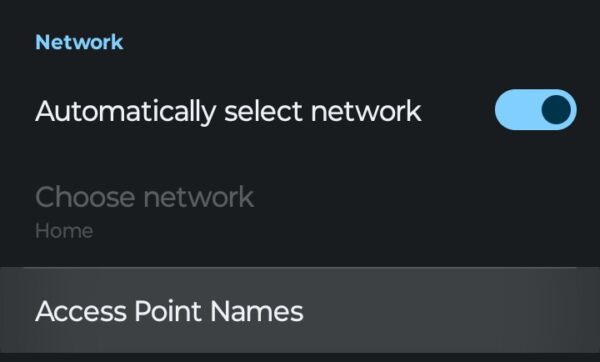
APN (Access Point Name) settings tell your phone how to connect to your carrier’s network. The wrong settings mean no texts. Contact your carrier for the correct APN settings, or search “[Your Carrier] APN settings” online. You can update these in Settings > Network & Internet > Mobile Network > Advanced > Access Point Names.
Deal with RCS and Chat Features
If you’re using Google Messages, RCS (Rich Communication Services) can cause problems. If you’ve experienced your Android not receiving texts since using RCS, it could be the issue.
Turn RCS Off Temporarily
RCS is like iMessage for Android, but it can be buggy, which leads to issues occasionally.
- Open Google Messages
- Tap your profile picture
- Go to Messages Settings > RCS Chats
- Turn off “Enable chat features”
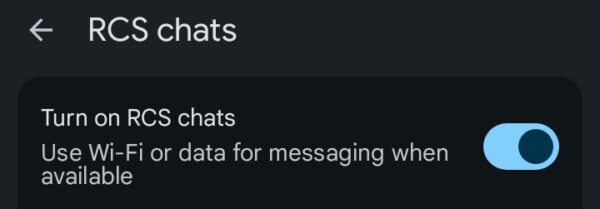
Wait a few minutes and check if regular SMS texts come through. If they do, RCS was your problem, and you can try turning it back on later.
Switch to a Different Messaging App
Sometimes the default app just isn’t working. Download a different SMS app from the Google Play Store (like Textra or Pulse) and set it as your default. This can bypass whatever was causing the problem.
Check for Software Issues
Your Android version itself might be the culprit. Bugs in older versions can block texts, and a quick update could fix your texting issue.
Update Your Android OS
- Settings > System
- Tap System Update
- Install any available updates
Boot into Safe Mode
Safe mode disables third-party apps. If texts work in safe mode, one of your apps is interfering:
- Press and hold the power button
- Long-press on “Power Off”
- Tap OK to reboot in safe mode

If texts work in safe mode, start uninstalling recently downloaded apps until you find the troublemaker.
SIM Card Problems
Your SIM card might be damaged, dirty, or not seated properly. This can cause a variety of issues, including problems with texts not coming through.
Remove and Reinsert Your SIM
Power off your phone completely. Remove the SIM card, check it for damage or dirt, and wipe it gently with a clean cloth. Reinsert it firmly, then power back on.
Try Your SIM in Another Phone
If possible, put your SIM in a different phone. If it doesn’t work there either, your SIM card is damaged and needs replacement from your carrier.
Contact Your Carrier
If you’ve tried everything and still can’t receive texts, call your carrier’s customer service. They can:
- Check if there’s an outage in your area
- Verify your account is in good standing
- Refresh your network connection on their end
- Check if your number is properly provisioned for SMS
- Replace a faulty SIM card
Sometimes the issue is on their end, and they may need to flip a switch in their system to get things going again.
When to Factory Reset
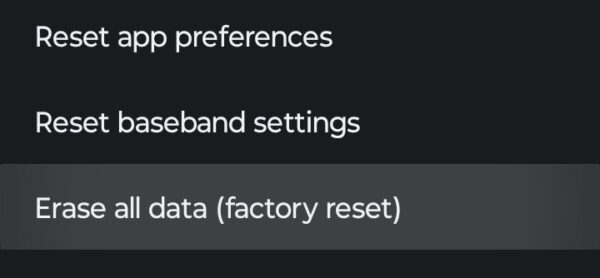
A factory reset should be your last resort because it erases everything on your phone. If nothing else works, this nuclear option often solves stubborn problems.
Before you factory reset:
- Back up all your photos, contacts, and important data
- Write down your Wi-Fi passwords
- Make sure you know your Google account password
Then go to Settings > System > Reset Options > Erase All Data.
Prevent Future Text Problems
Once you’ve fixed the issue, here are some tips to avoid it happening again:
- Keep your Android OS updated
- Regularly clear your messaging app cache (once a month)
- Don’t let your storage get completely full
- Restart your phone at least once a week
- Keep your SIM card slot clean
The Bottom Line
Most Android text message problems come from temporary glitches, network hiccups, or settings that have been changed accidentally. Start with the simple fixes, and if those don’t work, move through the network settings and carrier-related fixes.
If you’re still stuck after trying everything, your carrier’s support team is there to help. Sometimes the problem is on their end and requires changes they can only make, and a factory reset should always be the last resort.
Even with a strong signal, background software glitches or a full messaging cache can prevent texts from appearing. Try a “Force Stop” on your messaging app or clear its cache in your device settings to refresh the delivery service.
Toggling Airplane Mode on for 10 seconds and then off forces your phone to disconnect and re-handshake with the nearest cell tower. This “network refresh” often clears stuck data sessions and restores incoming text delivery.
No. Resetting network settings only clears saved WiFi passwords, Bluetooth pairings, and VPN configurations. Your existing text messages, photos, and app data will remain completely untouched.
This usually happens if a contact is accidentally blocked or if there is a carrier-level routing error. Check your “Blocked numbers” list in the Phone or Messages app settings to ensure the contact wasn’t silenced by a spam filter.


Improve this guide




User forum
0 messages