
Android Not Recognized by PC: Overcoming File Transfer Failures

 6 min. read
 Updated on

When you need to transfer files to your computer and get the Android not recognized by PC error, it can be incredibly frustrating. PCs acting like Android phones don’t exist when you plug in a cable is nothing new, but there are several ways to address the issue.
This problem can interrupt basic tasks from moving photos to backing up data, but in many cases, the cause is something simple. Understanding where the connection is breaking down is the first step toward getting your Android and PC talking to each other again, and we’re going to show you how to do that.
Start With the Basics
Check your USB cable first. Is it the original cable or a replacement? Not all cables transfer data; some only charge devices. If you grabbed a random cable from a drawer, it might be the culprit.
Try a different cable if you have one available. The cable that came with your phone usually works best, although damaged cables can cause connection problems, even if they still charge your device.
You should also test different USB ports on your computer. Front panel ports sometimes have weaker connections than rear ports on desktop PCs. If you’re using a USB hub, plug your Android smartphone directly into your computer instead.
Check Your Phone Settings
Your Android device needs the right USB mode selected if you want to sync to your PC with a cable. When you connect your phone, pull down the notification shade. Look for a notification about USB connection or file transfer.

Tap that notification. You’ll see several options. Choose File Transfer or MTP mode. Some phones call it Transfer Files. Your phone might default to Charging Only mode for security. This prevents data access but won’t help when you need to move files.
If you don’t see a notification, go to Settings. Look for Connected Devices or Connections. Find USB and select File Transfer as the default option.
Update Your USB Drivers
Windows computers need proper drivers to recognize Android devices. Outdated or missing drivers cause many recognition failures. The Android not recognized by PC message often points directly to driver issues.
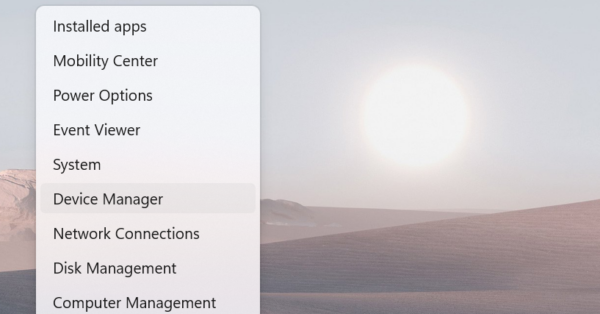
- Right-click on the Windows Start button and type “Device Manager” into the search bar.
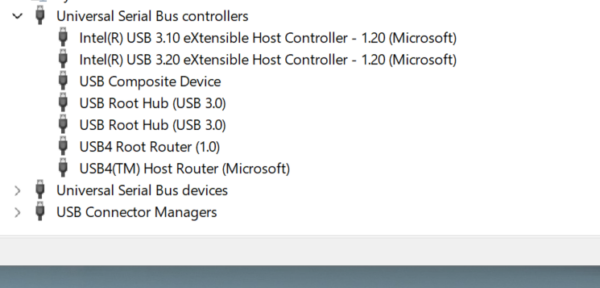
- Scroll until you see “Universal Serial Bus Controllers” and expand that list.
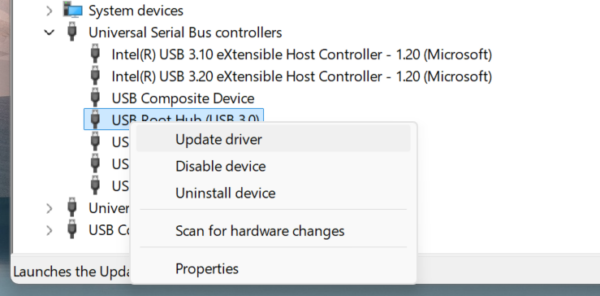
- Right-click on the appropriate USB device and choose “Update Driver.”
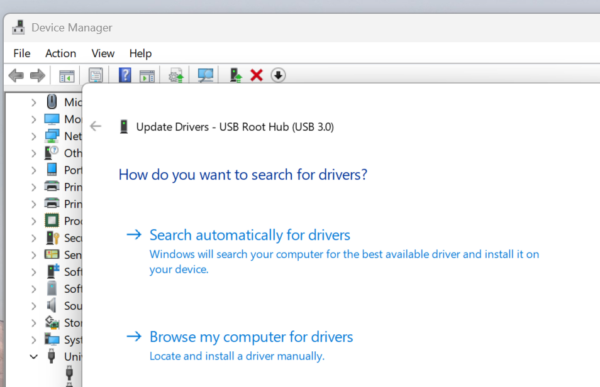
- Choose “Search automatically for Drivers” and follow the prompts. Reboot your PC when complete.
You can also visit your phone manufacturer’s website. Most provide USB drivers for download. Samsung, Google, Motorola, and other brands maintain driver downloads in their support sections.
Enable USB Debugging
USB debugging could help solve problems with a PC not recognizing an Android smartphone, but you’ll need to turn on Developer Options to access that.
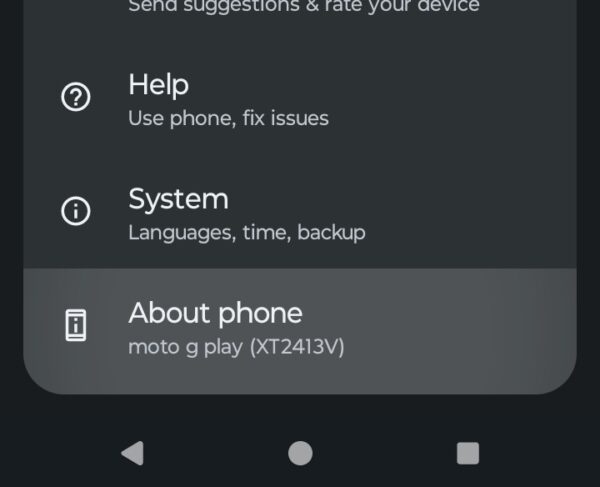
- Open “Settings” on your smartphone, and scroll down until you see the “About Phone” section towards the bottom of the list.
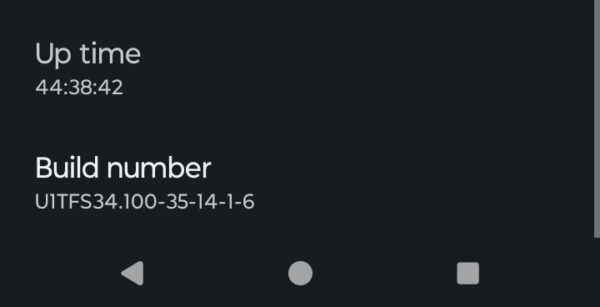
- Navigate the menu to the section that says “Build Number.” Tap it seven times to unlock Developer options.
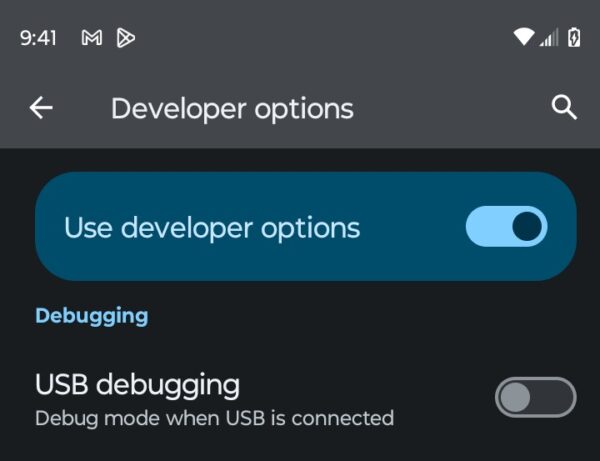
- Go back to the main Settings menu and look for the “Developer Options” section or use the “Search” function. Find USB debugging, and toggle it on.
A prompt appears on your phone when you connect to your PC. Allow USB debugging for that computer. This creates a trusted connection.
Security software sometimes blocks USB connections. Temporarily disable your antivirus or firewall. Try connecting your phone again. If this works, add an exception for your phone in your security software settings.
When Hardware Fails
Physical damage prevents proper connections. Inspect your phone’s USB port for debris, lint, or bent pins. Use a flashlight to see inside the port clearly. Carefully remove any debris with a wooden toothpick. Never use metal objects that might cause short circuits. Compressed air works well for dust removal.
Your PC’s USB ports could also have hardware problems. Test them with other devices like flash drives or external hard drives. If nothing connects properly, your computer needs repair, not your smartphone.
The charging port on your phone eventually wears out from repeated plugging and unplugging. If cleaning doesn’t help and other cables fail too, the port may need professional repair.
Alternative Transfer Methods
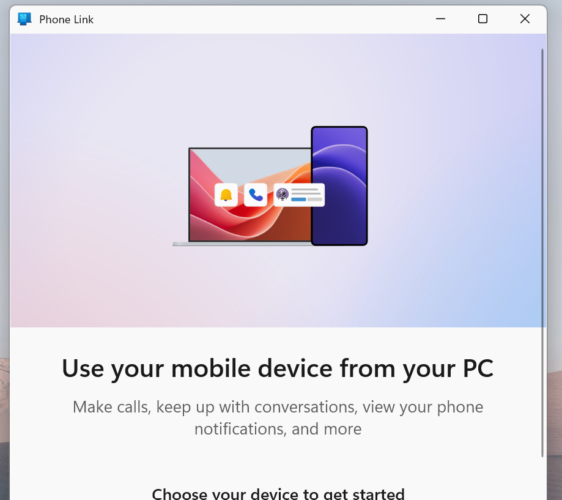
Windows 10 and 11 include the Your Phone app, now called Phone Link. This Microsoft tool creates a wireless connection between your Android device and PC. You can transfer files without cables.
Download the Phone Link app on your phone from the Google Play Store. Open it on both your phone and PC, and then follow the pairing instructions. The process is very simple and only takes a few minutes to complete.
Cloud services offer another cable-free option. Google Drive, Dropbox, and OneDrive let you upload files from your phone and download them on your PC. This works well for occasional transfers or if you’re already set up on one of the cloud service systems.
Bluetooth provides a slower but reliable alternative when you need to send smaller files or photos to your PC from any Android smartphone. Emailing yourself is always an option, while messaging apps like WhatsApp or Telegram can also allow you send files the same way.
The Bottom Line
Connection problems frustrate users but rarely require expert help. When you see “Android not recognized by PC” errors, start with cable and port checks. Verify your phone’s USB mode settings and update drivers when needed.
Most Android recognition issues resolve within minutes using these troubleshooting steps. Try each solution systematically. One of them will restore your file transfer capability.
Why does my PC keep disconnecting my Android phone?
Loose USB connections, faulty cables, or power management settings usually cause this. Try a different cable and USB port, preferably USB 3.0 or higher. Disable USB selective suspend in your PC’s power settings to prevent Windows from cutting power to save energy.
Do I need special drivers for my Android phone to connect to a PC?
Most modern Android phones work with Windows default MTP drivers. However, some manufacturers require specific drivers for full functionality. Check your phone manufacturer’s website for official USB drivers if your device isn’t recognized.
How do I enable file transfer mode on Android?
Plug your phone into your PC, then swipe down the notification panel. Tap the USB notification and select File Transfer or MTP mode instead of Charging Only. Some phones label this as Transfer Files or Media Device, depending on the manufacturer.


Improve this guide




User forum
0 messages