
Gemini 3 Best Settings (Pro & Flash): Complete Guide to Optimal Configuration

 4 min. read
 Updated on
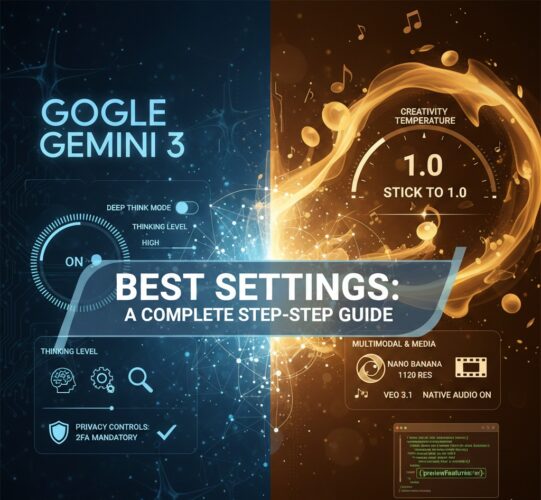
Getting the most out of Gemini 3 requires moving past the “default settings” mindset.
With the release of Gemini 3 Pro and Gemini 3 Flash, Google introduced Thinking Levels—a new way to control how deeply the model reasons before responding. Combined with updated vision controls, smarter temperature handling, and new mobile behaviors, Gemini 3 behaves very differently from previous versions.
Whether you’re using the Gemini app on Android/iOS, this guide walks you through the best Gemini 3 settings, what each one does, and exactly how to enable them step by step.
What’s New in Gemini 3?
Before diving into the settings, here’s what makes Gemini 3 different:
- Reasoning-first architecture (thinking before responding)
- Adjustable Thinking Levels (speed vs depth control)
- Native multimodality (text, images, UI, documents)
- Lower hallucination rates when configured correctly
- Better schema and structured output handling
These changes mean that the right settings matter more than ever.
1. Mastering “Thinking Levels” (Most Important Setting)
The biggest shift in Gemini 3 is the ability to control how much the model reasons internally before it answers.
If you’re using Gemini 3 Flash for bulk or repetitive tasks (like sorting 100 emails), set Thinking Level to Minimal to reduce response time and token usage.
How to Change Thinking Levels (Gemini App)
- Open the Gemini app on Android/iOS or go to gemini.google.com.

- Tap the model picker at the bottom left of the chat interface. Tap it to open the dropdown menu.

3. Choose Your “Thinking Level”
- For Speed: Select Fast (Gemini 3 Flash). This is the “Minimal/Low” thinking setting, optimized for quick interactions.
- For Reasoning: Select Thinking (Gemini 3 Thinking). This enables the “High” thinking level by default, showing you the model’s logic steps.
- For More Precision: Select Pro (Gemini 3 paid model). This takes the reasoning to an advanced level and generates a more accurate output. Although it’s a paid version with only 3 free trials daily.

2. Media Resolution (Vision Settings)
Gemini 3 is natively multimodal, but higher image resolution increases token usage and processing time.
- Tap the + or Camera icon to upload an image.

- Gemini 3 automatically detects if an image is “Text-heavy” or “Detail-heavy.” To force high resolution, add the phrase “Analyze this in high detail” at the start of your prompt.

3. Best “System Instruction” Setup for Optimal performance
To ensure Gemini 3 stays in its “Best Settings” persona without you having to adjust them every time, use a System Instruction (available in AI Studio or Gemini Advanced).
How to do this:
- Go to Gemini settings

- Click on Instructions for Gemini

- Copy and paste this into your System Instructions:
”Act as a Gemini 3 Reasoning Engine. Prioritize accuracy over speed. When I provide images, assume media_resolution_high. Maintain a temperature of 1.0. If a task is complex, show your ‘Thought Signature’ steps before providing the final answer. Keep responses concise and avoid conversational filler.”

4. Prompting Best Practices for Gemini 3
Gemini 3 responds best when your prompts match how its reasoning engine works.
The “settings” aren’t just in the menu; they are in how you talk to the model. Gemini 3 prefers a different style than its predecessors:
- Precision Over Verbosity: Don’t “warm up” the model with long introductions. Give direct, clear instructions.
- The “Context Last” Rule: If you are uploading a long PDF or codebase, put your specific question at the very bottom of the prompt. Gemini 3’s “Thinking” mode focuses most intensely on the final instruction.
- Structured Output: Use the “Output as JSON” or “Table format” toggle if available. Gemini 3 is significantly better at maintaining strict schemas than Gemini 2.5.
5. Mobile & App-Specific Settings (Android & iOS)
If you’re using the Gemini mobile app, these toggles matter more than you think.
Best Mobile Settings
For Speed (Everyday Use)
- Model: Gemini 3 Flash
- Thinking Level: Minimal
- Ideal for voice input, camera queries, quick answers
For Deep Work
- Model: Gemini 3 Pro
- Thinking Level: High
- Ideal for studying, debugging, research
Enable Interrupt in Live Mode (Highly Recommended)
This lets you stop Gemini mid-sentence and clarify—making conversations feel much more natural.
- Open Gemini
- Go to Settings

- Tap Live Mode and Enable Interrupt Live Responses

Final Thought
Gemini 3 isn’t just faster—it’s configurable intelligence. Once you understand how Thinking Levels, media resolution, and prompting style work together, you stop “chatting” with the model and start directing it.
Enable “Battery Saver” mode and reduce screen brightness to conserve power.
Go to “Settings” > “Factory Reset” to restore default settings.
Yes, you can customize themes and layouts under the “Display” settings.
While not mandatory, it is recommended for enhanced security.


Improve this guide


User forum
0 messages