
How to Add App Icons to Your Android Home Screen (Step-by-Step)

 5 min. read
 Updated on
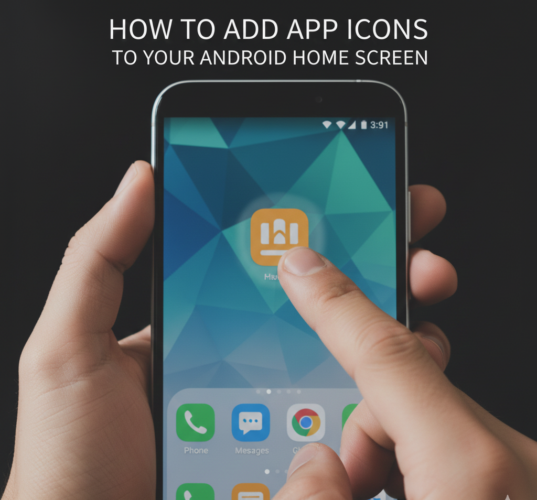
Customizing your Android home screen is one of the easiest ways to make your device more convenient and enjoyable to use. By adding app icons directly to your home screen, you can access your favorite apps faster without digging through the app drawer every time.
Whether you’ve just installed a new app, accidentally removed an icon, or simply want to reorganize your layout for better productivity, this step-by-step guide will show you exactly how to add app icons to your Android home screen. The process works on most Android devices, including Samsung, Google Pixel, and other popular brands.
This guide is perfect for Android users who want a cleaner, more efficient home screen setup—no extra apps or technical skills required.
How Do You Add App Icons to Your Android Home Screen?
Adding app icons to your home screen is a simple drag-and-drop process. Before you begin, make sure you have access to your device and that the app you want to add is already installed.
What You’ll Need
- An Android smartphone or tablet
- Apps downloaded and installed from the Google Play Store
- Access to your device’s app drawer
Step 1: Access the App Drawer
The app drawer is where all installed apps on your Android device are stored.
- Unlock your Android device to access the home screen.
- Look for the app drawer icon, usually shown as a grid of dots at the bottom of the screen.
- Tap the app drawer icon to display the full list of installed apps.

Tip: On recent devices, you can also swipe up from the bottom of the home screen to open the app drawer.
Step 2: Select and Add an App to the Home Screen
Once you’re inside the app drawer, you can add any app to your home screen.
- Scroll through the list to find the app you want to add.

- Press and hold the app icon until it lifts from the screen.

- Drag the app icon toward the home screen.

- If you have multiple home screens, drag the icon to the edge of the screen to switch between pages.
- Release the icon in your preferred location to place it on the home screen.

The app icon will now remain on your home screen for quick access.
Step 3: Organize Icons on Your Home Screen
After adding your app icons, you can rearrange them to match your preferences.
Move App Icons
- Press and hold any app icon on the home screen.
- Drag it to a new position or to another home screen.
- Release to confirm the new placement.
Create App Folders
- Press and hold an app icon.
- Drag it directly on top of another app icon.

- Release to create a folder automatically.

- Tap the folder to rename it (for example, Social, Productivity, or Games).

Folders help keep your home screen clean and reduce clutter.
Tips and Best Practices for a Cleaner Home Screen
- Place your most-used apps on the main home screen for faster access.
- Group similar apps into folders to save space.
- Remove unused app icons while keeping the apps installed in the app drawer.
- Add widgets (such as weather, calendar, or clock) for useful information at a glance.
- Customize your home screen further by changing wallpapers, grid size, and icon size from Settings.
Common Issues and How to Fix Them
- Problem: App icon does not appear on the home screen after adding. Solution: Ensure that there is enough space on the home screen or try placing it on a different screen.
- Problem: App icon disappears after restarting the device. Solution: Check if the app was moved to the SD card. Move it back to internal storage if necessary.
- Problem: Unable to move app icons between home screens. Solution: Check if the home screen layout is locked in settings and unlock it if needed.
Streamlining Your Android Experience
By adding and organizing app icons on your Android home screen, you can significantly improve how quickly and easily you navigate your device. A well-organized home screen not only saves time but also makes your phone feel more personal and intuitive.
Take a few minutes to experiment with different layouts, folders, and widgets to find what works best for you. With Android’s powerful customization options, your home screen can be tailored exactly to your daily needs.
Press and hold the app icon, then drag it to the ‘Remove’ or ‘Trash’ icon at the top of the screen.
Some launchers allow you to resize icons through their settings. Check your launcher’s customization options.
Ensure the app is installed correctly via the Google Play Store. Restart your device if it doesn’t appear immediately.
Press and hold on the home screen, select ‘Widgets,’ then drag the desired widget to your home screen.
You might be using a launcher that hides the app drawer. Check your launcher settings or switch to a different launcher.


Improve this guide




User forum
0 messages