
How to Change App Icons on Android: A Complete Step-by-Step Guide

 4 min. read
 Updated on
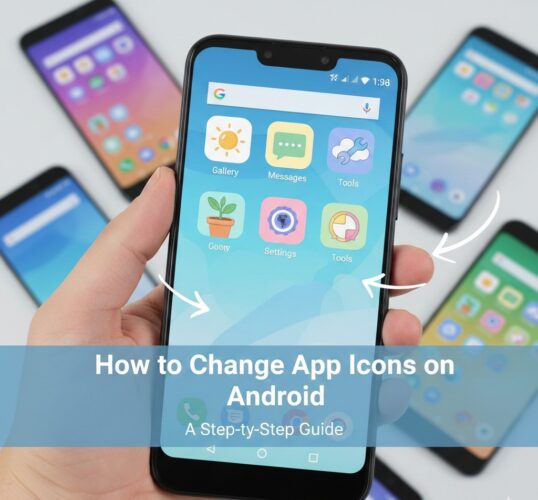
Android is all about flexibility—and one of the easiest ways to personalize your device is by changing app icons. Whether you want a cleaner minimalist look, a colorful aesthetic, or icons that better match your wallpaper, Android gives you several ways to customize how your apps appear.
In this guide, you’ll learn how to change app icons on Android, using built-in options, launchers, and icon packs—no root required.
Why Change App Icons on Android?
Changing app icons isn’t just about looks. It can also help you:
- Create a more visually consistent home screen
- Match icons to your theme or wallpaper
- Improve app recognition with clearer designs
- Give an old phone a fresh, modern feel
Method 1: Change App Icons Using a Custom Launcher (Recommended)
The easiest and most popular way to change app icons on Android is by using a custom launcher.
What Is a Launcher?
A launcher controls your home screen layout, app drawer, gestures, and icons. Popular launchers support icon packs and individual icon changes.
Best Android Launchers for Changing App Icons
- Nova Launcher (most popular and flexible)
- Lawnchair Launcher
- Microsoft Launcher
- Apex Launcher
Step-by-Step: Change App Icons with Nova Launcher
- Install Nova Launcher from the Google Play Store

- Open it and set it as your default launcher

- Long-press an app icon on your home screen and tap Edit

- Tap the app icon image

- Choose:
- Nova’s built-in icons, or
- An installed icon pack, or
- A custom image from your gallery

- Tap Done
Your app icon will instantly change.

Method 2: Apply an Icon Pack to All Apps at Once
If you want a consistent look across your entire home screen, applying an icon pack is the best option.
Step-by-Step: Apply an Icon Pack
- Install an icon pack from the Play Store

- Open your launcher settings

- Go to Look & Feel or Appearance

- Tap Icon Style / Icon Pack

- Select the icon pack you installed

All supported app icons will update automatically.
Popular Icon Packs to Try
- Whicons – minimalist white icons
- Delta Icon Pack – clean and colorful
- Pix Material You Icons – Android 12+ style
- Lines Icon Pack – outline-style icons
Method 3: Change App Icons Without a Launcher (Limited)
Some Android manufacturers allow limited icon customization without a third-party launcher.
Samsung (One UI)
- Open your device Settings
- Go to Themes

- Browse Icon Packs

- Click your preferred style; Download and apply it.

Note: You usually can’t change individual app icons this way—only full packs.
Xiaomi (MIUI) & Oppo/Realme
- Use the built-in Themes app
- Download an icon theme
- Apply it system-wide

Tips for Better App Icon Customization
- Stick to one icon style for a clean look
- Match icon colors with your wallpaper
- Use adaptive icons for better consistency
- Keep frequently used apps on the home screen with custom icons
Final Thoughts
Changing app icons on Android is one of the easiest ways to personalize your device. Whether you use a powerful launcher like Nova, apply a full icon pack, or customize individual apps, Android gives you plenty of options—no technical skills required.
If you want maximum control and flexibility, a custom launcher + icon pack is the best combination.
Most Android devices support icon changes through third-party launchers or apps, but some restrictions may apply based on the device’s manufacturer or Android version.
No, rooting is not required. You can use third-party launchers or icon changer apps available on Google Play.
Changing app icons typically does not affect app performance as it only alters the visual appearance.
Yes, you can revert to the original icons by resetting the launcher settings or removing the customizations.
Consider switching to a popular launcher like Nova Launcher or Apex Launcher, which have extensive icon pack support.


Improve this guide




User forum
0 messages