
How to Clone an Android Phone: A Complete Step-by-Step Guide

 4 min. read
 Updated on
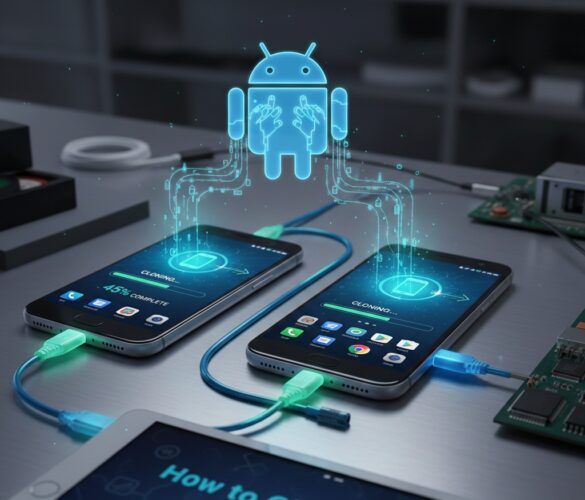
Cloning an Android phone simply means copying data from one Android device to another so both phones contain the same apps, files, and settings. This is most commonly done when switching to a new phone, backing up data, or restoring information after a factory reset.
In this guide, you’ll learn exactly how to clone an Android phone, the safest methods to use, and what you can (and cannot) clone.
What Does Cloning an Android Phone Mean?
Cloning an Android phone does not mean hacking or spying. In legitimate terms, it refers to:
- Transferring apps and app data
- Copying contacts, call logs, and messages
- Moving photos, videos, and documents
- Syncing settings and preferences
Cloning is usually done with the owner’s permission and access to both devices.
What You Can and Cannot Clone
You Can Clone:
- Contacts
- SMS and call logs
- Photos, videos, and audio
- Apps (and some app data)
- Device settings (varies by method)
You Cannot Clone:
- Google account passwords
- Banking or secure app credentials
- Encrypted data without authentication
- IMEI numbers (this is illegal)
Requirements Before You Start
Before cloning an Android phone, make sure:
- Both phones have at least 50% battery
- You have access to both devices
- Wi-Fi or mobile data is enabled
- Google account credentials are available (if needed)
Method 1: Clone Android Phone Using Google Backup (Recommended)
This is the safest and most reliable method.
Step 1: Back Up the Old Android Phone
- Open Settings
- Tap account and Backup

- Enable Back up to Google Drive

- Tap Back up now

This will save your apps, contacts, messages, and settings to your Google account.
Step 2: Restore Backup on the New Phone
- Turn on your new phone.
- Tap Start and accept the terms and conditions.
- Connect the device to a Wi-Fi network.
- When prompted to Copy apps and data, tap Next,

- then choose Can’t use old device.

- Sign in using the same Google account that was on your previous phone.

- The most recent backup will appear on the screen.

- Select that backup, choose the apps and files you want to recover, and tap Restore.

Your phone will automatically clone most of your data.
Method 2: Using Samsung Smart Switch
- Install Samsung Smart Switch on both devices from the Google Play Store.

- Open the app on both devices.
- On the old device, select Send from this Phone.

- Choose the connection method (Wi-Fi or cable).

- On the new device, select Receive data and choose the type of device you are transferring from.

- Select the files you wish to transfer

- Follow the on-screen instructions to complete the transfer.
Tip: Cable connection is more stable and faster than wireless.
How Long Does Android Phone Cloning Take?
The time depends on:
- Amount of data
- Internet speed
- Transfer method
On average:
- Small data: 5–10 minutes
- Large data: 30–60 minutes
Common Mistakes and How to Avoid Them
While phone cloning is generally straightforward, there are common mistakes that can lead to incomplete transfers or data loss.
- Ignoring Software Updates: Ensure both devices are running the latest software updates to avoid compatibility issues.
- Overlooking Data Types: Some apps may not transfer all data types, such as app-specific settings or data stored in non-standard locations.
- Network Instability: Use a stable and reliable Wi-Fi connection to prevent interruptions during data transfer.
Additional Resources
For further reading and more detailed guidance, consider the following resources:
- Google Support: Set up your new Android device
- Samsung Smart Switch User Guide
- CloneIt on Google Play Store
Final Thoughts
Cloning an Android phone is a simple and safe process when done correctly. Whether you’re upgrading to a new device or restoring your data, using Google Backup or manufacturer tools is the best approach.
Avoid shady apps and never attempt to clone a phone without permission.


Improve this guide

User forum
0 messages