
How to Clone Android Phone: Complete Data Transfer Methods

 4 min. read
 Published on
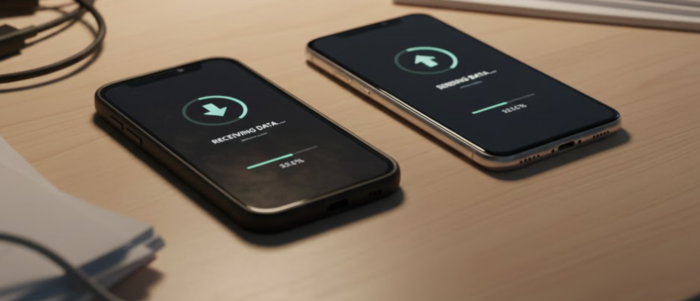
Switching to a new Android phone feels exciting until you remember everything stored on your old device. Contacts, photos, app data, messages, and settings all need to transfer over. Learning how to clone an old Android to a new phone saves time and ensures nothing gets left behind.
Cloning copies everything from your old device to your new one. Your new phone becomes a near-identical replica with the same apps, home screen layout, and settings.
What Cloning Your Android Phone Means
When you clone Android devices, you transfer contacts, call logs, text messages, photos, videos, and music. Apps reinstall automatically, though you’ll need to log back into accounts. Calendar events, alarm settings, and Wi-Fi passwords also transfer.
System settings migrate too. Your wallpaper, ringtones, notification preferences, and accessibility settings carry over. Some methods preserve your home screen layout with icons in the same positions.
Methods to Clone Android to a New Phone
Several reliable methods exist to clone Android phones. Choose based on your device manufacturer and what data matters most.
Using Google Account Backup
Google’s built-in backup provides the simplest way to clone Android to a new phone. Every Android device includes this feature by default.
- Open Settings on your old phone and tap System.
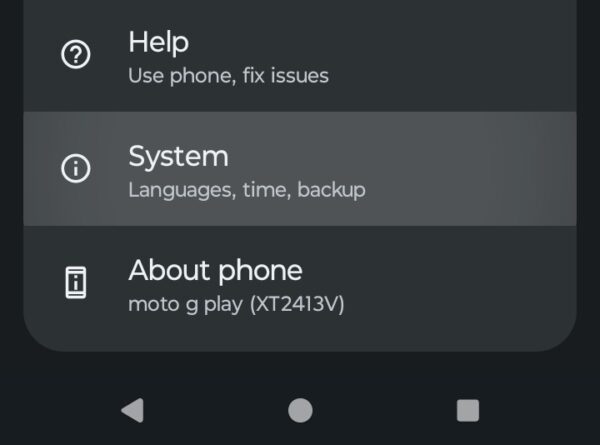
- Select Backup and follow the prompts, which can vary by device.
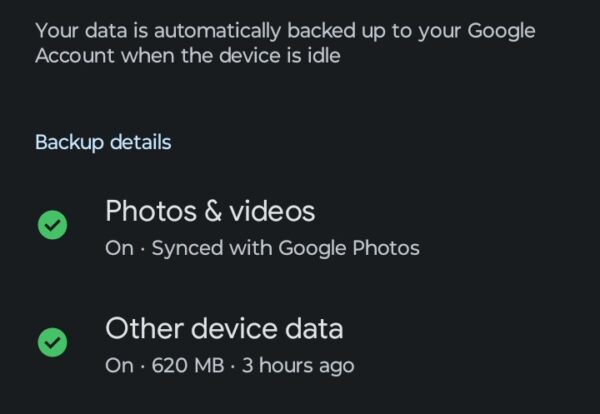
This backs things up to Google Drive, and takes care of app data, call history, device settings, SMS messages, photos, and videos.
On your new phone, power it on and follow the setup wizard. Sign in with the same Google account. Select “Copy apps & data” and choose “A backup from the cloud.” Pick the most recent backup. The restore process begins automatically.
Google’s method works universally but has limitations. App data restores vary by app. Games will often lose progress unless they use Google Play Games for cloud saves.
Samsung Smart Switch
Samsung users get Smart Switch, which offers more complete transfers than Google’s backup. Smart Switch works with both Samsung and non-Samsung source phones.
Download Smart Switch on your new Samsung phone. Open the app and select “Receive data.” Choose wireless or USB cable transfer. On your old phone, install Smart Switch or connect via USB cable. Select the data types to transfer.
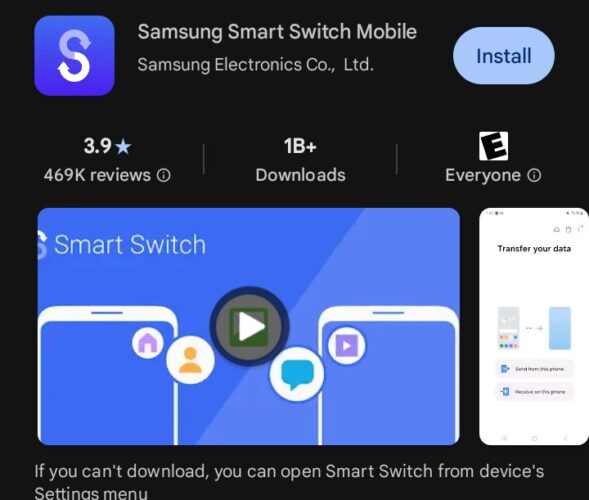
Tap Transfer and wait for completion. Cable transfers run faster than wireless. Smart Switch preserves more app data than Google’s method.
Manufacturer Transfer Apps
Most Android manufacturers include transfer apps. OnePlus offers Clone Phone, Xiaomi has Mi Mover, OPPO includes Clone Phone, and Huawei provides Phone Clone. These work best when transferring between devices from the same manufacturer.
Install the transfer app on both devices. Launch it on your new phone and select “This is the new phone.” The app displays a QR code. On your old phone, scan the QR code. The connection establishes over Wi-Fi Direct. Select what to transfer and tap Start.
The Bottom Line
The easiest way to clone an old Android phone to a new phone depends on your device brand. Samsung users benefit most from Smart Switch. Users with OnePlus, Xiaomi, or OPPO should use their built-in transfer tools. Google’s backup method works as a universal fallback.
Prepare before starting. Charge both devices to at least 50%. Connect to stable Wi-Fi for wireless transfer. Update both phones to their latest software. After completing the transfer, verify everything moved correctly before wiping your old phone.
Yes. All methods described work wirelessly without a computer. Google backup, manufacturer apps, and third-party tools transfer data directly between phones over Wi-Fi.
It depends on the method. Google backup doesn’t include WhatsApp. Samsung Smart Switch transfers WhatsApp if both devices run compatible versions. Use WhatsApp’s built-in backup feature for reliable message transfers.
Transfer time varies by data amount and method. Google restore takes 10-30 minutes for average users. Direct device-to-device transfers using manufacturer apps take 5-15 minutes.
Only for Google’s backup method. Manufacturer transfer apps and third-party tools work without matching Google accounts, though you’ll eventually need to sign in on your new phone for Play Store access.
No. Most apps require you to log in again after the transfer. Banking apps, social media, email, and streaming services need fresh authentication.


Improve this guide

User forum
0 messages