
How to Customize Google Dock for Nova Launcher Prime

 6 min. read
 Updated on
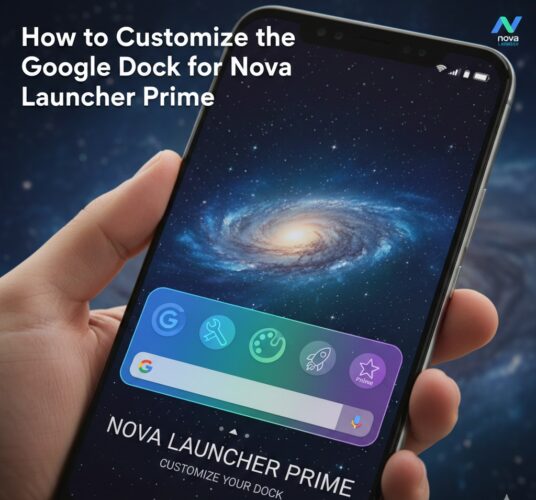
Customizing your Android home screen is one of the best ways to make your device feel truly personal, and Nova Launcher Prime gives you unmatched control to do just that. One of the most popular customization options is modifying the Google Dock, which sits at the bottom of your home screen and provides quick access to your most-used apps and tools.
With Nova Launcher Prime, you’re no longer stuck with a plain or static dock. You can change its appearance, adjust icon layout, and even add the Google Search bar directly into the dock for faster access. This guide walks you through everything you need to know to fully customize the Google Dock, step by step.
This tutorial is ideal for Android users who already have Nova Launcher Prime installed and want to unlock its full customization potential. Before you begin, make sure Nova is set as your default launcher and that all required permissions are enabled.
How Do You Customize the Google Dock in Nova Launcher Prime?
Customizing the Google Dock in Nova Launcher Prime involves accessing Nova Settings and tweaking the dock’s appearance, icon layout, and Google integration options. The process is straightforward and doesn’t require advanced technical knowledge.
Let’s walk through each step in detail.
What You’ll Need Before You Start
Before customizing your Google Dock, ensure the following requirements are met:
- An Android device with Nova Launcher Prime installed and activated
- The Google app installed on your device
- An active internet connection (optional, for downloading icons or themes)
- Basic familiarity with navigating Android settings
Once these are in place, you’re ready to begin.
Step 1: Access Nova Launcher Settings
To customize the dock, you first need to open Nova’s settings panel.
- Go to your home screen

- Long-press on any empty area of the screen
- From the menu that appears, tap Settings

- This opens Nova Settings, where all launcher customizations are managed

From here, you can control everything from icon size to gestures and dock behavior.
Step 2: Customize the Dock Appearance
Nova Launcher Prime allows you to change how the dock looks so it matches your overall theme.
- In Nova Settings, tap Home Screen

- Select Dock

- Choose a dock style by selecting Dock Background and choosing your preferences such as:
- Crop
- Rounded
- Squircle
- And selecting which side you want the background to be.

- Use the sliders to adjust:
- Transparency
- Background color

- The changes will be immediately applied without needing to save it.
This step helps your dock blend seamlessly with your wallpaper or stand out as a visual centerpiece.
Step 3: Adjust Dock Icons and Layout
After setting the background, the next step is customizing how icons appear in the dock.
- Stay within the Dock settings menu
- Tap Dock Icons

- Choose how many icons you want in the dock
- The default is usually 5, but you can increase or reduce this

- You can also see the Icon Layout
Adjust:
- Icon size using the slider

- Label visibility by toggling labels on or off

This allows you to create a clean, minimal dock or a more functional one with visible labels.
Step 4: Add the Google Search Bar to the Dock
One of Nova Launcher Prime’s standout features is the ability to place the Google Search bar directly in the dock.
- Go back to the main Nova Settings menu

- Tap Settings in the search bar placement option

- Toggle Google Assistant to enable swipe-right access to Google AI

- Toggle Direcly use Google to add the Google Search bar to your dock

Once enabled, the search bar appears at the bottom of your home screen, giving you instant access to Google search without cluttering your layout.
Tips and Best Practices
- Experiment with different dock backgrounds to find the one that enhances your home screen experience.
- Keep the number of dock icons limited to avoid clutter and maintain a clean interface.
- Regularly update your Nova Launcher Prime to access the latest features and improvements.
- Consider using icon packs from the Play Store to further customize your dock and home screen.
- Backup your Nova Launcher settings to easily restore your customizations after switching devices or resetting your phone.
Common Issues and Fixes
- Problem: Dock icons are not appearing correctly. Solution: Check your Icon Layout settings to ensure icons are not set to 0% size. Also, verify that the correct app shortcuts are selected.
- Problem: Google Search bar not showing in the dock. Solution: Ensure that the Search Bar in Dock option is enabled in the Integrations settings.
- Problem: Dock background not visible. Solution: Increase the transparency level in Dock Background settings or try selecting a different style to make it visible.
- Problem: Changes not applying after saving settings. Solution: Restart Nova Launcher by going to its settings and selecting Restart Nova Launcher under the Advanced section.
Enhancing Your Nova Launcher Experience
Customizing the Google Dock with Nova Launcher Prime is a simple yet powerful way to enhance your Android experience. From changing the dock’s appearance to fine-tuning icon layouts and integrating Google Search, Nova gives you full control over how your home screen looks and functions.
With just a few adjustments, you can turn your dock into a personalized, efficient hub tailored to your daily usage. If you enjoy tweaking your device for both style and productivity, Nova Launcher Prime’s dock customization features are well worth exploring.
To reset your dock settings, go to Nova Settings > Backup & Import Settings > Reset to Defaults. This will revert all changes to the original state.
Yes, third-party icon packs can be applied to both the dock and home screen through the Look & Feel settings in Nova Launcher.
Yes, you can hide the dock by navigating to Nova Settings > Dock and toggling off the Dock feature at the top of the menu.
Go to Nova Settings > Backup & Import Settings > Backup. Choose a location to save your backup file to easily restore settings later.
Ensure that your widget layout is not set too close to the bottom of the screen. Adjust the grid size in Desktop settings to provide more room for widgets.


Improve this guide
User forum
0 messages