
How to Delete Apps on Android: A Step-by-Step Guide

 5 min. read
 Updated on
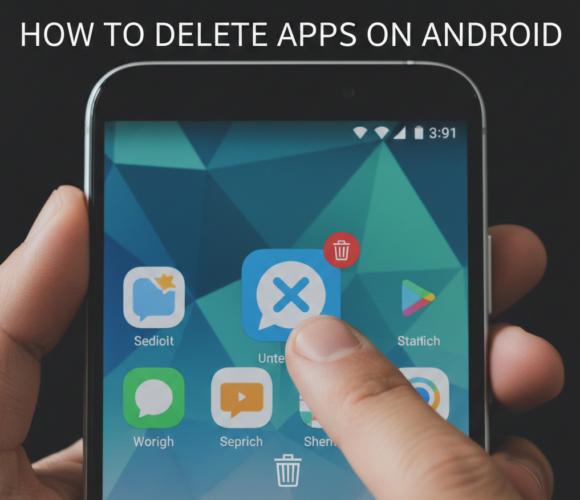
Over time, Android devices can become cluttered with apps you no longer use. These unused apps take up storage space, may run background processes, and can slow down your device. Deleting apps you don’t need is one of the easiest ways to free up storage, improve performance, and keep your phone organized.
In this guide, you’ll learn multiple ways to delete apps on Android, whether you’re using a Samsung phone, Google Pixel, or another Android device. We’ll also cover what to do if an app can’t be uninstalled and share best practices for managing your app library efficiently.
This guide is suitable for all Android users, regardless of device brand or experience level.
How Do You Delete Apps on Android?
Android offers several built-in ways to uninstall apps, including directly from the home screen, through device settings, or via the Google Play Store. The steps are simple and don’t require any third-party tools.
What You’ll Need
Before you begin, make sure you have:
- An Android smartphone or tablet
- Access to the home screen, app drawer, or Settings
- Basic familiarity with Android navigation
No additional apps or software are required.
Accessing the App Drawer
The app drawer shows all installed apps on your device.
Steps:
- Unlock your Android device.
- Swipe up from the bottom of the home screen or tap the Apps icon.
- Browse the list or use the search bar to find the app you want to delete.
Once you locate the app, you can uninstall it using one of the methods below.
Method 1: Uninstall an App from the Home Screen
This is the fastest and most common way to delete apps.
Steps:
- Long-press the app icon on your home screen or in the app drawer.
- A menu will appear, then Tap Uninstall (or Remove, depending on your device).

- Confirm your choice when prompted.

The app will be permanently removed from your device.
Note: Some devices show “Remove” instead of “Uninstall.” If “Remove” only clears the app from the home screen, use the Settings method below to uninstall completely.
Method 2: Delete Apps Through Android Settings
If the home screen method doesn’t work, you can uninstall apps through system settings.
Steps:
- Open the Settings app.

- Tap Apps, Applications, or App Manager (varies by device).

- Scroll through the list and select the app you want to delete.

- Tap Uninstall.

- Confirm when prompted.

This method works reliably for most user-installed apps.
Method 3: Uninstall Apps Using the Google Play Store
You can also remove apps directly from the Play Store.
Steps:
- Open the Google Play Store.

- Tap your profile picture in the top-right corner.

- Select Manage apps & devices.

- Go to the Manage tab, then Find and tap the app you want to delete.

- Tap Uninstall and confirm.

This is useful for managing multiple apps in one place.
Tips and Best Practices for Deleting Apps on Android
- Regularly review installed apps and remove ones you no longer use.
- Back up important data before uninstalling apps that store files locally.
- Use app usage statistics to identify rarely used apps.
- Disable apps instead of deleting them if you might need them later.
- Be aware that some pre-installed system apps cannot be removed.
Common Issues and How to Fix Them
- Problem: Unable to delete a system app. Solution: System apps cannot be uninstalled, but you can disable them via “Settings” > “Apps” > (choose the app) > “Disable.”
- Problem: App reappears after deletion. Solution: Ensure the app is not synced with a cloud service or linked to an account that restores it.
- Problem: “Uninstall” option is grayed out. Solution: Check if the app has administrator privileges: Go to “Settings” > “Security” > “Device administrators” and remove the app’s rights.
- Problem: Device lags after app deletion. Solution: Restart your device to refresh system processes and improve performance.
Managing Your App Library Effectively
Keeping your Android device organized starts with smart app management. By regularly deleting unused apps, disabling unnecessary system apps, and monitoring app usage, you can maintain better performance and free up valuable storage space.
Making app cleanup a routine habit—such as reviewing apps once a month—will help ensure your Android phone or tablet stays fast, responsive, and clutter-free.
Pre-installed apps, also known as bloatware, can often only be disabled rather than deleted. Check your device’s settings under “Apps” to see if disabling is an option.
Deleting app data is generally safe and can help free up space, but ensure you don’t lose any important information stored within the app.
Deleting an app does not cancel any active subscriptions. You need to manage subscriptions through the Google Play Store or the app’s website.
To reinstall a deleted app, visit the Google Play Store, search for the app, and tap “Install.”
Some apps are system apps or have administrator rights, preventing uninstallation. Check your device’s security settings to manage these permissions.


Improve this guide




User forum
0 messages