
How to Enable Developer Options on Android (Step-by-Step Guide)

 3 min. read
 Updated on
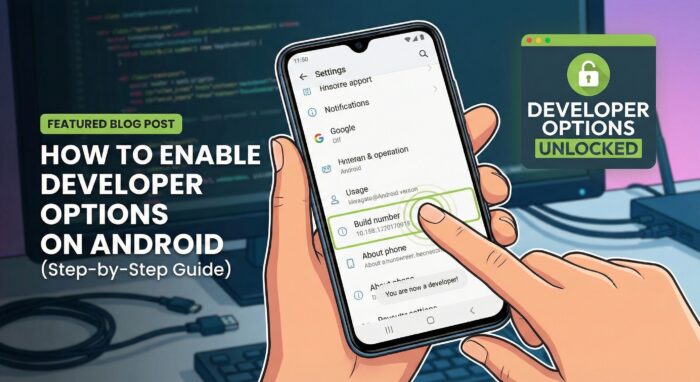
Developer Options is a hidden settings menu on Android that unlocks advanced tools like USB debugging, animation scaling, OEM unlocking, background process limits, and more.
Whether you’re testing apps, sideloading builds, or troubleshooting, you’ll need this menu enabled first.
Here’s how to do it safely.
What Are Developer Options?
Developer Options is a set of advanced controls intended primarily for developers. These tools help with:
- Connecting your device to a computer for debugging
- Testing app performance
- Recording system behavior
- Simulating network conditions
- Unlocking bootloader (on supported devices)
By default, the menu is hidden to prevent accidental configuration changes. You’ll need to manually enable it.
How to Enable Developer Options on Android
Note: The steps are the same on most Android devices, though menu names may vary slightly depending on your device brand and Android version (Samsung, Pixel, Xiaomi, etc.).
In this case, I’m using a Samsung device:
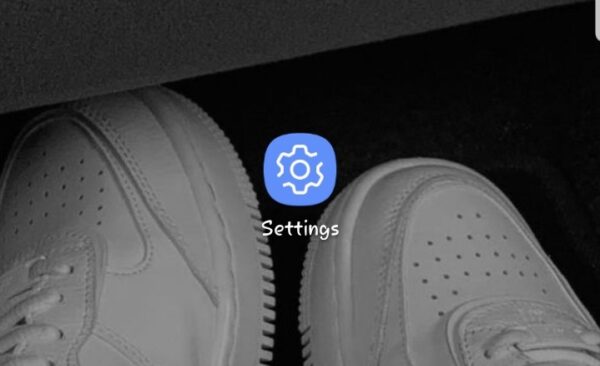
Step 1: Open the Settings App
- Unlock your phone.
- Open Settings from your app drawer or quick settings panel.
Step 2: Go to “About Phone”
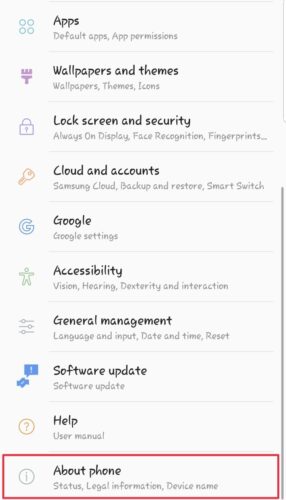
- Scroll down to the bottom of the Settings menu.
- Tap About phone.
- On some devices, you may need to open About device or System → About phone.
Step 3: Find the “Build Number”
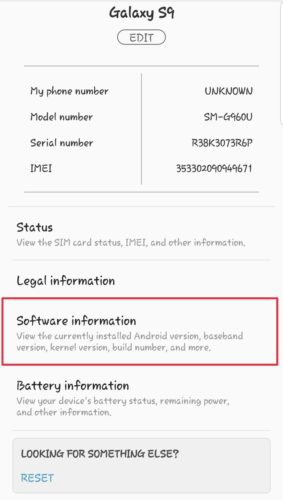
- Inside About phone, look for Build number.
- On Samsung devices: Settings → About phone → Software information → Build number.
Step 4: Tap the Build Number 7 Times
- Tap Build number repeatedly (usually 7 times).
- You’ll see a message like “You are now X steps away from being a developer.”
- Enter your phone’s lock screen PIN if prompted.
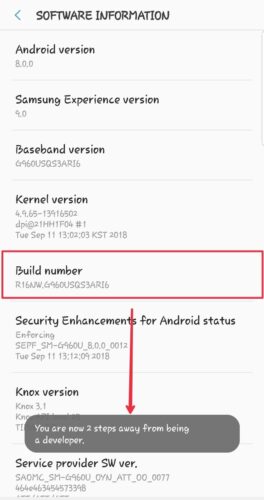
After the final tap, you’ll see a confirmation: “You are now a developer!”
Step 5: Access Developer Options
- Go back to the Settings main menu.
- Open System (if your device has it).
- Tap Developer options.
- On Samsung devices: Settings → Developer options appears directly under “About phone.”
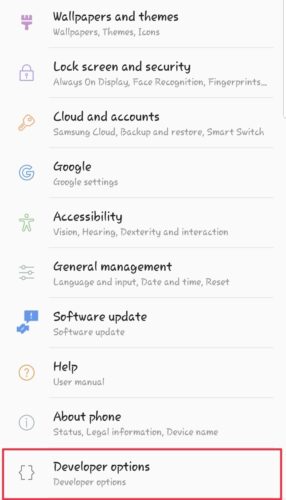
You now have access to the full set of developer controls.
How to Disable Developer Options (Optional)
Once you’re done testing or tweaking settings, it’s a good idea to turn off Developer Mode. Leaving it on can affect app behavior, reduce stability, or trigger security warnings in some apps.
If you no longer need it, you can turn it off in a few seconds.
Disabling Developer Mode
When you switch Developer Mode off, any custom settings you changed inside the menu will reset.
If you want to hide the menu again:
- Open Settings.
- Go to System → Developer options.
- Toggle Developer options off.
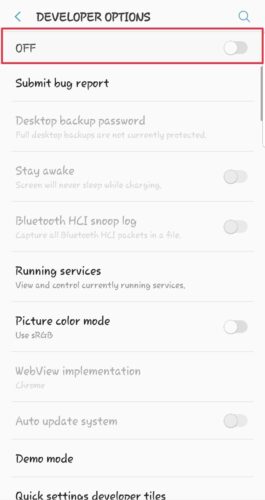
The menu will disappear automatically.
Important Features Inside Developer Options
Here are some commonly used tools you may want to explore:
- USB Debugging: Needed for ADB commands, Android app testing, and connecting your device to development tools.
- OEM Unlocking: Allows unlocking the bootloader (this may wipe your device).
- Animation Scales: Speed up the phone by reducing or disabling window/transition animations.
- Background Process Limit: Control how many apps run at the same time.
- Show Taps / Pointer Location: Useful for recording tutorials or testing UI.


Improve this guide




User forum
0 messages