
How to Fix Android Auto Keeps Disconnecting: Complete Guide

 5 min. read
 Updated on
Your Android Auto connection drops right as Google Maps gives critical directions. The music cuts out mid-song. When Android Auto keeps disconnecting, every drive becomes frustrating. You’re not alone. Thousands of Android users struggle with this issue daily.
Most disconnection problems stem from fixable causes. Connection stability issues, outdated software, battery optimization interference, and compatibility mismatches all contribute. The right solution depends on whether you use a wireless or wired connection.
Why Android Auto Keeps Disconnecting
Android Auto works through two methods. Wireless requires both Bluetooth and 5GHz Wi-Fi to be active simultaneously. Bluetooth handles pairing while Wi-Fi manages data transfer. When either connection falters, Android Auto drops. Some users add wireless adapters like AAWireless or Motorola MA1 to cars that only support wired connections.
Wired Android Auto connects through a USB cable. USB cables degrade over time, losing data transfer ability even when they still charge phones. USB ports also accumulate debris, preventing solid connections.
Battery optimization kills background processes to save power. When Android Auto gets optimized, the app stops running. Outdated apps create compatibility problems between your phone and the car’s system.
How to Fix Android Auto Keeps Disconnecting
Try these solutions based on your connection type. Start with quick fixes before moving to more involved troubleshooting.
For Wireless Android Auto
Restart Bluetooth and Wi-Fi
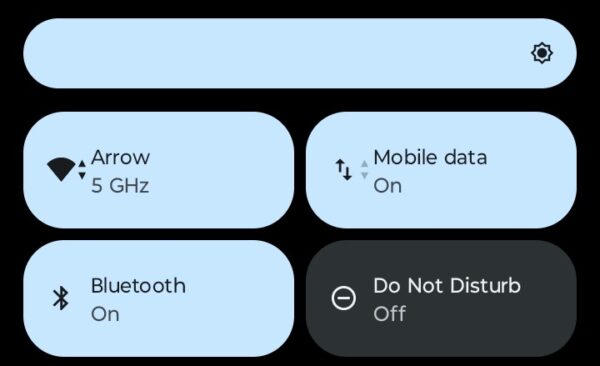
Toggle both connections off and back on. Swipe down to access Quick Settings. Tap Bluetooth to disable it, wait five seconds, then enable. Do the same with Wi-Fi. This refreshes connections and often fixes Android Auto keeps disconnecting issues.
Forget and Re-Pair Bluetooth Connection
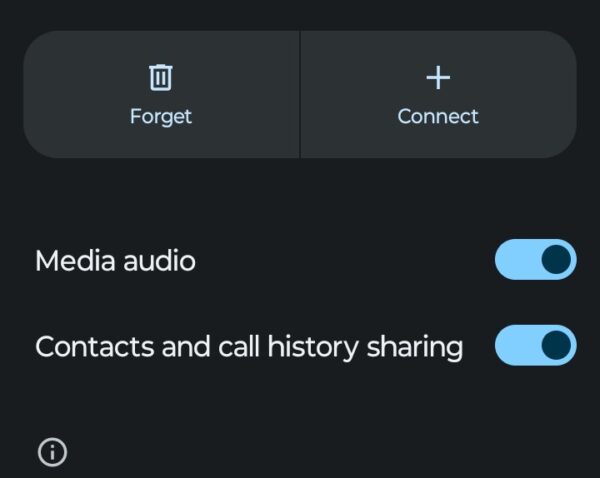
Go to Settings, tap Connected devices, find your car, and select Forget. Restart your car’s infotainment system. On your phone, search for Bluetooth devices and pair with your car again.
Check 5GHz Wi-Fi Compatibility
Wireless Android Auto requires 5GHz Wi-Fi, not 2.4GHz. Some budget phones only support 2.4GHz, making wireless Android Auto impossible. Check your phone’s specifications to confirm 5GHz support.
Reset Wireless Adapter
If using an adapter, restart it by unplugging it from your car’s USB port, waiting 10 seconds, and then plugging it back in. Update adapter firmware through the companion app if available.
For Wired Android Auto
Check USB Cable Quality
Not all USB cables support data transfer. Many charging-only cables lack the wiring needed for Android Auto. Test with a different cable, preferably your phone’s original cable. Replace older cables that receive heavy use every six to twelve months.
Try Different USB Ports
Many cars include multiple USB ports, but not all support Android Auto. Ports labeled with a phone icon or “data” typically work. Try each available port in your car.
Clean USB Ports
Power off your phone. Use a wooden toothpick to gently remove lint and dust from your phone’s USB port. Do the same for your car’s USB port. Compressed air helps blow out remaining particles.USB car ports can be tricky, so test that port with another device to see if that’s the culprit.
For Both Connection Types
Clear Android Auto Cache and Data
Corrupted cache files prevent proper Android Auto operation. This fix works whether you connect wirelessly or via cable.
- Open Settings and tap Apps.
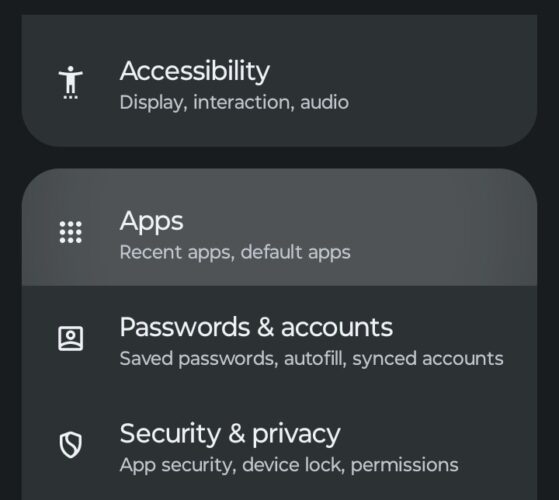
- Find and select Android Auto.

- Tap Storage or Storage & cache.
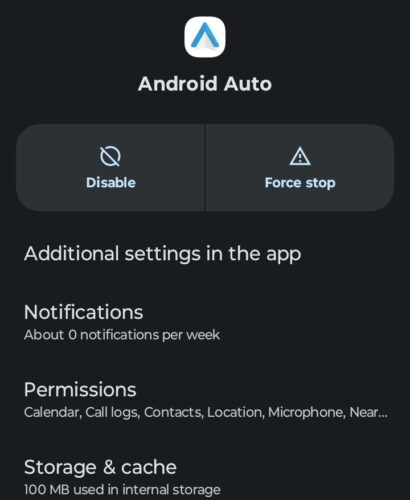
- Tap Clear cache first, then tap Clear data or Clear storage.
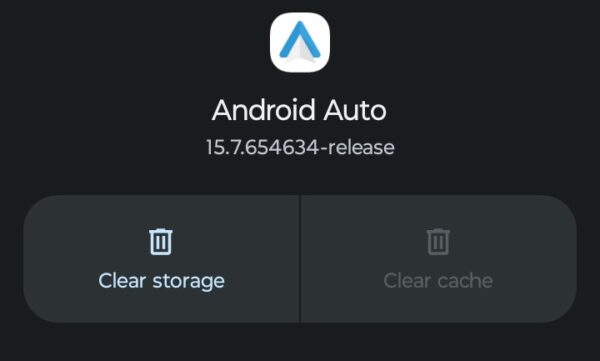
Restart your phone. You’ll need to set up Android Auto again after clearing data, but this often fixes Android Auto keeps disconnecting problems.
Update Software
Open the Play Store, tap your profile icon, select Manage apps & device, then Updates available. Find Android Auto and tap Update. Restart your phone after updating.
Your car’s infotainment system also needs updates. Check your car manufacturer’s website for instructions, but dealerships can perform updates if needed.
The Bottom Line
Most cases where Android Auto keeps disconnecting trace back to connection stability or battery optimization. For wireless users, disabling Wi-Fi power saving and battery optimization solves the majority of problems. Wired connection users should invest in high-quality data cables and clean their USB ports regularly.
Prevention matters as much as fixes. Keep both Android Auto and your phone’s operating system updated. Disable battery optimization for Android Auto immediately after installation. Check for car software updates quarterly. Replace USB cables before they fail completely. These simple habits prevent most disconnection issues before they start.
This is normal behavior. Android Auto temporarily suspends to handle the call through your car’s hands-free system, then reconnects when the call ends. If it doesn’t reconnect automatically, you may need to disable battery optimization.
No. Android Auto requires a USB cable that supports data transfer. Charging-only cables lack the necessary wiring. Look for cables labeled “USB data cable” or use your phone’s original cable.
Yes. Maintaining constant Bluetooth and Wi-Fi connections consumes more power than wired connections. Most cars charge your phone while using Android Auto, offsetting the battery drain.
Compatibility varies by vehicle. Older car infotainment systems may lack Android Auto support entirely. Some manufacturers require specific Android versions or impose restrictions. Check your car’s manual for Android Auto compatibility information.
A factory reset might fix the problem if software corruption causes disconnections, but try all other solutions first. Factory resets erase all data on your phone and should be a last resort.


Improve this guide

User forum
0 messages