
How to Fix Android Error Running App: Complete Guide

 6 min. read
 Updated on
How to Fix Android Errors When Running an App: A Complete Troubleshooting Guide
Encountering an error while trying to run an app on your Android device can be both frustrating and disruptive—especially when the app plays a critical role in your work, communication, or daily routines. Android app errors can stem from a wide range of causes, including corrupted cache files, outdated software, compatibility issues, or system-level conflicts.
This comprehensive guide walks you through proven troubleshooting methods used by Android technicians and power users to diagnose and resolve common app-related errors. By understanding why these errors occur and how to address them systematically, you can restore normal app functionality and prevent future issues.
Who This Guide Is For
This guide is designed for all Android users—whether you’re new to the platform or have years of experience. No advanced technical skills are required. Each step is explained clearly, with practical guidance you can follow directly on your device.
What You’ll Need
- An Android smartphone or tablet
- A stable internet connection
- Basic familiarity with Android settings
- A Google Play Store account (for updates or reinstalls)
Common Android App Errors You May Encounter
Before fixing the problem, it’s important to understand what you’re dealing with. Android app errors often appear in the following forms:
- “App not responding (ANR)” – The app has frozen or failed to respond in time
- “Unfortunately, [App Name] has stopped” – The app has crashed
- Black or blank screen on launch
- Specific error codes related to services like Google Play or network access
These errors typically indicate memory issues, corrupted app data, outdated software, or incompatibility with your Android version.
Step 1: Identify and Understand the Error
- Open the app that is causing the issue.
- Carefully read and note the exact error message or behavior.
- If an error code or message is displayed, search for it online along with your device model and Android version.
- Check user forums, developer notes, or official app support pages for known issues.
Why this matters: Identifying the specific error can save time and help you apply the most effective solution instead of relying on guesswork.
Step 2: Clear the App Cache and Data
Corrupted cache files are one of the most common causes of Android app errors.
- Open Settings on your device.
- Tap Apps or Applications.
- Select the problematic app from the list.
- Tap Storage & cache.
- Tap Clear cache.
If the problem persists:
6. Tap Clear data (or Clear storage).
Check how to clear App cache here
Important: Clearing app data will reset the app to its default state and may delete saved settings or login information.
Step 3: Update or Reinstall the App
Outdated or improperly installed apps can cause crashes and compatibility issues.
Update the App
1. Open the Google Play Store.

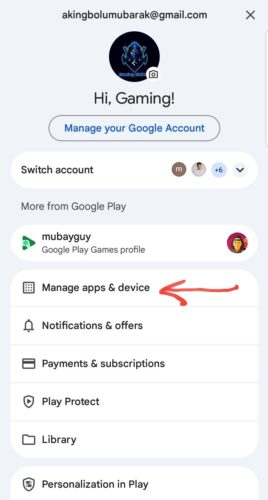
2. Tap your profile icon and select Manage apps & device.
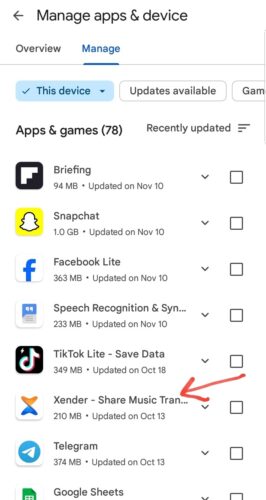
3. Locate the app and check for available updates (In this case, it’s my Xender app)
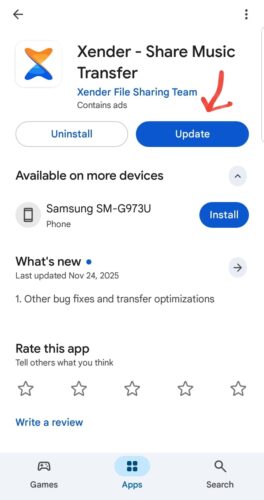
4. Tap Update if available.
Reinstall the App (If Updating Fails)
- From the app’s Play Store page, tap Uninstall.
- Restart your device.
- Return to the Play Store and tap Install.
Reinstalling ensures you’re using a clean, fully functional version of the app.
Step 4: Check for Android System Updates
Running an outdated version of Android can lead to app compatibility problems, especially with newer apps.
Here is a step-by-step guide on how to check for and install software updates on your Android device.
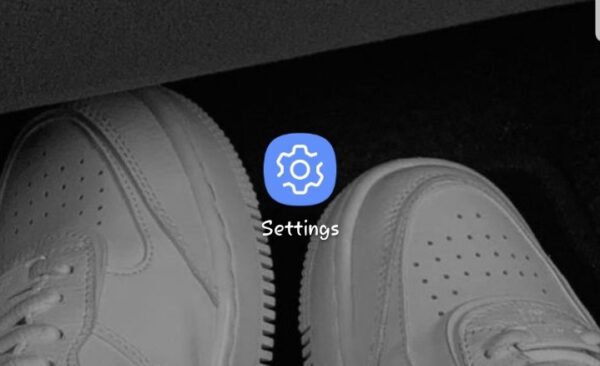
1: Open the Settings app
First, unlock your phone and find the Settings app in your app drawer or on your home screen. Tap it to open the settings menu.
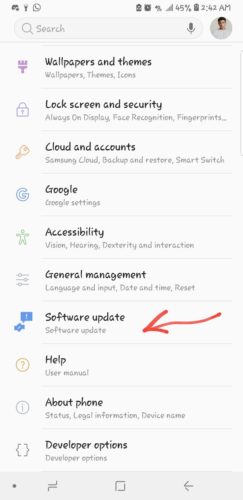
2: Scroll down and tap System
Scroll down to the bottom of the Settings menu and tap on System. On some devices, this option might be labeled as About phone or have a direct Software update option in the main menu.
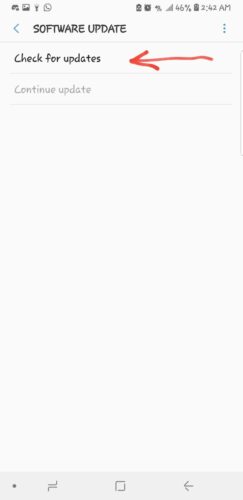
3: Select System Update
Within the System menu, you will find an option for System update (or Software update). Tap on it to proceed.
4: Download and Install Update
Your phone will automatically connect to the server to check for the latest updates. If one is available, you will see the update details and a Download & Install button. Tap it and follow the on-screen instructions to complete the process.
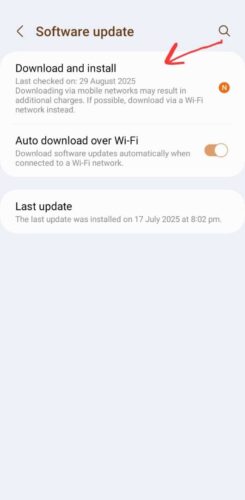
After the update is downloaded and installed, your phone will restart to apply the changes. Your device is now running the latest software version!
Make sure the device is connected to Wi-Fi and has sufficient battery power before starting the update.
Tip: Keeping your device updated improves security, performance, and app stability.
Additional Troubleshooting Tips
If the error persists after completing the steps above, consider the following:
- Restart your device to clear temporary system issues
- Check storage space (low storage can cause apps to crash)
- Disable battery optimization for the affected app
- Ensure permissions are enabled (camera, storage, location, etc.)
- Check network connectivity for apps that rely on internet access
When to Seek Further Help
If none of the solutions resolve the issue, the problem may be related to:
- A known bug in the app itself
- Hardware limitations or defects
- A custom ROM or modified Android system
In these cases, contact the app’s developer, visit the manufacturer’s support page, or consult an authorized service center.
Tips and Best Practices
- Regularly update apps to benefit from bug fixes and improvements.
- Free up device storage to prevent performance issues.
- Use a reliable internet connection when downloading updates.
- Disable background apps to conserve system resources.
- Regularly restart your device to clear temporary glitches.
- Keep an eye on app permissions to prevent unauthorized access.
Common Issues and Solutions
- Problem: App crashes immediately upon opening. Solution: Clear the app cache and data, then check for updates.
- Problem: Error message “App not responding”. Solution: Force stop the app and restart your device.
- Problem: Continual app loading or freezing. Solution: Check internet connection and try reinstalling the app.
- Problem: Incompatibility error. Solution: Ensure your device is running the latest Android version.
Ensuring Smooth App Functionality
Android app errors are common, but they’re rarely permanent. By methodically identifying the issue and applying the appropriate fixes—clearing cache, updating software, or reinstalling the app—you can resolve most problems quickly and confidently.
Following these best practices not only fixes current issues but also helps keep your Android device running smoothly in the long term.
This can be due to outdated app versions, corrupted cache/data, or insufficient device resources. Clearing the cache or updating the app often resolves this.
Go to Settings > Apps > Select the app > Tap on Force Stop.
Try updating or reinstalling the app, and ensure your device software is up to date.
A factory reset can resolve persistent issues but should be a last resort as it erases all data.
Rooting is not necessary and can void warranties. Most issues can be resolved through standard troubleshooting steps.


Improve this guide




User forum
0 messages