
How to Fix "Android Not Registered on Network" Issues (Step-by-Step Guide)

 6 min. read
 Updated on
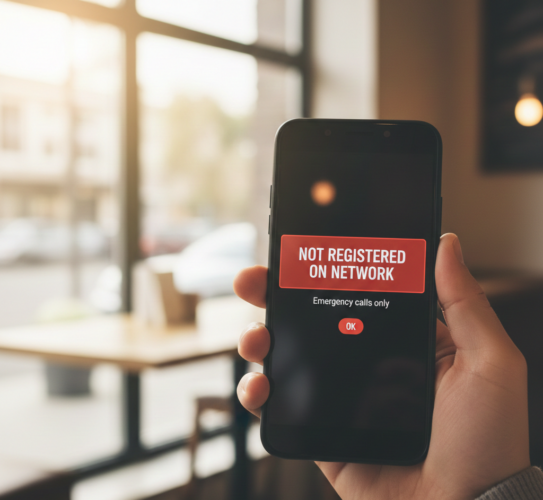
Seeing the “Not Registered on Network” message on an Android phone can be alarming. This notification usually appears in the status bar or when trying to make a call, indicating that the device cannot connect to your mobile network. The problem is common and can happen for several reasons, including SIM card issues, network settings, software glitches, or even carrier-related problems.
The good news is that most instances of this error can be resolved without replacing the phone. This guide walks through practical solutions step by step.
What Does “Not Registered on Network” Mean?
When an Android phone shows “Not Registered on Network,” it means the device is unable to communicate with the carrier’s network. This prevents making calls, sending messages, or using mobile data. The error can occur on both SIM-enabled phones and devices with eSIMs.
Common causes include:
- SIM card issues or improper insertion
- Incorrect network mode or settings
- Outdated software or firmware
- Carrier restrictions or outages
- Hardware problems (rare)
Restart Your Phone
A simple restart can often solve temporary network errors. Powering off and then turning the phone back on resets the connection to the mobile network and clears minor software glitches that could be causing the problem.
For Android: Press and hold the power button, then tap Restart or Power Off. Wait a few seconds before turning it back on.
Reinsert the SIM Card
A poorly seated SIM card can prevent network registration. Follow these steps:
- Power off the phone.
- Remove the SIM card using the tray or ejector tool.
- Inspect the SIM for dust, dirt, or damage. Wipe gently if needed.
- Reinsert the SIM card securely and power the phone back on.
If the SIM card is damaged, replacing it with a new one from your carrier is usually the quickest fix.
Check Network Settings
Incorrect network settings can prevent your Android device from registering on the network.
Step 1: Set the network mode correctly:
Go to Settings → Connections → Mobile Networks → Network Mode and select the mode recommended by your carrier (e.g., LTE/3G/2G auto).
Step 2: Manually select your carrier:
Manually select your carrier (step by step):
1. Open Settings and Tap Connections (or Network & Internet, depending on your device).
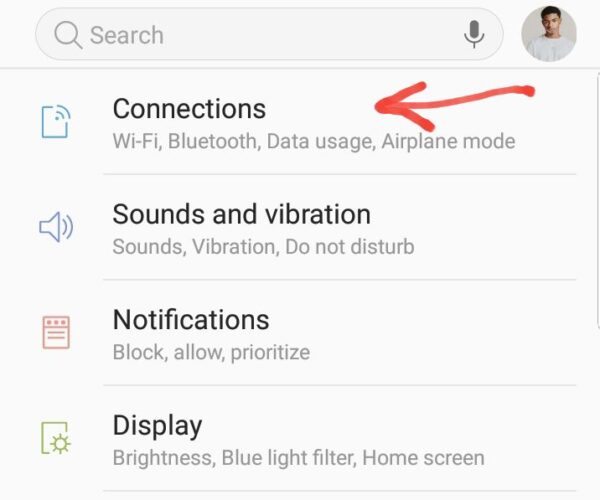
2. Select Mobile Networks.
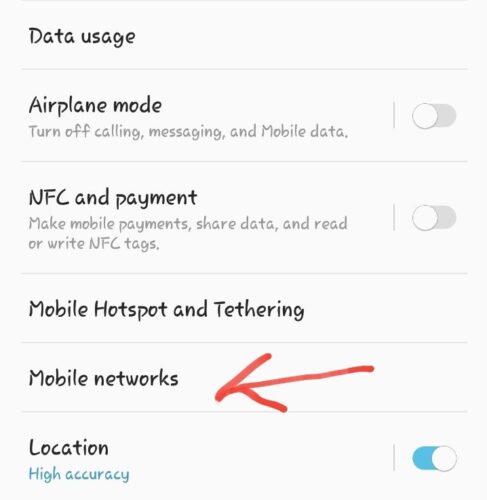
3. Tap Network Operators.

4. Choose Search Networks and wait while your phone scans for available carriers. This may take a few seconds.

5. When the list of networks appears, tap your carrier’s name to connect manually.
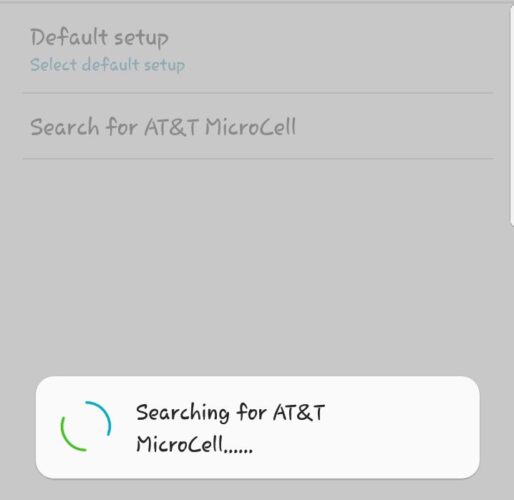
6. Wait for the network to register, then check if signal and mobile data are restored.
This process forces your phone to reconnect to the correct network and can fix registration or signal issues.
Reset Network Settings
If the above steps don’t work, resetting the phone’s network settings can help. This restores mobile data, Wi-Fi, and Bluetooth settings to their default state without deleting personal data.
Here’s how to Reset your Android Settings
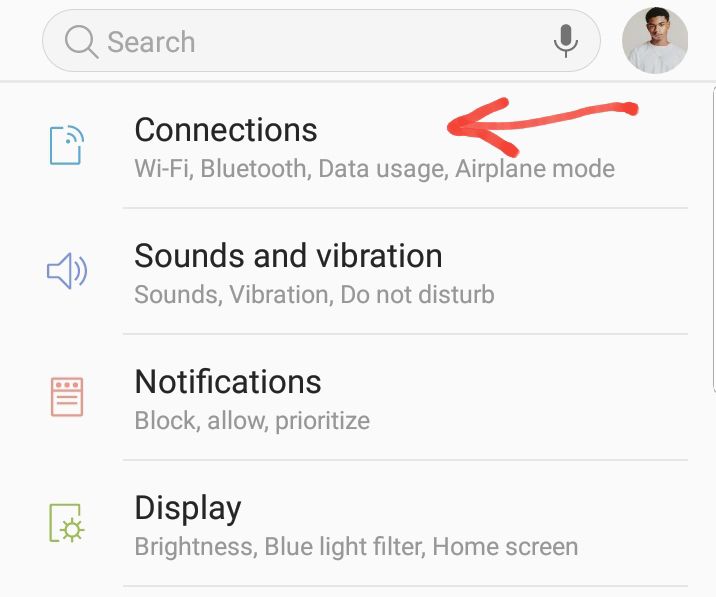
Step 1: On your Android device, go to Settings and Select Connections.
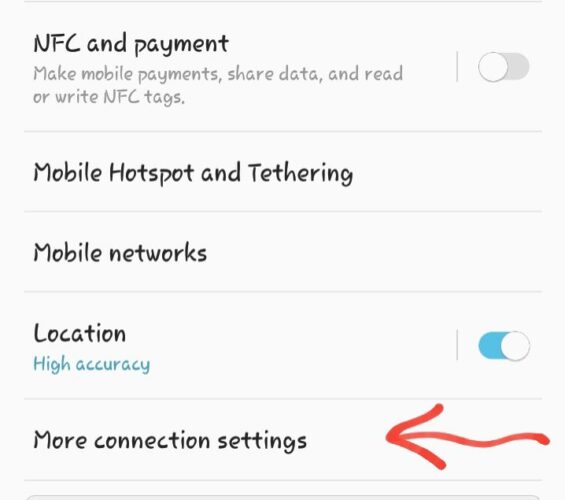
Step 2: Select More Connection Settings
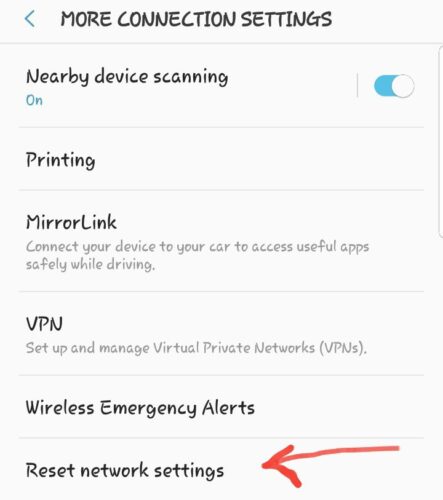
Step 3: Choose Reset Network Settings
Step 4: Confirm to reset network settings and restart your device.
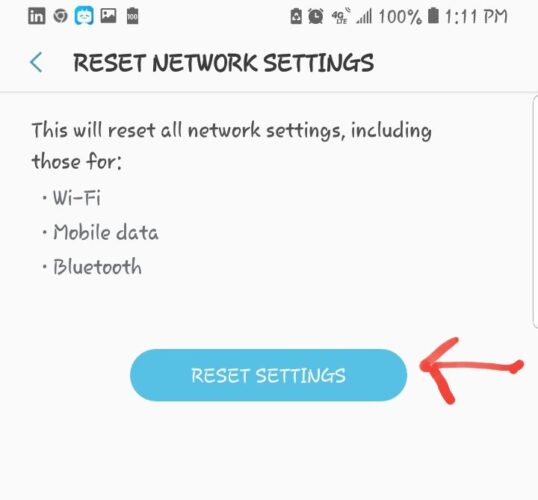
Note: This will remove all saved Wi-Fi networks and paired Bluetooth devices, so reconnecting will be necessary.
Afterward, check if the phone connects to the network automatically.
Update or Reinstall Carrier Settings
Some carriers push updates to improve connectivity. Check if any carrier updates are available:
- Go to Settings → About Phone → Carrier / SIM updates.
- Apply any updates and restart the device..
If the option isn’t visible, contact your carrier to confirm whether an update is needed.
Ensure Software Is Up to Date
Outdated software can cause network compatibility problems. Keeping the Android system updated ensures that your phone supports the latest network protocols.
To check for updates:
- Open Settings → System → Software Update.
- Tap Check for Updates.
- Download and install any available updates.
Here’s a step by step process to check for software updates.
Toggle Airplane Mode On and Off
Sometimes the connection needs a simple reset. Turning Airplane Mode on and then off forces the phone to reconnect to the network.
- Swipe down the notification panel.
- Tap the Airplane Mode icon to enable it.
- Wait 10–15 seconds, then tap again to disable it.
- Check whether the network reconnects.

Test the SIM on Another Device
To rule out a SIM card issue, insert the SIM into another compatible phone. If the same “Not Registered on Network” message appears, the problem lies with the SIM or carrier account.
If it works on another device, the issue is with your Android phone and may require further troubleshooting.
Contact Your Carrier
If none of the above solutions work, the problem may be on the carrier’s end. Possible reasons include:
- Service outages in your area
- SIM card deactivation or account issues
- Network restrictions for your device
Contact customer support to verify your account status, request a new SIM card, or confirm network settings.
When to Consider Hardware Issues
While rare, hardware problems such as a damaged SIM slot or antenna can prevent network registration. Signs include intermittent signal, inability to detect any SIM, or the issue persisting after trying multiple SIM cards.
If hardware failure is suspected, visiting a certified repair center or your phone manufacturer’s service center is recommended.
Tips and Best Practices
- Ensure your device is compatible with your carrier’s frequency bands.
- Regularly update your device software to avoid compatibility issues.
- Keep your SIM card clean and free from physical damage.
- Consider using a different SIM card to rule out issues with the current one.
- Contact your carrier for any service disruptions or account issues.
Common Issues and Fixes
- Problem: SIM card not detected. Solution: Try inserting the SIM card into another device to verify if it’s working.
- Problem: Network type not supported. Solution: Verify that your device supports your carrier’s network type (e.g., 4G, 5G).
- Problem: Airplane mode is enabled. Solution: Ensure Airplane mode is turned off in your device settings.
- Problem: Outdated carrier settings. Solution: Update carrier settings via the Settings app under System Updates.
Ensuring Your Android Stays Connected
By following these steps, you should have successfully resolved the “Not Registered on Network” error on your Android device. Maintaining a stable network connection is crucial for uninterrupted service. If the issue persists, consider reaching out to your carrier for further assistance or exploring hardware issues with a professional technician.
This error typically occurs when your device cannot connect to your carrier’s network, often due to SIM card issues, network outages, or incorrect settings.
Go to Settings > About Phone > System Updates and check for carrier updates.
Yes, a damaged or improperly inserted SIM card can lead to connection problems.
Yes, resetting network settings can resolve connectivity issues without affecting personal data.
Contact your carrier for additional support or consider visiting a service center for hardware inspection.


Improve this guide




User forum
0 messages