
How to Fix Android Not Showing Up on PC (Complete Troubleshooting Guide)

 5 min. read
 Updated on
Connecting your Android phone to a PC should be simple—plug in a USB cable, and your device appears instantly. But in reality, many users encounter a frustrating issue where Android does not show up on a PC, making it impossible to transfer files, back up data, or debug apps.
This problem can occur on Windows or macOS, and it’s usually caused by incorrect USB settings, faulty cables, missing drivers, or software conflicts. The good news? In most cases, the fix is straightforward.
In this comprehensive guide, you’ll learn why your Android phone is not detected by your PC and the step-by-step solutions to fix it permanently.
Common Reasons Android Is Not Showing Up on PC
Before diving into solutions, it helps to understand what’s causing the issue. The most common reasons include:
- USB connection set to charging only
- Faulty or incompatible USB cable
- Missing or outdated USB drivers
- USB debugging disabled
- Corrupted system or driver files
- PC USB port issues
- Phone locked or permission not granted
- macOS missing Android File Transfer support
Knowing these causes will help you apply the right fix faster.
1. Check the USB Connection Mode on Your Android Phone
By default, many Android devices connect to a PC in Charging Only mode, which prevents file access.
How to Fix:
1. Connect your Android phone to your PC using a USB cable.
2. Unlock your phone.
3. Swipe down from the top to open Notifications, and Tap USB charging this device or USB preferences.
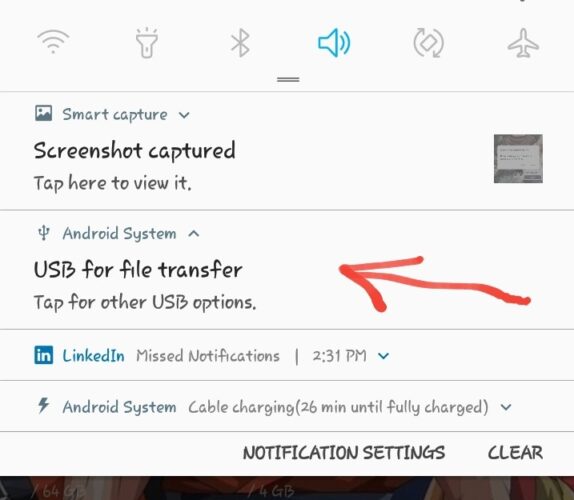
4. Select Transfer Files (MTP).

5. Once selected, your phone should immediately appear on your PC.
Tip: If you don’t see the notification, unplug the cable and reconnect it while the phone is unlocked.
2. Use a Proper USB Cable (This Matters More Than You Think)
Not all USB cables support data transfer. Many cheap or old cables are charging-only, which means your PC will never detect your phone.
What to Do:
- Use the original cable that came with your phone
- Avoid damaged, loose, or overly long cables
- Try a different USB cable that supports data transfer
If changing the cable makes your phone show up instantly, you’ve found the culprit.
3. Try a Different USB Port on Your PC
Sometimes the issue isn’t your phone—it’s the USB port.
Steps:
- Unplug the phone
- Plug it into a different USB port
- Avoid USB hubs; connect directly to the PC
- Prefer rear USB ports on desktop computers
If one port doesn’t work, another often will.
4. Unlock Your Phone and Allow File Access
Android devices won’t allow file access if the screen is locked.
Make Sure:
1. Your phone is unlocked
2. You tap Allow if prompted with:
“Allow access to phone data?”
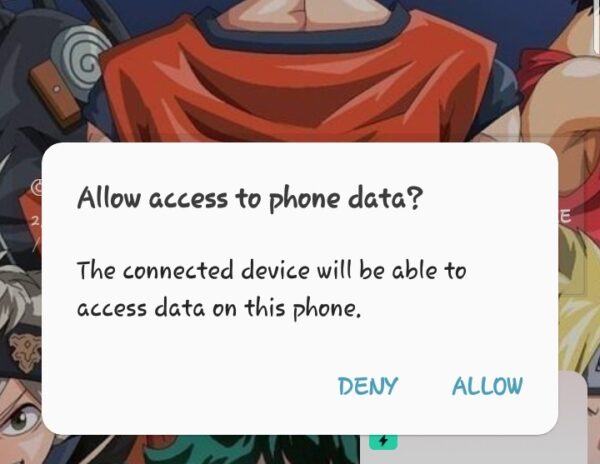
If you accidentally tapped Deny, disconnect and reconnect the cable to get the prompt again.
5. Enable USB Debugging (Advanced but Effective)
USB Debugging helps your PC recognize your Android device properly, especially if drivers are acting up.
How to Enable USB Debugging:
- Go to Settings > About Phone
- Tap Build Number 7 times to enable Developer Options
- Go back to Settings > Developer Options
- Enable USB Debugging
- Reconnect your phone to the PC
Learn more on USB debugging here
This step is especially useful for developers and advanced users.
6. Install or Update Android USB Drivers (Windows)
If your Android phone still doesn’t appear, outdated or missing drivers may be the issue.
Fixing USB Drivers on Windows:
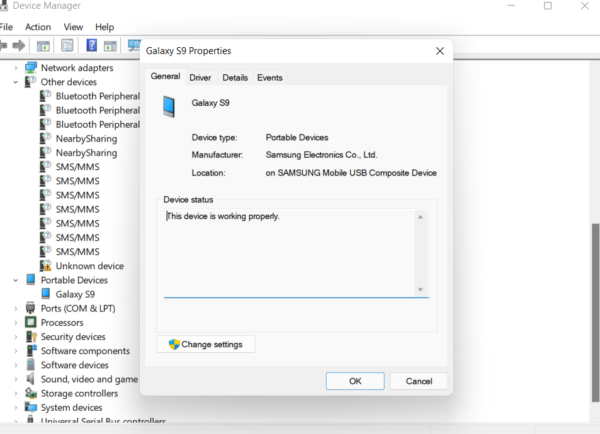
1. Press Windows + X → Select Device Manager

2. Look for:
- Portable Devices
- Android Device
- Unknown Device
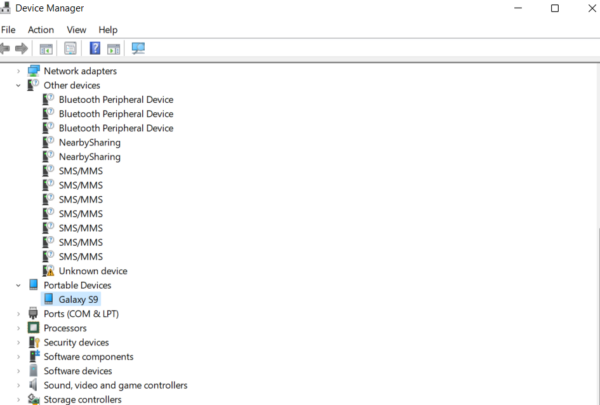
3. Right-click the device → Update driver
4. Choose Search automatically for drivers
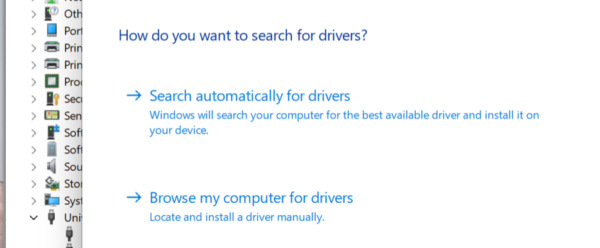
If that fails:
- Download official USB drivers from your phone manufacturer (Samsung, Xiaomi, Tecno, Infinix, etc.)
- Install and restart your PC
7. Restart Both Devices
It sounds basic, but it works more often than you’d expect.
Steps:
- Restart your Android phone
- Restart your PC
- Reconnect using a USB cable
Temporary glitches often disappear after a clean restart.
8. Check for Windows or Android Updates
Outdated software can cause compatibility issues.
What to Update:
- Windows OS
- Android system updates
- USB drivers
Keeping both systems updated reduces connection problems significantly.
9. Use Alternative File Transfer Methods (If USB Fails)
If USB refuses to cooperate, you still have options.
Alternatives:
- Bluetooth file transfer
- Google Drive
- Nearby Share
- Wi-Fi file transfer apps
- SD card (if supported)
These methods are slower but reliable in emergencies.
10. Factory Reset (Last Resort)
If nothing works and the issue started after a system update or corruption, a factory reset may help.
Warning: This will erase all data.
Before Resetting:
- Back up important files
- Sync contacts and photos
- Remove Google account if required
Only use this option as a final measure.
Ensuring Your Devices Connect Reliably
Ensure that your USB cable is working properly and that your phone is set to the correct USB mode.
Install the necessary drivers from your phone’s manufacturer and enable USB debugging on your phone.
Set your phone to “File Transfer” or “MTP” mode for transferring files to a PC.
Try restarting both your phone and PC, and check the USB cable and port for issues.
It’s best to use the original cable that came with your device or a certified compatible cable to ensure a stable connection.


Improve this guide




User forum
0 messages