
How to Fix Microsoft Phone Link Issues: A Comprehensive Guide

 4 min. read
 Updated on
Your computer shows your phone is connected, but messages won’t sync. Calls don’t appear. Microsoft Phone Link not working disrupts the workflow between your Android device and Windows PC. When it breaks, productivity suffers.
Most Phone Link problems stem from permission issues, outdated software, or network configuration errors. You can fix Microsoft Phone Link not working using straightforward troubleshooting steps.
Why Phone Link Stops Working
Phone Link depends on Bluetooth and Wi-Fi working together. When either connection drops or app permissions get revoked, the system fails. Both devices must connect to the same trusted Wi-Fi network. Public networks prevent proper synchronization.
Permission problems create connection issues. Android’s battery optimization kills the Link to Windows app to save power. Windows notification settings also interfere. Software updates sometimes introduce compatibility issues, and corrupted app cache files prevent Phone Link from launching.
How to Fix Microsoft Phone Link Not Working
These solutions address the most common causes. Start with quick fixes before moving to more involved troubleshooting.
Restart Both Devices
Reboot your Android phone and Windows PC. This clears temporary glitches. On your PC, click Start, Power, then Restart. On your phone, press and hold the power button and tap Restart. This resolves most temporary Microsoft Phone Link not working issues.
Check Bluetooth and Wi-Fi Connections
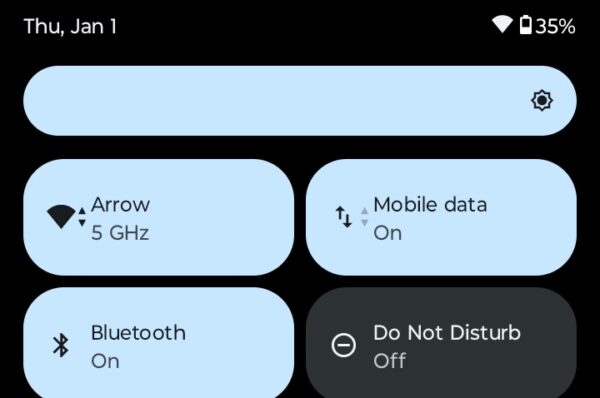
Both Bluetooth and Wi-Fi must be enabled. On your PC, click the network icon in the system tray and verify both are active. On your Android device, swipe down and check that both wireless radios are on. Make sure both devices connect to the same Wi-Fi network.
Update Phone Link Apps
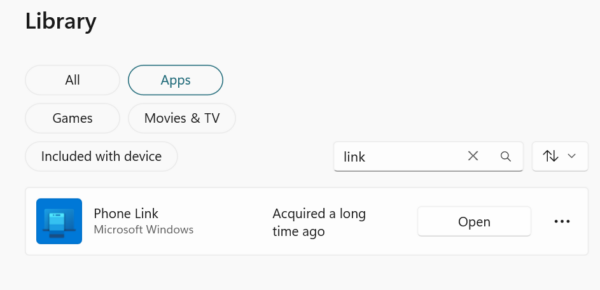
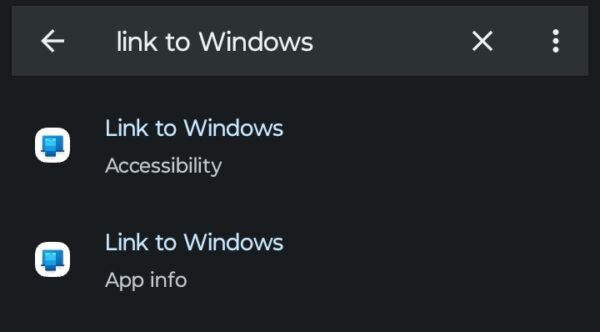
On Windows, open the Microsoft Store, click Library, then Get updates. Install updates for Phone Link. On Android, open the Play Store, search for “Link to Windows,” and tap Update if available.
Grant Required Permissions
Ensuring permissions are granted is one way to address potential issues with Microsoft Phone Link not working on Android.
- On your phone, go to Settings and tap Apps, then find Link to Windows.
- Tap Permissions and make sure the proper permissions have been granted, then back out of that menu.
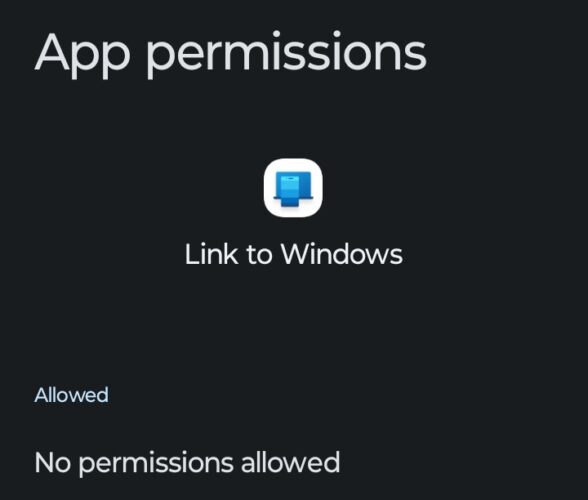
- Tap on App battery usage
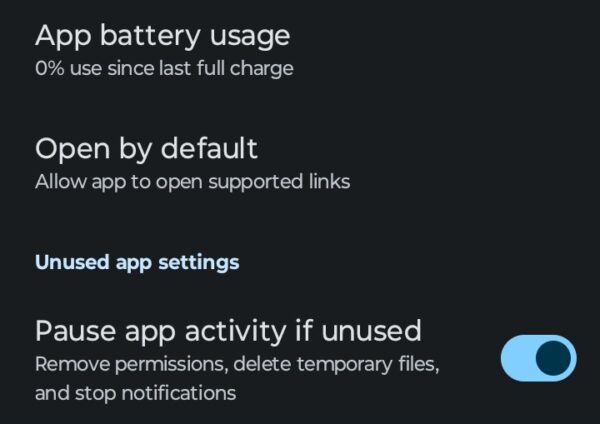
- Set to Unsrestricted
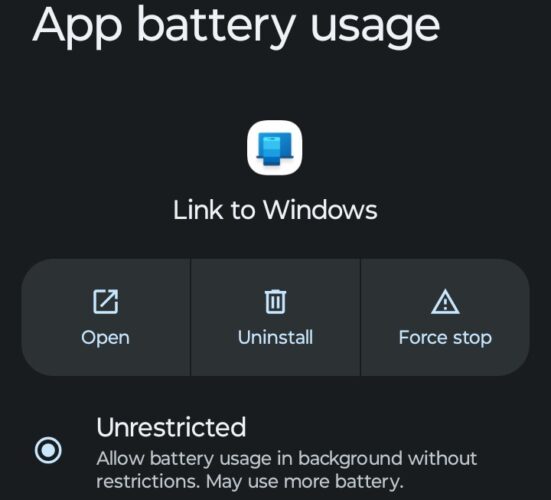
Reinstall Phone Link on Your Phone
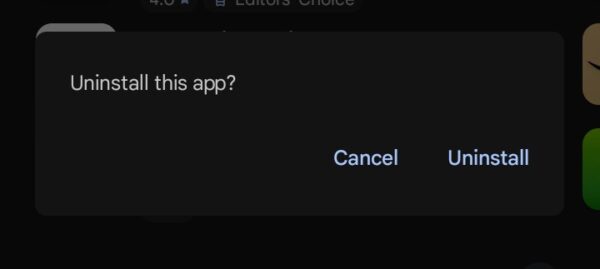
On Android, go to Settings, Apps, find Link to Windows, tap Uninstall, and confirm. Restart your phone. After restarting, open the Play Store, search for “Link to Windows,” and install it fresh. Set it up by scanning the QR code from your PC’s Phone Link app.
Check Windows Settings
Press Windows key + I, go to System, then Notifications, and find Phone Link. Make sure notifications are enabled for Phone Link. Navigate to Privacy, then Background apps, and ensure Phone Link can run in the background.

The Bottom Line
Most Phone Link connection problems resolve with basic troubleshooting. Restarting devices, checking permissions, and updating apps fix most issues. Keep both apps updated and make sure your phone’s battery optimization doesn’t interfere. Phone Link works best when both devices stay on the same trusted network.
No. Phone Link requires both Bluetooth and Wi-Fi connections. Bluetooth handles initial pairing and some features, while Wi-Fi manages data transfer for messages and photos.
No. Resetting the app only clears settings and cache files on your PC. Your phone’s messages, photos, and contacts remain untouched. You’ll need to re-pair your devices after resetting.
Both devices must use the same Microsoft account. Check that you’re signed in with identical accounts on your PC’s Phone Link app and your phone’s Link to Windows app.
Phone Link works but with limitations on public networks. For best performance, use a private trusted Wi-Fi network where both devices can communicate directly.


Improve this guide




User forum
0 messages