
How to Fix Samsung Galaxy Overheating: Quick Solutions That Work

 7 min. read
 Updated on

Your Samsung Galaxy feels hot enough to cook an egg. Apps lag, the screen dims, and you can barely hold your phone without discomfort. Samsung Galaxy overheating isn’t just annoying. It drains your battery faster, slows down performance, and can damage internal components over time.
Most Samsung Galaxy overheating problems stem from fixable causes. Software glitches, rogue apps, or simple settings adjustments can make a real difference. You don’t need technical expertise or special tools to cool down your device.
Samsung Galaxy Overheating Issues
Samsung Galaxy phones generate heat during normal use. The processor works harder when you game, stream video, or run multiple apps. Charging also produces warmth, especially with fast charging. These situations are normal and shouldn’t cause alarm.
Problems start when your phone overheats during basic tasks like browsing or texting. Excessive heat damages battery health and can trigger automatic shutdowns. Samsung has built-in safeguards that throttle performance or power off your device to prevent hardware damage.
Common causes include background apps consuming excessive resources, outdated software with unpatched bugs, poor ventilation from thick cases, and environmental factors like direct sunlight. Some apps, particularly social media and games, drain processing power even when you’re not actively using them. Software updates sometimes introduce bugs that cause overheating until Samsung releases a fix.
How to Fix Samsung Galaxy Overheating
These solutions work for most Samsung Galaxy models. Start with the quickest fixes and move down the list if needed.
Close Resource-Heavy Apps
Apps running in the background eat up processing power and generate heat. Social media apps like Instagram and TikTok, along with games, are common culprits.
Swipe up from the bottom of your screen to open Recent Apps. Swipe away any apps you’re not using. Pay special attention to games, streaming apps, and social media.
To stop apps from running in the background, open Settings and tap Connections. Choose Data Usage, then tap Wi-Fi data usage or Mobile data usage. Select the app you want to control and toggle off Allow background data usage.
For a more aggressive approach, go to Settings and tap Battery and device care. Choose Battery, then tap Background usage limits. Toggle on Put unused apps to sleep. Your phone will automatically stop apps from running when you haven’t used them in a while.
Check for Software Updates
Samsung releases updates that fix bugs causing excessive heat. Outdated software can have inefficient code that makes your processor work harder than necessary.
Open Settings and scroll down to Software update. Tap Download and install. If an update is available, download it over Wi-Fi. Your phone will restart after installing.
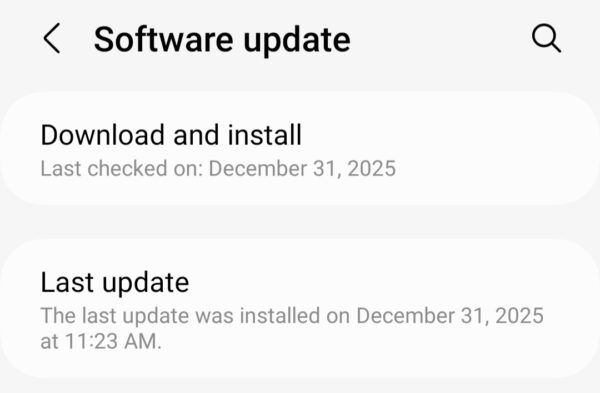
Updates often include battery optimizations and thermal management improvements. Other users report overheating fixes in patch notes, so staying current matters.
Adjust Screen Brightness and Settings
Your screen is one of the biggest power drains on your phone. High brightness and resolution settings generate significant heat.
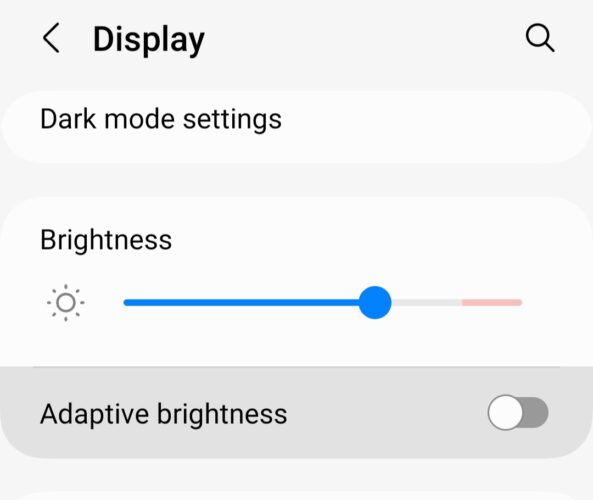
Lower your screen brightness manually or enable adaptive brightness. Go to Settings, tap Display, and adjust the Brightness level. Toggle on Adaptive brightness to let your phone adjust automatically based on ambient light.
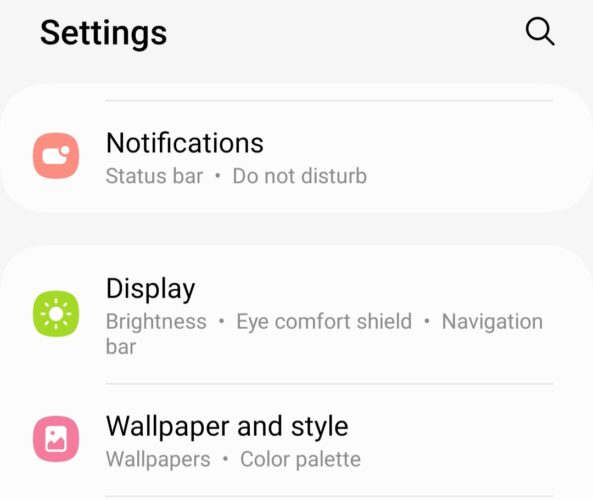
You can also reduce screen resolution. Navigate to Settings, tap Display, then choose Screen resolution. Select a lower resolution like FHD+ instead of WQHD+. The difference is barely noticeable in daily use, but it reduces heat and saves battery.
Avoid Charging While Using Your Phone
Your phone heats up during charging, so using it simultaneously doubles the heat generation. Gaming, streaming, or video calls while plugged in pushes temperatures into the danger zone.
Let your phone charge without interruption. If you must use it, unplug the charger first. Fast charging generates more heat than standard charging, so consider using a slower charger if overheating persists.
It’s also a good idea to remove your phone case while charging. The extra ventilation helps dissipate heat faster. Never charge your phone under pillows, blankets, or on soft surfaces that block airflow.
Clear Cache and Background Apps
Cache files accumulate over time and can cause performance issues. Corrupted cache data forces your processor to work harder, generating excess heat.
Turn off your phone completely. Connect it to a computer, another phone, or plug in USB-C headphones. Press and hold the Volume Up and Power buttons together until the Samsung logo appears, then release both buttons.
The Android Recovery menu will appear. Use the Volume Down button to highlight Wipe cache partition. Press the Power button to select it. Use Volume Down to highlight Yes, then press Power to confirm.
When the process completes, Reboot system now will be highlighted. Press the Power button to restart your phone. This won’t delete your personal data, just temporary system files.
Boot Into Safe Mode
Safe Mode disables all third-party apps, leaving only Samsung’s core apps running. This helps identify if a downloaded app is causing your overheating problem.
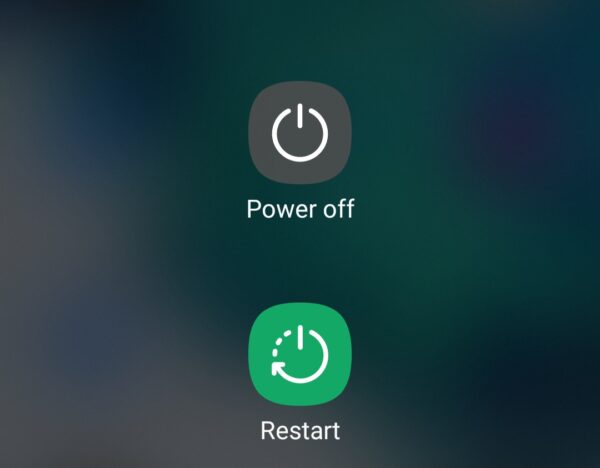
Swipe down from the top of your screen with two fingers to access Quick Settings. Tap the Power icon in the top right corner. Touch and hold the Power off icon for a few seconds. Tap the Safe mode icon when it appears.
Your phone will restart with “Safe mode” displayed in the bottom left corner. Use your phone normally for a while. If it doesn’t overheat in Safe Mode, a third-party app is the problem.
Uninstall recently downloaded apps one by one until the overheating stops. Start with apps you installed right before the problem began. To exit Safe Mode, simply restart your phone normally.
Factory Reset Your Phone
A factory reset erases everything and returns your phone to its original state. Only use this as a last resort after trying other solutions. Back up your photos, contacts, and important files first.
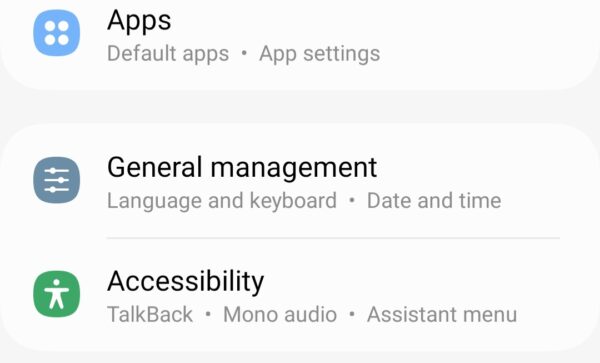
Open Settings and choose General Management
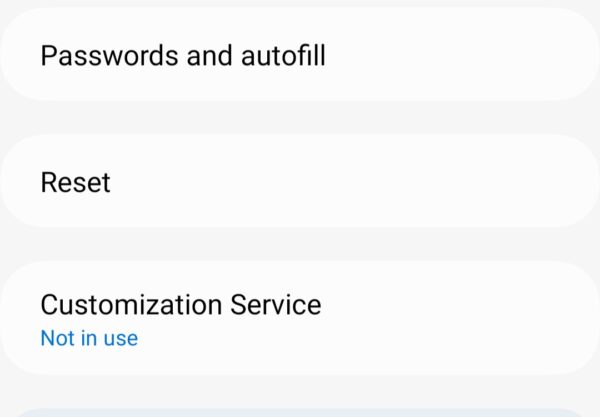
Scroll down and tap on Reset
Choose Factory Data Reset
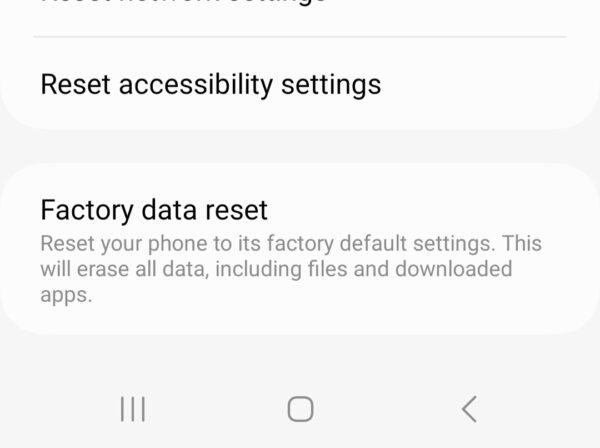
Review the information about what will be erased. Tap Reset to continue. Enter your PIN, password, or pattern if prompted and then tap Delete All to confirm. Your phone will restart and display the initial setup screen. Set up your phone from scratch or restore from a backup.
Ensuring a Cooler Samsung Experience
Don’t let your battery drain to zero regularly. Keeping your charge between 20% and 80% reduces heat generation during charging cycles. Avoid playing games or streaming for extended periods, especially while charging.
Your Samsung Galaxy should run cool during normal use. If overheating persists after trying these solutions, your phone might have a hardware problem. Contact Samsung support or visit an authorized service center. Battery degradation and faulty charging ports can cause chronic overheating that requires professional repair.
Resource-heavy apps, outdated software, poor ventilation, and direct sunlight cause most Samsung Galaxy overheating issues. Background apps and fast charging also generate excess heat.
Yes. Prolonged overheating degrades your battery, reduces its lifespan, and can damage the processor and other internal components.
Unplug the charger immediately, remove your phone case, and let it cool down in a well-ventilated area before charging again.
A factory reset can solve software-related overheating, but only use it as a last resort after trying other solutions like clearing cache and updating software.
Slight warmth during gaming, charging, or heavy use is normal. Excessive heat that makes your phone uncomfortable to hold requires attention.


Improve this guide




User forum
0 messages