
How to Fix Voicemail Not Working on Android (Step-by-Step Guide)

 5 min. read
 Updated on
Your phone rings, the caller leaves a message, but you never get a notification. When you need to fix voicemail not working on Android, missed messages mean missed opportunities. Important calls from work, family emergencies, or time-sensitive information disappear into a broken inbox.
Most voicemail problems trace back to network glitches, corrupted app data, or incorrect settings. You can fix voicemail not working on Android without technical skills in most cases.
Why Voicemail Stops Working on Android
Voicemail depends on your carrier’s network and your phone’s settings working together. Network connectivity issues rank as the most common culprit. Poor signal strength, temporary carrier outages, or switching between Wi-Fi and mobile data can interrupt voicemail service.
The Phone app stores voicemail settings and cached data. Corrupted cache files prevent message retrieval. Software updates sometimes change voicemail configurations, or your phone might lose the correct voicemail number stored in settings. Carrier settings updates can also scramble voicemail functionality.
How to Fix Voicemail Not Working on Android
These solutions address the most common causes. Start with the fastest fixes and work your way down.
Restart Your Phone
A simple reboot clears temporary glitches. Press and hold the power button, tap Restart, and wait for your phone to fully reboot. If you don’t see a restart option, power off your phone completely, wait 30 seconds, then turn it back on.
Check Airplane Mode and Network Connection
Swipe down from the top of your screen to access Quick Settings. Make sure Airplane mode is turned off. Check your signal strength in the status bar. You need at least two bars for reliable voicemail service.
Toggle Airplane mode on for 30 seconds, then turn it off. This forces your phone to reconnect to the carrier network and can fix voicemail not working on Android caused by connection issues.
Reset Voicemail Password
An incorrect or expired voicemail password blocks access. Contact your carrier to reset your voicemail password through their mobile app, website, or customer service.
Once you have the new password, dial your voicemail by pressing and holding the 1 key on your phone’s dial pad. Follow the prompts to enter your new password.
Clear Phone App Cache and Data
Corrupted cache files prevent the Phone app from accessing voicemail properly. Clearing this data forces the app to rebuild its configuration from scratch.
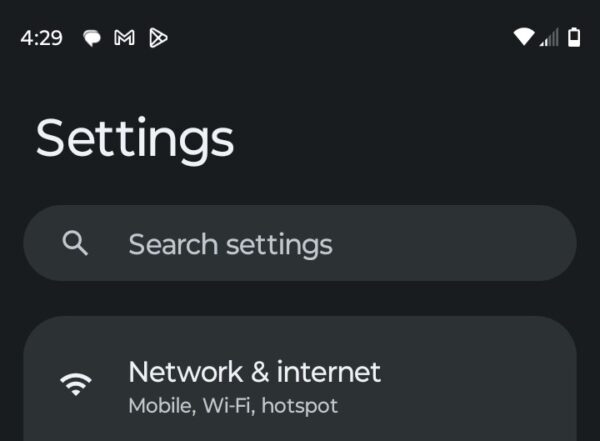
- Open Settings and tap Apps.
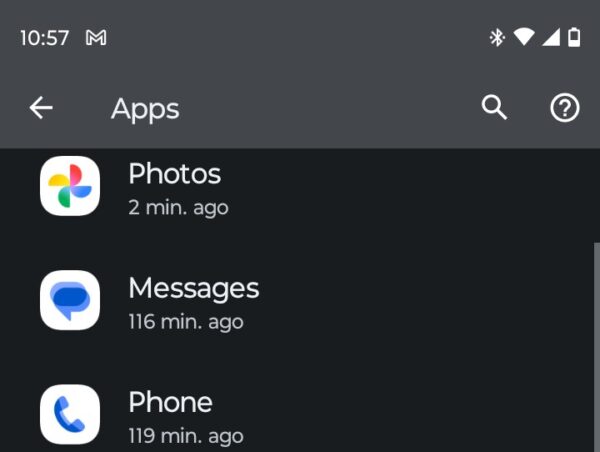
- Find and select Phone or Dialer depending on your device.
- Tap Storage & cache.
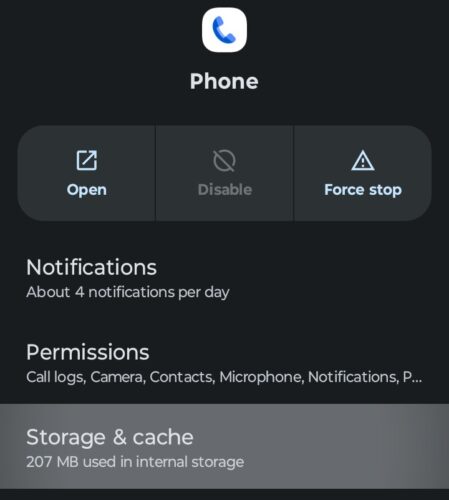
- Tap Clear cache first, then tap Clear storage and restart your phone if prompted.
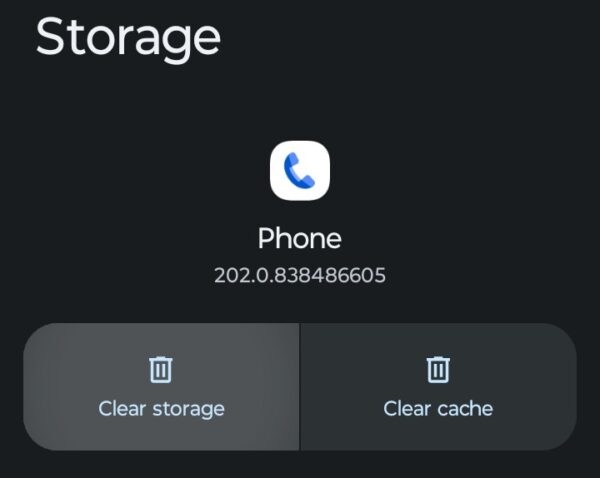
The Phone app will reset to its default state. You won’t lose contacts or call history, but you’ll need to reconfigure any custom settings. Open your voicemail to let the app rebuild its data.
Update Carrier Settings
Go to Settings and tap System or About phone. Look for System updates or Software update. Tap Check for updates. If carrier settings updates appear, download and install them. Restart your phone after updating.
Check Voicemail Number Settings
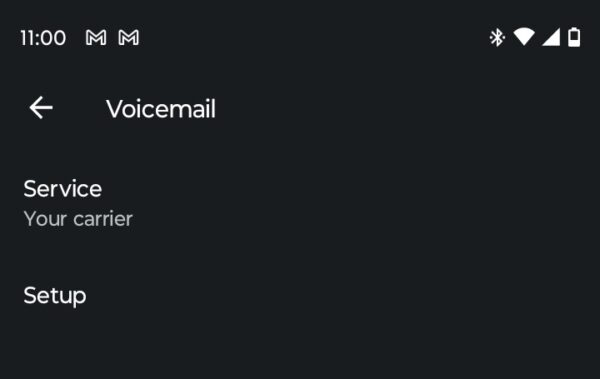
Open your Phone app and tap the three dots for the menu. Select Settings, then tap Voicemail. Look for Voicemail number or Advanced settings. The field should contain your carrier’s voicemail number. If it’s blank or incorrect, contact your carrier for the right number and enter it manually.
Contact Your Carrier
Carrier-side problems require their technical support. Call your carrier’s support line or visit a store. Explain that voicemail isn’t working and mention the steps you’ve tried. They can check if voicemail is properly activated on your account and reset your voicemail box if needed.
Factory Reset
A factory reset erases everything and returns your phone to its original state. Only use this option after exhausting other solutions and backing up all important data.
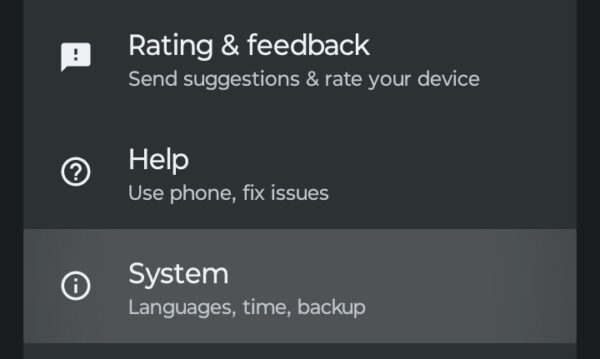
- Open Settings and tap System.
- Tap Reset options or Reset.
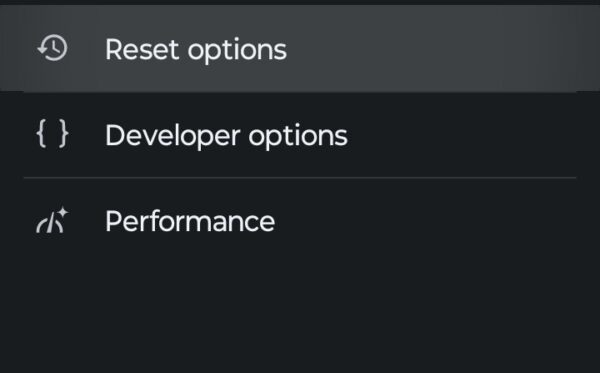
- Select Erase all data or Factory data reset.
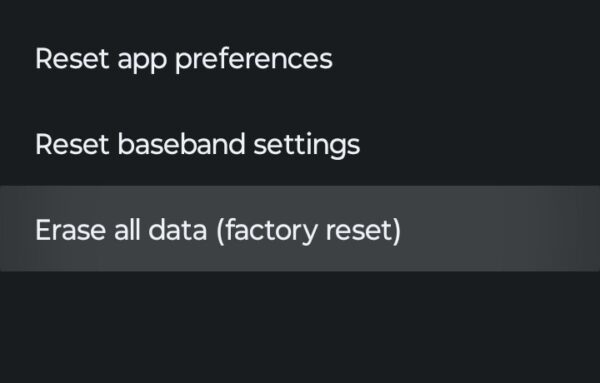
- Tap Erase all data or Reset phone. Enter your PIN, password, or pattern if prompted and tap Erase all data again to confirm.
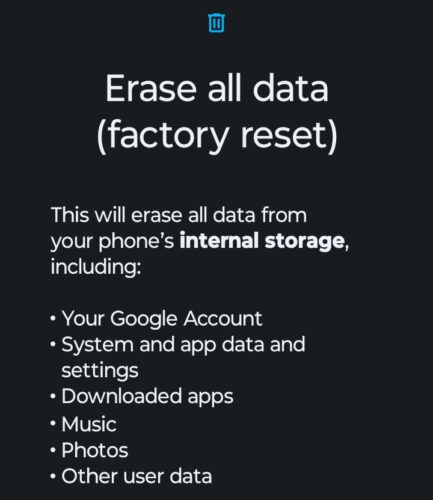
Your phone will restart and display the setup screen. Sign in with your Google account and restore your backup if available. Contact your carrier immediately after setup to ensure voicemail is properly configured on your freshly reset device.
The Bottom Line
Most Android voicemail problems stem from network hiccups or corrupted app data rather than hardware failures. Simple fixes like restarting your phone, clearing cache, or toggling Airplane mode resolve most issues in minutes.
Keep your Phone app and system software updated to prevent future problems. If voicemail stops working after a software update, wait a few days for your carrier to push compatibility fixes before attempting factory resets.
Check Settings > Apps > Phone > Notifications and enable all notification types. Also, verify Do Not Disturb isn’t silencing voicemail alerts.
Yes. Press and hold the 1 key on your dial pad to call voicemail directly, or call your own number from another device and press # to access messages.
Visual voicemail uses data connections while traditional voicemail uses voice networks. You might have call forwarding issues or carrier network problems. Contact your carrier to verify settings.
No. Contacts are stored separately. Clearing app storage only removes temporary files and settings.
Network resets take effect immediately, but carriers may need up to 15 minutes to reprovision voicemail. If it doesn’t work after 30 minutes, contact your carrier.


Improve this guide




User forum
0 messages