
How to Install APK Files on Android: A Step-by-Step Guide

 5 min. read
 Updated on
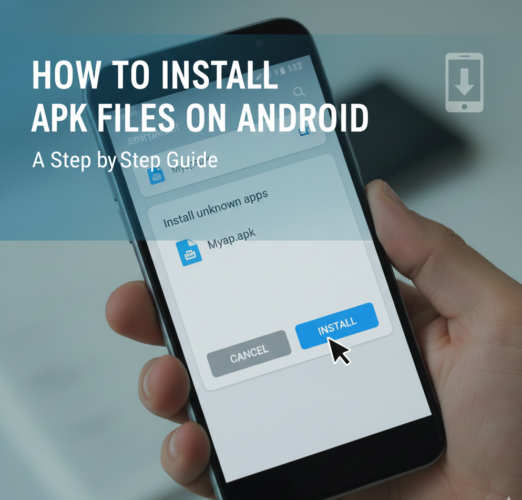
Installing APK files on Android devices allows you to access apps and features that aren’t available on the Google Play Store. Whether you want to install an older version of an app, try a beta release, or use apps restricted by region, learning how to manually install APK files can greatly expand your Android experience.
This guide is designed for Android users who want more flexibility and control over their devices. We’ll walk you through everything you need to know—from enabling the right settings to installing APKs safely, fixing common problems, and following best practices to protect your device.
How Do You Install APK Files on Android?
Installing an APK (Android Package Kit) file involves allowing installations from outside the Play Store, downloading the APK file, and completing the installation manually. While the process is straightforward, it’s important to follow the steps carefully to avoid security issues.
What You’ll Need
Before you begin, make sure you have the following:
- An Android smartphone or tablet with internet access
- An APK file you want to install
- A file manager app (optional but recommended)
- Basic knowledge of navigating Android settings
Step 1: Enable Unknown Sources (Install Unknown Apps)
Android blocks APK installations by default to protect users. You’ll need to allow installations from unknown sources.
Steps to Enable APK Installation
- Open the Settings app on your Android device.

- Navigate to Security or Privacy (this may vary by device).

- Tap Install unknown apps or Unknown sources.

- Select the app you’ll use to install the APK (such as your browser or file manager).

- Toggle on Allow from this source.

- Confirm any warning messages that appear.
Note: Newer Android versions allow this permission on a per-app basis rather than globally.
Step 2: Download the APK File
Once unknown sources are enabled, you can safely download your APK file.
- Open your preferred web browser.

- Search for the APK file you want to install.

- Make sure the website is reputable to avoid malware.

- Tap the download link and wait for the APK file to finish downloading.

The file is usually saved in your Downloads folder by default.
Step 3: Install the APK File
After downloading the APK, you can proceed with the installation.
- Open your file manager app.

- Navigate to the Downloads folder.

- Locate the APK file you downloaded and Tap it to begin installation.

- Follow the on-screen prompts to install the app.

- Once installation is complete, tap Open to launch the app or Done to exit.

The app will now appear in your app drawer like any other installed application.

Tips and Best Practices for Installing APK Files
- Only download APK files from trusted and reputable websites.
- Avoid modified or cracked APKs, as they often contain malware.
- Keep your Android operating system up to date for better security.
- Back up your data before installing APKs that replace existing apps.
- Use a reliable file manager app to organize and manage APK files.
- Consider using a VPN when downloading APKs from external sources for added privacy.
Common Issues and How to Fix Them
- Problem: APK file won’t install. Solution: Ensure your device has enough storage space and that you’ve enabled installations from unknown sources.
- Problem: App crashes after installation. Solution: Check for any available updates or try reinstalling the APK from a different source.
- Problem: APK installation is blocked by Play Protect. Solution: Temporarily disable Play Protect in the Play Store settings and attempt installation again.
- Problem: Installation stuck at “Installing.” Solution: Restart your device and try the installation process again.
Expanding Your Android Experience
Installing APK files gives you greater control over your Android device and access to apps that may not be officially available through the Play Store. For example, you may want to
install Fitbit 2.51 APK on Android
or
install Adobe Illustrator Draw 3.3.76 APK for Android
to unlock specific features or older app versions.
As long as you follow best practices and download APKs from credible sources, installing APK files can safely and significantly enhance your Android experience.
Yes, as long as your device has the option to enable installations from unknown sources, you can install APK files.
It can be safe if the APK is downloaded from a trusted and reputable source. Always be cautious and use antivirus software where possible.
This could be due to insufficient storage, corrupt APK files, or having disabled the unknown sources option. Check these potential issues to resolve the problem.
Generally, installing APKs does not void your warranty, but it’s always good to check with your device manufacturer or service provider.
You can manually download the latest APK version and install it over the existing app, or check if the developer offers updates through their website.


Improve this guide




User forum
0 messages