
How to Migrate from iOS to Android (Complete Step-by-Step Guide)

 4 min. read
 Updated on
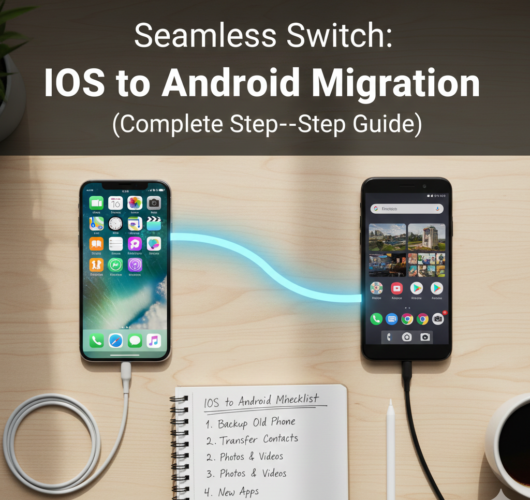
Switching from an iPhone to an Android phone can feel overwhelming—especially if you’re worried about losing contacts, photos, or important data.
The good news? Migrating from iOS to Android is easier than ever, as long as you follow the right steps. This guide walks you through the entire process, from backing up your iPhone to setting up your new Android device, so nothing important gets left behind.
Whether you’re switching for better customization, more device choices, or just a change of pace, this guide will help you move smoothly and confidently.
What You’ll Need Before You Start
Make sure you have the following ready:
- Your iPhone and new Android phone
- A stable Wi-Fi connection
- Your Apple ID login details
- Your Google account login details
- Google Drive installed on your iPhone
- Enough free storage on your Android device
Tip: Fully charge both devices before you begin to avoid interruptions.
Step 1: Back Up Your iPhone to iCloud
Before moving anything, make sure your iPhone data is backed up.
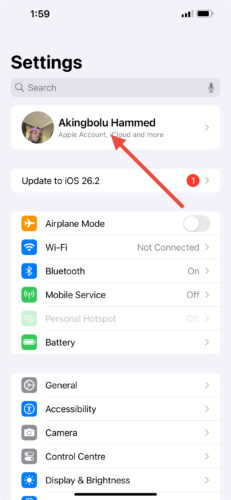
1. Open Settings on your iPhone.

2. Tap your Apple ID name at the top
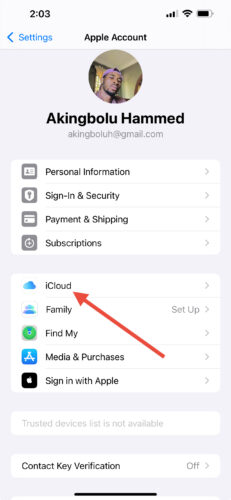
3. Select the iCloud option
4. Make sure important data (Contacts, Photos, Calendar, etc.) is turned on.

5. Tap iCloud backup
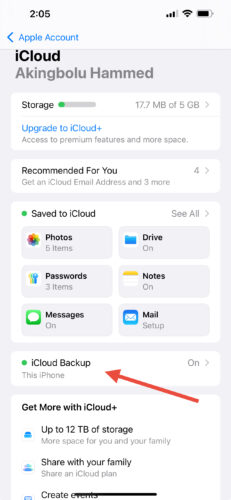
6. Select Backup Now
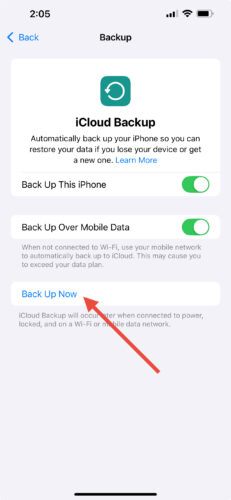
Wait until the backup completes before moving on.
Step 2: Transfer Contacts, Calendar, and Photos Using Google Drive
1. Download Google Drive from the App Store on your iPhone
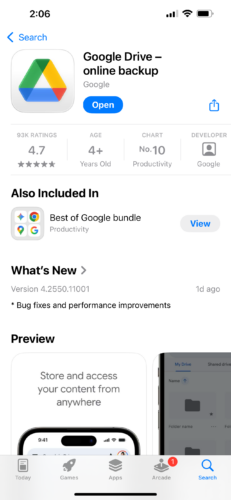
2. Open the app and sign in with your Google account

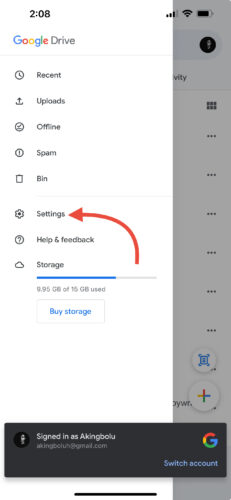
3. Click the Menu button at the top left corner and select Settings
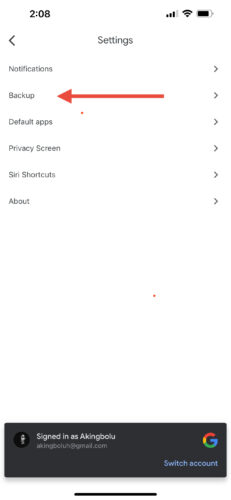
4. Click Backup
5. Choose what to back up:
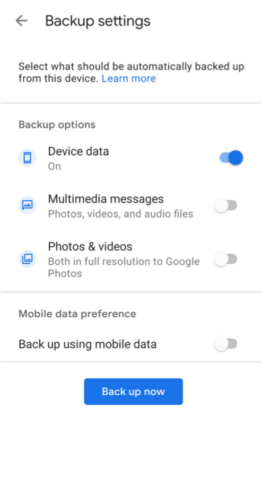
6. Tap Start Backup and wait for it to finish
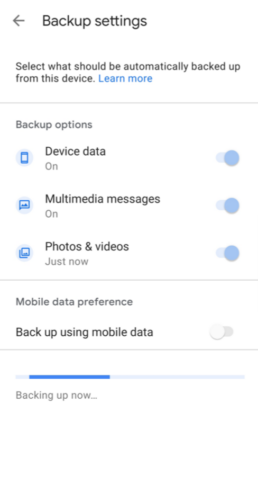
Note: This may take some time depending on how much data you have.
Step 3: Set Up Your New Android Phone
Now it’s time to bring everything onto your Android device.
- Turn on your Android phone
- Follow the on-screen setup instructions
- Sign in using the same Google account you used for the backup
- When prompted, choose to restore data from a backup
- Select the most recent Google Drive backup
Once completed, your contacts, calendar, and photos should appear automatically.
Migration Methods Compared
| Method | Best For | Pros | Cons |
| Google Drive backup | Most users | Easy, reliable | Needs strong internet |
| Manual transfer | Advanced users | Full control | Time-consuming |
Tip: For most people, Google Drive is the fastest and safest option.
What Doesn’t Transfer Automatically (Important)
Some things won’t move over directly:
- Paid iOS apps (you’ll need Android versions)
- iMessage history
- Apple-exclusive apps (FaceTime, Safari, Notes)
- App data for certain apps
You’ll need to reinstall apps from the Google Play Store and sign in again.
Common Issues and How to Fix Them
Contacts didn’t transfer
→ Make sure contacts are stored in iCloud and included in the Google Drive backup.
Photos missing on Android
→ Check that Google Photos is installed and syncing on your Android device.
Apps not available on Android
→ Search for Android alternatives in the Play Store.
Calendar events not syncing
→ Confirm calendar syncing is enabled in both your Google account and Android settings.
Tips for a Smooth Transition
- Use Wi-Fi, not mobile data
- Give backups time to finish completely
- Explore Android settings—customization is one of its biggest strengths
- Disable iMessage on your iPhone before switching to avoid missing texts
Final Thoughts
Migrating from iOS to Android is a big change, but it doesn’t have to be stressful. With proper backups and the right tools, you can move your essential data and start enjoying Android’s flexibility almost immediately.
Take some time to explore your new device—you’ll likely discover features and customization options that simply aren’t possible on iOS.
FAQs
Yes, WhatsApp supports official transfers between iPhone and Android on many devices.
No. You’ll need to download Android versions separately.
Use streaming services or manually move files via a computer.
Yes, but it usually requires a cable transfer or third-party tools.


Improve this guide




User forum
0 messages