
How to Remove Malware from Android Phones Fast

 5 min. read
 Updated on

If your device is acting strangely, it may be time to remove malware from an Android phone before it compromises personal data or affects performance. Mobile infections are more common than many users realize, and once they take hold, photos, saved passwords, and banking details can be exposed. This guide walks through reliable removal methods that work across Android devices, helping you clean up the problem fast and get your phone back under control.
Signs Your Android Phone Has Malware
Your phone will show specific warning signs when infected with forms of mobile malware. Battery drain happens faster than normal, even when you’re not using your device heavily. Unfamiliar apps appear on your home screen or app drawer that you never downloaded. Pop-up ads start appearing when you’re not browsing or using apps. Your data usage spikes unexpectedly without explanation. The phone overheats during normal use or slows down significantly during basic tasks.
Other symptoms include apps crashing frequently, your homepage or search engine changing without your permission, and strange charges appearing on your phone bill. Some malware sends premium text messages or makes calls without your knowledge. You might notice your contacts receiving messages or emails from you that you never sent.
How to Remove Malware from Android Phones
Boot Into Safe Mode
Safe mode disables third-party apps and helps you identify if malware is causing problems. Follow these steps:
- Press and hold the Power button until the power menu appears
- Tap and hold the Power Off option on your screen
- Wait for the “Reboot to safe mode” prompt to appear
- Tap OK to confirm
- Your phone will restart with “Safe Mode” displayed in the bottom left corner
If Safe Mode doesn’t appear, try this alternate method: Turn off your phone completely. Press the Power button to turn it back on. When you see the manufacturer’s logo, immediately press and hold the Volume Down button until the phone finishes booting.
Identify and Uninstall Suspicious Apps
Once in Safe Mode, check which apps you installed recently before problems started. Go to Settings and open Apps or Application Manager. Look through your installed apps carefully. Pay attention to apps with generic names, apps you don’t remember installing, or apps with poor reviews.
Check when each suspicious app was installed. If problems started around the same time you installed a specific app, that’s your likely culprit. Some malware disguises itself with names similar to legitimate apps or uses confusing permissions.
Before uninstalling, some malware grants itself device administrator privileges to prevent removal. If the Uninstall button appears grayed out, go to Settings > Security > Device Administrators. Find the suspicious app and turn off its administrator privileges. Now go back and uninstall the app.
Clear Cache and Data
Clearing your browser cache removes hidden malicious files that malware uses to operate. Here’s how:
- Open your phone’s Settings app and tap Apps
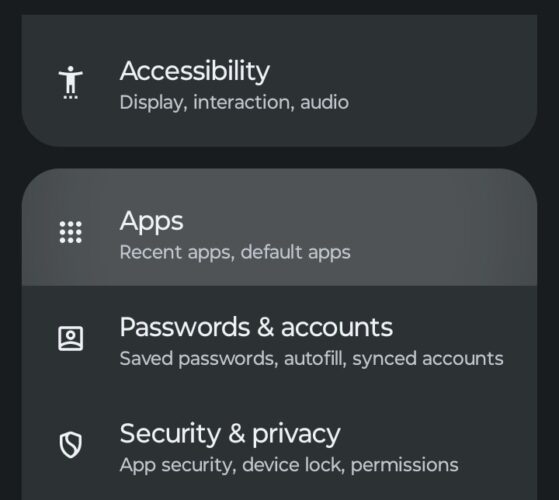
- Use the search feature to locate your browser and select it
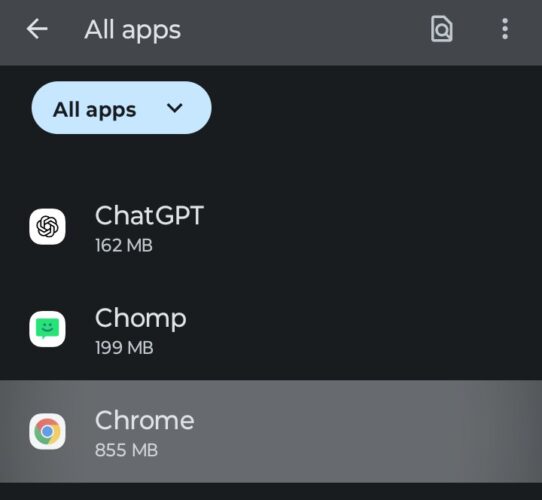
- Choose Storage & Cache
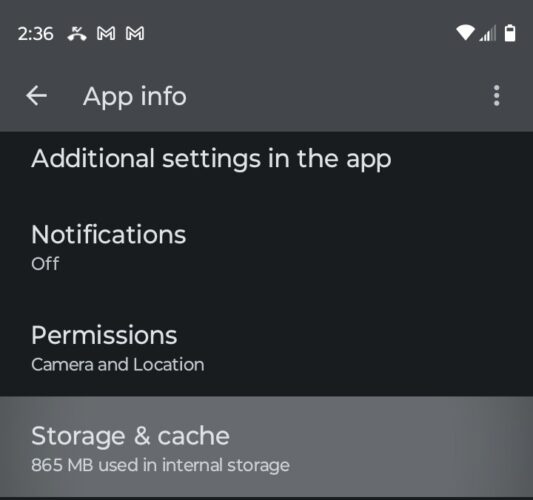
- Tap Clear Cache and then tap Clear storage and follow the prompts
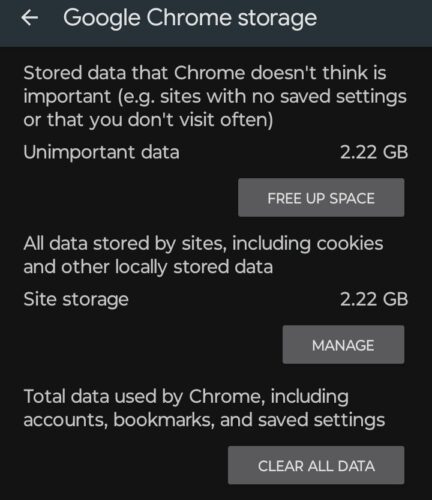
This process signs you out of websites and removes saved passwords in that browser, so be prepared to sign back in.
Run Google Play Protect Scan
Google Play Protect scans apps for malicious behavior and is built into Android. Open the Google Play Store app. Tap your profile icon in the top right corner. Select Play Protect from the menu. Tap the Scan button to check your device.
Play Protect runs automatically, but performing a manual scan ensures it checks your device right now. If it finds any harmful apps, follow the prompts to remove them immediately. Play Protect also scans new apps before you download them.
Use a Reputable Antivirus App
Antivirus apps detect malware that other methods miss. Download a trusted security app from the Play Store. Norton Mobile Security offers excellent malware detection and removes all types of Android malware, including spyware and ransomware. Bitdefender Antivirus provides effective virus detection with minimal battery impact.
Install your chosen antivirus app and run a full system scan. The scan examines all files, apps, and system areas for threats. Follow the app’s instructions to quarantine or remove any detected malware. These apps also provide real-time protection against future infections.
Factory Reset as Last Resort
If malware persists after trying all other methods, a factory reset removes everything from your phone. This step erases all your data, so back up important files first to Google Drive or your computer.
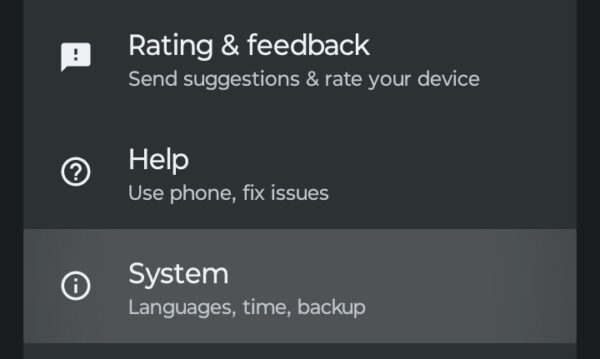
- Open Settings and tap System
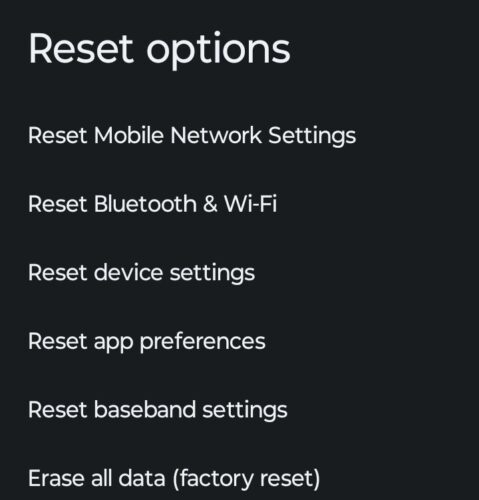
- Select Reset Options
- Tap Erase All Data (Factory Reset)
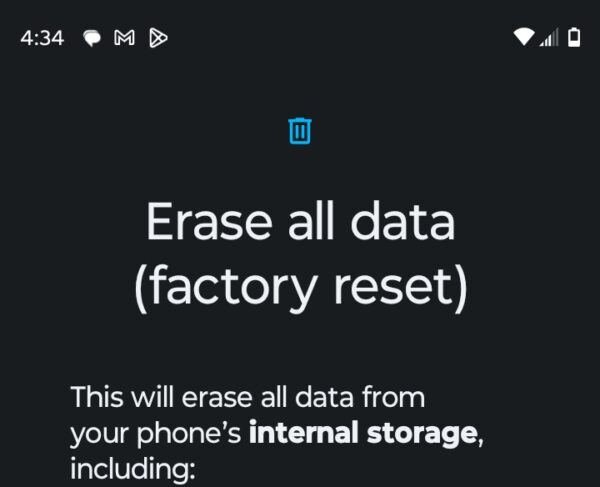
The reset process takes 5 to 10 minutes. Your phone will restart and return to its original factory state. You’ll need your Google Account username and password to set up the device again.
Prevention Tips
Download apps only from the Google Play Store. Third-party app stores and websites often host infected apps. Check app permissions before installing. If a flashlight app requests access to your contacts, that’s suspicious.
Keep your Android operating system updated. Go to Settings > System > System Update regularly. Updates patch security vulnerabilities that malware exploits. Enable Google Play Protect in the Play Store settings for continuous monitoring.
Avoid clicking links in suspicious emails or text messages. These often lead to malicious websites or trigger automatic malware downloads. Review your installed apps monthly and remove anything you don’t use or recognize.


Improve this guide




User forum
0 messages