
How to Resolve Android Not Receiving Text Messages (Step-by-Step Guide)

 5 min. read
 Updated on
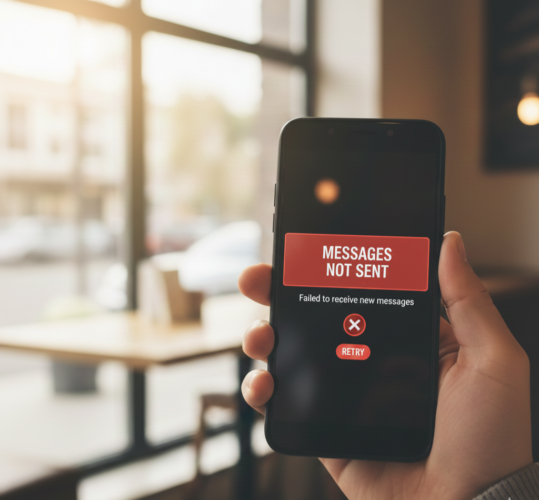
Not receiving text messages on your Android phone can be incredibly frustrating—especially when important OTPs, bank alerts, or personal messages fail to come through. Fortunately, this is a common Android issue and, in most cases, it can be fixed without visiting a service center.
This step-by-step guide walks you through all the proven fixes for Android phones not receiving SMS messages. From network checks and message center settings to app-level troubleshooting, you’ll learn exactly what to do to restore your messaging service.
Whether you’re a beginner or an advanced Android user, follow the solutions below in order until the issue is resolved.
Why Is My Android Not Receiving Text Messages?
Before jumping into the fixes, it helps to understand what might be causing the issue. Common reasons include:
- Poor or unstable mobile network signal
- Incorrect SMS Message Center number
- Corrupted messaging app cache or data
- Outdated Android OS or Messages app
- Network configuration problems
- SIM card or carrier-related issues
- Incorrect settings on dual SIM devices
Now, let’s fix it step by step.
How Do You Fix Android Not Receiving Text Messages?
What You’ll Need Before You Start
Make sure you have the following:
- Your Android smartphone
- An active SIM card with SMS service enabled
- Stable mobile network or Wi-Fi connection
- Access to your phone’s Settings menu
- Latest Android and app updates installed (if available)
Step 1: Check Network Connectivity
If your phone isn’t properly connected to your carrier’s network, text messages won’t arrive.
1. Open Settings
2. Go to Network & Internet or Connections

3. Tap Mobile Network

4. Ensure mobile data is turned ON

5. Set Network mode to LTE/3G/2G (Auto Connect)
Next, reset your network signal:
- Turn Airplane Mode ON
- Wait 10–15 seconds
- Turn Airplane Mode OFF

Note: This forces your phone to reconnect to the nearest carrier tower.
Step 2: Verify the SMS Message Center Number
An incorrect Message Center number can completely block incoming and outgoing SMS.
1. Open the Messages app
2. Tap the three-dot menu (top-right corner)

3. Select Settings, then More settings

4. Go to Text messages or Advanced
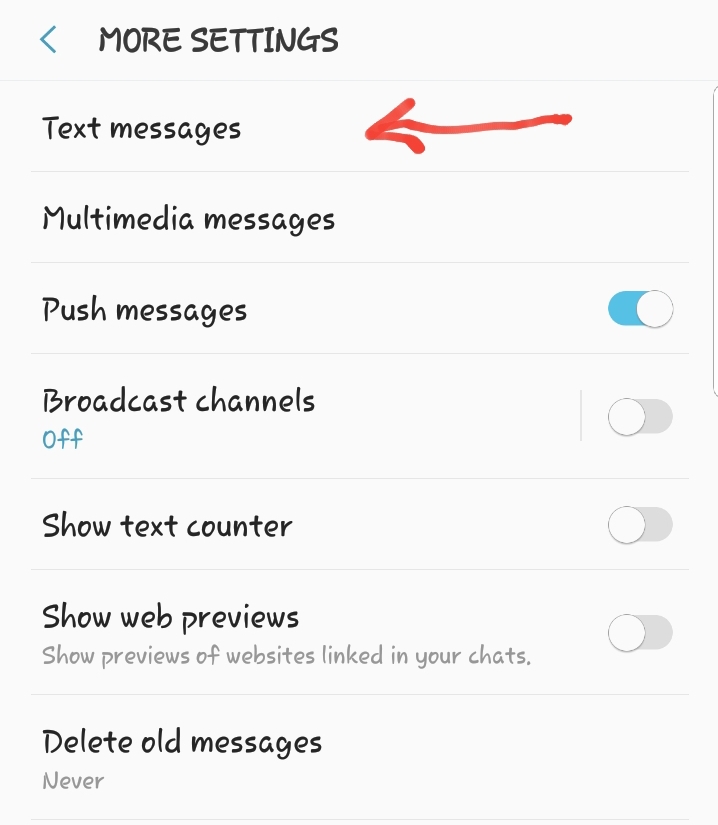
5. Tap Message Center

6. Confirm the number matches your carrier’s official SMSC number
Tip: If you’re unsure, contact your carrier or check their website for the correct Message Center number.
Step 3: Clear Messages App Cache and Data
Corrupted app data often causes messaging issues.
1. Go to Settings

2. Tap Apps & notifications

3. Select Messages

4. Tap Storage & cache

5. Tap Clear cache and Clear data

6. Restart your phone
Note: Clearing data may remove unsaved messages, so back up important texts first.
Step 4: Update the Messaging App
An outdated Messages app can conflict with newer Android versions or carrier updates.
1. Open the Google Play Store

2. Tap your profile icon and Select Manage apps & device

3. Look for Messages

4. Tap Update if available

5. Once updated, reopen the app and check if texts are now coming through.
Step 5: Reset Network Settings
If none of the above steps worked, resetting your network configuration can fix hidden issues.
Here’s how to Reset your Android Settings
Step 1: On your Android device, go to Settings and Select Connections.

Step 2: Select More Connection Settings

Step 3: Choose Reset Network Settings

Step 4: Confirm to reset network settings and restart your device.

Note: This will not delete your personal data, but you’ll need to reconnect Wi-Fi and Bluetooth devices.
Additional Fixes to Try
Check Blocked Numbers
- Open Messages
- Go to Settings > Blocked numbers
- Ensure important contacts aren’t blocked

Ensure Correct SIM Is Selected (Dual SIM Phones)
- Go to Settings > SIM cards
- Set the correct SIM as default for SMS

Check Storage Space
- Low storage can stop messages from downloading
- Ensure at least 500MB–1GB free space
Tips and Best Practices to Avoid SMS Issues
- Keep your Android OS and apps updated
- Restart your phone at least once a week
- Avoid aggressive battery or data saver settings for Messages
- Back up important messages regularly
- Use the default messaging app recommended by your device or carrier
Common Issues and Their Fixes
Problem: Text messages aren’t sending or receiving
Solution: Check your SMS balance or carrier plan status
Problem: Messages from specific contacts are missing
Solution: Ensure those contacts aren’t blocked
Problem: Messages arrive late
Solution: Disable background data restrictions for the Messages app
Problem: SMS fails on dual SIM devices
Solution: Set the correct SIM as default for messaging
When to Contact Your Carrier
If you’ve tried all the steps above and your Android still isn’t receiving text messages, the issue may be carrier-related. Contact your network provider if:
- Your SIM card is damaged or inactive
- SMS service is disabled on your line
- There’s a known outage in your area
Final Thoughts
Android not receiving text messages is a common issue, but it’s rarely permanent. In most cases, a quick settings adjustment, app cleanup, or network reset will restore normal messaging.
Follow the steps in this guide carefully, and you should have your SMS working again in no time.
If the problem persists, switching SIM cards or contacting your carrier is the next best step.
Ensure that your previous iPhone has deactivated iMessage, as this can cause delivery issues to Android devices.
Contact your carrier to verify if there are any restrictions or blocks on your account.
Check if group messaging is enabled in your messaging app settings, and ensure you have a data connection.
Yes, certain third-party messaging apps can interfere with the default messaging app. Consider disabling or uninstalling them to test.
Perform a factory reset as a last resort, but ensure all data is backed up before proceeding.


Improve this guide




User forum
0 messages