
How to Resolve Mobile Network Not Available Issues: A Comprehensive Guide

 5 min. read
 Updated on

Your phone shows full bars, but calls won’t go through. Text messages fail. Mobile data refuses to load. The “mobile network not available” error appears instead, cutting you off from everything useful. This message means your device can’t establish a cellular connection.
Most mobile network problems stem from temporary glitches, SIM card issues, or incorrect settings. You can fix mobile network not available errors in minutes using simple troubleshooting steps.
Why Mobile Network Becomes Unavailable
Network connectivity depends on several factors. Your SIM card connects to nearby cell towers, which relay signals to your carrier’s network. When any link breaks, the mobile network becomes unavailable.
Poor signal coverage ranks as the most common cause. Basements, rural areas, and thick-walled buildings block cellular signals. SIM card problems create network issues frequently. Loose, damaged, or dirty SIM cards can’t connect properly. Software glitches and incorrect network mode settings also interfere with service.
How to Fix Mobile Network Not Available
These solutions address the most common causes. Start with quick fixes and progress to more involved steps if needed.
Restart Your Phone
Press and hold the power button, tap Restart, and wait for your device to fully reboot. Restarting refreshes system processes and clears temporary glitches that interfere with network connections. This simple step resolves most temporary network issues.
Toggle Airplane Mode
Swipe down from the top of your screen to access Quick Settings. Tap the airplane icon to enable Airplane mode. Wait 30 seconds, then tap it again to disable. Your phone searches for nearby cell towers and reconnects to your carrier’s network. This quick cycle often fixes mobile network not available errors.
Check SIM Card
Power off your phone completely. Insert the SIM ejector tool into the small hole next to the tray. The tray pops out with gentle pressure. Remove the SIM card and inspect it for damage or dirt. Clean it gently with a dry cloth if needed.
Reinsert the SIM card carefully with the notched corner aligned properly. Push the tray back until it clicks. Power on your device and check if the network connection returns.
Reset Network Settings
Corrupted network configurations cause persistent problems. Resetting returns all wireless options to factory defaults without erasing personal data.
- Open Settings and tap System.
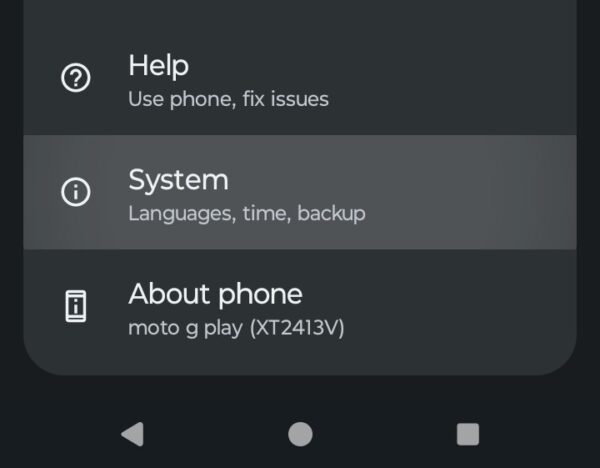
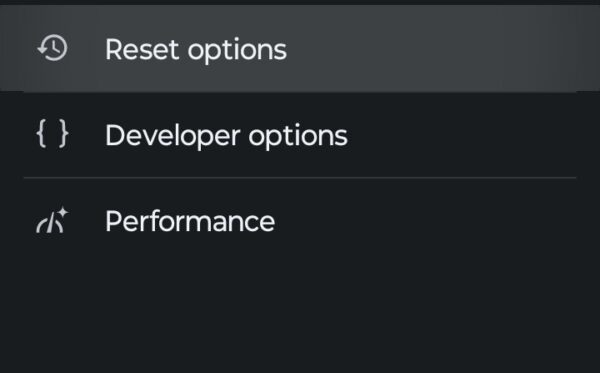
- Select Reset options.
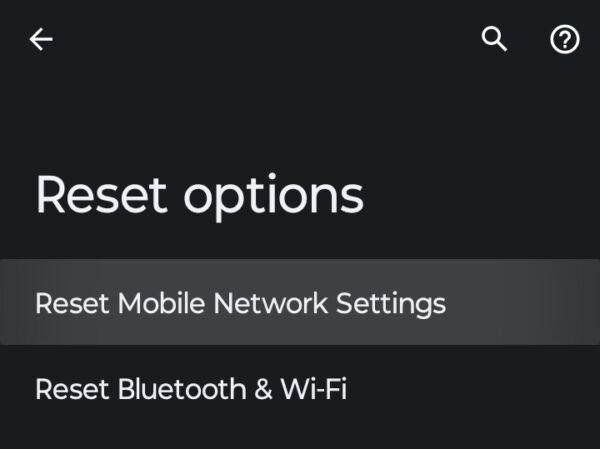
- Tap Reset Mobile Network Settings.
- Tap Reset settings to confirm.
Enter your PIN if prompted and restart your phone. You’ll need to reconnect to Wi-Fi networks afterward, so have your passwords ready.
Update Carrier Settings
Open Settings and scroll to System Updates or choose System/About Phone, depending on your device. Look for System updates and tap Check for updates to see if anything is available for your smartphone.
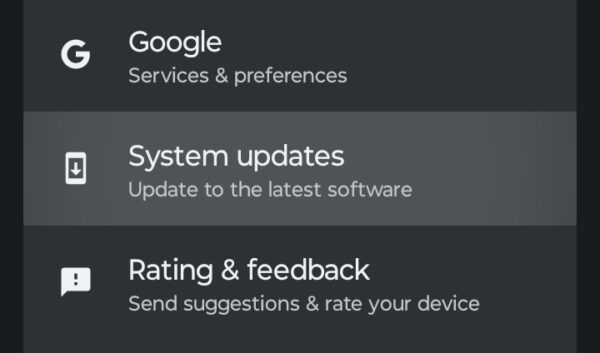
If carrier settings updates appear, download and install them. Restart your phone after updating. Carrier updates include network configurations and security enhancements that improve connectivity.
ChCheck Network Mode Settings
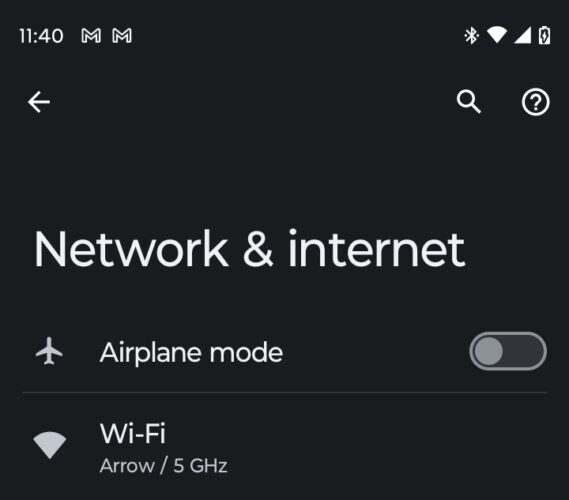
- Open Settings and tap Network & internet.
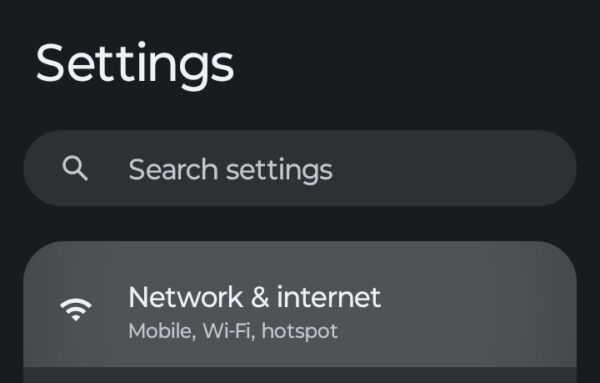
- Select Mobile Network and tap your network if shown.
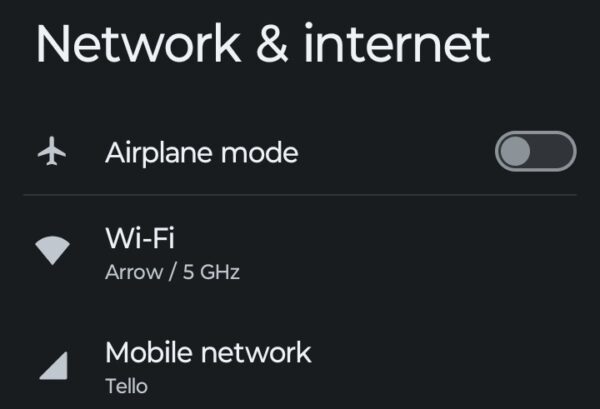
- Check your settings
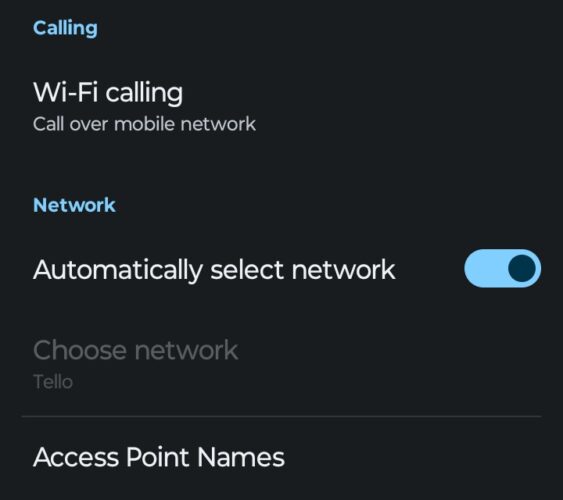
What you’ll see here will vary by your device and carrier. If unsure, select the automatic option like “5G/LTE/3G/2G (auto connect).” The wrong network mode can block your connection completely.
Contact Your Carrier
Call your carrier’s support line using another phone. Explain that the mobile network is not available and mention the steps you’ve tried. They can check if your account is active, verify your SIM card registration, and confirm that no outages affect your area. They might reset your connection or replace a faulty SIM card.
The Bottom Line
Most mobile network problems resolve quickly with basic troubleshooting. Restarting your phone, toggling Airplane mode, or checking your SIM card fix the majority of connection issues. When quick solutions don’t work, resetting network settings usually restores service.
Keep your Android software updated to prevent future problems. If you frequently experience network unavailability in specific locations, the issue likely stems from poor coverage. Consider Wi-Fi calling when cellular signals are weak.
The reset completes in 30 seconds. Your phone restarts automatically, and connections should work immediately afterward.
Coverage varies by location. Buildings, basements, and rural areas often have weak signals. This indicates a coverage issue rather than a device problem.
Yes. Damaged or expired SIM cards fail to authenticate with carrier networks. Contact your carrier for a free replacement.
No. Network resets only remove Wi-Fi passwords, Bluetooth pairings, and cellular configurations. Photos, apps, and contacts remain untouched.
Signal bars show tower connection, not network availability. Your SIM might not be registered with your carrier, or your account could have activation issues.


Improve this guide

User forum
0 messages