
How to Scan QR Codes on Android: A Step-by-Step Guide

 5 min. read
 Updated on
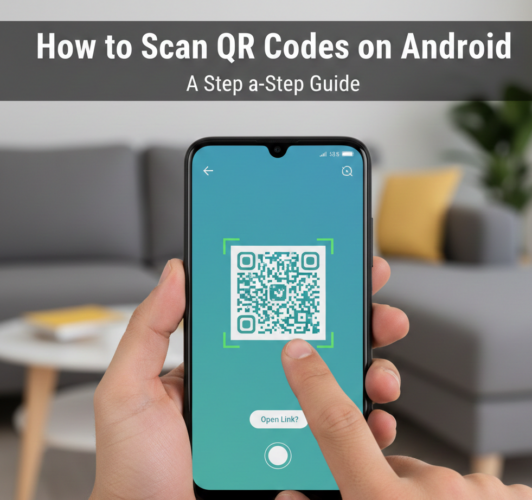
QR codes are everywhere—from restaurant menus and payment links to Wi-Fi credentials and app downloads. If you’re using an Android device, scanning a QR code is quick and easy, and in most cases, you don’t even need to install a third-party app.
In this guide, you’ll learn how to scan QR codes on Android step by step, using built-in features available on most modern devices. We’ll also cover alternative methods, troubleshooting tips, and best practices to help you scan QR codes safely and efficiently.
This guide is ideal for Android users who want a simple, no-stress way to scan QR codes using their phone’s default tools.
How Do You Scan QR Codes on Android?
Most Android phones running Android 8.0 (Oreo) or later come with built-in QR code scanning support through the Camera app or Google Lens. As long as your camera is enabled and your software is up to date, you can scan a QR code in seconds.
What You’ll Need
Before you begin, make sure you have the following:
- An Android smartphone with a working camera
- Android version 8.0 or later
- Adequate lighting for clear scanning
- An internet connection (if the QR code links to online content)
Method 1: Scan a QR Code Using the Camera App
This is the simplest and most common way to scan QR codes on Android.
Step 1: Open the Camera App
- Unlock your Android device.
- Locate and tap the Camera app to launch it.

Step 2: Point the Camera at the QR Code
- Hold your phone steady and aim the camera at the QR code.
- Make sure the QR code fits within the camera’s viewfinder.
- Ensure the code is well-lit and not blurry.

Step 3: Tap the Notification
- Wait a moment for your phone to recognize the QR code.
- A notification or pop-up banner will appear on your screen.
- Tap the notification to proceed.

Step 4: Access the QR Code Content
- The linked website, app, or content will open automatically.
- If it’s a web link, confirm you have an active internet connection.

This is the Web page the QR code was linked to.
Method 2: Scan QR Codes Using Google Lens
If your Camera app doesn’t automatically detect QR codes, Google Lens is a reliable alternative.
Steps to Use Google Lens
- Open the Camera app and tap the Lens icon (usually a square with a dot inside).
- Alternatively, open the Google app and tap the Lens icon.

- Point your camera at the QR code.

- Tap the link that appears on the screen or Tap the shutter button to open the content.

Google Lens is especially useful for older devices or custom Android skins that don’t support QR scanning natively.
How to Scan a QR Code From an Image on Android
If the QR code is saved as an image or screenshot on your phone:
- Open the Google Photos app.

- Select the image containing the QR code.

- Click the 3 dots at the top right corner, and tap the Google Lens icon.

- Tap the detected link to open the content.

Troubleshooting: QR Code Not Scanning on Android?
If your Android phone isn’t scanning QR codes, try the following fixes:
- Clean your camera lens to remove smudges or dust.
- Enable QR scanning in Camera settings (some devices require this).
- Improve lighting or move closer to the QR code.
- Update your Android software to the latest version.
- Restart your device and try again.
- Use Google Lens if the Camera app fails.
Tips and Best Practices for Scanning QR Codes Safely
- Avoid scanning QR codes from unknown or suspicious sources.
- Double-check the URL before entering personal information.
- Keep your device updated to protect against security vulnerabilities.
- Use a secure browser and enable Google Safe Browsing when possible.
- Be cautious of QR codes in public places that may have been tampered with.
Final Thoughts
Scanning QR codes on Android is fast, convenient, and built right into most devices. Whether you’re opening a website, making a payment, or connecting to Wi-Fi, knowing how to scan QR codes properly can save you time and hassle.
With the steps outlined above, you can confidently scan QR codes on your Android phone—no extra apps required.
If you’re experiencing ongoing issues, checking your camera settings or using Google Lens will usually solve the problem.
Most Android phones with a camera and Android 8.0 (Oreo) or later can scan QR codes using the built-in camera app.
No, you can use the default camera app on most modern Android devices to scan QR codes.
Ensure your camera lens is clean and the QR code is well-lit. Restart the camera app or your device if issues persist.
QR code scanning is typically enabled by default on supported devices. Simply open the camera app and point it at a QR code.
QR codes themselves are not harmful, but they can direct you to malicious websites. Exercise caution and only scan codes from trusted sources.


Improve this guide




User forum
0 messages