
How to Sync Samsung Health Data with Google Fit

 5 min. read
 Updated on
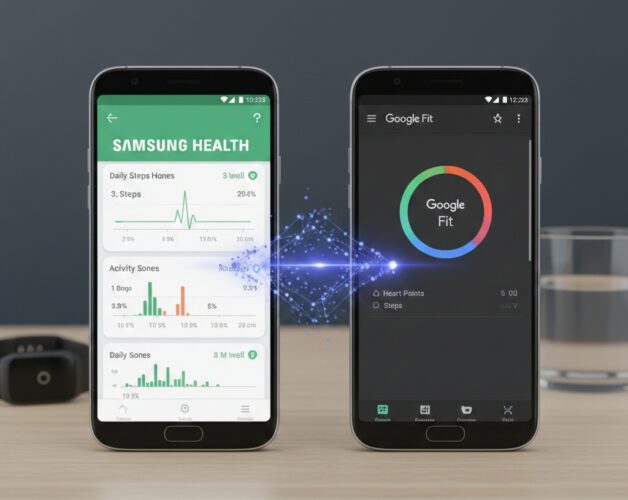
Syncing your Samsung Health data with Google Fit is one of the easiest ways to keep all your fitness and health metrics organized in one place. If you use a Samsung phone but rely on Google Fit for tracking your overall activity, workouts, or wellness trends, connecting both apps ensures nothing gets left behind.
By syncing Samsung Health with Google Fit, you can view your steps, exercises, and other supported health data across platforms without manually transferring information. This is especially useful if you’re switching devices, using third-party fitness apps that rely on Google Fit, or simply want a unified health dashboard.
This guide is designed for Android users who already have both Samsung Health and Google Fit installed and want to integrate their data smoothly. Before starting, make sure both apps are updated to their latest versions and that you’re connected to a stable internet connection.
Why Sync Samsung Health with Google Fit?
Samsung Health is excellent for tracking detailed health metrics on Samsung devices, while Google Fit acts as a central hub for many fitness and wellness apps. Syncing the two allows you to:
- Consolidate health data into one platform
- Share Samsung Health data with apps that rely on Google Fit
- Maintain continuity if you switch between Android devices
- Get a broader overview of your daily activity and fitness trends
Instead of juggling multiple apps, syncing helps streamline your health tracking experience.
What You’ll Need Before You Start
To successfully sync Samsung Health data with Google Fit, make sure you have the following:
- An Android device (preferably a Samsung phone)
- Samsung Health app installed
- Google Fit app installed
- Active Samsung and Google accounts signed in on your device
- A stable internet connection
- The latest versions of both apps
Once everything is ready, you can proceed with the setup.
Syncing Samsung Health to Google Fit Using Health Connect
To sync Samsung Health data with Google Fit via Health Connect, you first need to allow Samsung Health to write data to Health Connect. Once that’s done, you’ll then grant Google Fit permission to read that data.
Step 1: Allow Samsung Health to Write Data to Health Connect
- Open the Samsung Health app.

- Tap the three-dot menu icon and select Settings.

- Tap Health Connect.

- If you haven’t used this option before, you’ll be asked to install “Health Connect” (A third party app that helps to connect both apps together)

- Follow the prompt, and enable Health Connect access from Android’s system settings by tapping OK on the dialog that appears.

- Allow access for both apps you want to connect.

- Toggle on the data types you want Samsung Health to write to Health Connect, or simply enable Allow all.

At this point, Samsung Health is authorized to send its data to Health Connect.
Step 2: Allow Google Fit to Read Data from Health Connect
Next, you’ll need to allow Google Fit to access the data Samsung Health is writing to Health Connect.
- Open the Google Fit app.

- Tap the Profile tab in the bottom-right corner.

- Tap the Settings icon in the top-right corner.

- Enable Sync Fit with Health Connect.

- On the next screen, tap Set up.

- Toggle on the data types Google Fit is allowed to read from Health Connect, or select Allow all.

- Tap Allow, then tap Done to complete the setup.

How to Manage Samsung Health and Google Fit Sync Settings
After syncing, you can adjust what data is shared at any time.
- Open Samsung Health
- Tap the Menu icon
- Go to Settings
- Select Data Permissions
- Under Google Fit, toggle individual data types on or off
This gives you full control over what information is shared between the two platforms.
Things to Keep in Mind
- Data syncing may not be instant. Some metrics can take a few minutes to appear in Google Fit.
- Not all Samsung Health data types are supported by Google Fit.
- Make sure background activity and battery optimization settings aren’t restricting either app.
- If syncing stops, disconnect and reconnect Google Fit from Samsung Health’s Data Permissions.
Final Thoughts
Syncing Samsung Health with Google Fit is a simple but powerful way to centralize your health and fitness data. Once connected, you can enjoy a more complete picture of your daily activity without manually tracking information across multiple apps.
Whether you’re managing workouts, monitoring steps, or using third-party fitness apps that rely on Google Fit, this integration helps make your health tracking more efficient and consistent.
If syncing issues arise, double-check permissions, app updates, and background activity settings to keep everything running smoothly.
No, this feature is currently only available on Android devices.
Yes, a Samsung account is required to use Samsung Health and sync data with Google Fit.
Once set up, the sync process should occur automatically as long as both apps are open and permissions are granted.
Check your internet connection, ensure both apps are updated, and verify that permissions are correctly set in the Samsung Health app.


Improve this guide
User forum
0 messages