
How to Take a Screenshot on Your Android Device: Step-by-Step Guide

 5 min. read
 Updated on
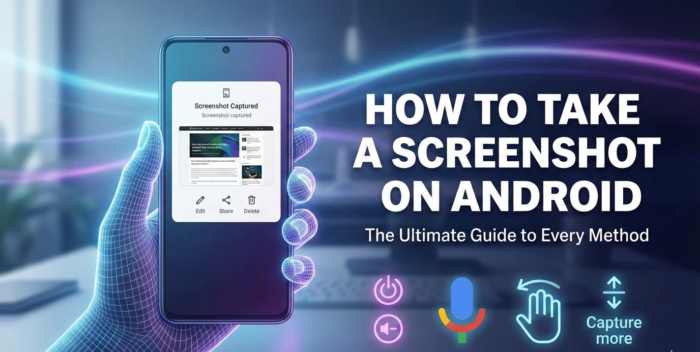
Taking a screenshot on your Android device is a simple but essential skill that comes in handy more often than you might expect. Whether you want to save an important message, share a payment receipt, capture an error message, or keep a record of something you saw online, screenshots make it quick and effortless.
Android offers several built-in ways to capture your screen, and while the core methods are similar across devices, some manufacturers like Samsung include additional options. In this guide, you’ll learn all the common ways to take a screenshot on Android, plus tips for scrolling screenshots, troubleshooting issues, and managing your captured images.
This tutorial works for all Android phones and tablets, regardless of brand or model.
How Do You Take a Screenshot on Android?
Android provides multiple screenshot methods depending on your device, Android version, and enabled settings. Below are the most reliable and widely supported options.
What You’ll Need
Before you start, make sure you have:
- An Android smartphone or tablet
- A charged device (low battery may disable some functions)
- Basic familiarity with your phone’s buttons or settings
No additional apps are required for basic screenshots.
Method 1: The Basic Screenshot Method (Works on Most Android Devices)
This is the standard screenshot method available on almost all Android phones.
Steps:
- Open the screen you want to capture.
- Press and hold the Power button and Volume Down button at the same time.
- Hold for about 1–2 seconds.
- Release the buttons when you see a screen flash or hear a camera shutter sound.
Your screenshot will be saved automatically.
Where to Find Your Screenshot:
- Open the Gallery or Google Photos app
- Navigate to the Screenshots folder

Method 2: Take a Screenshot Using Google Assistant
If your hands are busy or your buttons aren’t working properly, Google Assistant offers a hands-free option.
Steps:
1. Activate Google Assistant by saying “Hey Google” or pressing and holding the Home button (if enabled).

2. Say or type “Take a screenshot.”

3. The screen will be captured instantly and saved.
Note: Google Assistant may not capture protected screens (such as banking apps or incognito pages).
Method 3: Screenshot Using Samsung Palm Swipe (Samsung Devices Only)
Samsung phones include a gesture-based screenshot feature called Palm Swipe to Capture.
How to Enable It:
1. Go to Settings
2. Tap Advanced Features

3. Select Motions and Gestures

4. Turn on Palm Swipe to Capture

Steps to Use It:
- Open the screen you want to capture.
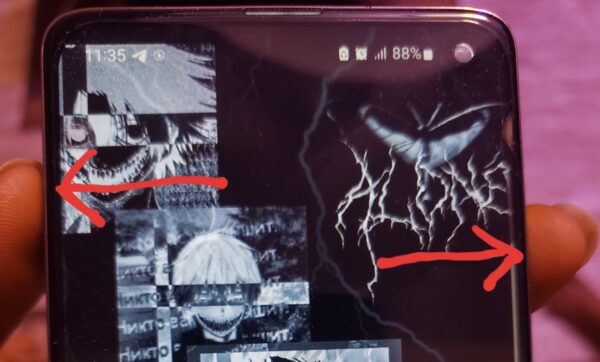
- Place the side of your palm on the edge of the screen.
- Swipe your hand across the screen from left to right (or vice versa).

If done correctly, the screen will flash and save the screenshot.
How to Take a Scrolling Screenshot on Android
Scrolling screenshots allow you to capture more content than what fits on one screen, such as long webpages, chats, or documents.
Using Built-In Android Scrolling Screenshot:
- Take a regular screenshot using buttons or gestures.
- Tap the “Capture more” or downward arrow icon that appears.
- Scroll until all desired content is captured.
- Save the screenshot.

Availability depends on your Android version and device manufacturer.
Using Third-Party Apps:
If your device doesn’t support scrolling screenshots, apps like Stitch & Share can help you manually stitch multiple screenshots into one long image.

Tips and Best Practices for Taking Screenshots on Android
- Hide sensitive information before capturing screens, especially passwords or financial details.
- Organize screenshots into folders to avoid clutter.
- Use built-in editing tools to crop, blur, or annotate screenshots.
- Back up screenshots to Google Drive or cloud storage to prevent accidental loss.
- Learn your device’s shortcut methods to save time.
Common Screenshot Problems and How to Fix Them
- Problem: Screenshot not saving. Solution: Check your storage space; clear some space if necessary.
- Problem: No shutter sound or flash. Solution: Ensure your device’s volume is up, and check the screenshot sound settings.
- Problem: Can’t find screenshots. Solution: Look in the Screenshots album in your default photo app.
- Problem: Gesture method not working on Samsung. Solution: Confirm that Palm Swipe to Capture is enabled under Settings > Advanced Features > Motions and Gestures.
Mastering Screenshot Techniques on Android
Taking screenshots on Android is easy once you understand the different methods available. Whether you rely on hardware buttons, Google Assistant, gesture controls, or scrolling screenshots, Android gives you flexible options to capture exactly what you need.
By mastering these techniques, you’ll be able to save important information, troubleshoot problems, and share content faster and more efficiently—no matter which Android device you’re using.
Most older Android devices use the Power and Volume Down button method. If this doesn’t work, check the manufacturer’s website for model-specific instructions.
Yes, but be aware that some apps like Netflix might restrict screenshots to protect content.
Try another method, such as using Google Assistant or a third-party app. If issues persist, restart your device or check for software updates.
Some apps, especially banking or streaming apps, may restrict screenshots for security and copyright reasons.
Yes, several apps provide enhanced features, such as editing and sharing options. Check out Screenshot Easy for innovative ways to take screenshots on your Android


Improve this guide




User forum
0 messages