
How to Turn Off RTT Calling on Android (Step-by-Step Guide)

 5 min. read
 Updated on

If you need to turn off RTT calling on Android, you’re probably dealing with a text box that keeps popping up during phone calls. RTT calling has activated, and you have no idea why or how to make it stop. You’re not alone, as thousands of Android users deal with this every day.
RTT stands for Real-Time Text. It’s an accessibility feature built into Android phones that lets you send text messages during phone calls. The text appears character by character as you type it, creating a live conversation rather than the delayed back-and-forth of regular texting.
The feature helps people with hearing or speech disabilities communicate on phone calls. It’s valuable for those who need it, but if you accidentally trigger it or don’t use it, RTT can interrupt your normal calling experience. Here’s how to turn off RTT calling on Android permanently.
Why RTT Keeps Activating
The most common reason? You’re accidentally tapping the RTT button during calls. Many Android phones display the RTT option right on the call screen, usually near the speaker, mute, or keypad buttons. If your face touches the screen or you’re holding the phone between your shoulder and ear, you might be triggering it without realizing it.
Software glitches can also cause problems. Outdated Android versions sometimes have bugs that make RTT activate on its own. Your mobile carrier might automatically enable RTT during certain calls or in specific coverage areas. Third-party apps that interact with your phone’s calling features can interfere with RTT settings as well.
Turn Off RTT Calling on Android
The exact steps vary depending on your phone manufacturer and Android version, but the core process stays the same across most devices.
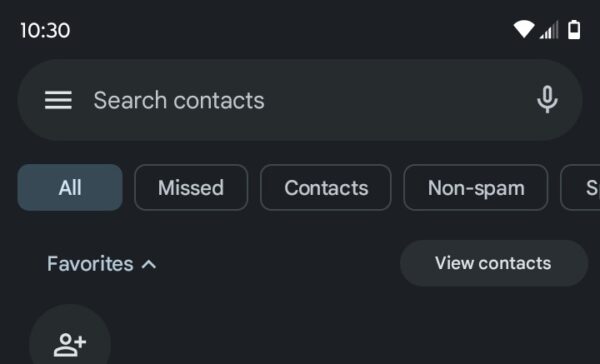
- Open your Phone app and tap the three-dot menu icon in the top right corner or the “Hamburger” menu on the left side
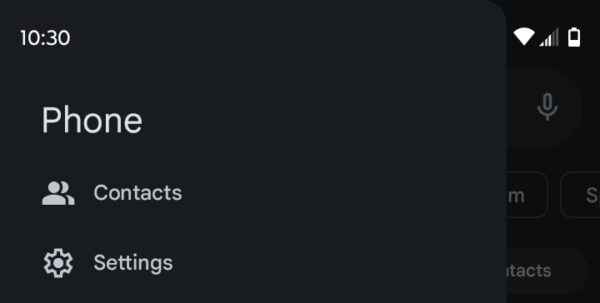
- Select Settings from this menu or tap the gear icon
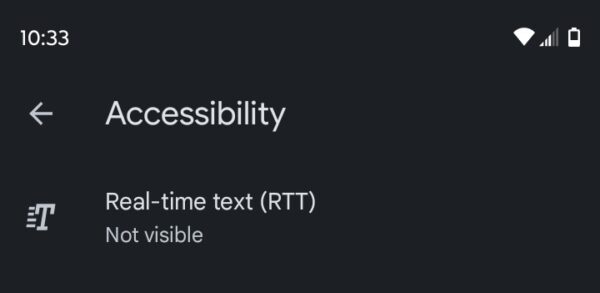
- Navigate to Accessibility and tap on Real-time text (RTT)
4. Under visibility options, select “Not visible.”
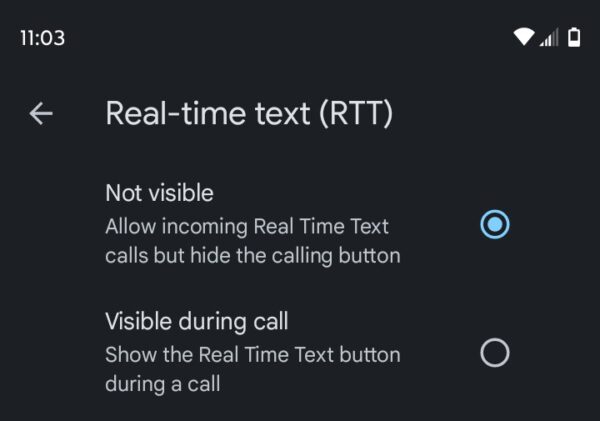
This turns off the RTT button completely. Other options include “Visible during call” (shows RTT only when you’re on a call) or “Always visible” (keeps RTT ready at all times).
Some Android phones follow a slightly different path, depending on the manufacturer. If you can’t find RTT in your Phone app settings, try the main Settings app. Go to Settings > Accessibility and search for RTT or Real-time text there.
When RTT Won’t Stay Disabled
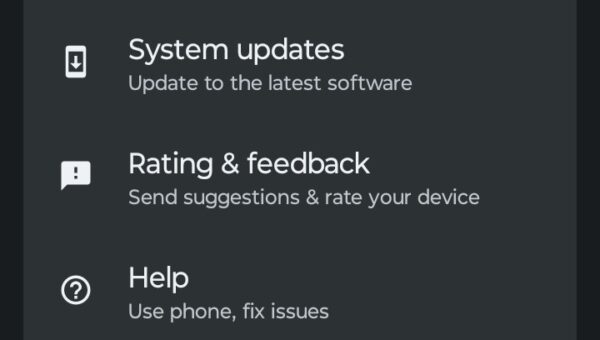
Sometimes RTT stubbornly refuses to stay off. Outdated software is often the culprit. Check for system updates by going to Settings > System > System update. Install any available updates and restart your phone.
Clear your Phone app cache and data. Go to Settings > Apps > Phone > Storage, then tap “Clear cache” and “Clear data.” This resets the app to its default state and often fixes persistent issues.
You can also check for conflicting accessibility features. If you use TalkBack, Voice Assistant, or hearing aid compatibility, these can sometimes interact with RTT in unexpected ways. Try temporarily disabling other accessibility features to see if RTT behavior improves.
Factory reset is a last resort for stubborn RTT issues. If nothing else works, backing up your data and performing a factory reset will restore all default call settings. Go to Settings > System > Reset options > Factory data reset.
The Bottom Line
Disabling RTT calling takes just a few taps in your Phone app settings. Once you turn it off, the text button disappears from your call screen, and your phone returns to standard voice calls. Keep in mind that incoming RTT calls are automatically enabled in the United States due to FCC regulations, so you might still see an “Answer as RTT call” option even when you’ve disabled outgoing RTT. RTT is a valuable accessibility tool for people who need it, but if you’re constantly triggering it by accident, turning it off will save you the frustration.
Does turning off RTT calling delete any messages or data?
No. Disabling RTT only removes the text option from your call screen. Your regular text messages, call history and phone data remain untouched. The setting simply controls whether the RTT button appears during phone calls.
Can I still receive RTT calls if I turn off RTT on my Android phone?
Yes. FCC regulations require all phones in the United States to accept incoming RTT calls, even when outgoing RTT is disabled. You’ll see an “Answer as RTT call” option when someone calls you using RTT. This ensures people who rely on accessibility features can always reach you.
Is RTT calling the same as TTY mode on Android?
No. RTT replaced the older TTY technology and offers more features. TTY required special equipment and worked differently, while RTT is built directly into modern Android phones. Most devices now use RTT exclusively, but some older phones still show TTY settings. You can safely disable both if you don’t need them.
Why does RTT keep turning back on after I disable it?
System updates often reset accessibility settings to their defaults. Third-party calling apps can also override your RTT preferences.


Improve this guide




User forum
0 messages