
How to Use Chrome Extensions on Your Android Browser

 5 min. read
 Updated on
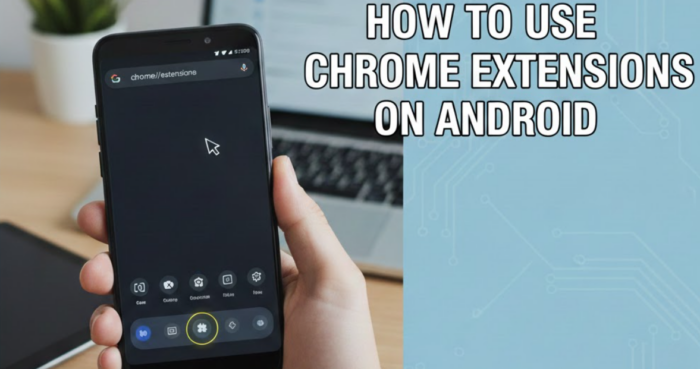
Chrome extensions make desktop browsing more productive and secure, but the official Chrome app for Android doesn’t support them. The good news is that alternatives like the Yandex Browser provide the most reliable way to run Chrome extensions on Android. The setup takes minutes, and you get access to thousands of extensions from the Chrome Web Store.
Why Chrome Doesn’t Support Extensions on Android
Google’s Chrome browser for Android deliberately lacks extension support. The company argues that mobile screens are too small for extension interfaces designed for desktops. They also cite performance concerns, claiming extensions could slow down phones with limited RAM and processing power.
Security plays a role too. Chrome extensions can access browsing data, and Google worries about malicious extensions on mobile devices. The mobile Chrome team prioritizes speed and simplicity over customization, which means extensions remain a desktop-only feature.
Firefox for Android offers a limited selection of its own add-ons, but you can’t use Chrome extensions on Android browsers through Firefox. For Chrome Web Store access, you need a Chromium-based alternative like Yandex Browser.
Install Yandex Browser
Open the Google Play Store on your Android device and search for “Yandex Browser.” Tap Install to download the app. Once installation completes, open Yandex Browser from your app drawer or home screen.

The browser launches with a clean interface similar to Chrome. You’ll see a search bar, bookmarks, and basic navigation controls. Yandex doesn’t require an account to use Chrome extensions on Android browsers, though creating one syncs your data across devices.
Access the Chrome Web Store
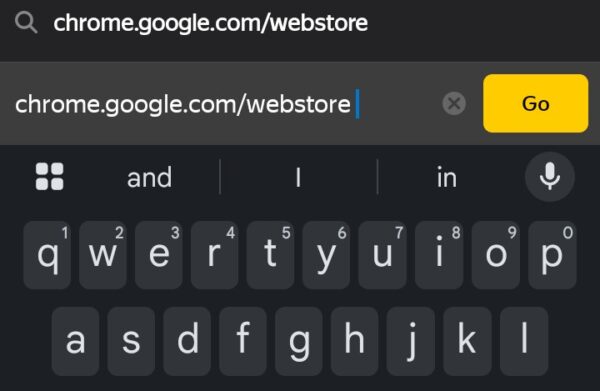
After the browser has been installed, you’ll want to launch the Yandex Browser and tap the address bar. Type chrome.google.com/webstore and press enter. The full Chrome Web Store loads just like on desktop. You can browse categories, search for specific extensions, or explore featured items.
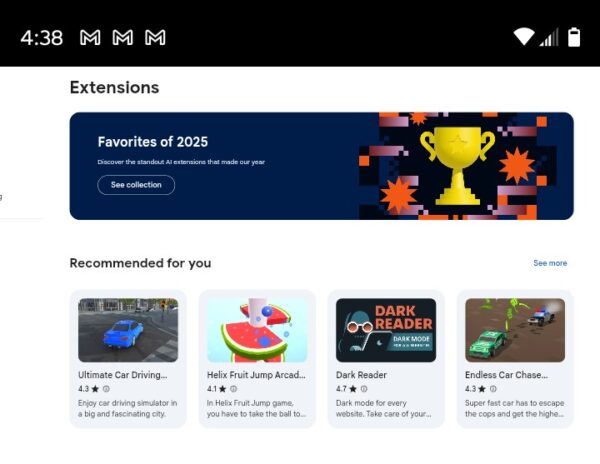
The store interface works smoothly on mobile screens. Choose extensions, and categories like Productivity, Shopping, and Utilities help you find what you need quickly. Popular extensions like uBlock Origin, Dark Reader, and various password managers appear in search results.
Install Chrome Extensions
Find the extension you want and tap its listing. The extension page displays screenshots, descriptions, and user reviews. Read through the permissions the extension requests to understand what data it can access.
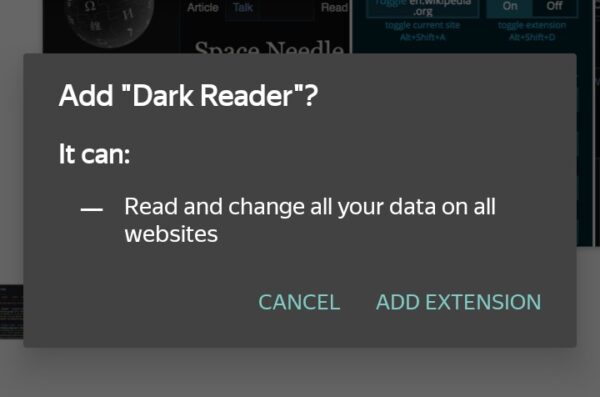
Tap the “Add to Chrome” button. A confirmation prompt appears asking if you want to add the extension. Tap “Add extension” to confirm. The Yandex browser downloads and installs the extension automatically. Most extensions activate immediately without requiring a browser restart.
Manage Your Extensions
Using Chrome extensions on Android is simple with Yandex, but you’ll want to know how to manage your extensions. Thankfully, that’s just as easy.
Open Yandex Browser’s menu by tapping the three-dot or hamburger menu, and choose Settings.
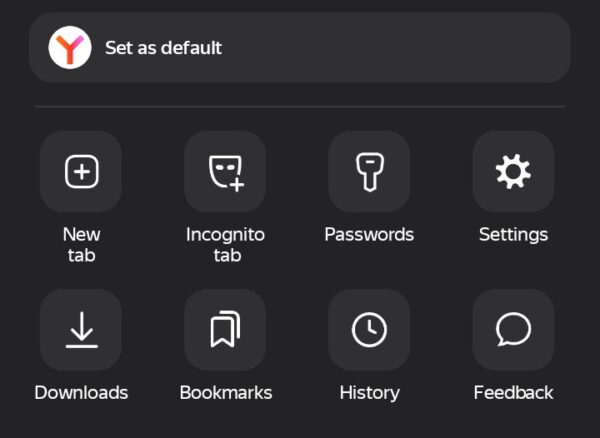
Scroll down and tap Extension catalog
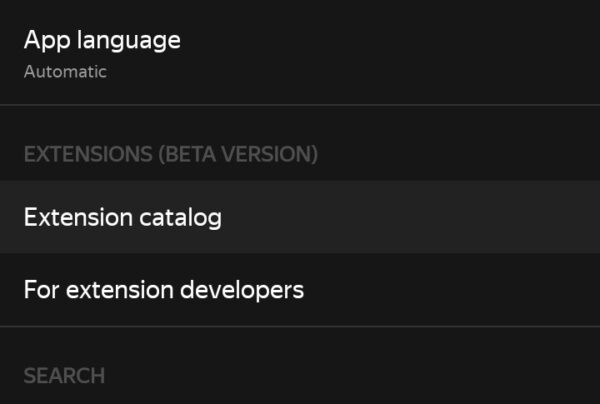
Toggle extensions off to disable them temporarily without uninstalling. This helps when you suspect an extension is causing problems or slowing down your browser. Tap an extension’s name to access its detailed settings page.
To remove an extension completely, tap the extension in your list and select Learn more. From the new menu, choose Remove to delete the Chrome extension from Yandex.
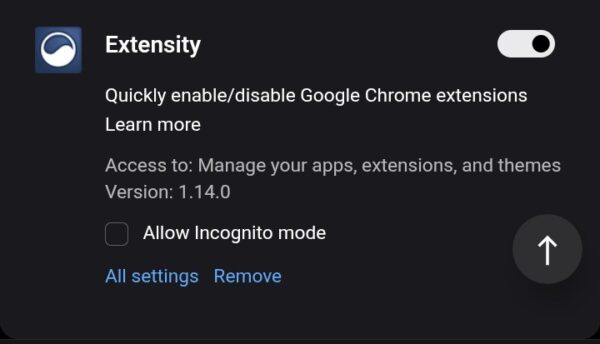
Some extensions update automatically through Yandex. Check for updates manually by visiting the Extensions catalog and looking for any update notifications. Keeping extensions current ensures you have the latest security patches and features.
The Bottom Line
Learning to use Chrome extensions on Android browsers opens up functionality that Google Chrome deliberately excludes. Yandex Browser provides the most straightforward path to extension support without complicated setup processes or security concerns.
Start with essential extensions like ad blockers and privacy tools. Don’t overload your browser with dozens of extensions, as each one consumes memory and can slow down performance. Stick to extensions you actually use daily, and disable or remove the rest. Your phone will run faster, and you’ll still get the customization that makes desktop browsing so productive.
There’s no hard limit, but installing too many extensions slows down your browser and increases memory usage. Stick to five or fewer essential extensions for the best performance on mobile devices with limited RAM.
Yes, active extensions consume RAM and processing power, which drains the battery faster. Ad blockers and privacy extensions typically have minimal impact, while extensions that constantly sync data or monitor pages use more resources.
Some extensions are desktop-only and won’t work properly on mobile devices. The developer may have restricted mobile installation, or the extension hasn’t been optimized for smaller screens and touch interfaces.
Most extensions from the Chrome Web Store are safe, but always check permissions and user reviews before installing. Only install extensions from trusted developers with high ratings.
No, Google Chrome for Android doesn’t support extensions. You need to use a browser like Yandex Browser that supports the Chrome Web Store.


Improve this guide




User forum
0 messages