
Make Your Android Look Like iOS 26: Complete Transformation

 4 min. read
 Published on
iOS aesthetics appeal to millions, but not everyone wants to switch to an iPhone. The good news is you can make Android look like iOS 26 without buying new hardware. Through launcher apps, icon packs, and customization tools, your Android device can mimic the clean interface, smooth animations, and polished design Apple is known for.
The transformation takes minutes and requires no technical skills or root access. You download a few free apps, apply some settings, and suddenly your Android home screen resembles an iPhone running iOS 26. The changes remain reversible, so you can switch back to your original setup anytime.
What You’ll Need
The process to make Android look like iOS 26 requires four main components. You’ll need an iOS-style launcher to replace your home screen, an icon pack that mimics iOS 26 icons, a widget app for iOS-style widgets, and a Control Center app for quick settings access. All these apps are free on the Google Play Store, though some offer premium features through optional purchases.
Making Android Look Like iOS 26
These steps transform your Android device into an iOS 26 lookalike. Follow them to achieve the best results for your smartphone.
Install iOS Launcher and Icon Pack
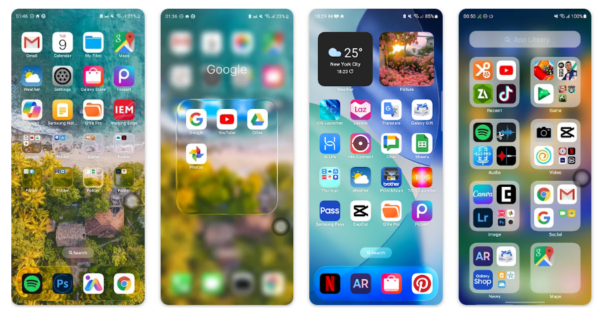
Launcher iOS 26 from LuuTinh Developer delivers the most authentic iOS 26 experience. This app replicates the iOS home screen layout, removes the app drawer, and arranges icons in the familiar grid pattern. Download it from the Google Play Store and set it as your default launcher when prompted.
The launcher includes liquid glass icons, active wallpapers, and Control Center integration. After installation, long-press your home screen to access customization options. You can adjust icon size, enable or disable the search bar, and configure gestures.
For icon consistency, install an iOS 26 icon pack if needed. Popular options include iOS 16 Icon Pack and iPhone Icon Pack. Apply them through your launcher’s settings under Icon Style. The setup takes about five minutes. Grant necessary permissions when requested for storage, calendar, and location access.
Add iOS Widgets
KWGT Kustom Widget Maker offers the most flexibility for creating iOS-style widgets. Download KWGT from the Play Store, then search for iOS widget packs. Packs like “iOS Widgets for KWGT” provide pre-made designs that match iOS 26.
To add a widget, long-press your home screen and select Widgets. Find KWGT and drag a widget to your desired location. Tap the widget, select the iOS design you want, and save. Common iOS widgets include clock, weather, calendar, and music controls.
Position widgets at the top of the screen with app icons below to match iOS layout. KWGT’s free version supports basic customization.
Install iOS Control Center
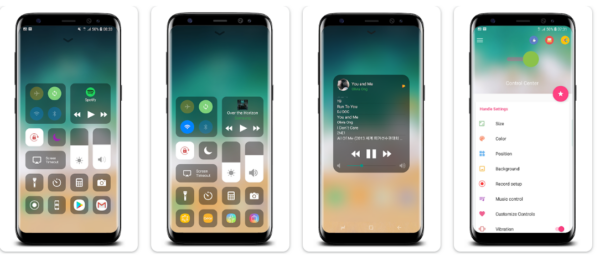
Control Center iOS 15 by LuuTinh Developer brings Apple’s quick settings panel to Android. Download it from the Play Store and grant overlay permissions. The app adds a swipeable panel that accesses Wi-Fi, Bluetooth, brightness, volume, and flashlight.
Configure the activation gesture in settings. Set it to swipe up from the bottom, down from the top, or in from either side. The Control Center iOS 15 app supports adding custom app shortcuts alongside system toggles. You can rearrange toggle positions in edit mode.
Customize Lock Screen and Wallpapers
iOS lock screens display notifications differently than Android. Apps like Lock Screen iOS 16 replicate Apple’s notification style. Install a lock screen app from the Play Store and configure it as your default.
Wallpapers complete the transformation. Search for “iOS 26 wallpapers” in your browser or check wallpaper apps like Walli and Zedge. Set your wallpaper through your launcher’s settings. Some iOS launchers include curated wallpaper collections that match Apple’s style.
The Bottom Line
Transforming Android to look like iOS 26 gives you Apple’s visual polish without switching ecosystems. The process requires patience during initial setup, but the results closely mimic an iPhone’s appearance. You keep Android’s flexibility and customization while enjoying iOS aesthetics.
Limitations exist. Animations won’t match iOS’s smoothness exactly, and some apps will always look distinctly Android. System settings, notification styles, and certain interface elements remain unchanged since they’re controlled by Android’s core system. Banking apps, games, and other software maintain their Android design regardless of your launcher.
The transformation works best on modern Android devices. Phones running Android 9 or newer handle iOS launchers smoothly. Older devices may experience lag or compatibility issues. If performance suffers, try lighter iOS launchers or reduce widget usage.


Improve this guide




User forum
0 messages