
Mastering Nova Launcher: A Comprehensive Guide for Beginners

 8 min. read
 Updated on
Your Android home screen looks exactly like everyone else’s. The same icons, layout, and the same boring grid. Learning how to use Nova Launcher changes everything. This powerful app gives you complete control over your phone’s appearance and behavior, transforming a stock interface into something uniquely yours.
Nova Launcher has been the go-to customization tool for Android users for more than a decade. It’s fast, lightweight, and packed with options that let you tweak every detail of your home screen. Whether you want simple changes or deep customization, Nova delivers.
Nova Launcher Explained
Nova Launcher replaces your default home screen with a customizable interface that works on any Android device running version 5.0 or newer. It handles everything from icon placement to gestures, giving you control over aspects your stock launcher won’t touch.
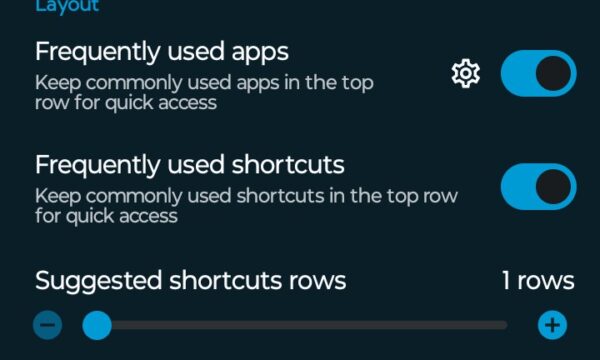
The app comes in two versions. The free version offers solid customization options, including icon packs, grid adjustments, and basic gesture controls. Nova Launcher Prime, the paid version at around $5, unlocks advanced features like custom gestures for individual icons, unread notification badges, the ability to hide apps, and custom app drawer groups. Prime also includes extra scroll effects and lets you create swipe actions on any icon.
The future of Nova Launcher is uncertain. Branch Metrics acquired the app in 2022, and by 2024, most of the team had been laid off. Founder Kevin Barry left the company in September 2025 after being told to stop development. The app still works and remains available on the Google Play Store, but active development has ended. Future Android updates may eventually break compatibility.
Installing Nova Launcher
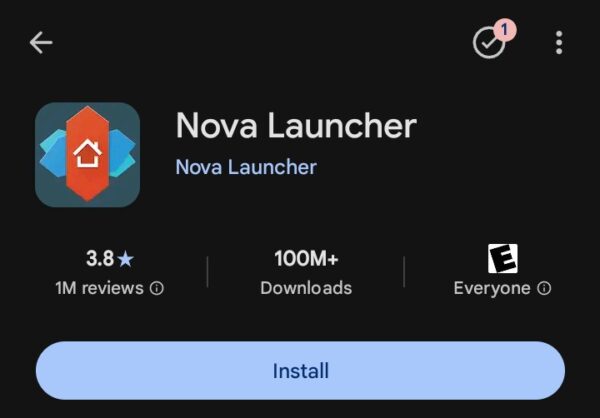
Download Nova Launcher from Google Play. Once your installation process finishes, you can restore a backup, skip setup, or let it walk you through the setup process. If you’re new to using Nova Launcher or any custom launcher, it’s a good idea to let the app show you the ropes. If you’d rather skip ahead, you’ll want to head to the settings menu.
The setup wizard walks you through basic choices like theme selection, icon size, and whether to import your current home screen layout. Importing keeps your existing app arrangement while adding Nova’s features on top. Starting fresh gives you a blank canvas to build exactly what you want.
Configuring Basic Settings
Once Nova is installed, you can access the Settings by tapping the icon on your new home screen. From here, you can set Nova as your default launcher or adjust a wide array of settings. The first thing you’ll want to do is tap Home screen to tweak the look and layout.
If Nova doesn’t automatically become your default launcher, open your phone’s Settings app. Navigate to Apps, then Default apps, and select Home app. Choose Nova Launcher from the list. Your phone will now use Nova every time you press the home button.
Home Screen Settings
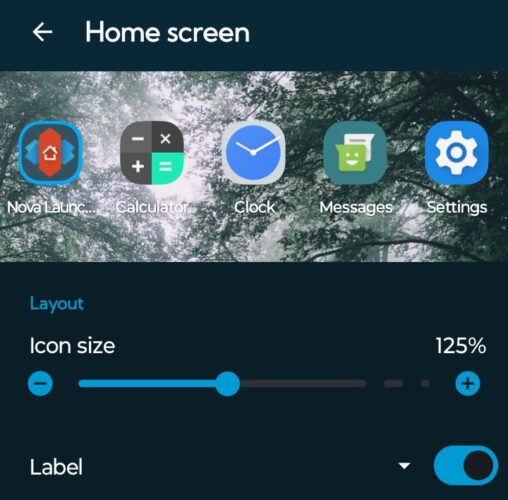
Home screen allows you to adjust icon size, labels, search bar placement, and more. Each section has its own submenu full of options, so it can take some time to get through it all.
The Desktop Grid setting controls how many icons fit on your home screen. Stock launchers usually lock you into a 4×4 or 5×5 grid. Nova lets you go up to 12×12, or down to 3×3 if you prefer a minimalist look. More rows and columns mean more apps visible at once, but icons become smaller.
Icon Layout adjusts icon size and label text. You can increase icon size up to 150% or shrink them down to 50%. Labels can be hidden completely for a cleaner look, or you can adjust the font, size, and color. Shadow effects on labels improve readability over busy wallpapers.
The Dock sits at the bottom of your screen. Nova lets you adjust the number of dock icons, change the dock height, or disable it entirely. You can enable dock pagination to swipe between multiple dock pages, essentially giving you dozens of quick access apps instead of the usual five.
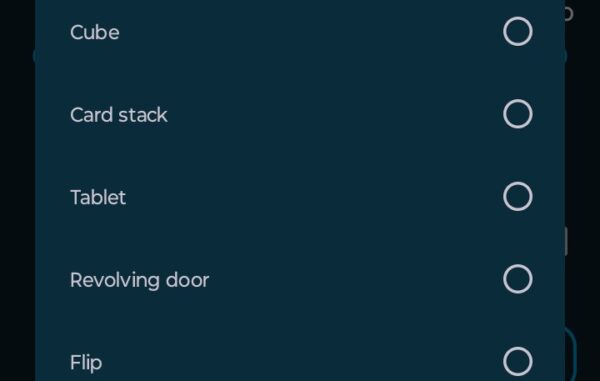
Transition effects control the animation when swiping between home screen pages. Options range from simple slides to 3D effects like cube rotation or accordion folds. Pick something that feels smooth, not distracting.
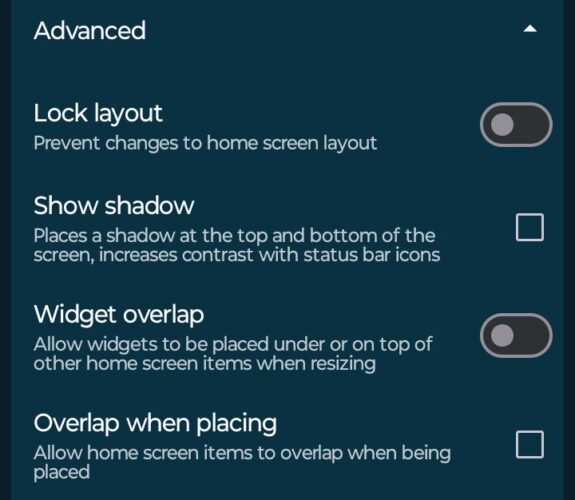
Advanced options include wallpaper scrolling, which makes your background move as you swipe between pages. You can also adjust padding around icons and widgets, control page indicators, or enable infinite scroll so swiping right from the last page loops back to the first.
Look & Feel
This section controls the overall visual style and behavior of Nova Launcher. Night mode automatically switches to a dark theme based on sunset and sunrise times in your location, or you can set custom hours. The dark theme affects the app drawer, folders, and notification bar.
Icon style settings let you apply icon packs downloaded from the Play Store. Thousands of icon packs exist, ranging from minimalist to ornate. You can also set adaptive icon shapes if you want rounded, square, or teardrop-shaped icons instead of whatever the app developer chose.
Notification bar settings control whether the status bar appears on your home screen. You can hide it completely for a full-screen experience, or keep it visible. The app drawer can have its own separate notification bar setting, giving you different looks for your home screen versus your app list.
Advanced Nova Customization
The real power of how to use Nova Launcher shows up in the advanced features. These options go beyond simple visual changes and fundamentally alter how you interact with your phone.
Gestures & Inputs
Gestures turn simple swipes, taps, and pinches into shortcuts. You can assign different actions to gestures performed on empty areas of your home screen. Swipe up might open your app drawer, while swipe down could expand notifications. Double-tap can launch your camera, and pinch in might show all open apps.
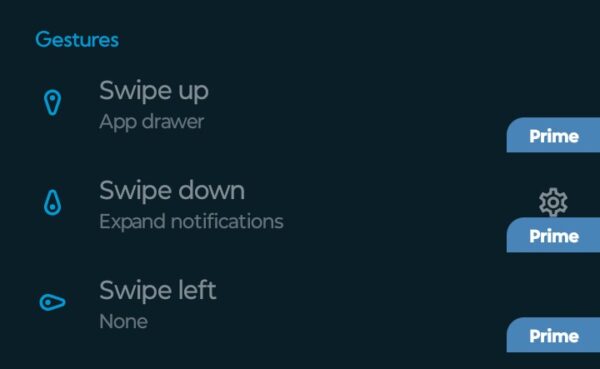
Nova Launcher Prime unlocks per-icon gestures. Swipe up on the phone icon to open your contacts instead of the dialer. Swipe up on a folder to open a specific app inside it. This feature packs multiple functions into single icons, reducing home screen clutter.
Common gesture actions include opening apps, toggling settings like Wi-Fi or flashlight, expanding notifications, locking the screen, and launching voice search. You can stack multiple functions behind different gestures, making your phone faster to use once you memorize your setup.
Integrations
Nova connects with several external services to expand functionality. The most popular integration is Google Discover, which places Google’s news and information feed on your leftmost home screen page. You’ll need to install the Nova Google Companion app separately and enable it in Nova Settings under Integrations.
Sesame Shortcuts is another powerful integration. This third-party app adds deep app shortcuts and search functionality. You can create one-tap shortcuts to specific contacts, WhatsApp chats, or settings screens. Sesame learns from your usage and suggests relevant shortcuts over time.
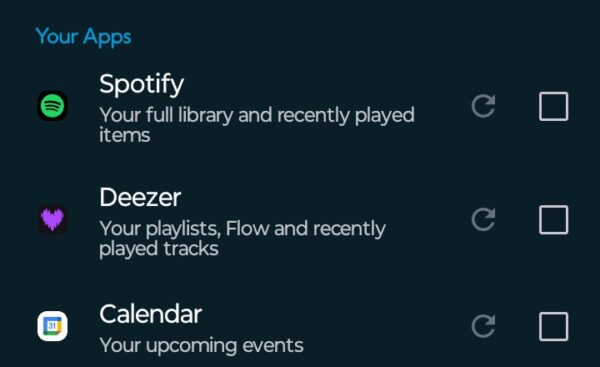
The integration menu also lets you toggle adaptive icons, which adjust their appearance to match Android’s Material You theming system. If your phone supports dynamic color theming, enabling this makes Nova’s interface colors shift based on your wallpaper.
Feed Page
The feed page sits to the left of your primary home screen. By default, it’s empty or shows Google Discover if you’ve enabled that integration. You can disable the feed page entirely if you don’t use it, freeing up that screen real estate.
Some users place widgets on the feed page instead of cluttering their main home screens. A calendar widget, weather forecast, or music player can live here for quick glances without disrupting your primary layout. The feed page scrolls independently, so you can stack multiple tall widgets without cramming everything into view.
Nova Launcher Prime adds folder drawer groups, which aren’t technically in the feed section but work similarly. These let you create custom tabs in your app drawer. You might have tabs for work apps, games, or social media. Each tab shows only its designated apps, making it faster to find what you need.
The Bottom Line
Learning how to use Nova Launcher takes some experimentation. The sheer number of options can overwhelm new users. Start with basic changes like icon packs and grid size, then gradually explore gestures and integrations as you get comfortable.
Back up your configuration regularly through Nova Settings. The backup feature saves your entire layout, including icon positions, folder contents, and all settings. If you switch phones or accidentally break something, you can restore everything in seconds. Backups save to your device storage or cloud services like Google Drive.
Nova Launcher transformed Android customization for over a decade. While active development has ended, the app still works perfectly on current Android versions. If you’re willing to accept that future updates might break compatibility, Nova remains one of the most powerful ways to personalize your Android experience. If you’re looking for an alternative to Nova, we have that covered as well!


Improve this guide




User forum
0 messages