
Microsoft Phone Link Windows 10 Guide: Link to Windows

 6 min. read
 Published on
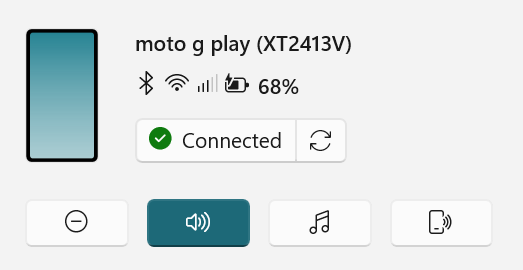
If you want to use Microsoft Phone Link on Windows 10, you’re looking at the easiest way to connect your Android phone to your computer. Phone Link bridges the gap between your devices, letting you access text messages, photos, notifications, and even make calls directly from your Windows 10 PC without picking up your phone.
Setting up Microsoft Phone Link Windows 10 takes just a few minutes and doesn’t require any cables or complicated configurations. Once connected, your phone and computer work together seamlessly, keeping you productive without constantly switching between devices.
What is Microsoft Phone Link?
Microsoft Phone Link is a free application that connects your Android phone to your Windows 10 or Windows 11 PC. The app lets you view and respond to text messages, access your photo library, receive phone notifications, make and receive calls, and mirror your phone’s screen all from your computer.
Phone Link creates a wireless connection between your devices using your Microsoft account. You can drag and drop files between your phone and PC, copy and paste text across devices, and manage multiple apps from your phone without ever touching it. The app works in the background, syncing your devices automatically whenever they’re connected to the same network.
Microsoft originally launched this as “Your Phone,” and then it was renamed it to “Phone Link.” The Android companion app was called “Your Phone Companion” and is now called “Link to Windows.” Despite the name changes, the functionality remains the same. The rename happened alongside Windows 11’s release to better reflect the cross-device experience.
How Do You Use Microsoft Phone Link on Windows 10?
Using Microsoft Phone Link on Windows 10 requires setup on both your computer and your Android phone. The process is straightforward, and the apps guide you through each step. You’ll need a Microsoft account, a Windows 10 PC running the October 2018 Update or later, and an Android phone running Android 7.0 or newer.
Download and Install Microsoft Phone Link
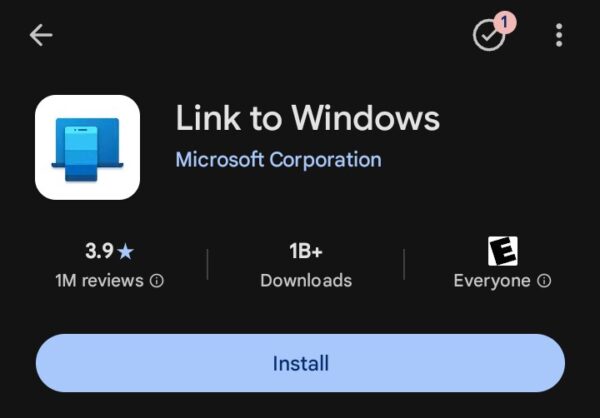
The setup process starts with your Android phone. You’ll download the Link to Windows app, sign in with your Microsoft account, and grant the necessary permissions.
Most Windows 10 computers already have Phone Link pre-installed if you’re running the October 2018 Update (version 1809) or later. If you can’t find it on your PC, you’ll need to download it from the Microsoft Store. The app is completely free and takes just minutes to install.
- Download Link to Windows from Google Play
- Sign in to the App
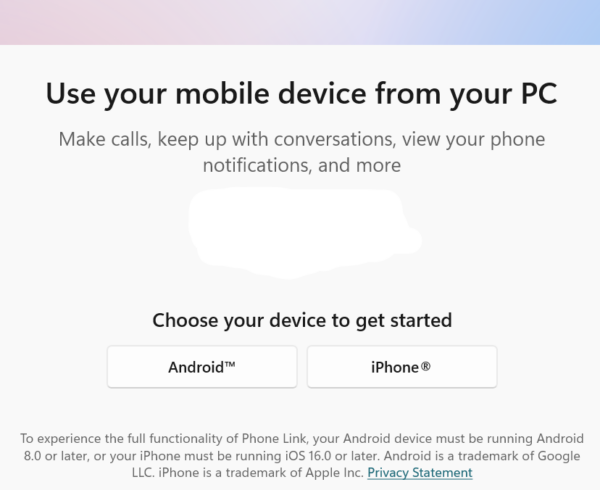
- Follow the Sign in process
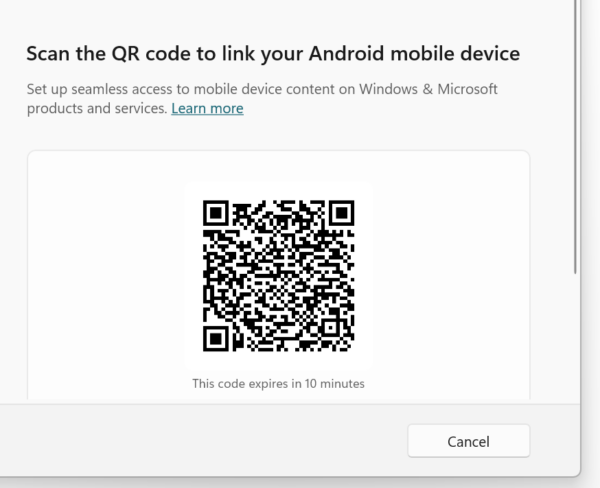
How you’ll sign in depends on your PC and how things are set up. In my case, I needed to sign in with my fingerprint on my laptop, then confirm a code from the PC on my smartphone.
- Confirm codes and accept
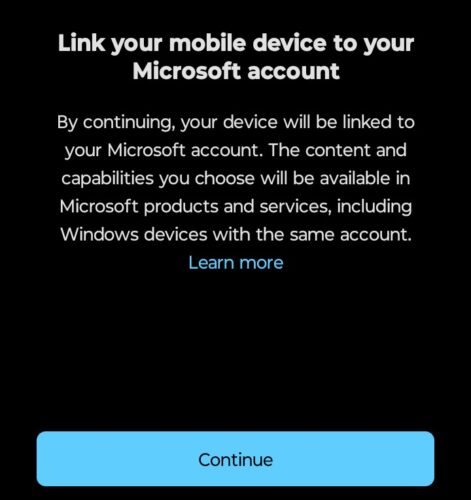
- Set your preferences
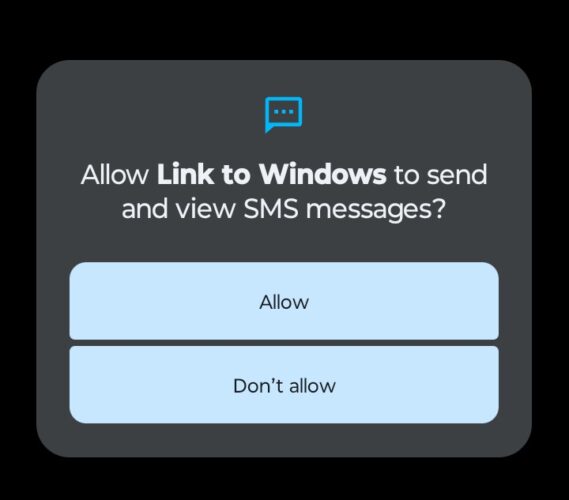
Once you’re through the passcode gauntlet, you’ll receive a message on your phone asking you to confirm options. From here, you can allow Link to Windows to manage phone calls, contacts, photos, videos, and texts. If successful, you’ll see an image on your Android smartphone similar to the one below.
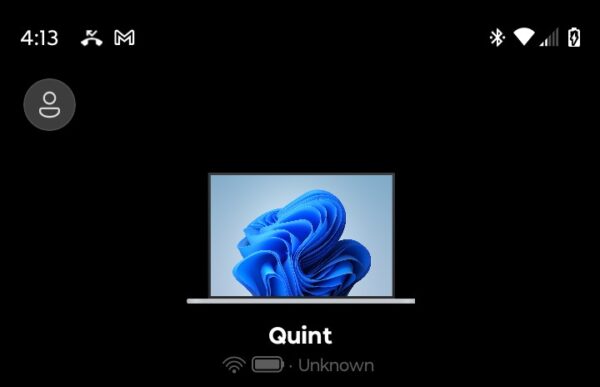
Using Phone Link Features
Once Phone Link connects your devices, you can access your phone’s content directly from your Windows 10 PC. The app organizes features into tabs along the left side of the window, making it easy to switch between messages, photos, calls, and notifications.
Text messages appear in a chat interface similar to your phone’s messaging app. You can read conversations, send new messages, and reply to texts using your computer’s keyboard. Photos and videos from your phone’s camera roll display in a grid layout. Select any image to view it full-screen, save it to your PC, or share it through other Windows apps.
Phone calls work through your computer’s speakers and microphone. Click a contact to dial, or answer incoming calls without touching your phone. Notifications from your Android apps appear as Windows notifications in the bottom right corner of your screen. You can dismiss them, open the related app on your phone, or interact with quick actions like replying to messages.
The Bottom Line
Microsoft Phone Link Windows 10 eliminates the need to constantly pick up your phone while working on your computer. The initial setup takes just a few minutes, and once connected, your devices stay synced automatically. You’ll need both devices on the same Wi-Fi network for the connection to work, and the Link to Windows app must stay running in the background on your phone.
Most Android phones running Android 7.0 or newer support Phone Link, making it accessible to most users. The feature works best when you grant all permissions during setup, though you can adjust these later in the app settings if needed.
Does Microsoft Phone Link work with iPhones?
Phone Link has limited functionality with iPhones compared to Android. You can only access messages and make calls through iMessage on your PC. Full features like photo syncing, notifications, and screen mirroring only work with Android phones running Android 7.0 or newer.
Why won’t my phone connect to Phone Link on Windows 10?
Make sure both devices are connected to the same Wi-Fi network and Bluetooth is enabled on both. Check that you’re signed in with the same Microsoft account on your PC and phone. Restart both devices and ensure the Link to Windows app is running in the background on your Android phone.
Does Phone Link drain my phone’s battery?
Phone Link uses minimal battery since it maintains a lightweight background connection. The app only becomes active when you’re actively using features like messaging or photo viewing. Most users won’t notice significant battery drain, but you can close the app on your phone if you’re not using it.
Can I use Phone Link without Wi-Fi?
No. Phone Link requires both your PC and Android phone to be connected to the same Wi-Fi network to function. The feature won’t work over mobile data alone or if your devices are on different networks. Some features like Bluetooth calling might work with just Bluetooth enabled, but full functionality needs Wi-Fi.


Improve this guide




User forum
0 messages